Table of Contents
Smart Launcher 6 is worth trying if you frequently hunt for apps or want more control over your Android home screen. It groups apps into categories, lets you change icon and widget spacing, and offers search from the home screen. Your app data stays with each app when you change launchers, but you may need to rebuild widgets or shortcuts in the new layout.
Find apps with categories or Smart Search
Smart Launcher groups installed apps into categories such as Communication or Games. Check where it puts your most-used apps, then keep a few favorites on the home screen for direct access.
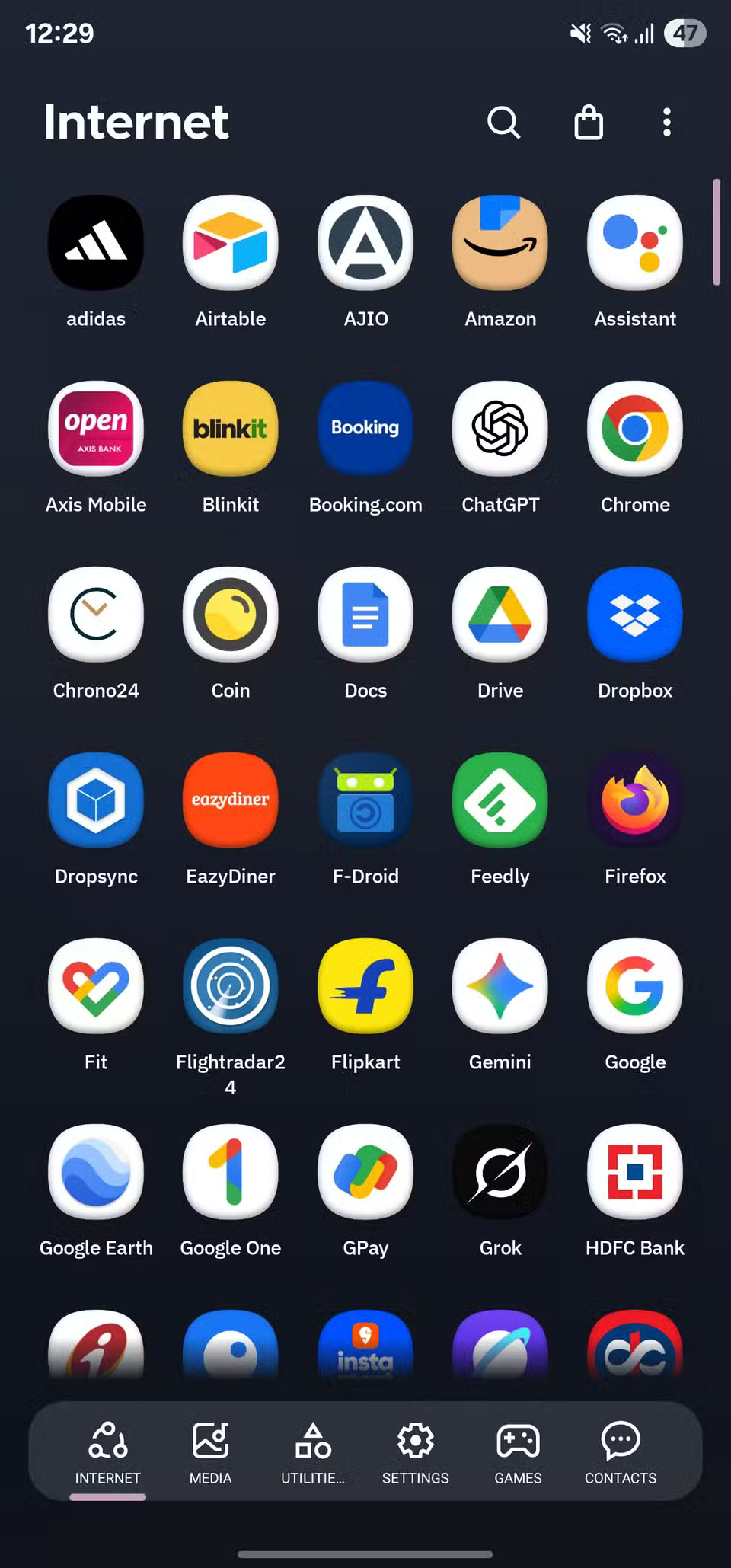
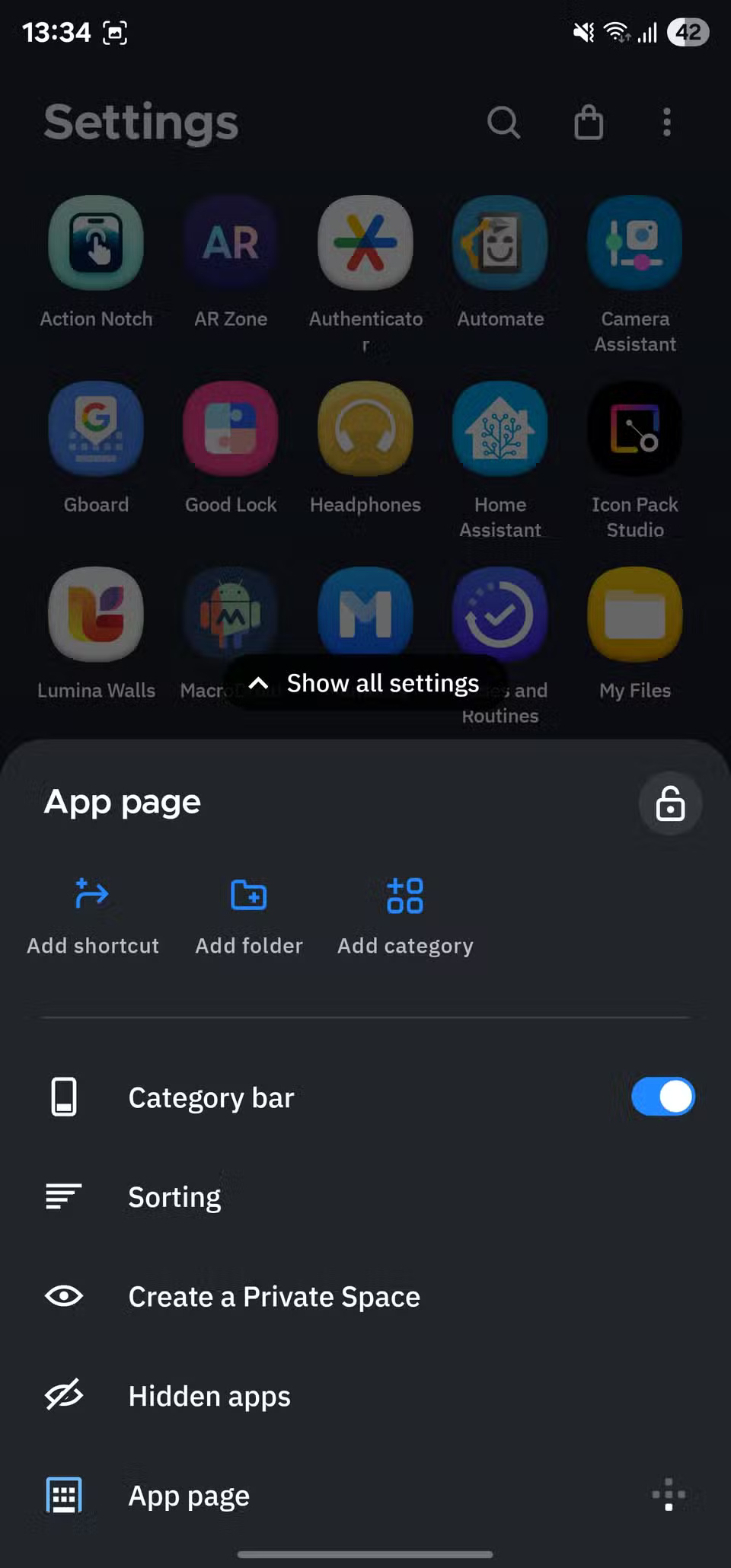
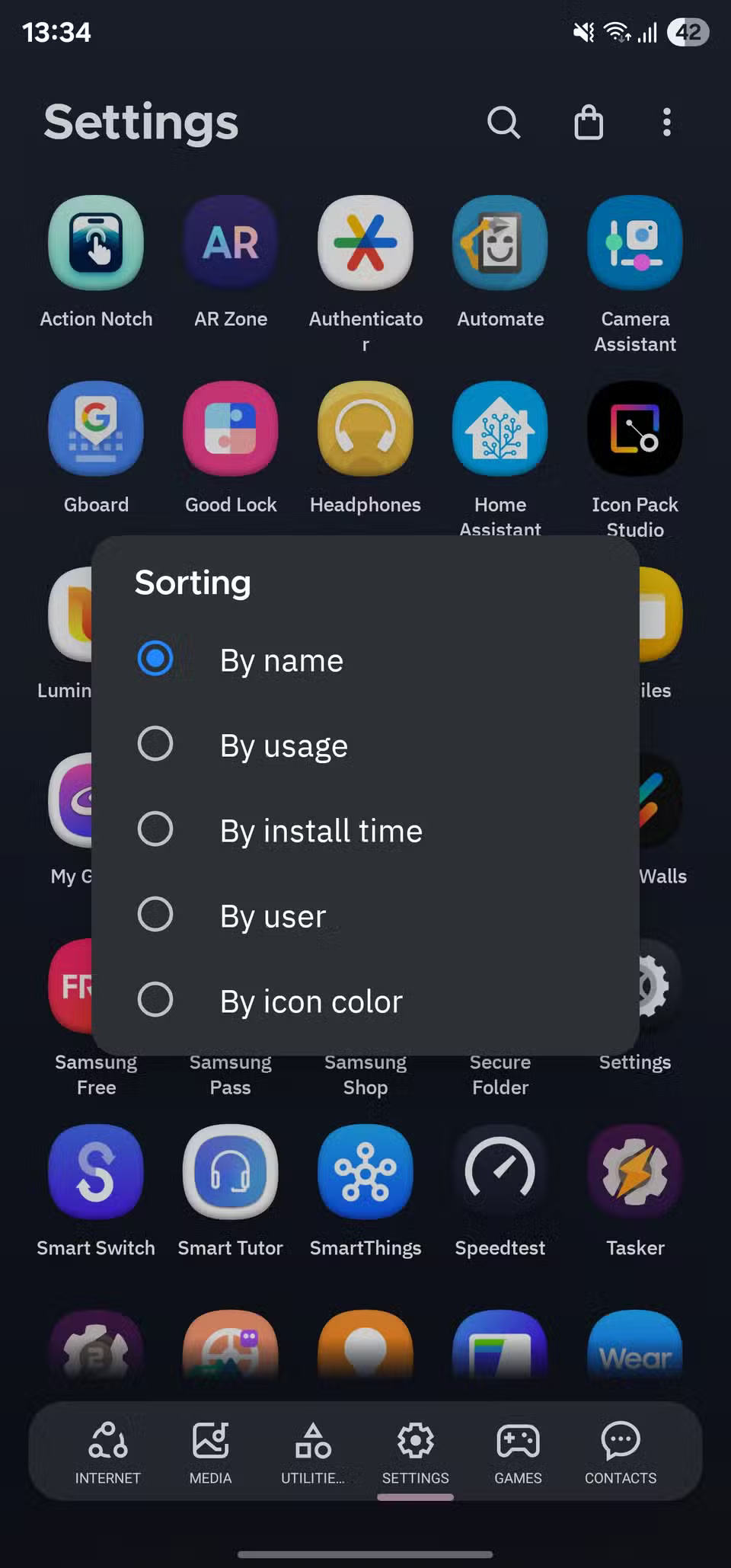
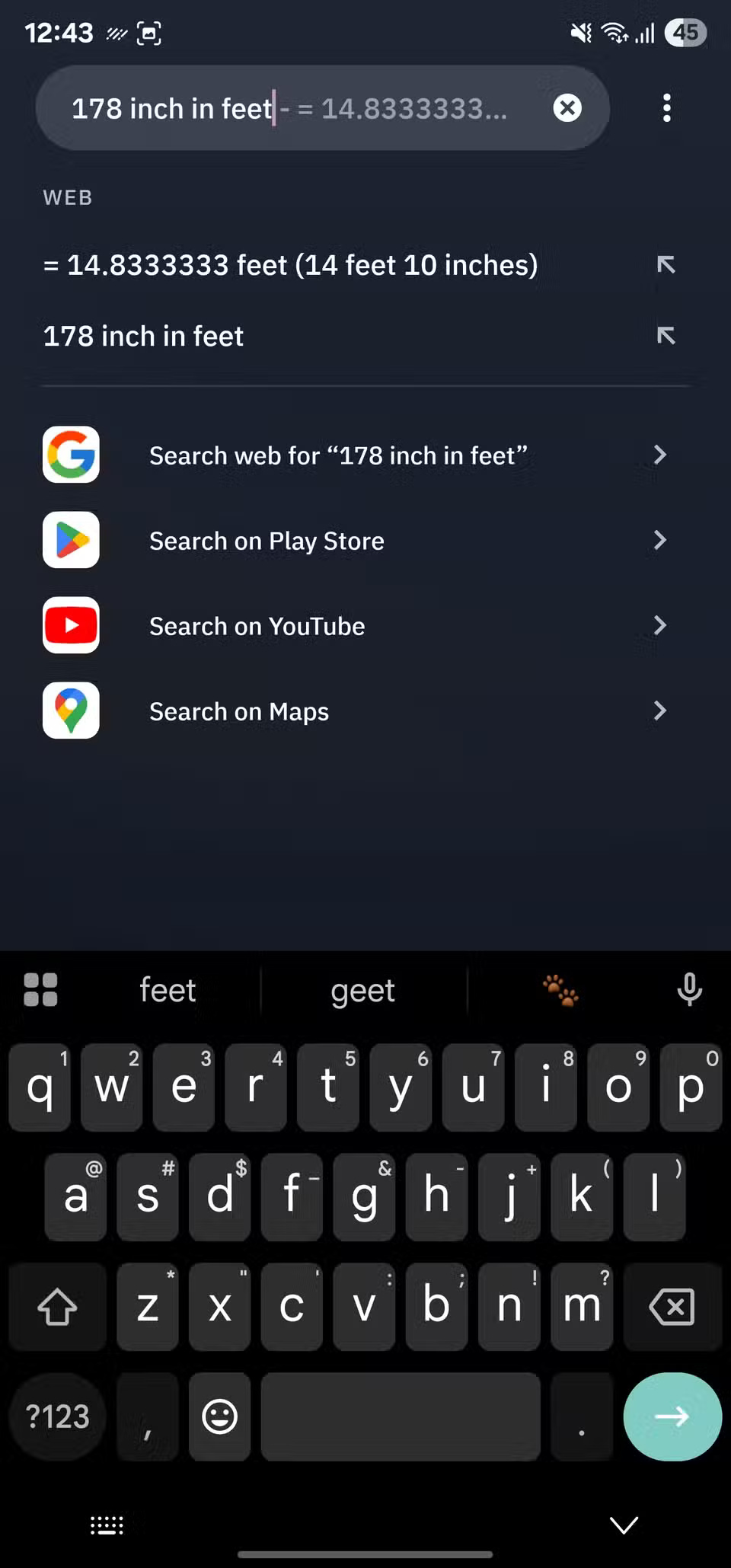
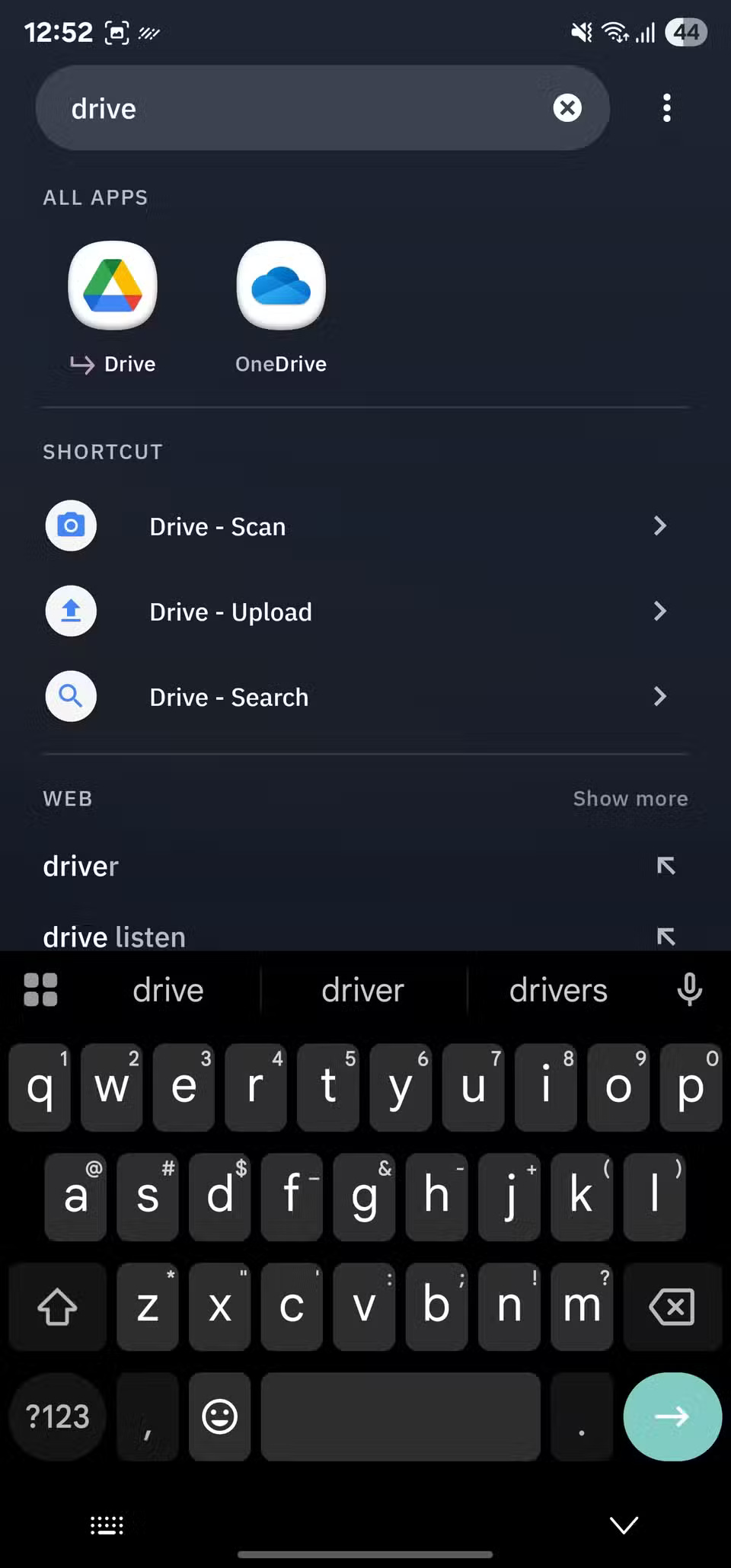
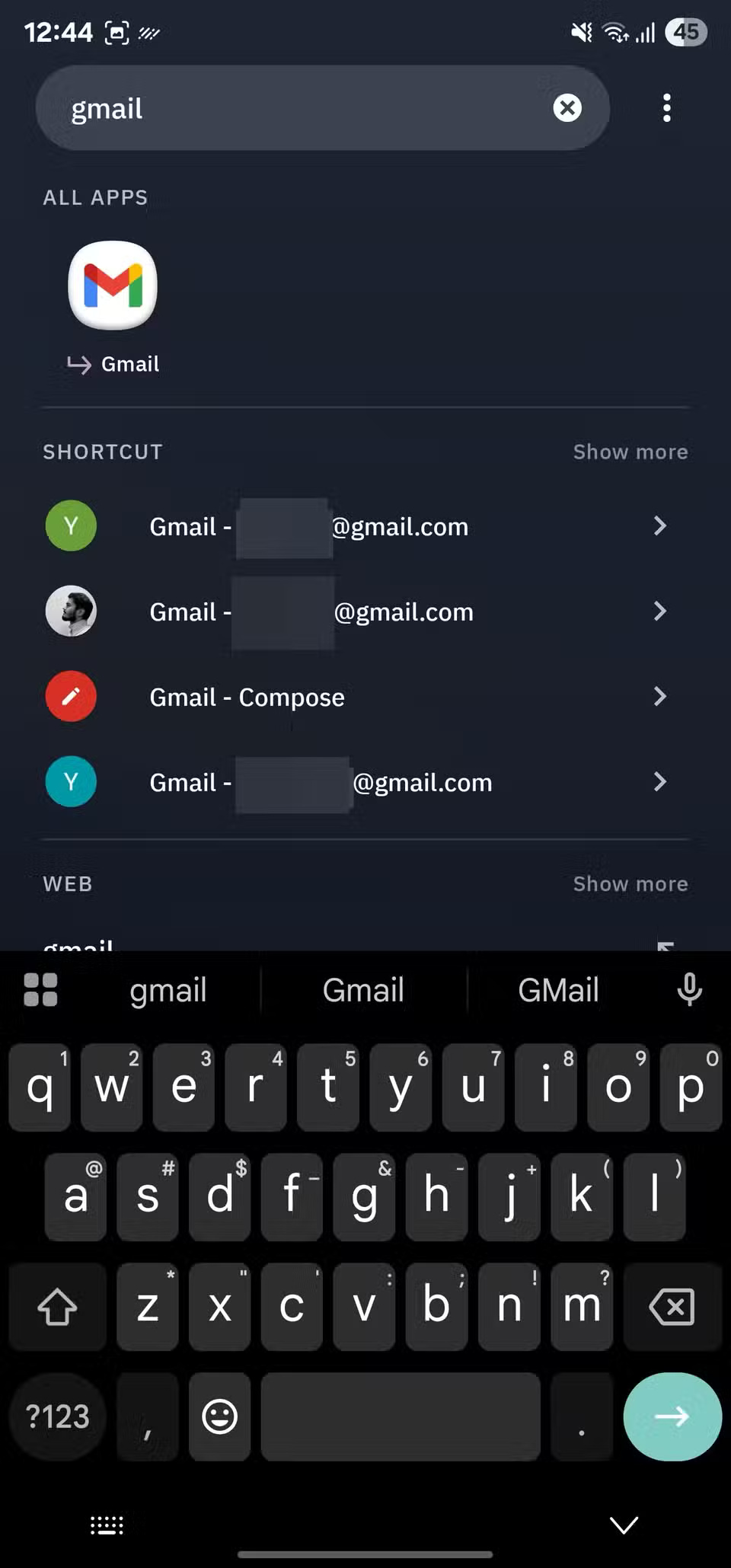
Use Smart Search when you know an app or contact name. Results can also include web or other sources depending on settings. Review which permissions you grant and enable only the sources you want.
Set up a home screen you can reach with one hand
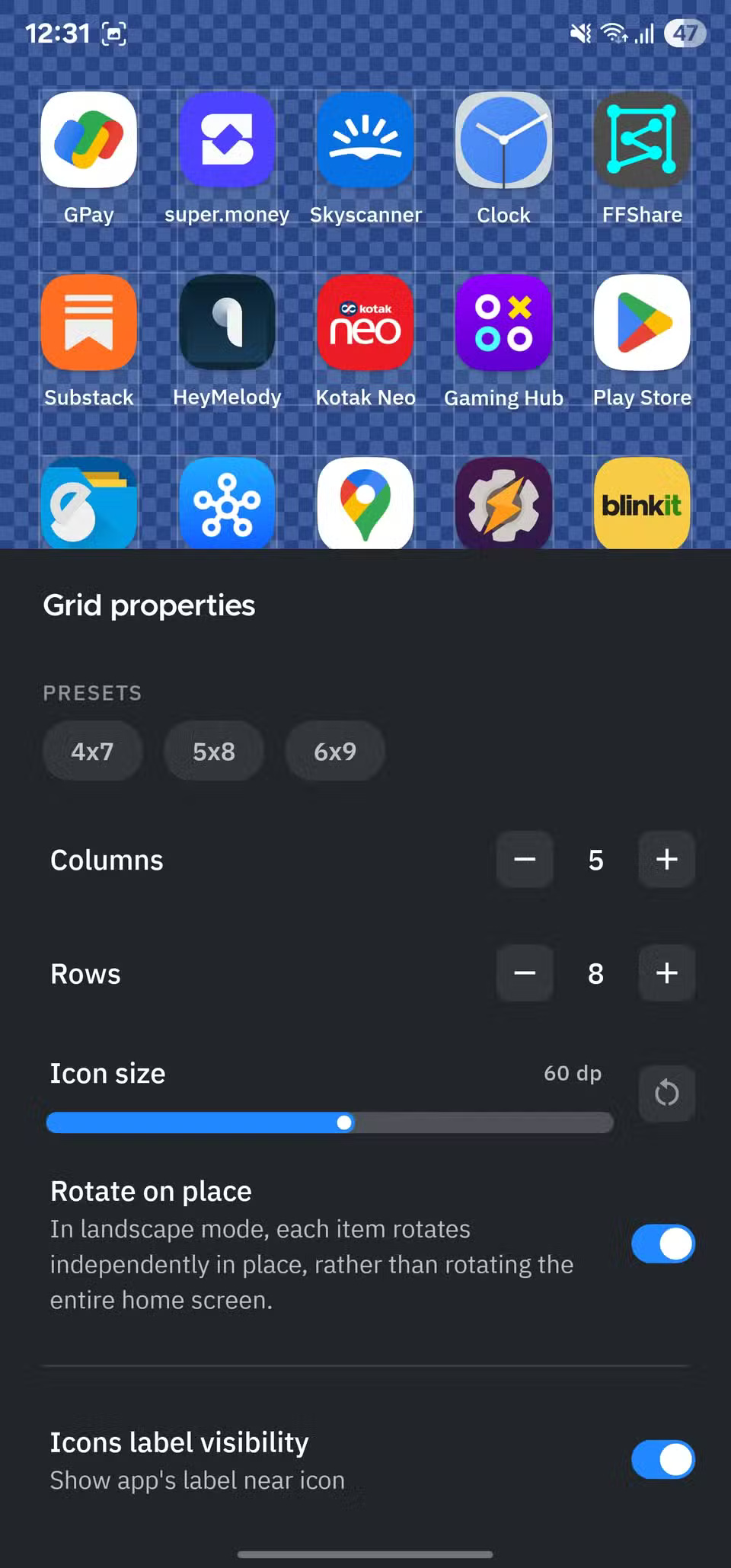
Adjust the grid, icon spacing and widget placement. Start with one widget and move frequently used apps into the lower half of the screen.
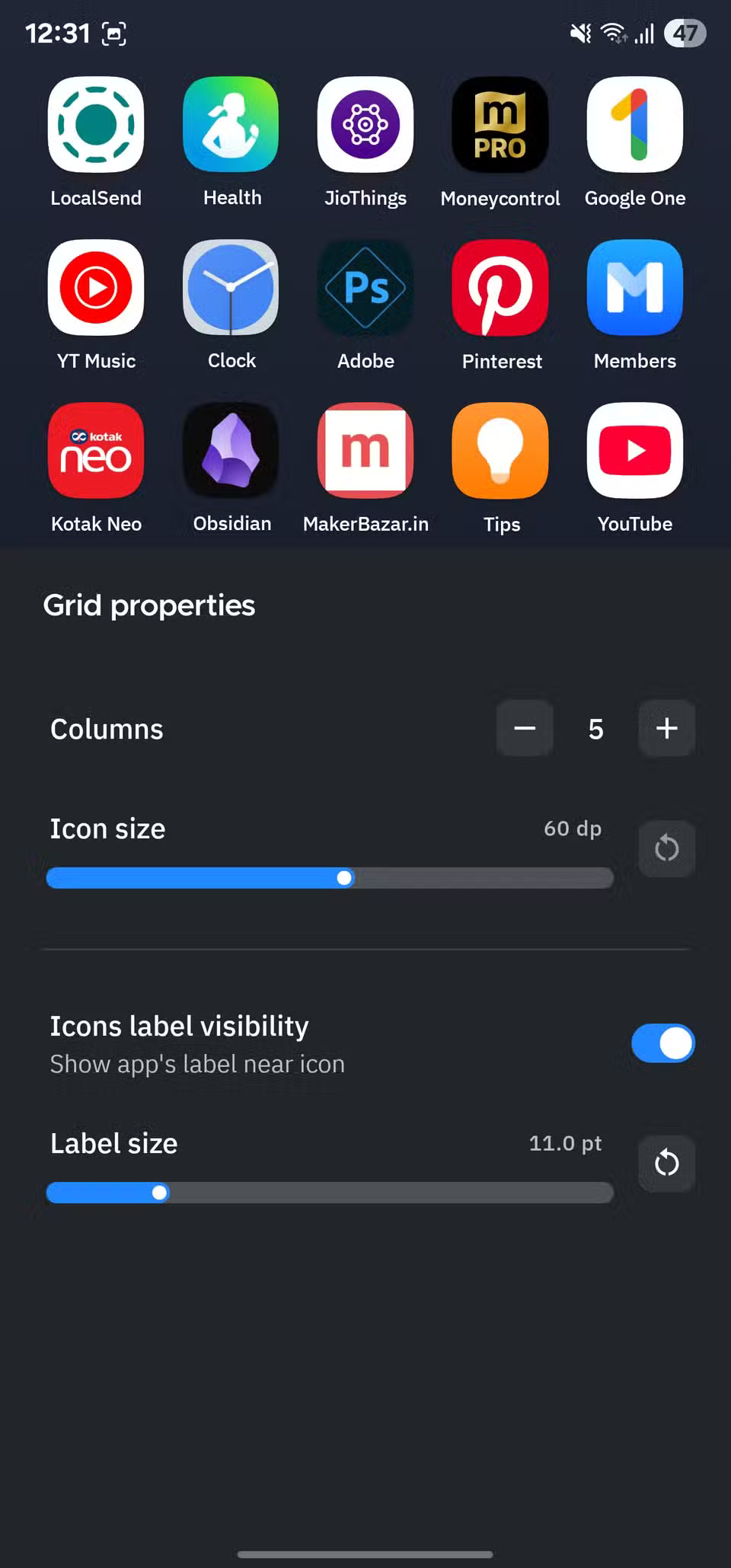
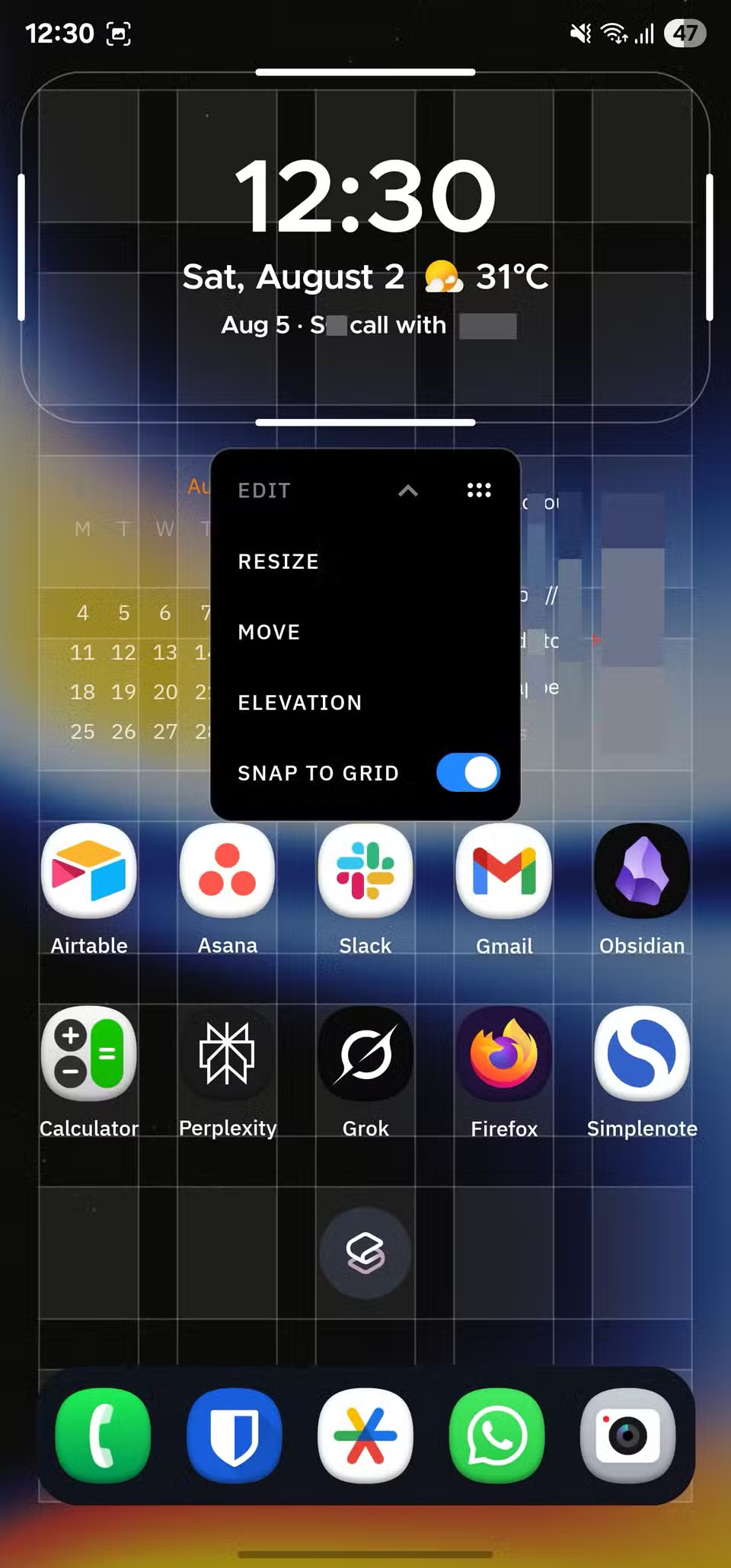
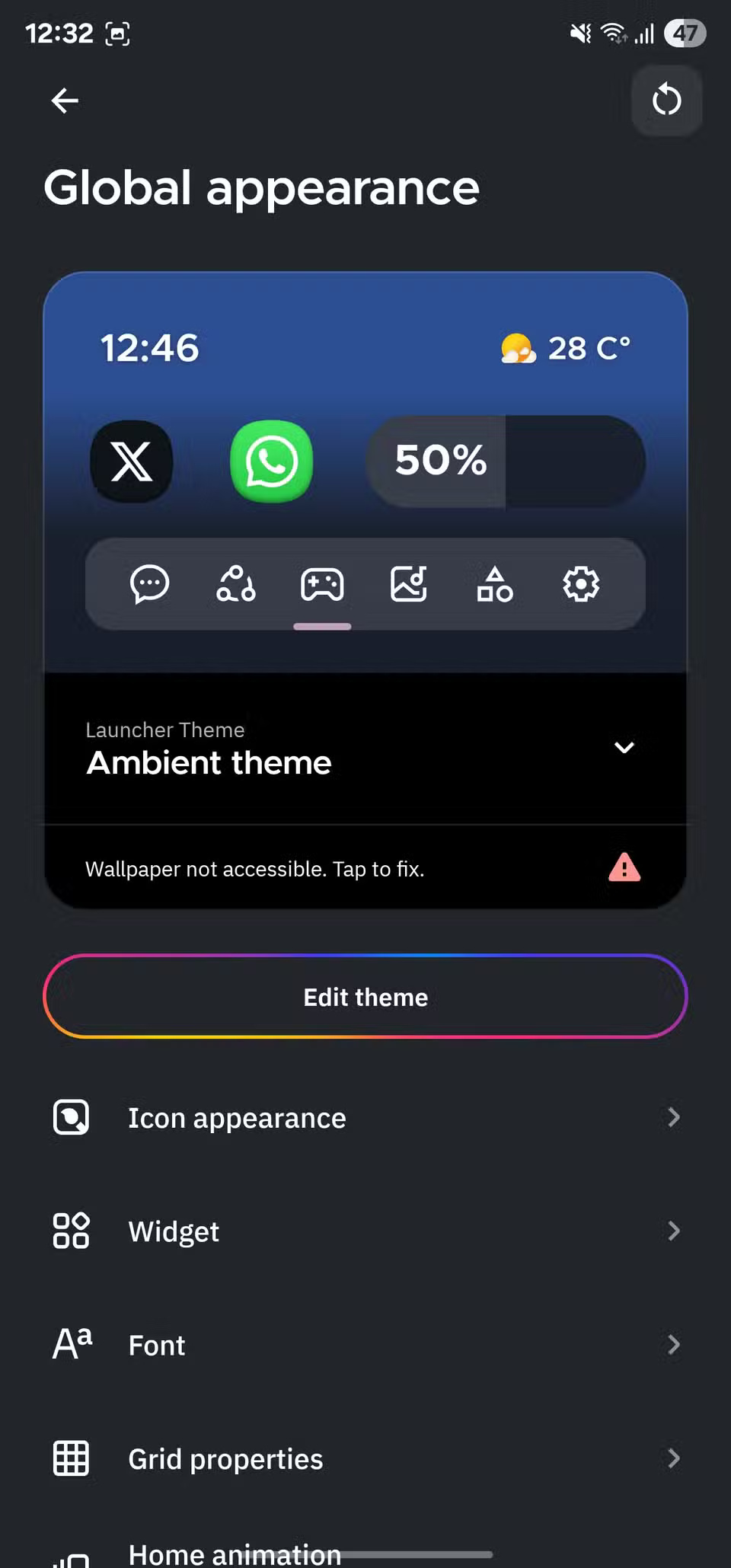
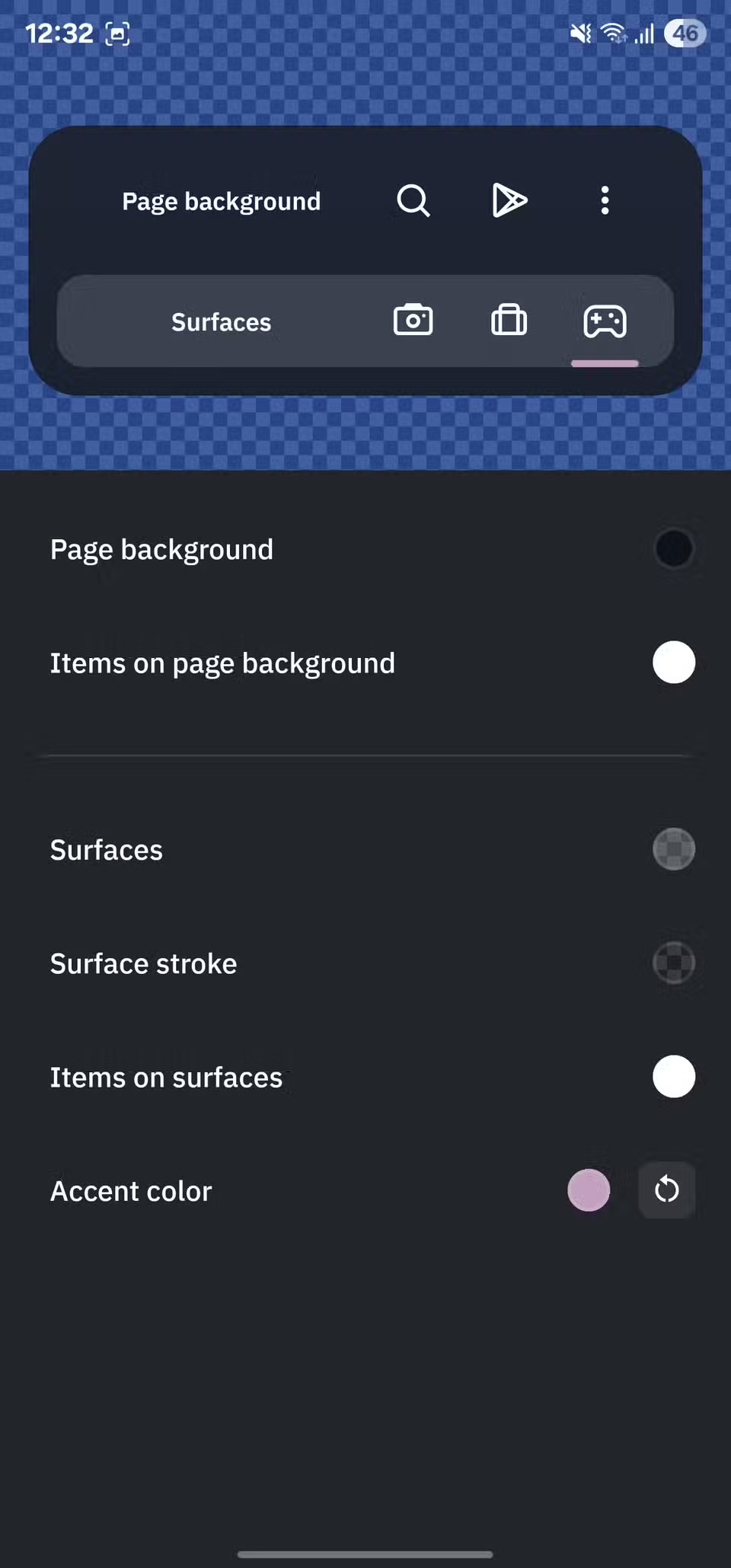
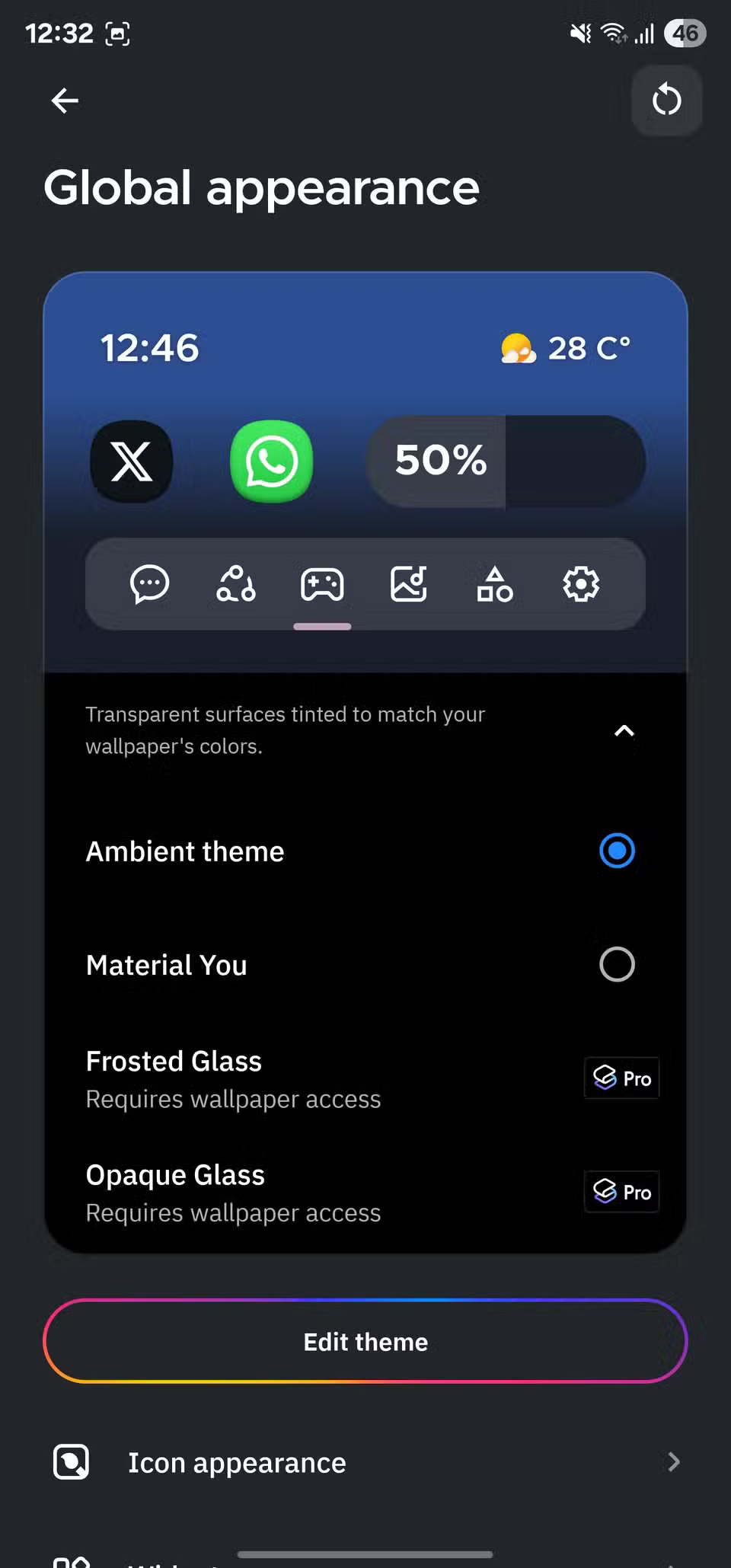
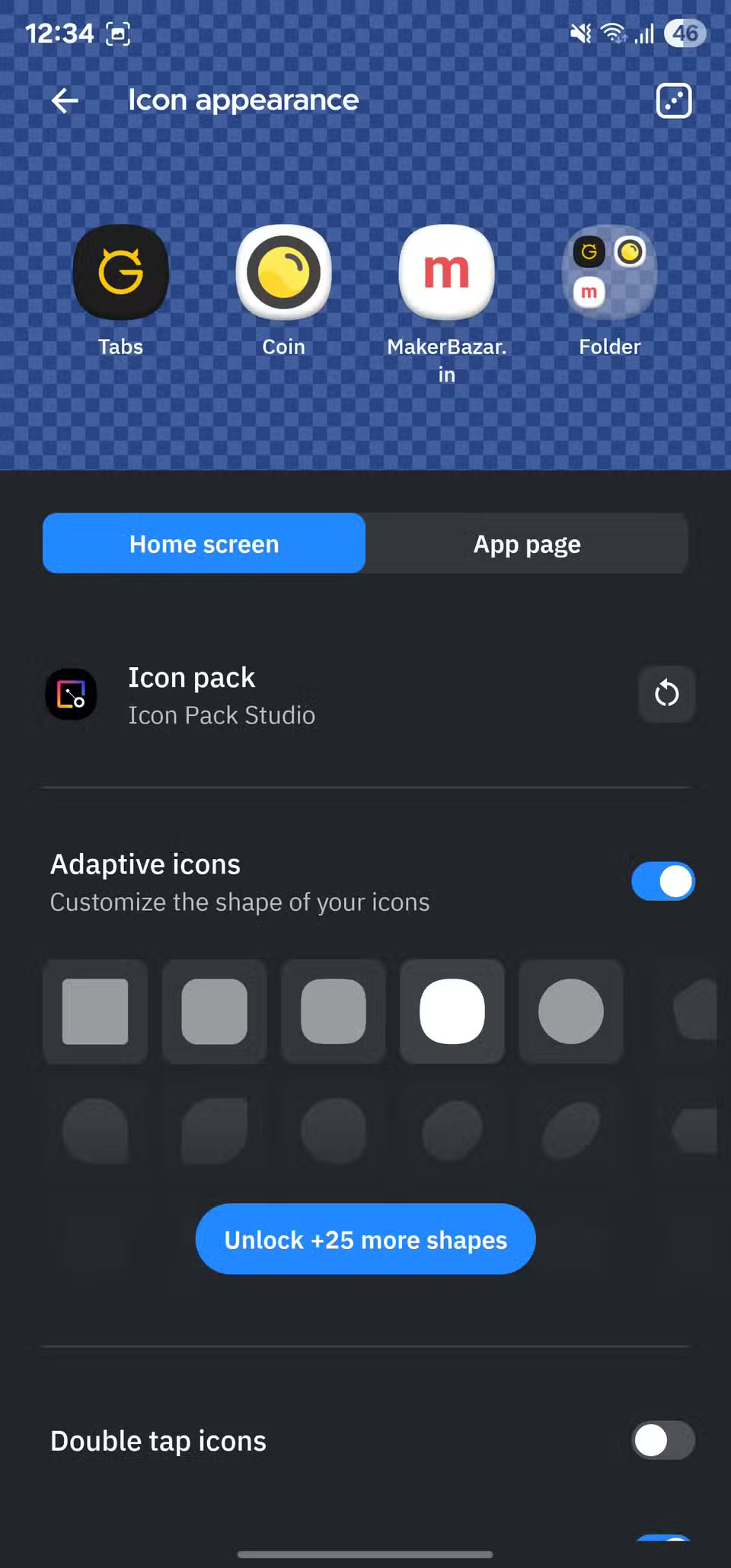
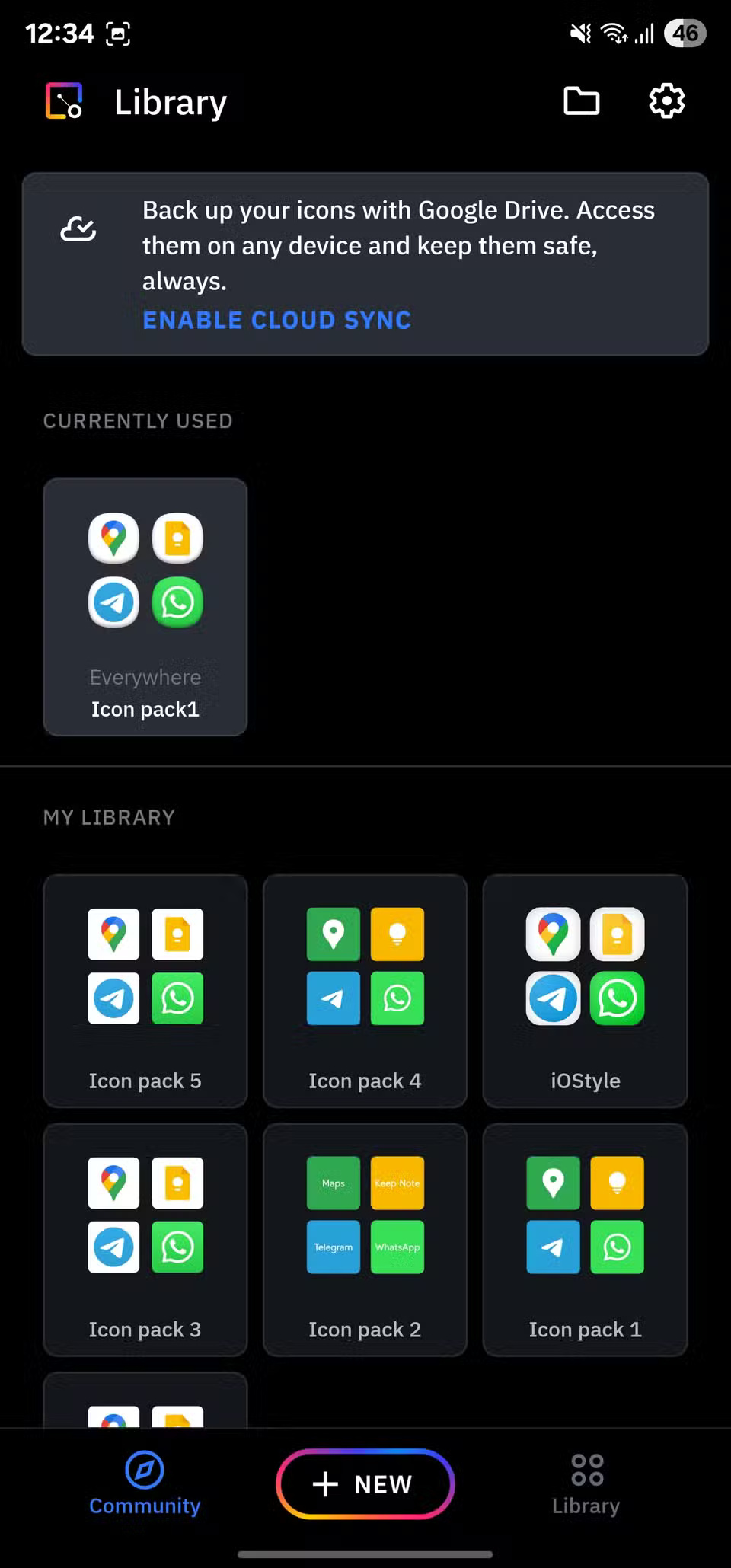
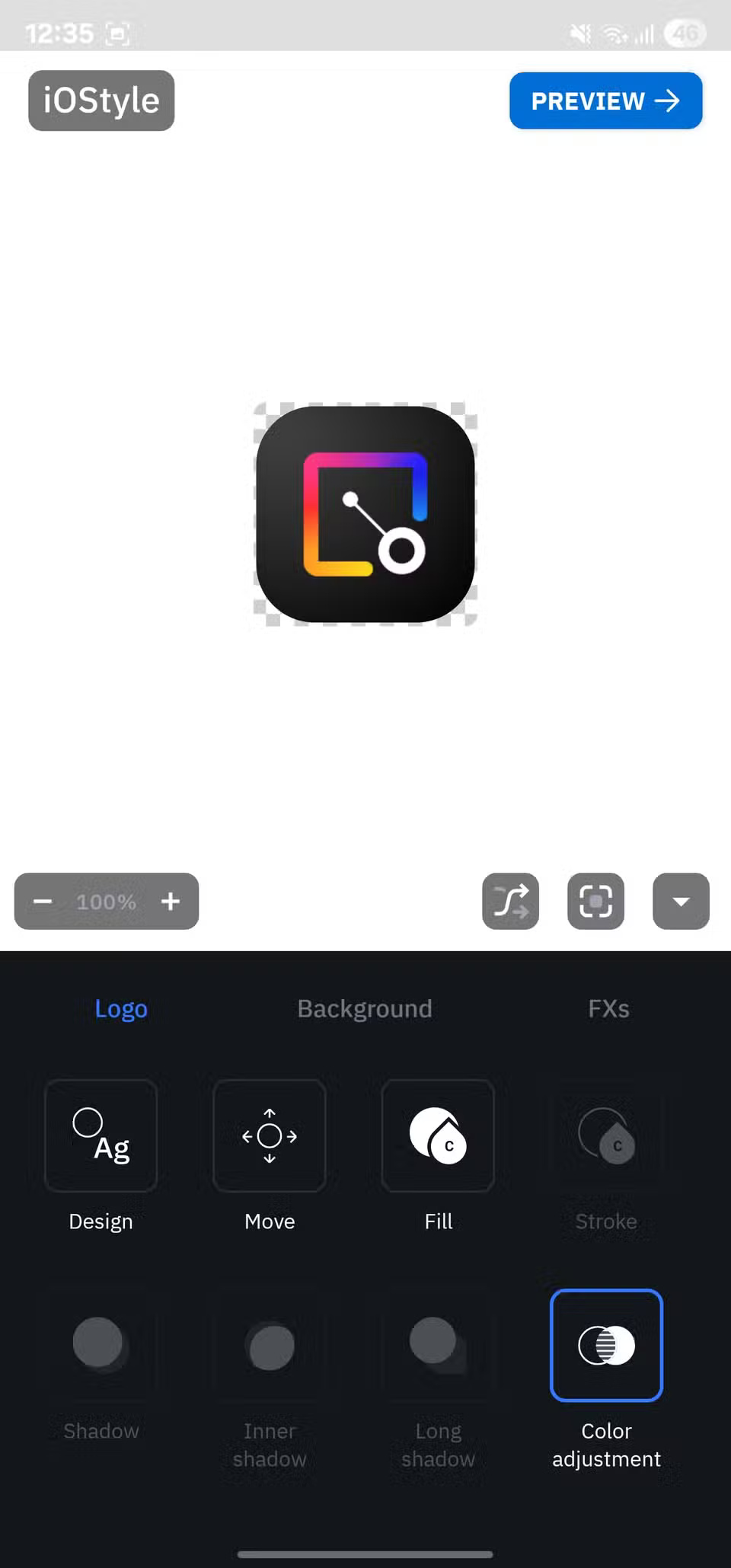
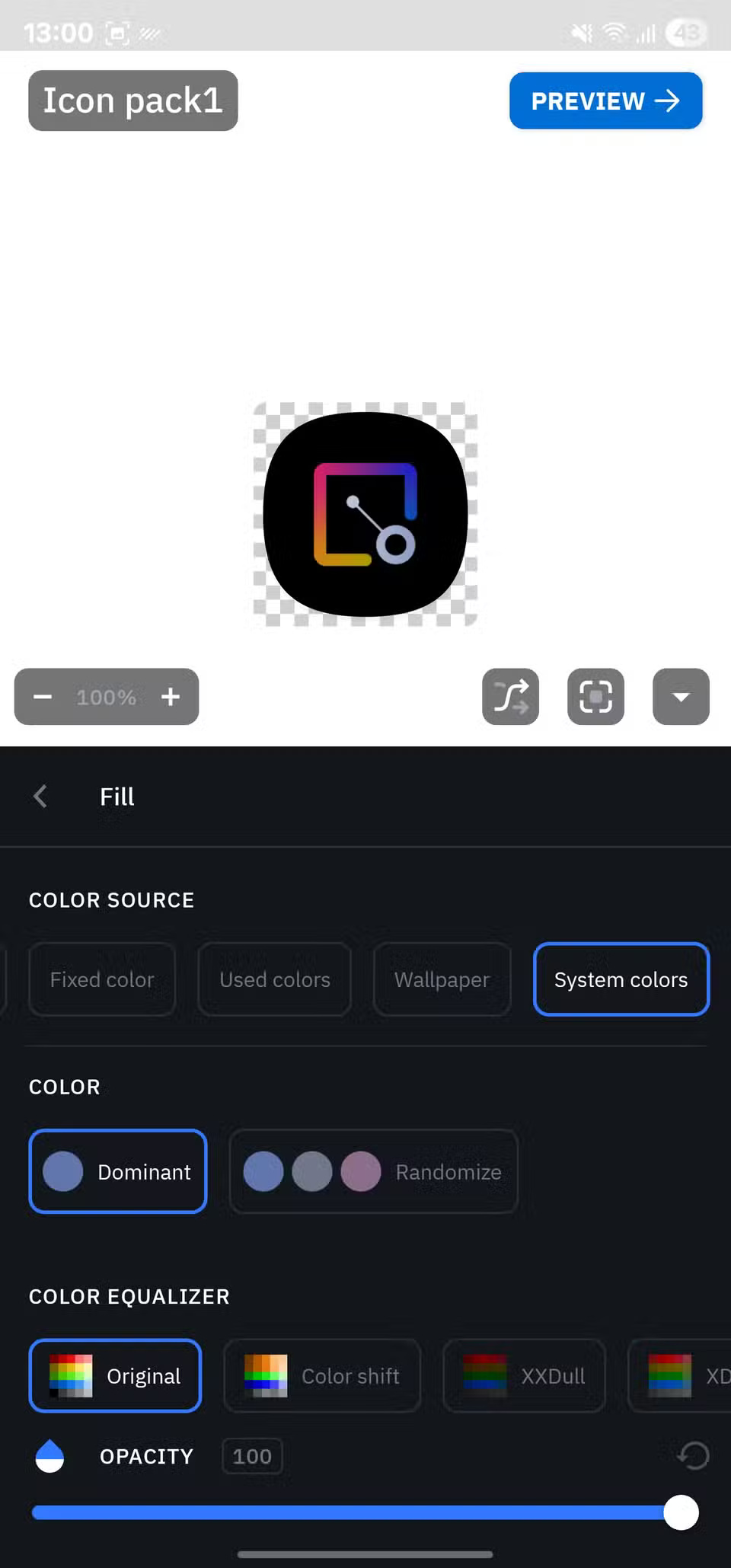
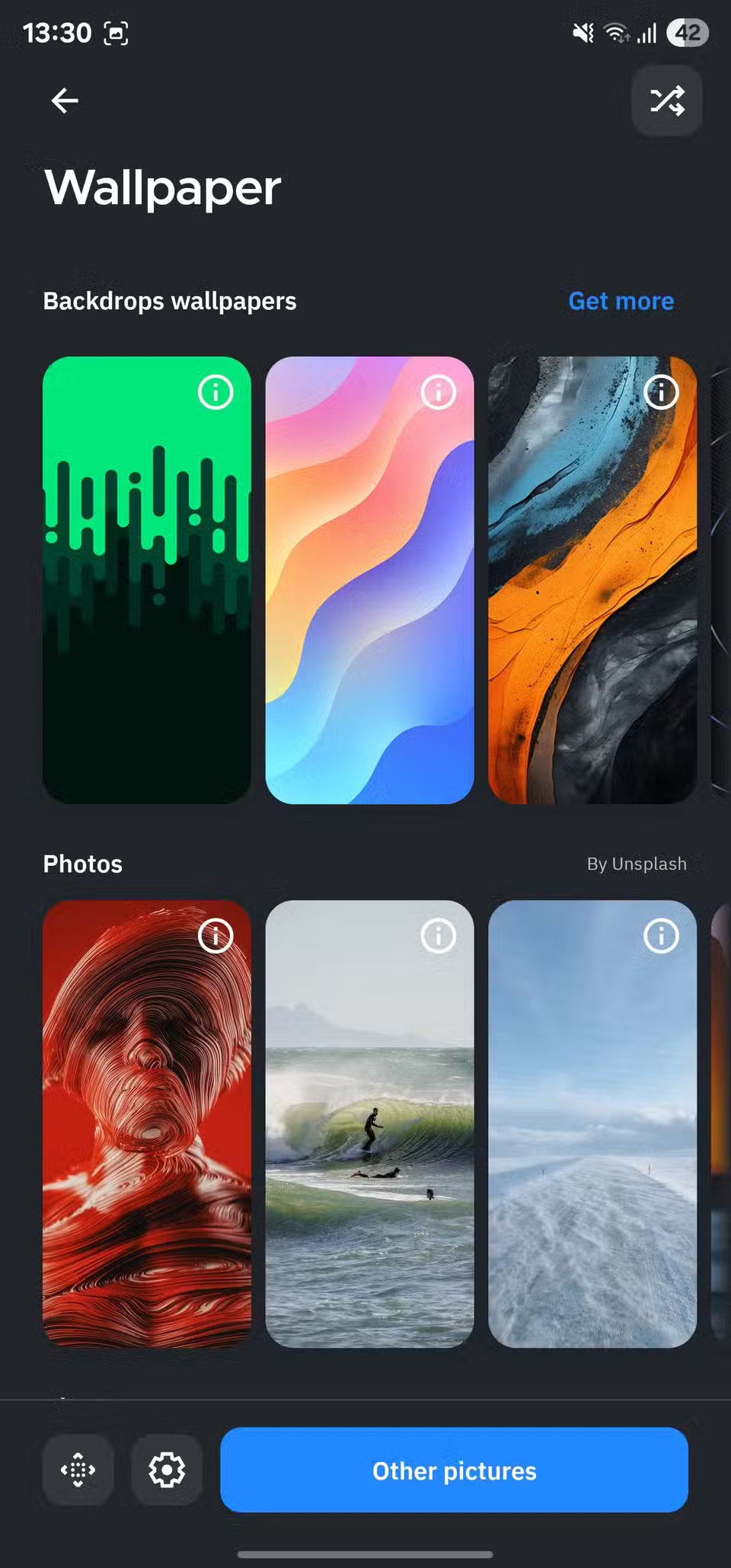
Try the wallpaper-aware theme, then check that app labels remain readable. You can also change adaptive icon shapes or use a compatible icon pack.
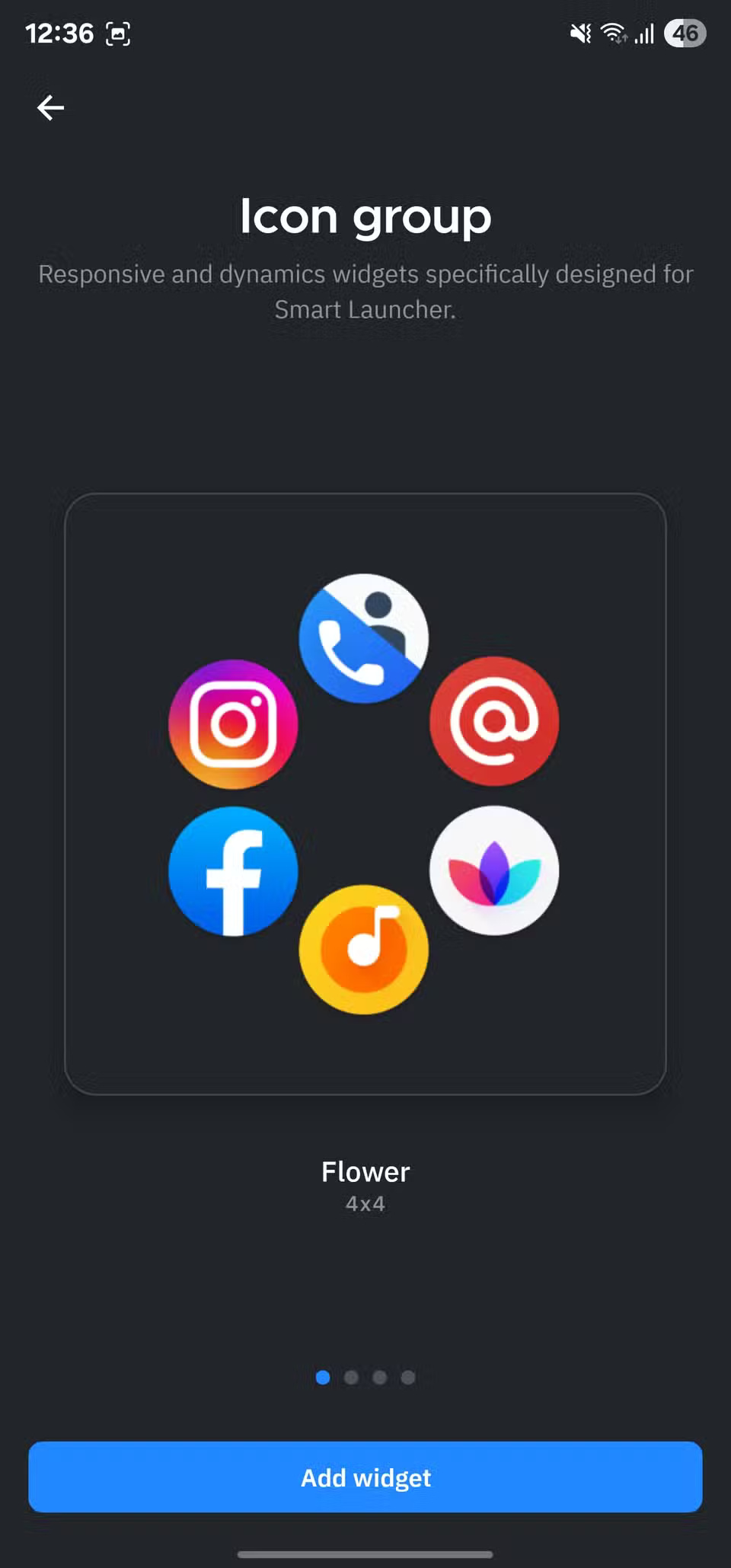
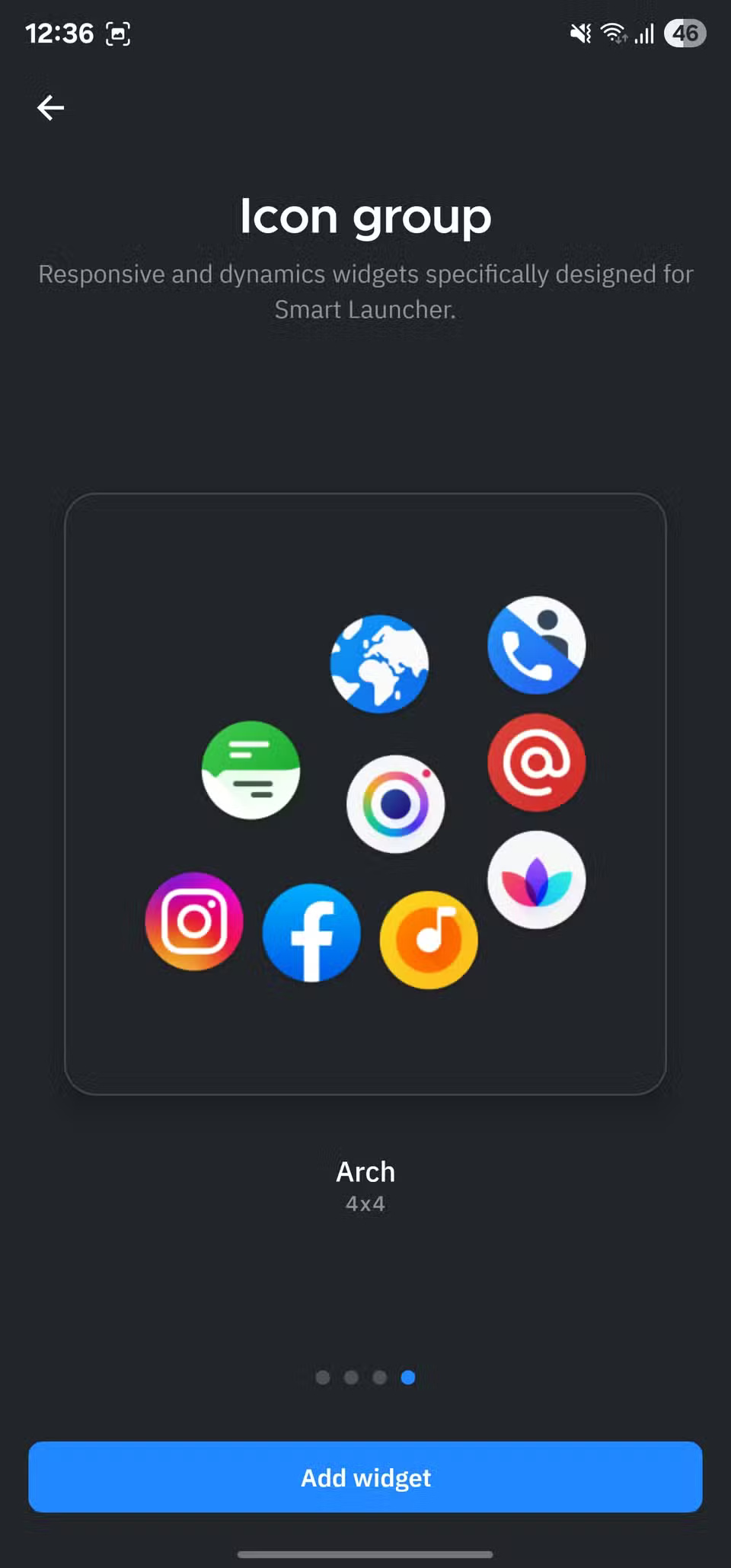
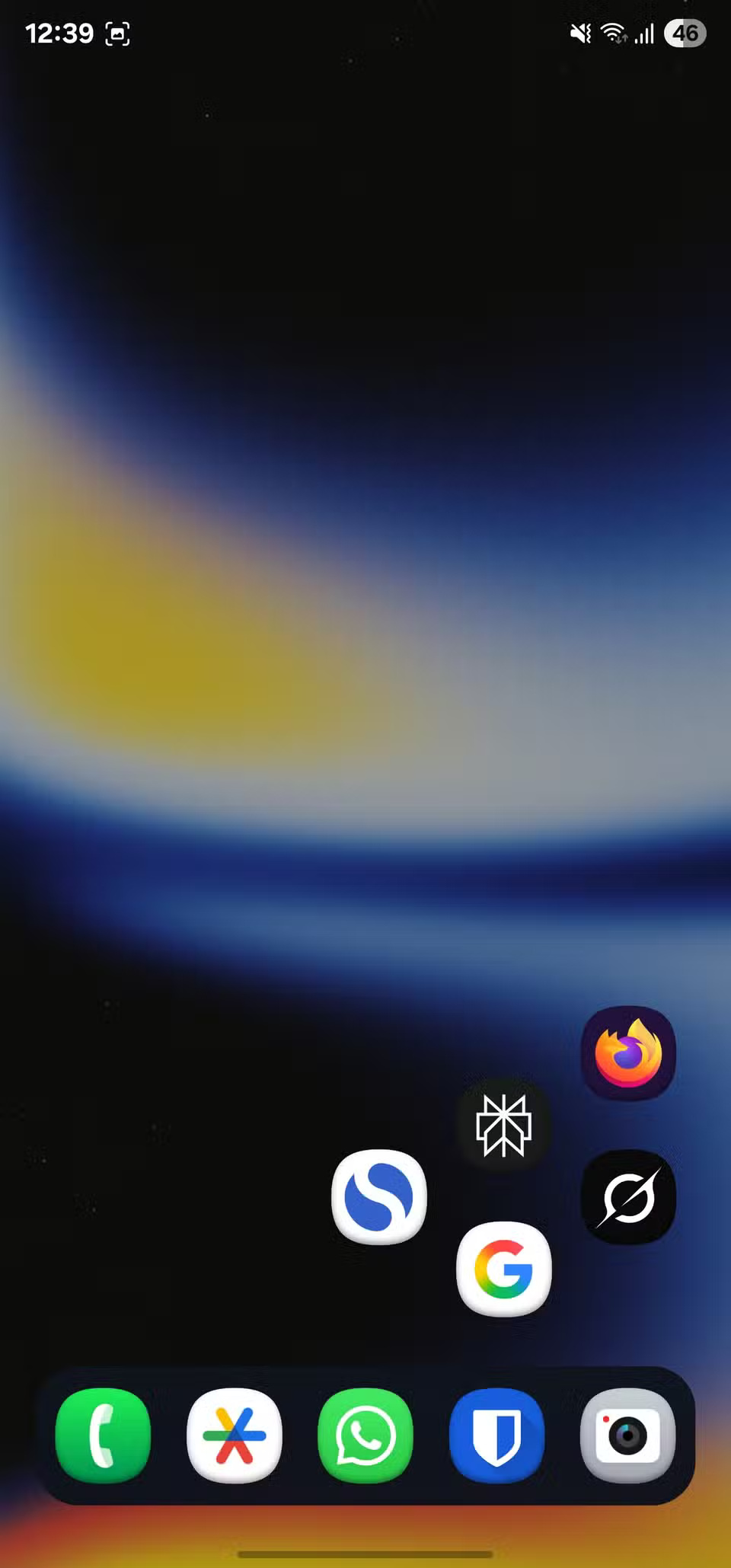
An icon group places several shortcuts together in a layout such as a grid or a flower. Try a small group for phone, messages and maps where your thumb can reach it.
Customize gestures, feed and pages
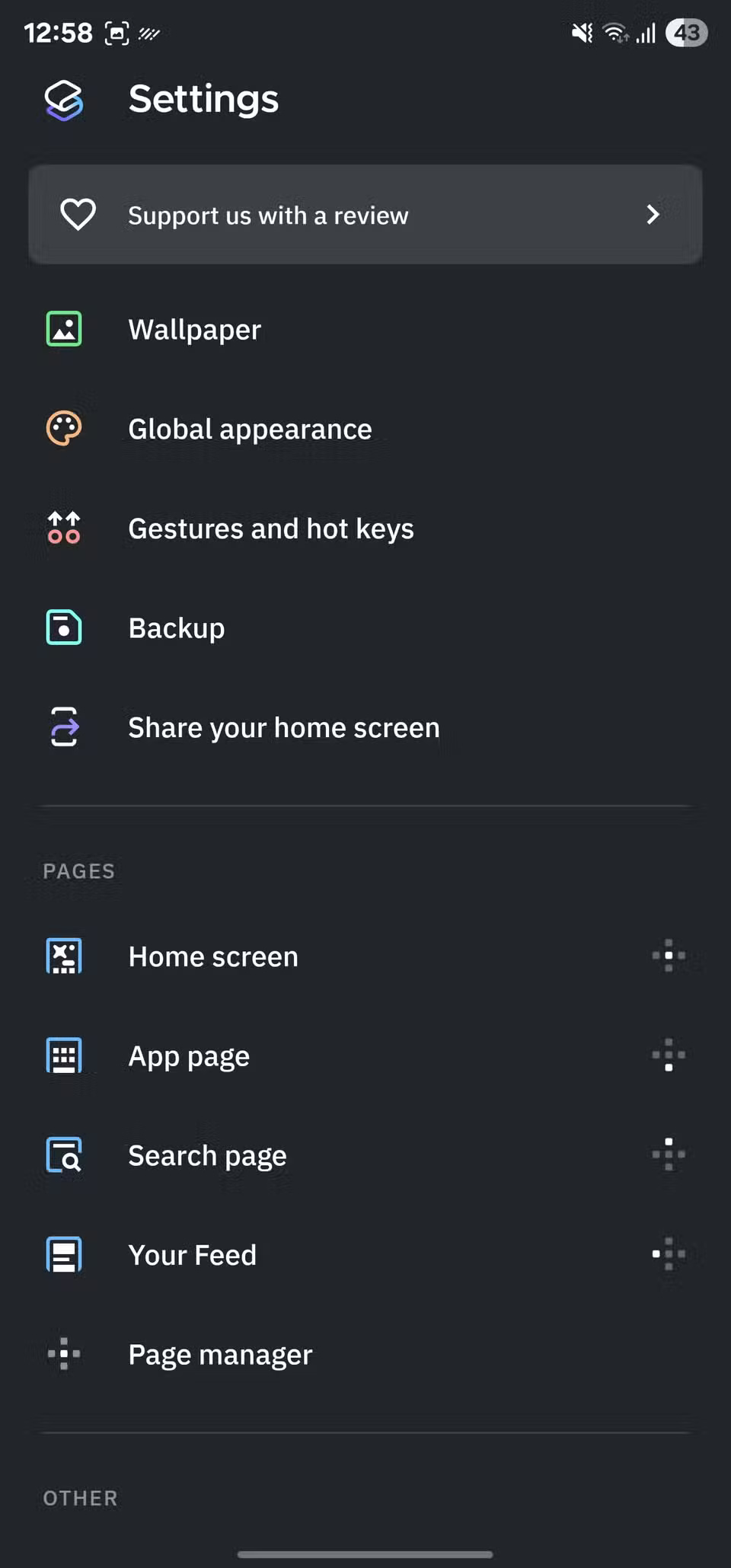
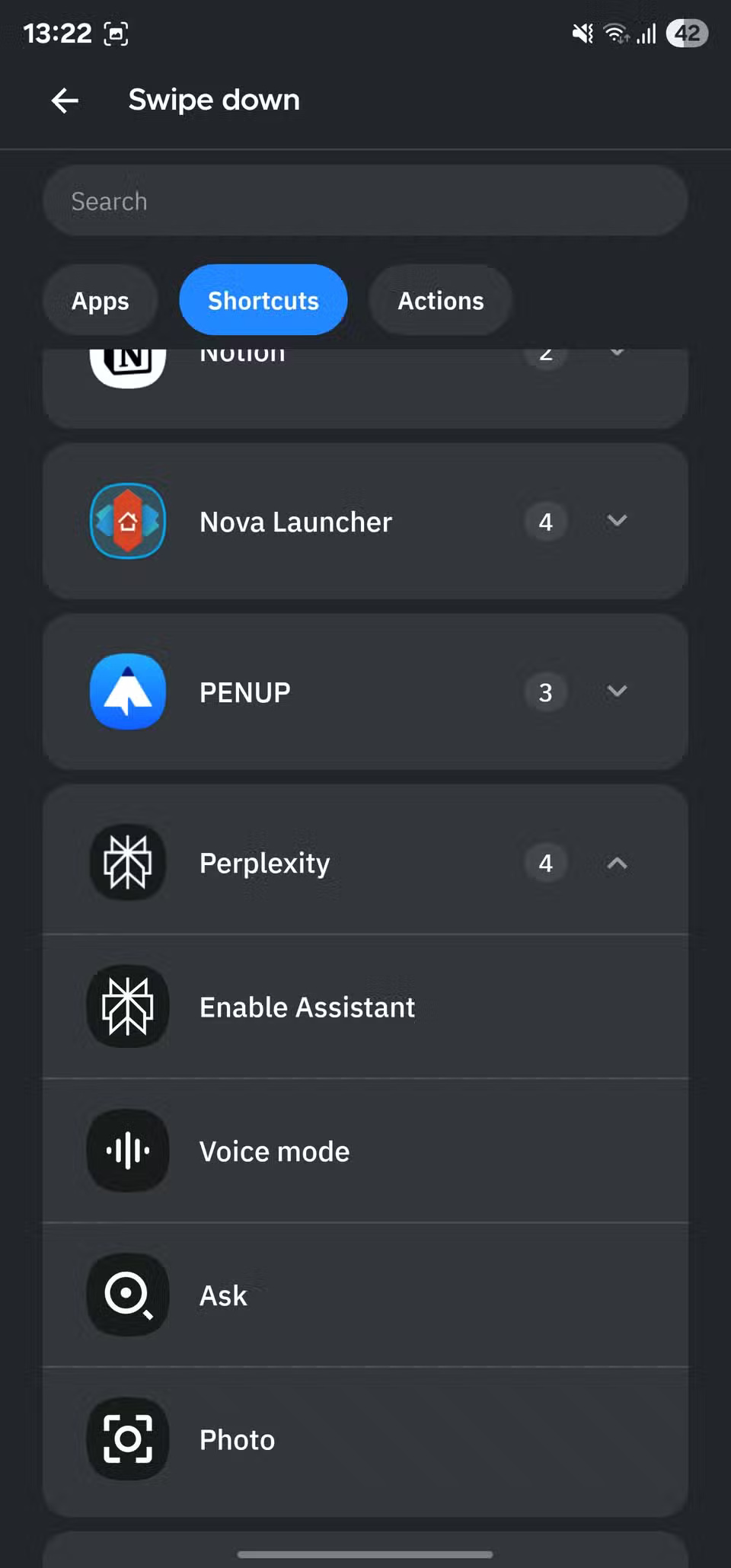
Assign one gesture first, such as a downward swipe to open notifications when the home screen is active. Test it alongside Android’s own gestures, since navigation behavior can differ by model.
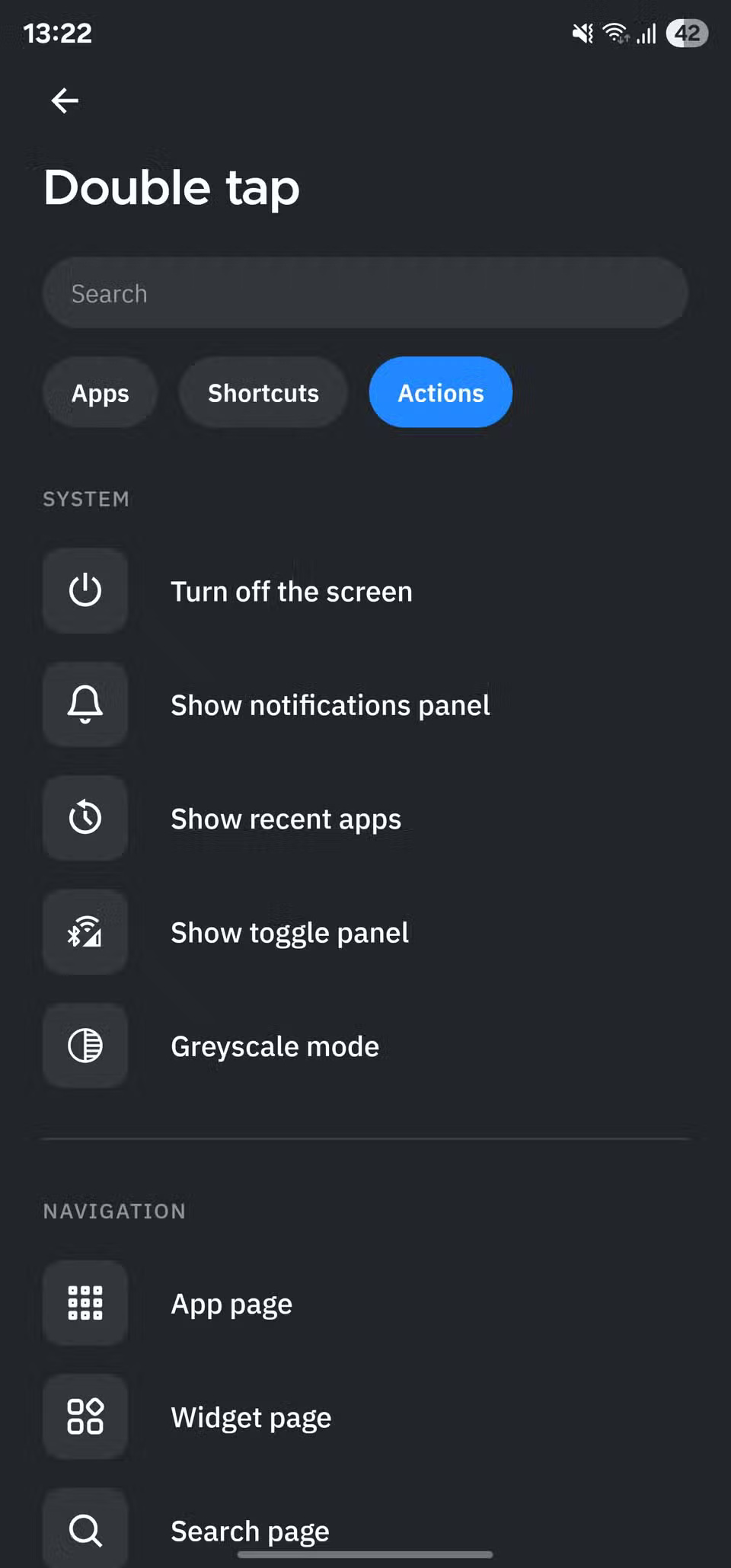
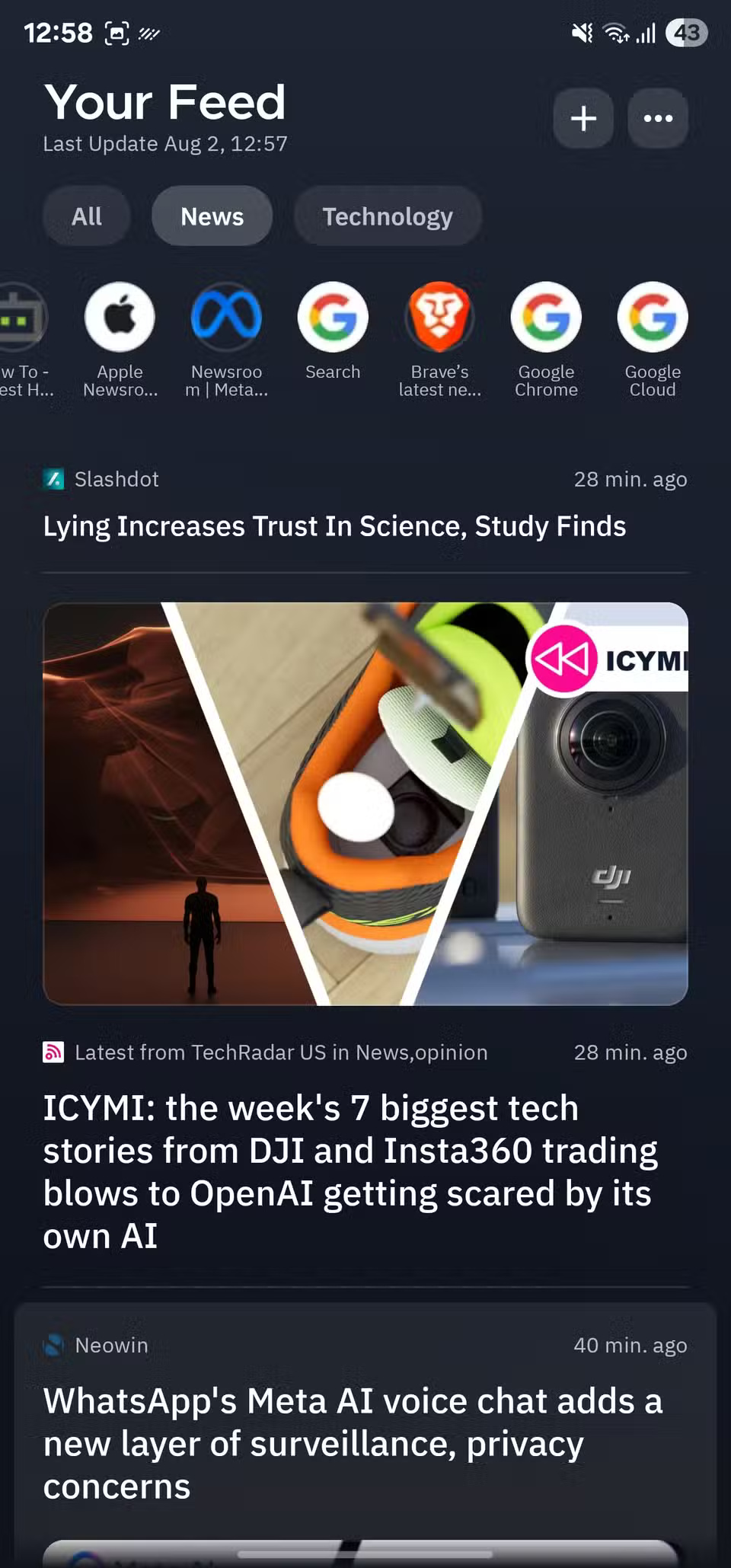
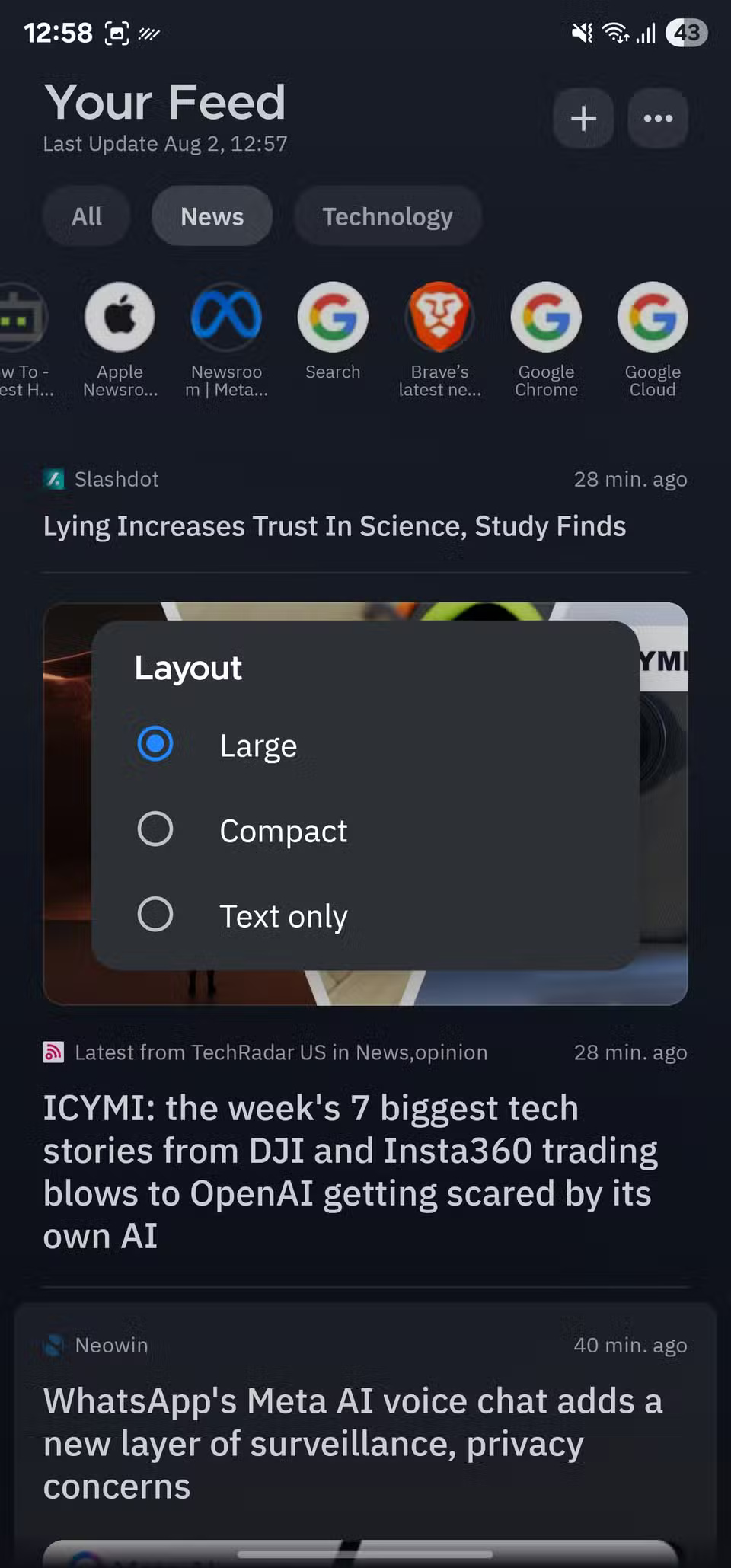
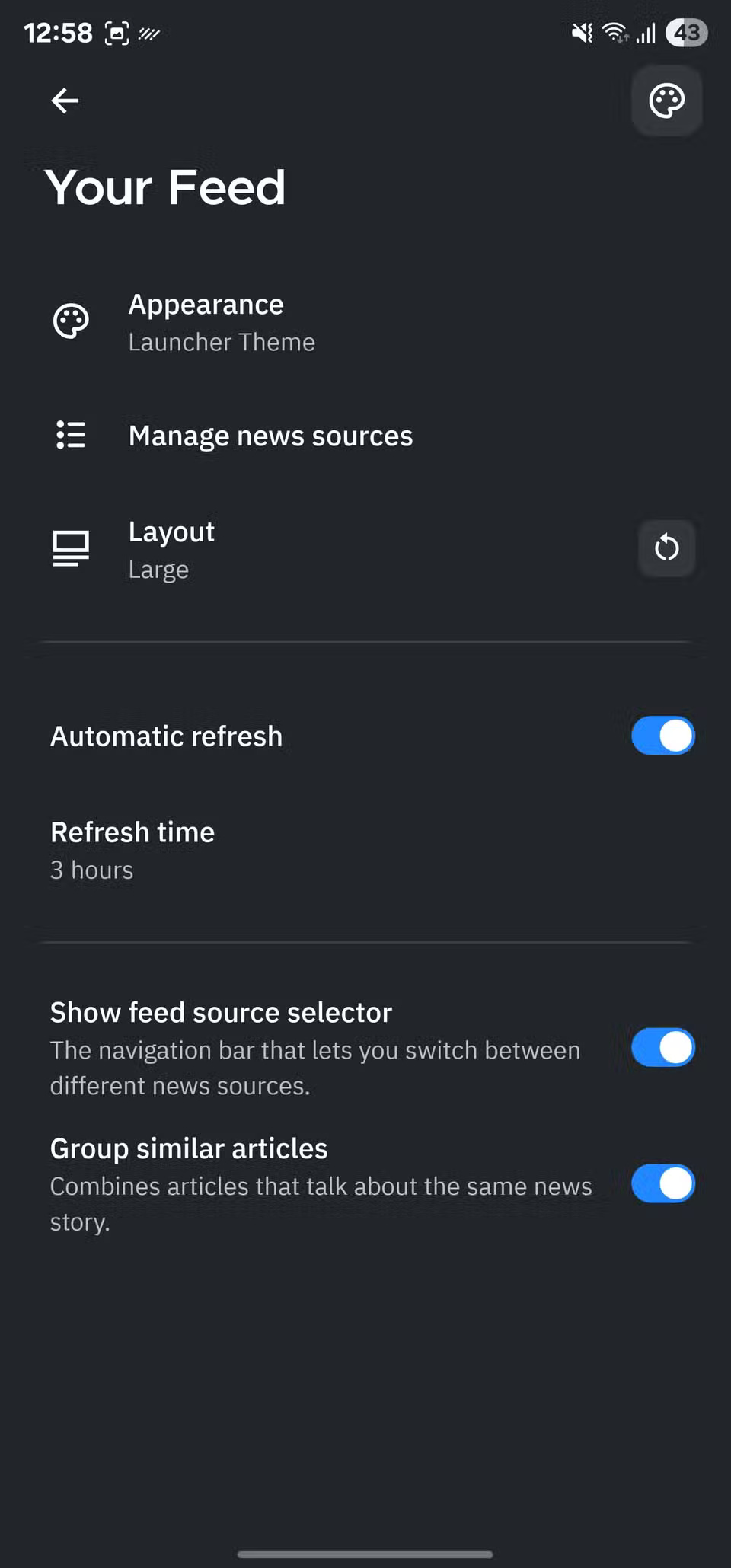
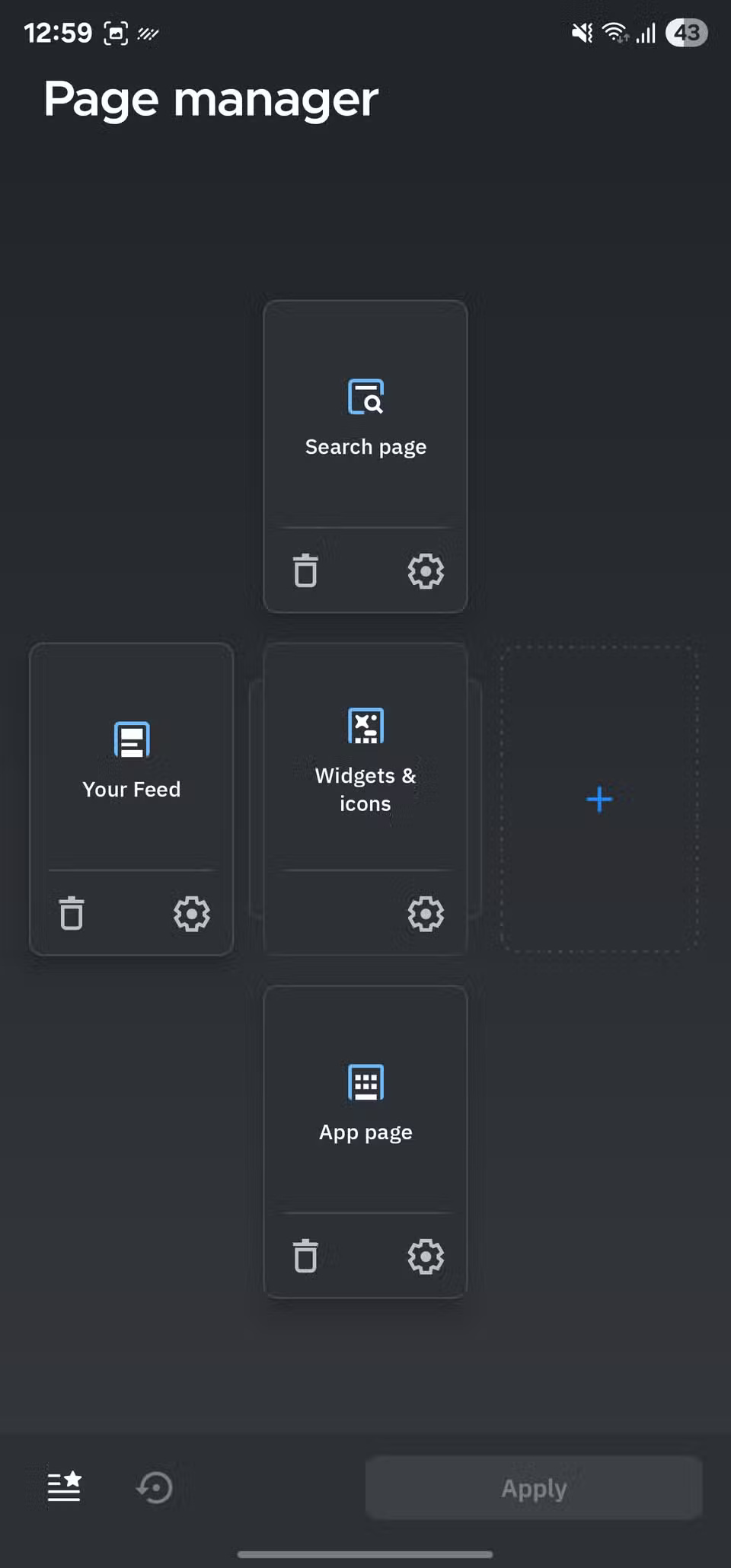
If your version includes Your Feed, add a few trusted RSS sources or import a subscription list when available. If you prefer fewer distractions, leave the feed disabled. Use the page manager to place your most useful page next to Home.
Try Smart Launcher and switch back if needed
- Install Smart Launcher 6 from Google Play. Review purchases and permissions before paying for any extras.
- Search Android Settings for Default apps, open Home app and choose Smart Launcher if Android has not already prompted you.
- Use your normal widgets, search and navigation for a few days. To return, select the original Home app in the same settings.
If you mainly want search and a small set of favorites, compare Kvaesitso’s home screen and other Android launchers.
Related Articles
 Use Projectivy Launcher to Simplify Your Android TV Home Screen
 Top 10 best Android launchers 2019
 4 Android launchers that fill the gap left by Nova
 4 Android Launcher for the elderly
 5 Best Open Source Android Launchers to Replace Default Home Screen
 What is the new name for Launcher on Microsoft Android and what new features do you own?
Reader Comments 0
Sign in with email or Google to join the discussion.