Table of Contents
With the help of AI tools, teachers will have assistants to quickly grade and comment on errors in students' assignments. Teachers will be able to set rules for grading student...
With the help of AI tools, teachers will have an assistant to quickly grade and comment on errors in students' assignments. Teachers will set out the rules for grading student work and the scoring scale for each answer. The AI tool will then save these rules as grading guidelines and provide feedback on student tests, along with comments. Below is a guide on using the AI tool to grade and comment on student work.
Instructions on using AI scoring and feedback tools.
Step 1:
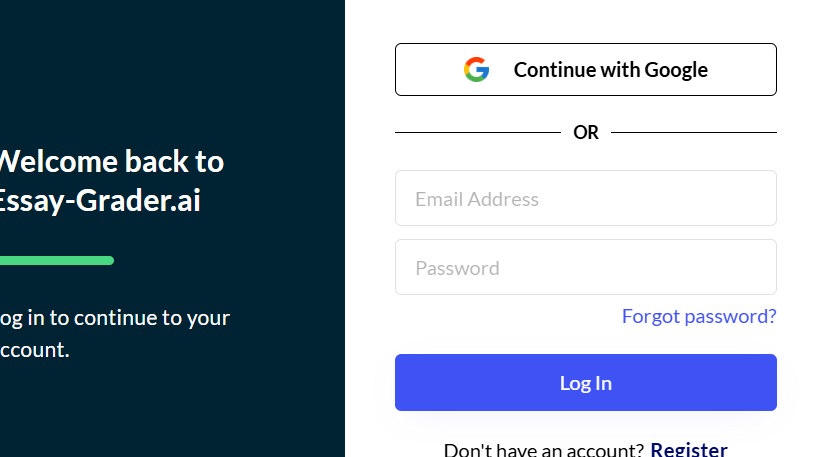
First, teachers should access the Essay Grader website using the link below. Then, register for an account using your Google account.
https://essay-grader.ai/
Step 2:
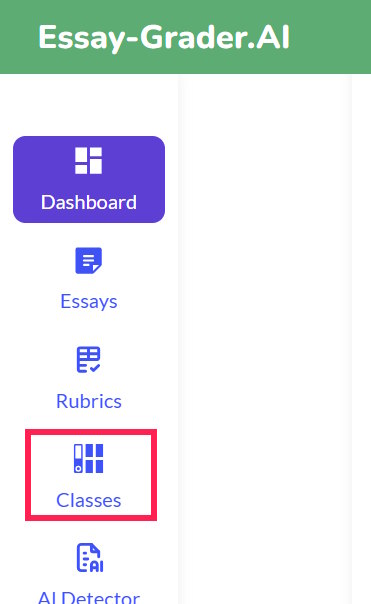
After creating an Essay Grader account, click on the "Classes" section on the left side of the interface, as shown in the image below.
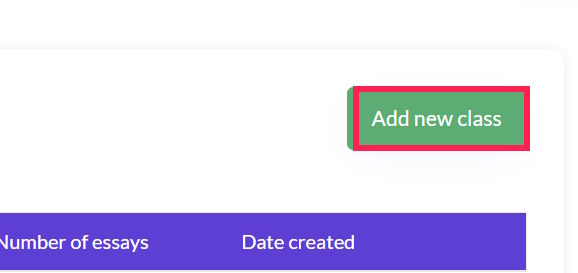
Next, click on the "Add new class" option in the upper right corner of the interface, as shown in the image below.
Step 3:
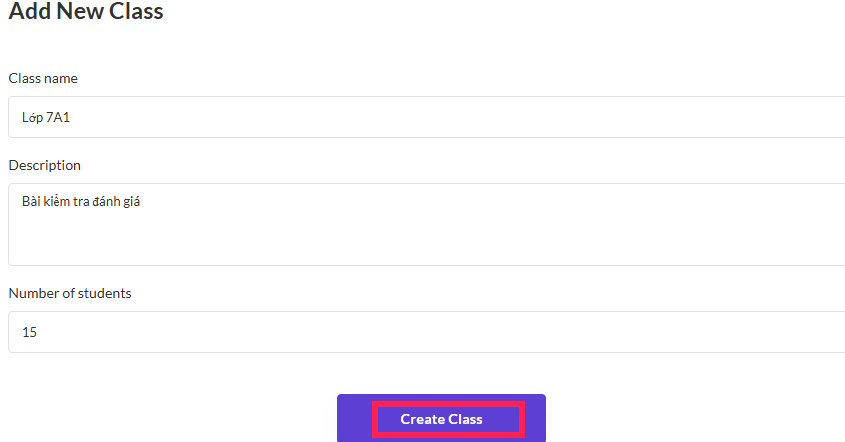
Here, teachers can enter the class name, test description, and the number of students in their class, then click "Create Class" below.
Step 4:
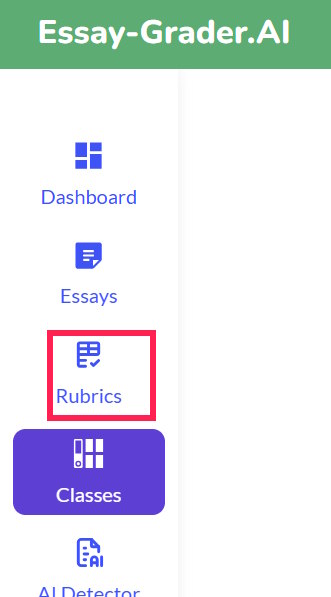
After creating the class, teachers should look to the side and click on Rubrics to proceed with creating grading rules.
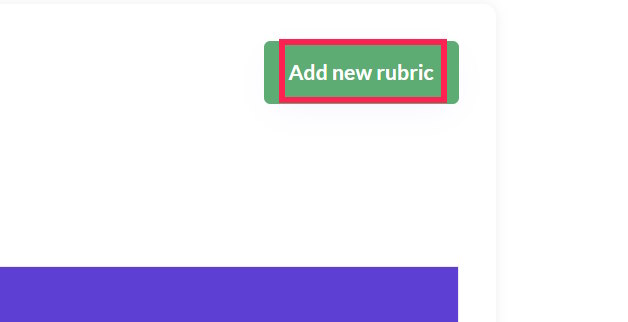
Continue by clicking on Add new rubric to enter the scoring rule description for this AI tool.
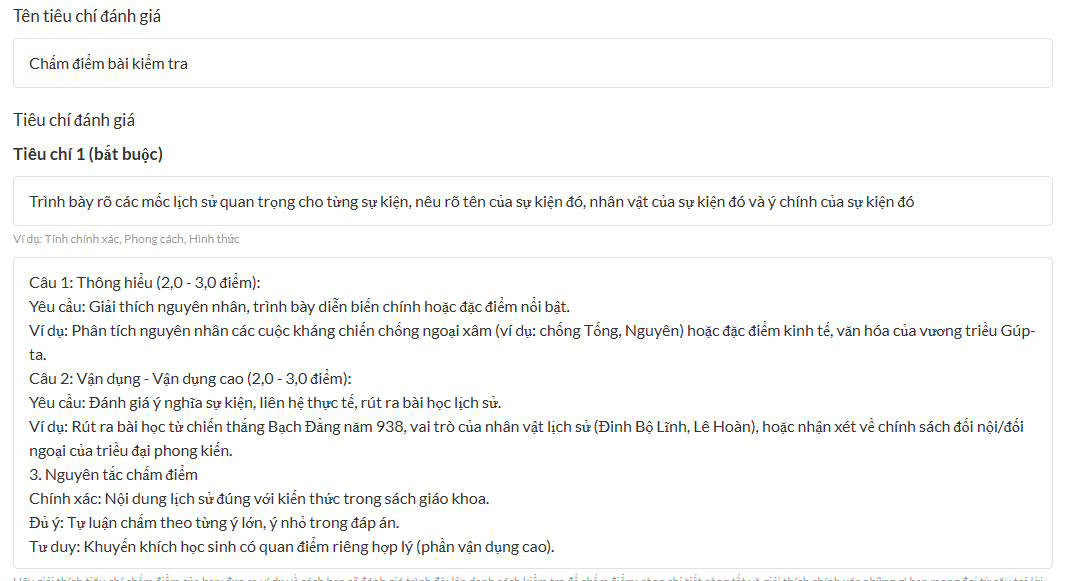
Next, teachers proceed to enter criteria in each area as shown below. In the Criteria section, clearly state the requirements that students need to fulfill in the test. This AI grading tool will use these criteria to grade the students' work.
Below, please specify how each scoring scale should be used so that the AI tool can assign scores accordingly.
Step 5:
Finally, teachers click on "Create Rubric" below to save this grading rule on Essay Grader.

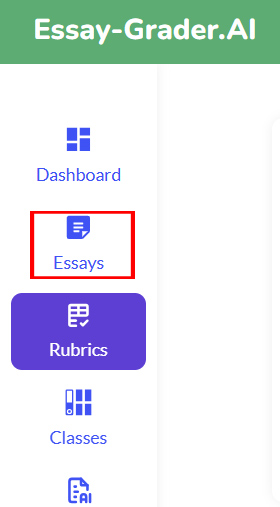
Look to the left of the interface and click on Essays to upload your student's work to Essay Grader.
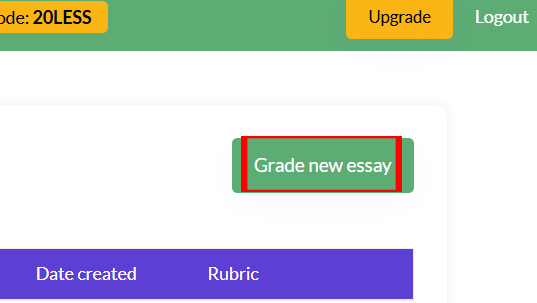
At this point, teachers can click on "Grade new essay" to create a new grading section.
Step 6:
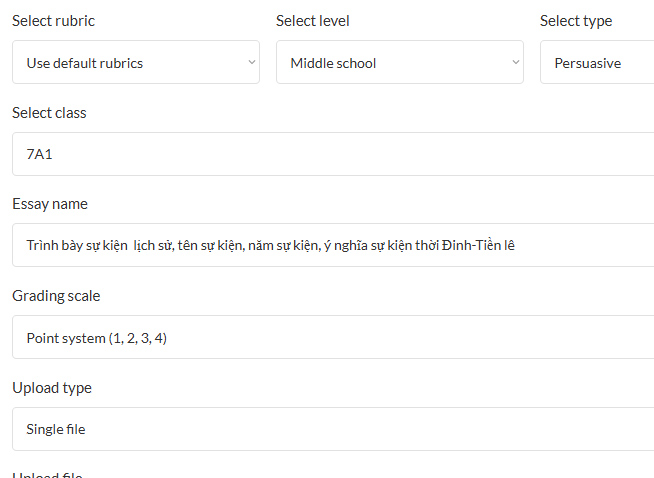
Now, teachers should fill in the grading information as shown below. For the Essay name section, you should re-enter the criterion name you set earlier.
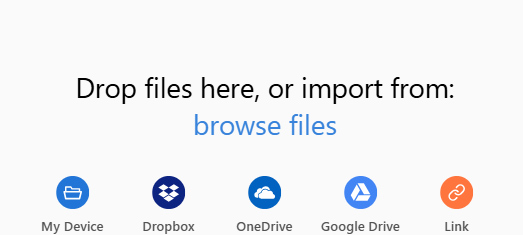
Next, in the Upload section, upload the student's work to the website, then click Start Grading to begin grading.
Step 7:
Wait a moment for the AI grading tool to read and analyze the work. Then, when you see the "Graded" notification, click on it to view the grading results. Here, teachers will see the AI tool analyzing the student's work according to the specific criteria they have entered.
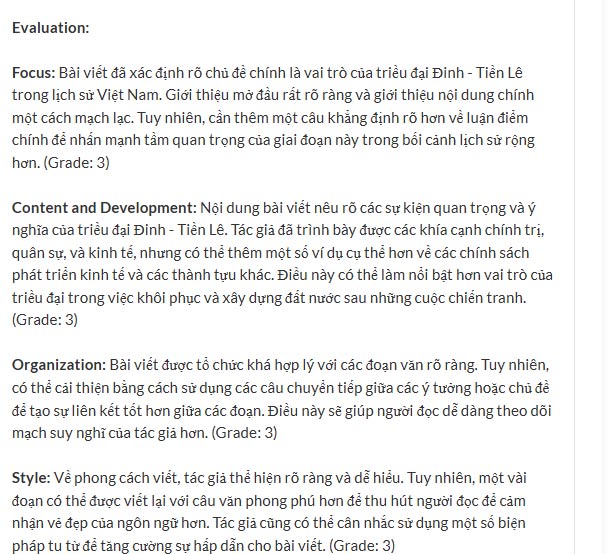
Besides providing feedback, the tool also offers suggestions to improve students' essays, making them of higher quality.
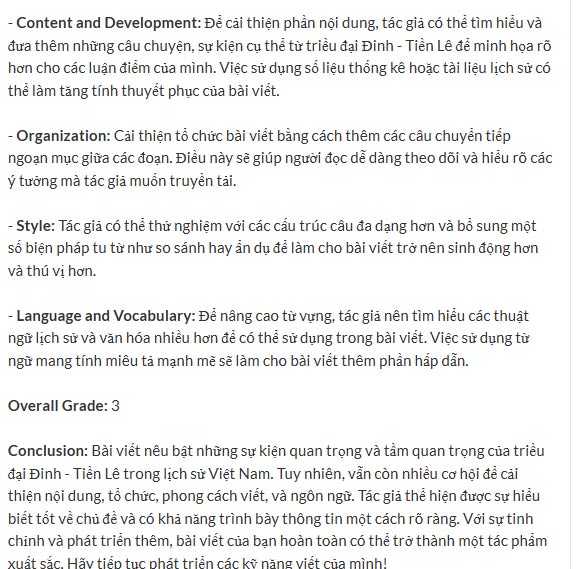
In particular, the tool also includes a section to point out errors so that students can correct them.

Related Articles
 What Is Feedback?2 minutes read
 How to Use the Color Grading Feature in Adobe Lightroom7 minutes read
 How to Make the Best Class Assignments?5 minutes read
 Tips to Master Math and Cope with Home Assignments Faster8 minutes read
 How to Turn Off Feedback Inquiry on Windows 102 minutes read
 Best AI Tools for High School and University Students12 minutes read
Reader Comments 0
Sign in with email or Google to join the discussion.