Table of Contents
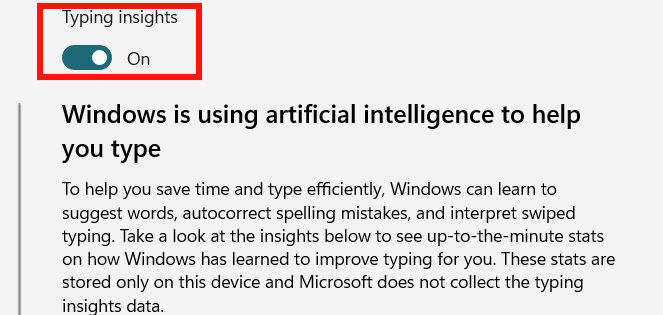
Typing Insights is a Windows 11 page that summarizes how built-in typing assistance has helped you—for example, suggested words, completed words, corrected spelling, and words entered with swipe typing. It is a statistics view, not a list of everything you have typed.
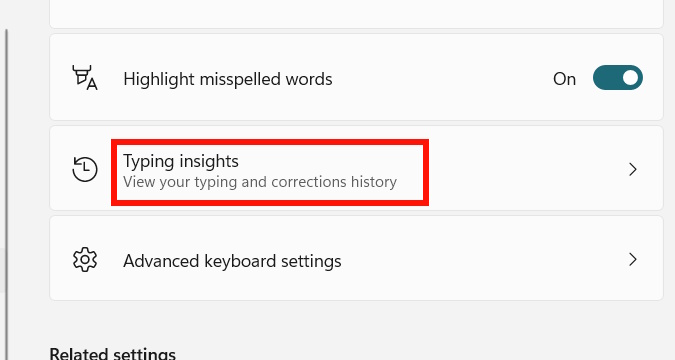
To find it, open Settings > Time & language > Typing > Typing insights. Depending on your Windows build, the page may offer a switch that controls whether these insight statistics are generated or displayed.
Open Typing Insights from Settings
- Press Windows key + I to open Settings.
- Select Time & language.
- Select Typing.
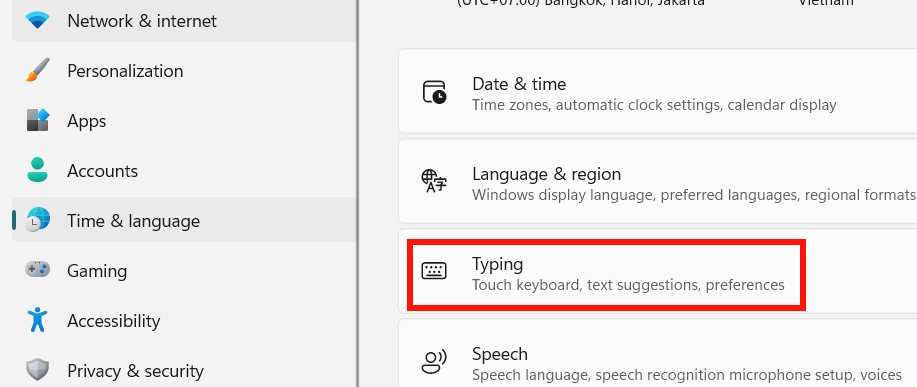
- Open Typing insights.
- Review the available totals. If the page includes a Typing Insights switch, turn it on or off as preferred.
Typing Insights is separate from typing assistance
Turning off the insights view does not necessarily disable every suggestion or correction feature. Return to Settings > Time & language > Typing to manage the individual controls available on your PC, which may include:
- Show text suggestions when typing on a physical keyboard.
- Multilingual text suggestions.
- Autocorrect misspelled words.
- Highlight misspelled words.
Touch-keyboard options can appear separately. Microsoft documents the current path for physical-keyboard suggestions in its Windows text-suggestions guide.
If Typing Insights is missing
- Use the Settings search box and search for typing insights or typing settings.
- Install available Windows updates and reopen Settings.
- Check whether the signed-in account is managed by a school or employer; organization policy may hide or control some options.
- Confirm that you are following Windows 11 instructions. Labels and layout may differ on Windows 10 or across Windows builds.
Avoid unverified Registry commands
The original version of this guide included a Registry command with a malformed key path. Registry editing is unnecessary for most users and Microsoft does not provide that command in its current consumer instructions. Use the Settings interface when the option is available. If an organization manages the device, ask its administrator to make any policy-level change.
In short, use the Typing Insights page to see the effect of Windows typing assistance. Use the parent Typing page when you want to change suggestions, autocorrect, or spelling behavior itself.
Related Articles
 How to Block Windows 10 from Tracking and Collecting User11 minutes read
 How to Fix Error of Not Displaying Thumbnails in Win 10 + Win 11 100% Effective6 minutes read
 Steps to Enable the New Windows 10 News and Weather Widget5 minutes read
 How to Display Weather on Windows 11 Lock Screen3 minutes read
 Fix Word Equation Error Not Displaying Correct Form: How-To Guide4 minutes read
 Instructions for Displaying My Computer Icon on Desktop Screen3 minutes read
Reader Comments 0
Sign in with email or Google to join the discussion.