Table of Contents
The Word Equation tool does not always work smoothly, the equation may not display correctly. Below are instructions to fix the error of Word equation not displaying correctly.
Equation in Word is very important for teachers and students, when presenting math problems and calculations more easily and accurately. However, the Equation tool does not always work smoothly, there may be some errors such as equations not displaying correctly in Mathematics, for example. Below are instructions to fix the error of Word equations not displaying correctly.
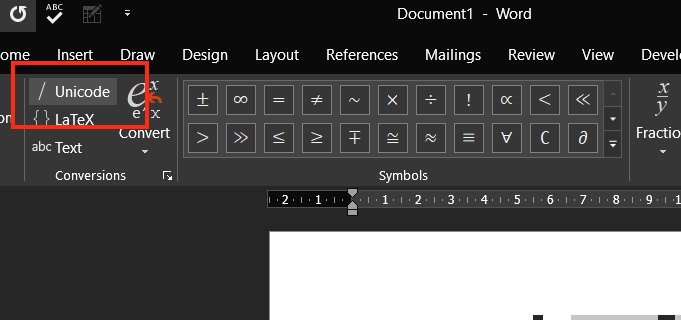
Enable Unicode formatting
Click Insert then select Equation , then Select the Unicode button To use this format for the equation you enter in Word.
Create professional mode for equations
Step 1:
We highlight The equation We want to convert to professional form.
You open the equation tool by Pressing the key combination Alt + = . Then you Click on the Equations tab And then click Convert .
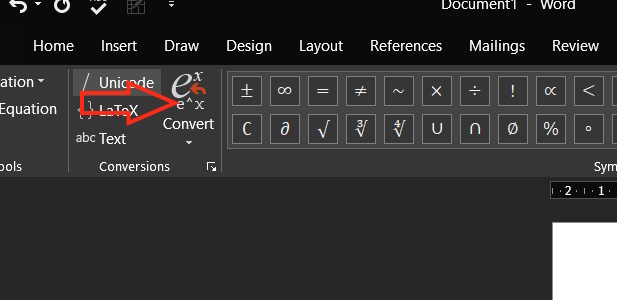
Step 2:
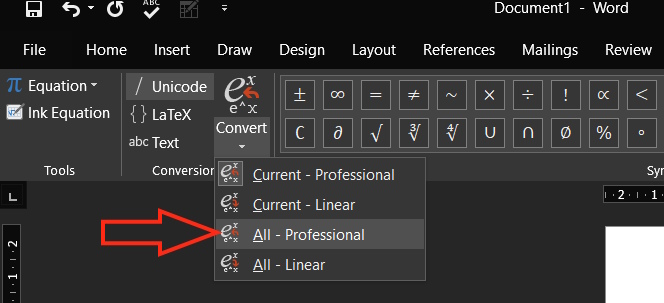
Users Click All-Professional In the display menu to convert the equation You should professional form.
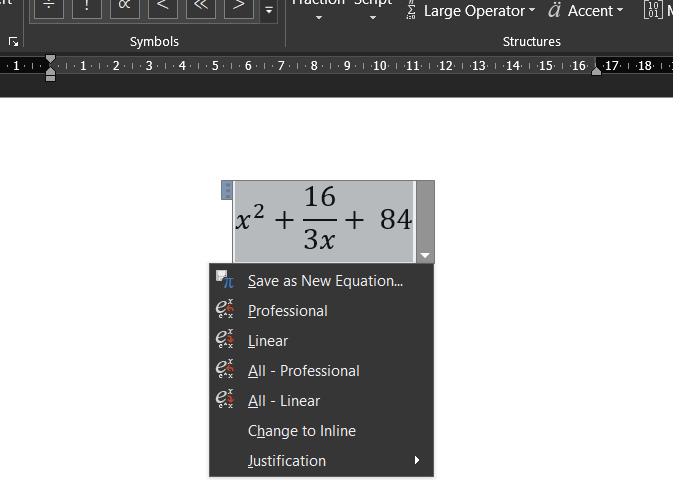
Immediately you see the equation displayed in the correct format as shown below.
Delete templates in Word
Templates that have their own formatting and rules in Word can interfere with selecting equation mode. Removing them from the AppData folder (where software settings and information are stored) may resolve the issue in Word.
Step 1:
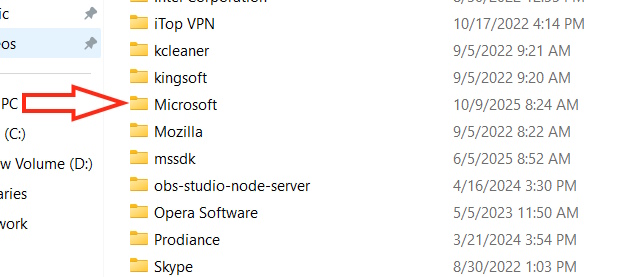
You open The Run dialog box , then Type %appdata% And press OK. Then, you Click on the Microsoft folder To access.
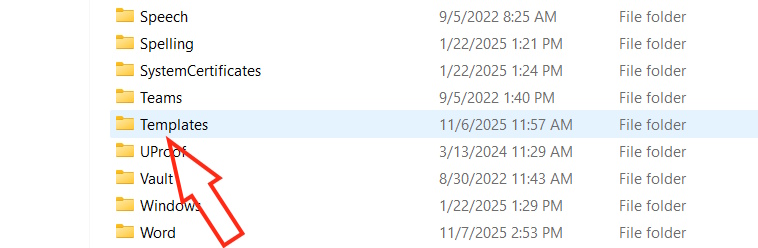
Step 2:
Click on The Templates folder .
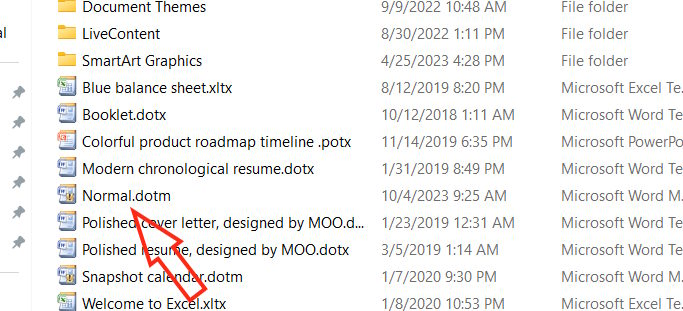
You will see a list of templates for your entire Word suite. You will need to Delete the ".dotm" files, specifically Normal.dotm . Then restart Word.
Remove Add-ons in Word
Third-party add-ons, in addition to slowing down load times, can also conflict with Microsoft Word processes. You can remove those add-ons to resolve the problem you are having with equations in Word.
Click File > Options > Add-ons To make adjustments.
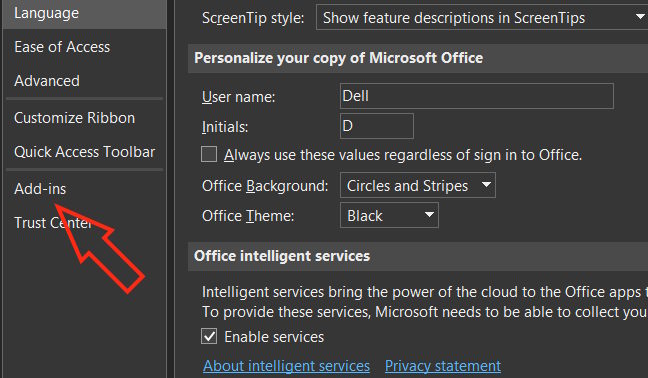
Switch to the next interface, Click Add-ons and then select OK To access the interface to manage installed add-ons in Word.
Then uncheck the add-ons you want to remove from Word and click OK to save.
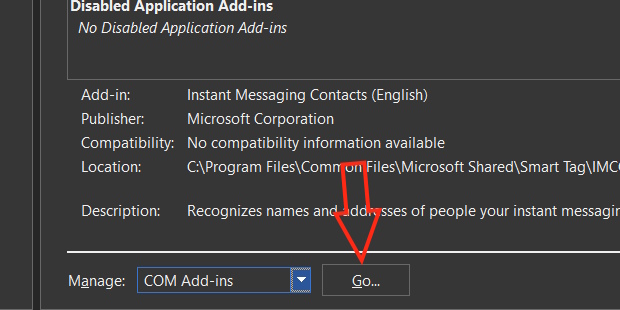
Finally restart Word for the changes to take effect.
FAQ
How do you fix word equation error not displaying correct form: how-to guide?
In practical terms, the Word Equation tool does not always work smoothly, the equation may not display correctly. Below are instructions to fix the error of Word equation not displaying correctly.
What should you check before getting started?
Review the requirements, compatible device or software version, and any warnings described in the guide before making changes.
What should you do if the steps do not work?
Repeat the steps in order, confirm that your app or system is up to date, and review the troubleshooting details provided above.
Related Articles
 Word Does Not Display Equation - Don't Worry Because There Is a Solution [100%6 minutes read
 How to Fix the Error of Accent Marks When Writing Capital on Word3 minutes read
 How to Set Auto Correct in Word: Auto Correct Word8 minutes read
 Correct Typos in Word: Complete Guide2 minutes read
 How to Write Mathematical Formulas in Word Very Easily: Complete Guide15 minutes read
 How to Fix the Error of Correct Alignment but Incorrect Printing in Word: Clear6 minutes read
Reader Comments 0
Sign in with email or Google to join the discussion.