Table of Contents
You can add weather information to Windows 11 lock screen to keep track of information instantly and also declutter your desktop.
You can add weather information to the Windows 11 lock screen to keep track of information at a glance and also declutter your desktop. The Windows lock screen now has many changes, including the ability to manage the widgets displayed on the screen. Here is a guide to show the weather on the Windows 11 lock screen.
How to show weather on Windows 11 lock screen
Step 1:
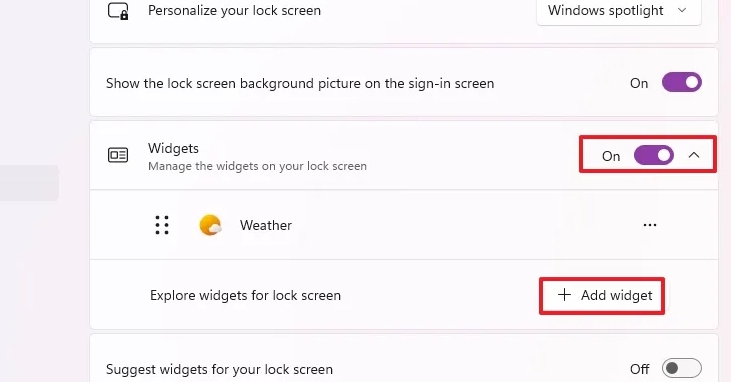
You open Settings on your computer, then click on Personalization . Next, click Lock screen to make adjustments. Here You should Activate Widgets .
Continue to Click Add widget To Add the Weather widget to the lock screen if it is not displayed In the list as shown below.
Step 2:
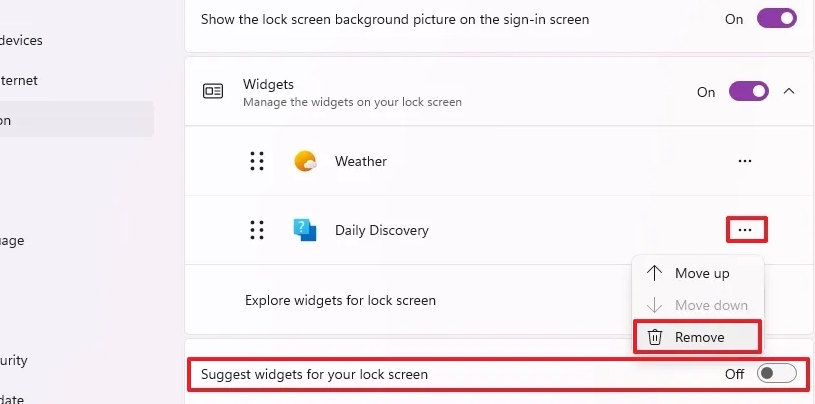
Turn Off the Suggest widgets for your lock screen setting To avoid adding random widgets to your computer's lock screen.
If you don't want any widget to appear on the lock screen, click the 3-dot icon and select Remove to delete it.
Step 3:
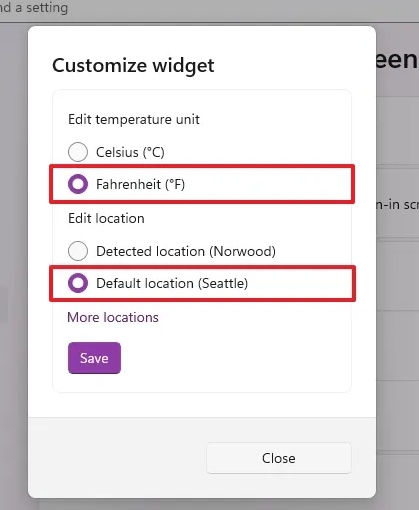
You Click on the weather widget To Change the display unit .
So you've added weather information to your Windows lock screen, displayed at the bottom of your computer's lock screen.
If you don't want to show weather information on the lock screen, just delete it from the Widgets section in Lock screen or turn off the lock screen Widget on Windows 11.
FAQ
How do you display weather on Windows 11 lock screen?
In practical terms, you can add weather information to Windows 11 lock screen to keep track of information instantly and also declutter your desktop.
What should you check before getting started?
Review the requirements, compatible device or software version, and any warnings described in the guide before making changes.
What should you do if the steps do not work?
Repeat the steps in order, confirm that your app or system is up to date, and review the troubleshooting details provided above.
Related Articles
 How to Display the Weather on the iPhone Lock Screen5 minutes read
 How to Add Weather Information to the Lock Screen on Windows 10 and 113 minutes read
 How to Disable Lock Screen Lock Screen on Windows 8, 105 minutes read
 How to Install Weather Widget on iPhone Lock Screen: Clear Instructions4 minutes read
 Instructions to Customize the Lock Screen on Windows 114 minutes read
 Remove Network Icon on Lock Screen Lock Screen Windows 104 minutes read
Reader Comments 0
Sign in with email or Google to join the discussion.