Table of Contents
Microsoft Edge has an option to change the format of copying and pasting web URLs from the address bar into content. This feature defaults to copying and pasting URLs as links instead of as text. Instead of defaulting to links, you can change the format of copying and pasting URLs in Microsoft Edge, according to the article below.
Change URL copy paste format in Microsoft Edge
Step 1:
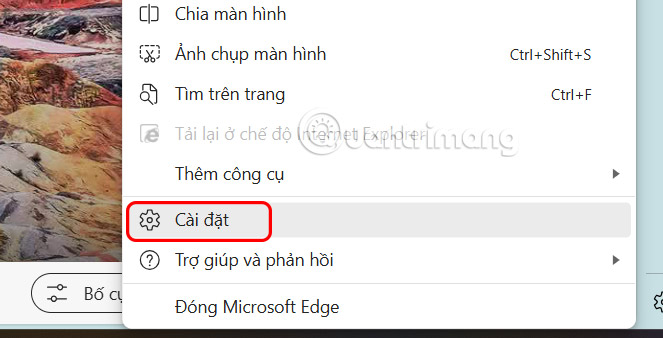
Open Edge browser, select the 3 dots icon, select Settings .
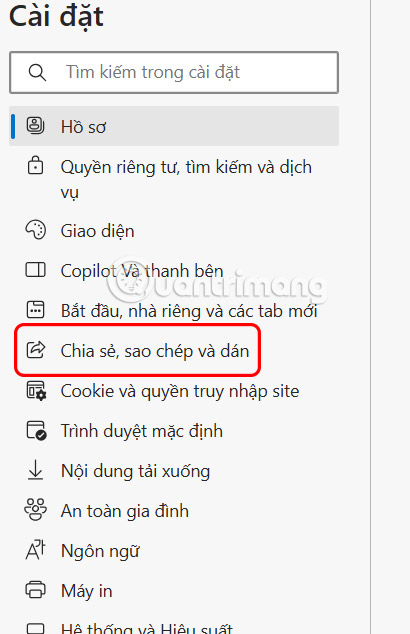
Switch to the new interface, users select Share, copy and paste in the menu on the left of the interface.
Step 2:
Looking to the right we will see the customization for the copy paste URl mode on the browser. Now you can enable Use the format selected above when copying links in web pages .
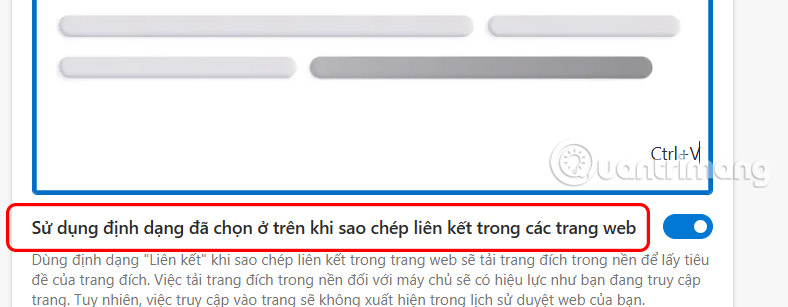
If you enable it then select Link or Plain Text as you wish.

Final Thoughts
Following the steps in order and checking version-specific settings should make it easier to Change the Copy Paste URL Format in Microsoft Edge. If an option looks different, verify the device, app, or operating-system version before changing additional settings.
FAQ
What is the best way to Change the Copy Paste URL Format in Microsoft Edge?
Start with the requirements described in the article and follow the steps in order. Microsoft Edge has an option to change the format of copying and pasting web URLs from the address bar into content. This feature defaults to copying and pasting URLs as links instead of as text.
What should you know about Change URL copy paste format in Microsoft Edge?
Open Edge browser, select the 3 dots icon, select Settings.
What should you do if the instructions do not match your screen?
Check the device, software version, account permissions, and regional settings. Interfaces can change after updates, so use the closest matching option and consult the official support documentation when necessary.
Related Articles
 How to Copy and Paste on Mac7 minutes read
 Tip Copy / Paste in Microsoft Outlook: Tutorials2 minutes read
 5 Ways to Fix Computer Errors That Cannot Copy Paste: Recommended Choices8 minutes read
 Fixing Errors Cannot Copy Paste in Windows7 minutes read
 How to Copy and Paste on Mac: Complete Guide7 minutes read
 New Microsoft Edge Helps with Passwords, Reading, Research6 minutes read
Reader Comments 0
Sign in with email or Google to join the discussion.