Table of Contents
This guide provides a clear, practical overview of "Instructions to Delete All ChatGPT Chat History on Phone, Computer". It organizes the most useful details, explains important considerations, and highlights the steps or choices that matter most.
How to delete all ChatGPT chat history on computer
Step 1:
select your avatar and select Settings from the displayed list.
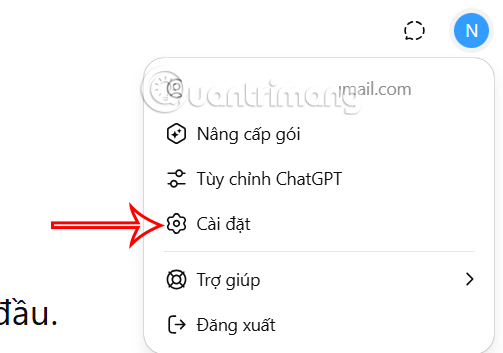
Step 2:
Switch to the options interface for ChatGPT account, select Data Control in the menu on the left of the interface.
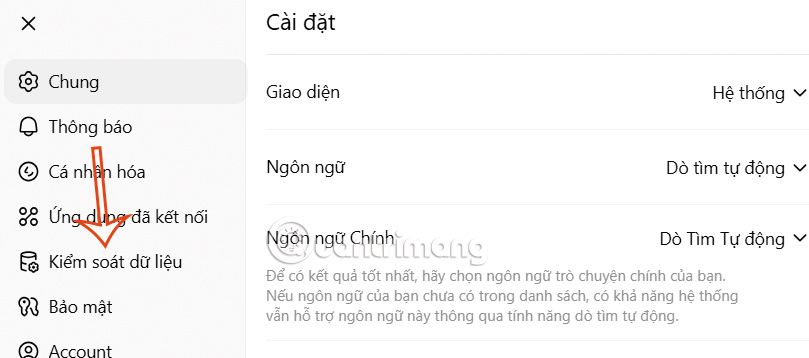
Step 3:
Look at the content next to it, find the Delete all chats section and click Delete all to perform.
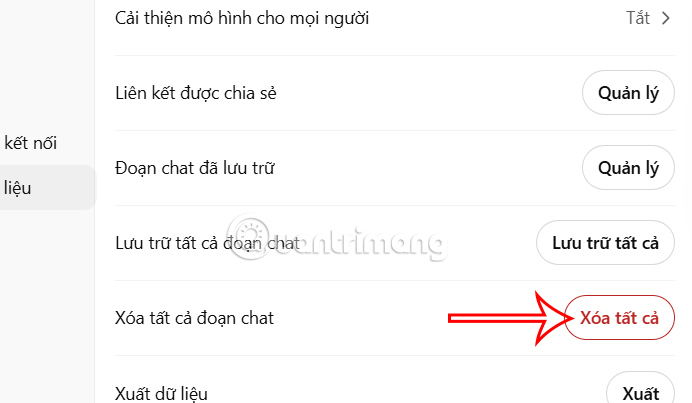
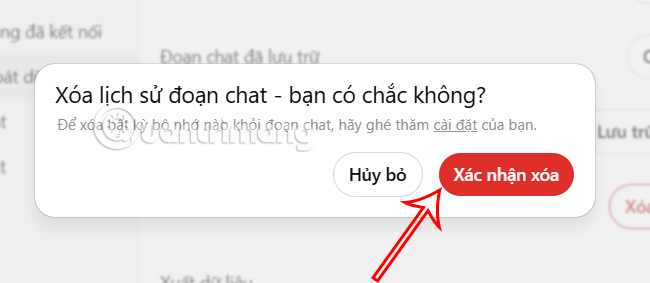
Then ChatGPT asks you if you are sure to delete all ChatGPT chat history, click Confirm delete.
Instructions to delete ChatGPT chat history on phone
Step 1:
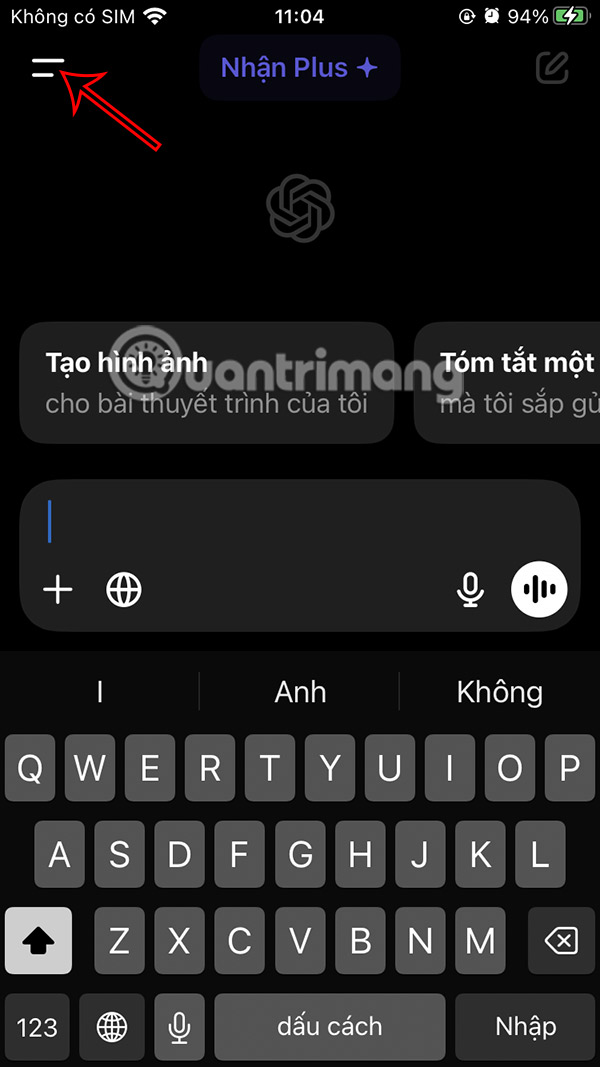
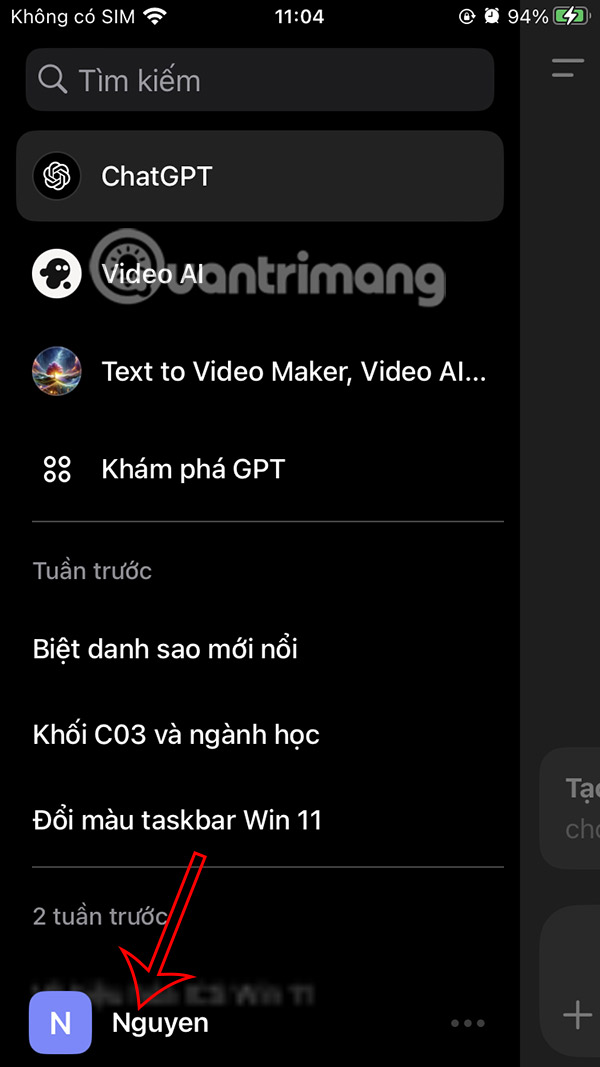
At the ChatGPT application interface, users select the 2-dash icon and then select your account name below.
Step 2:
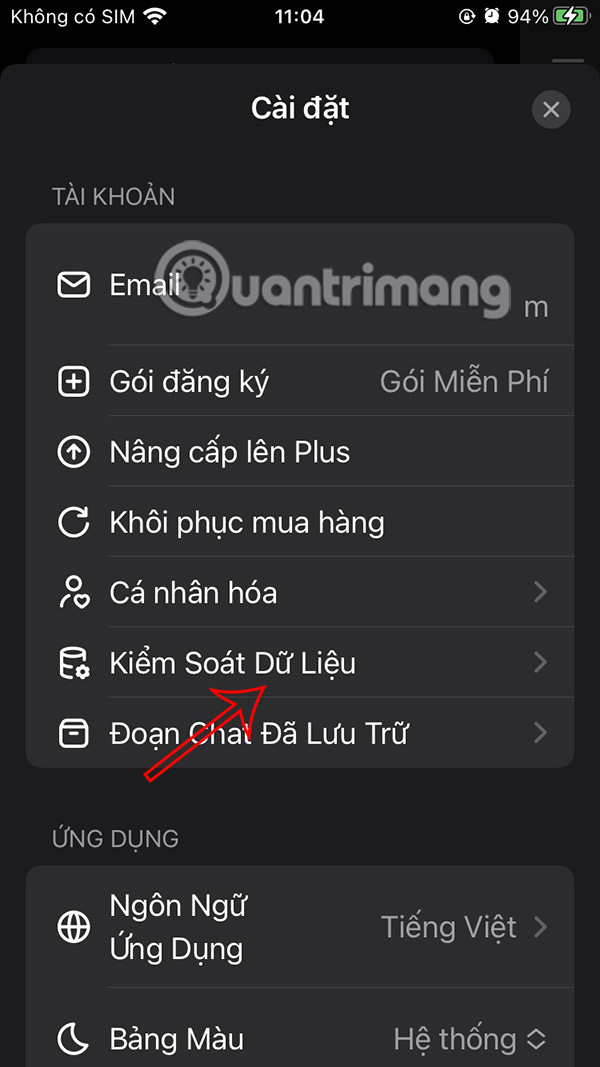
Go to the settings options interface for the ChatGPT application on your phone, select Data Control .
Step 3:
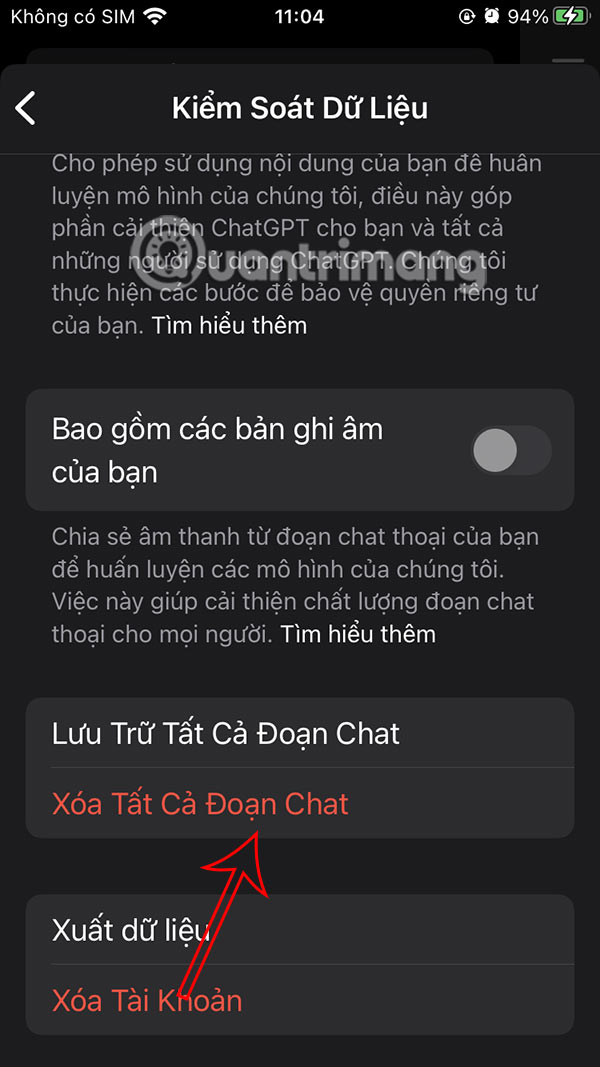
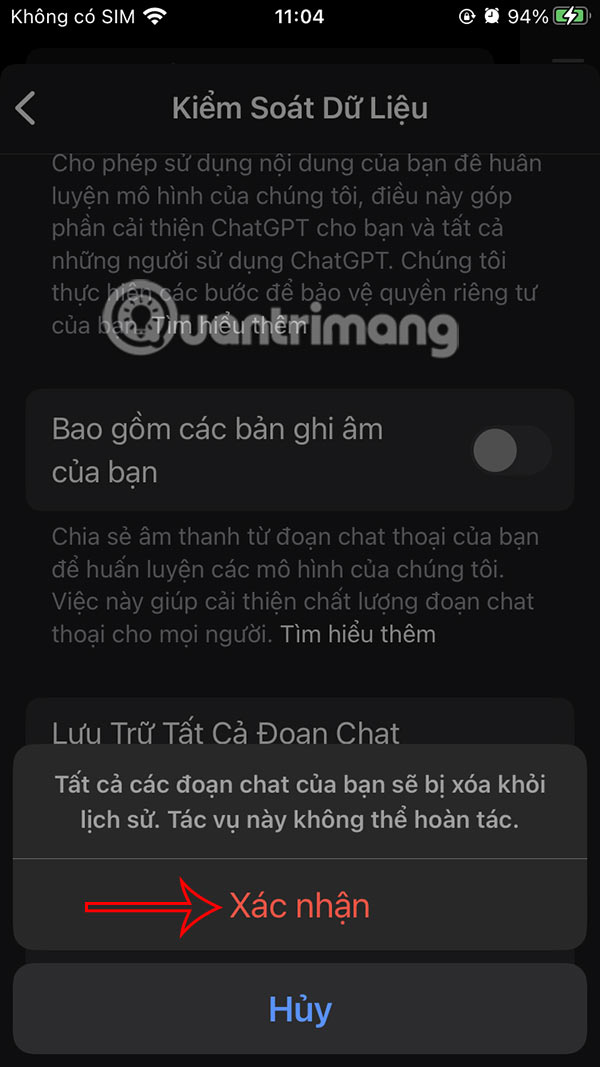
Then you need to click Delete all chats to do it. Finally, you select Confirm to delete the ChatGPT chat and you're done. This action cannot be undone, so you need to pay attention.
FAQ
How to delete all ChatGPT chat history on computer?
select your avatar and select Settings from the displayed list.
What should you know about instructions to delete ChatGPT chat history on phone?
At the ChatGPT application interface, users select the 2-dash icon and then select your account name below.
What does this guide cover?
This guide explains instructions to delete all ChatGPT chat history on phone, computer, including the main steps, important details, and practical considerations.
Related Articles
 How to Delete ChatGPT History: Practical Guide5 minutes read
 How to Change Chat Box Color on ChatGPT3 minutes read
 How to Delete the Chat History of Imessages on Mac OS X2 minutes read
 Instructions on How to Delete Chat History on Skype4 minutes read
 How to Delete Meta AI Chat History3 minutes read
 What Is ChatGPT Plus? How to Register ChatGPT Plus in Vietnam11 minutes read
Reader Comments 0
Sign in with email or Google to join the discussion.