Table of Contents
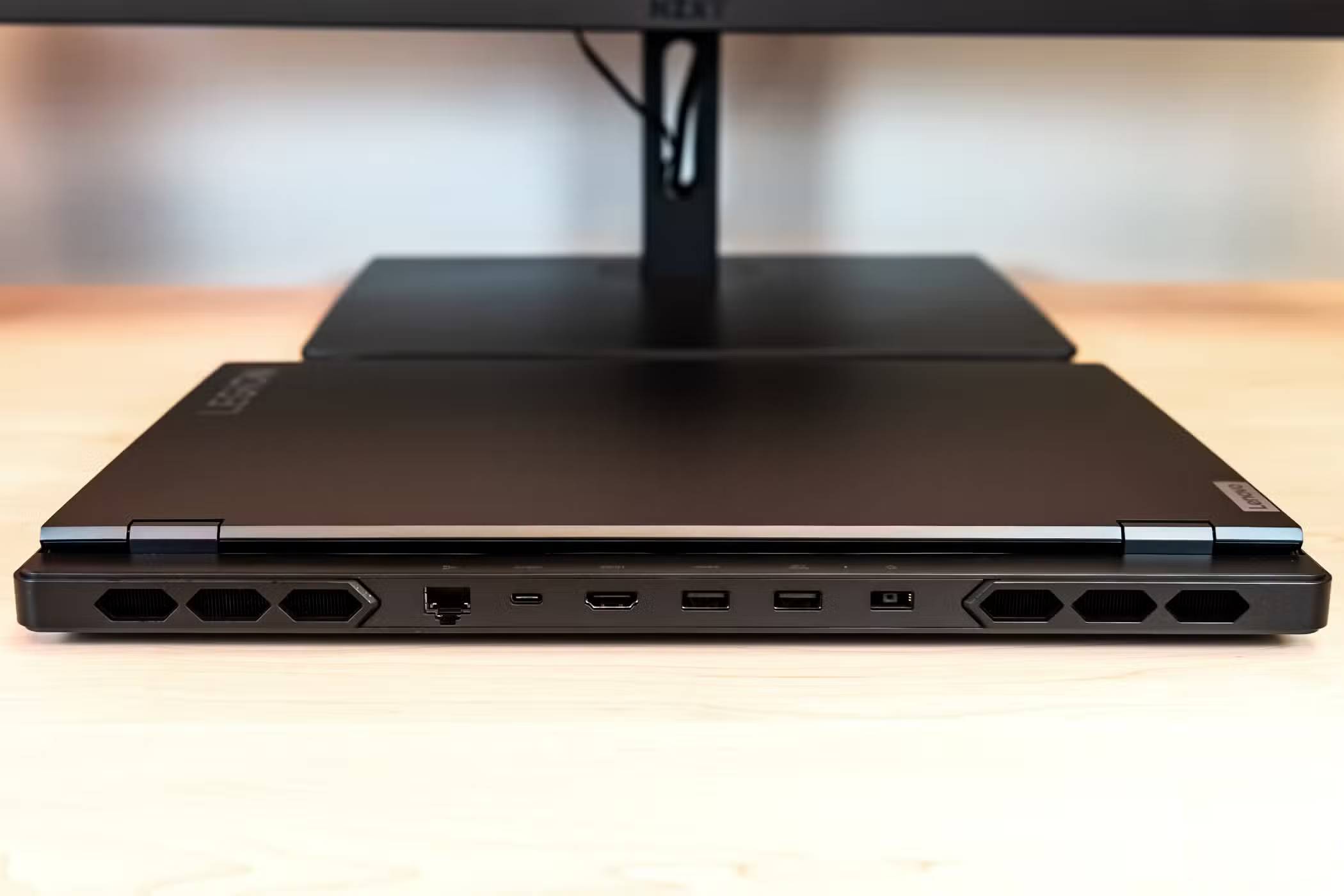
USB port symbols can identify data speed, video support, or a charging feature. They describe different capabilities, so a fast port is not necessarily a high-power charger, and a USB-C connector does not automatically support a monitor.
The most reliable answer is the device's specification for that particular port. Use the icon as a starting point, then check the manual when you need a specific speed, charging wattage, or display mode.
How to read common USB symbols
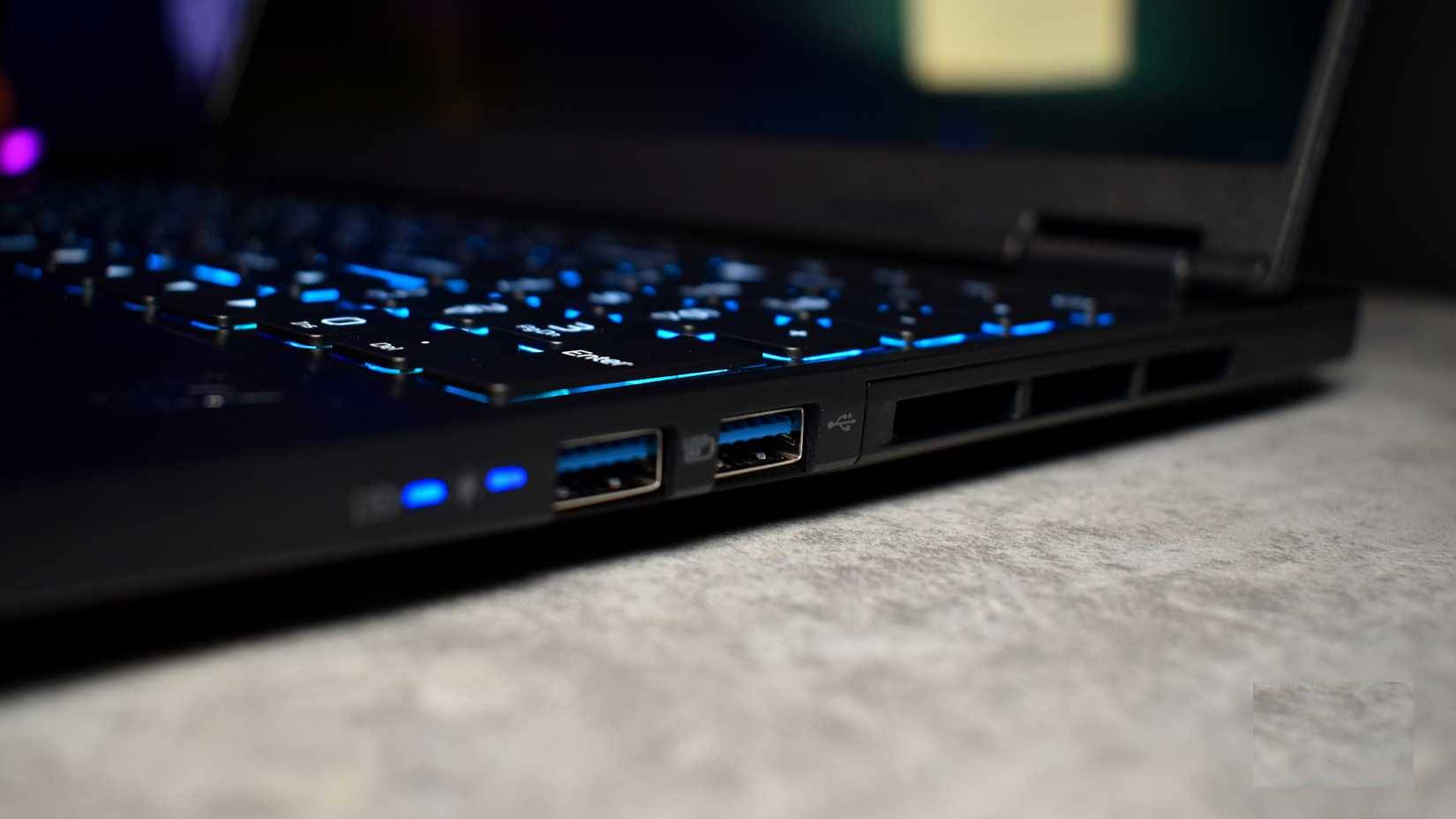
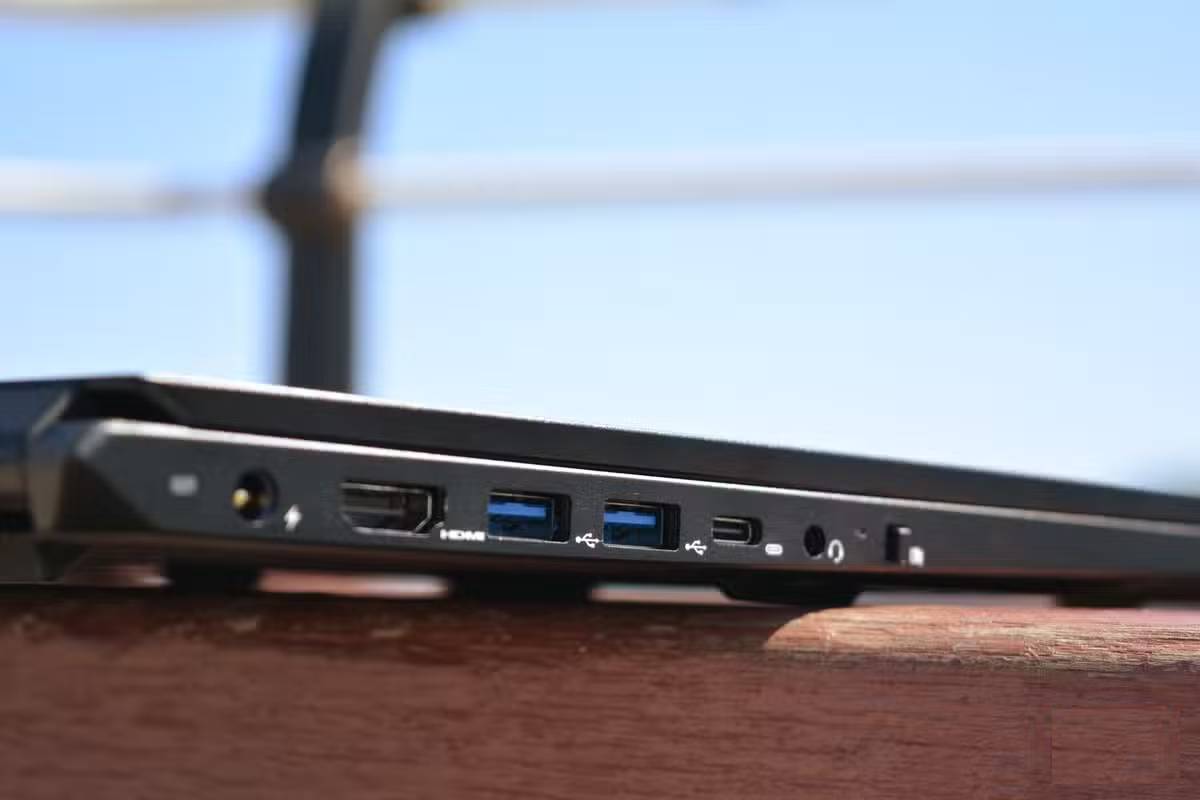
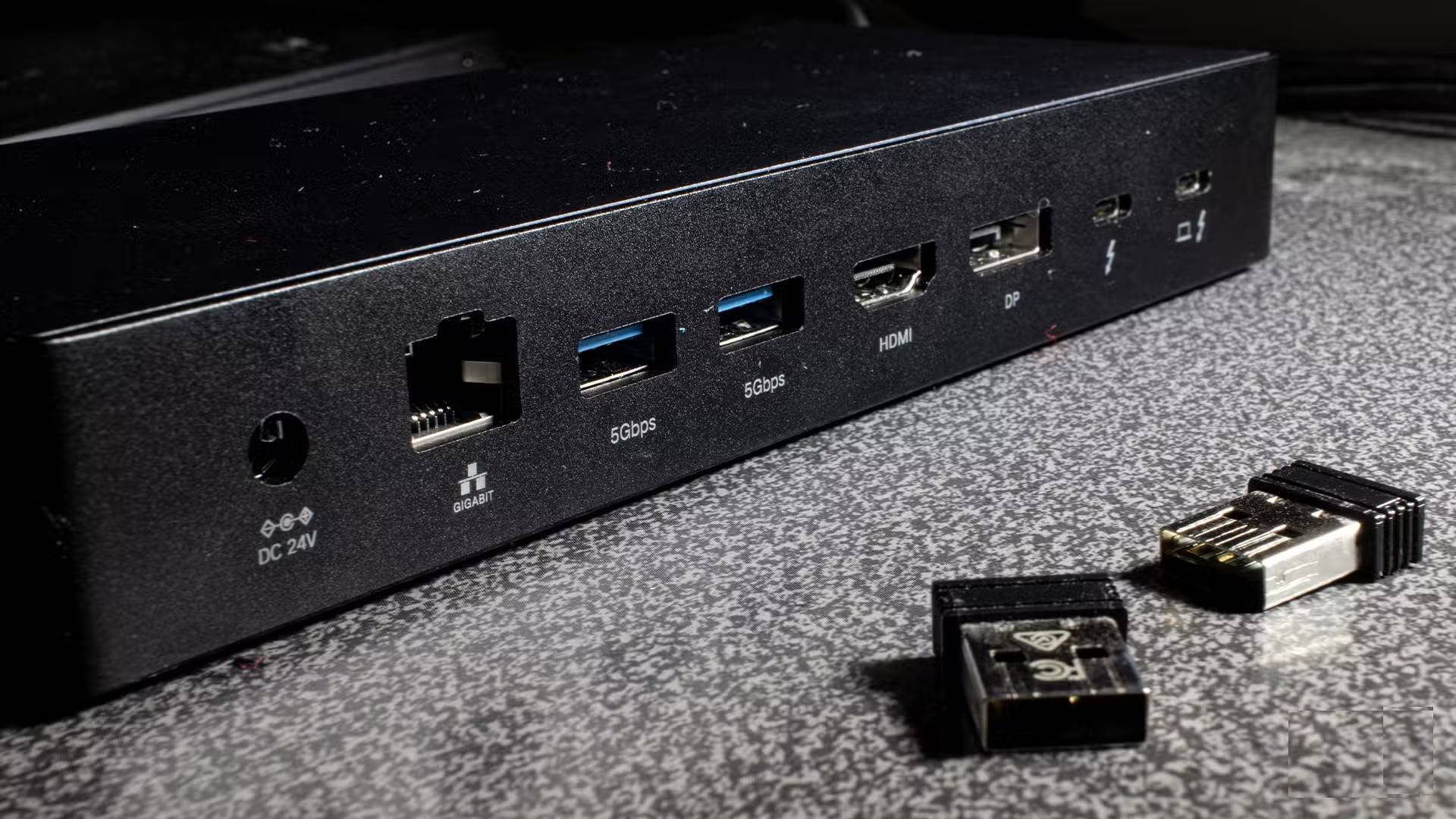
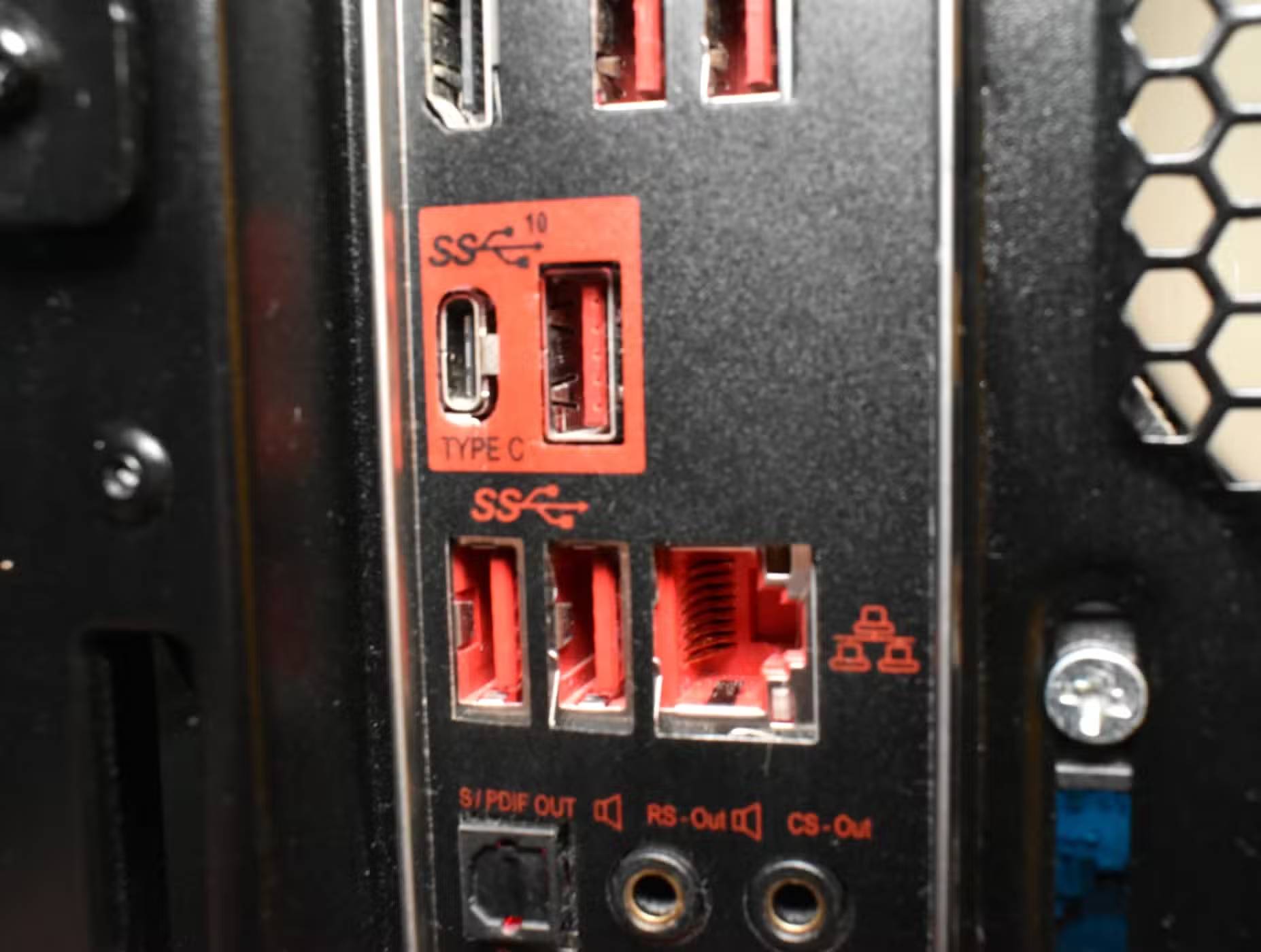
| Symbol or label | What it tells you | What to check |
|---|---|---|
| A general USB connection symbol. On many older devices it appears beside a USB 2.0 port, but the plain symbol alone does not establish the port's speed. | USB 2.0 High-Speed has a maximum signaling rate of 480 Mbps. Confirm the port specification rather than assuming every trident means USB 2.0. |
| Legacy SuperSpeed branding, commonly used for a 5 Gbps USB connection. | Look for a number or the documented data rate if the device uses a different SuperSpeed label. |
| The number identifies a 10 or 20 Gbps signaling capability. | 10 Gbps corresponds to USB 3.2 Gen 2; USB 3.2 Gen 2×2 provides 20 Gbps. USB 3.1 Gen 1 is 5 Gbps, not 10 or 20. |
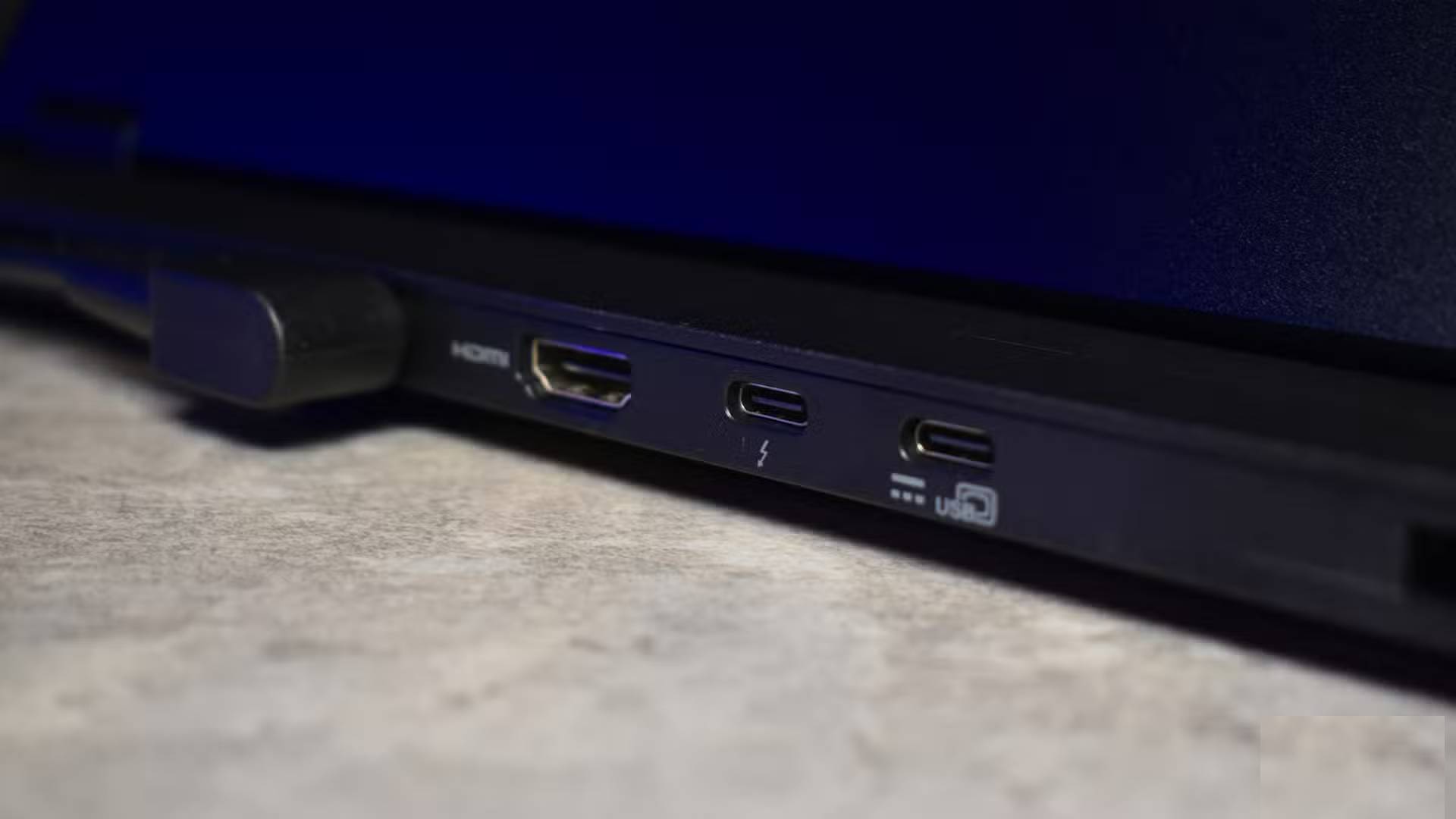
| The distinctive Thunderbolt logo indicates Thunderbolt support. Modern Thunderbolt ports use USB-C and carry data and display signals. | A manufacturer's charging or always-on icon can also resemble a bolt. Confirm the logo and Thunderbolt generation; do not infer charging wattage from its shape. |
| Beside a USB-C port, this usually identifies DisplayPort Alt Mode video output. | The cable or adapter must support video, and the computer, display, and connection must support the desired resolution and refresh rate. |
| Older USB4 logos can include a 20 or 40 Gbps rating. Newer performance branding also includes other explicit speeds, including 80 Gbps. | Read the actual speed label. Connector shape or a partial logo is not a reliable way to distinguish every USB generation. |

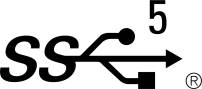
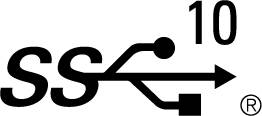
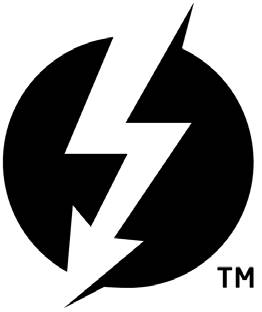

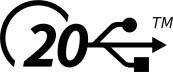
The symbol illustrations above are attributed in the source to USB-IF, Intel, and DisplayPort. USB-IF's data performance naming guidance uses explicit 5, 10, 20, 40, and 80 Gbps labels to reduce naming confusion. These are signaling capabilities; actual file-transfer rates are lower and depend on the connected equipment.
Charging marks are separate from data speed
A battery icon, a charging symbol, or a manufacturer-specific label may identify a port that charges accessories or remains powered while the computer sleeps. Whether it also works when the computer is off depends on the model, power connection, and firmware settings.
For USB-C, distinguish charging the computer from supplying power to an accessory. A port may support one, both, or neither at the wattage you need. USB Power Delivery negotiates power between compatible devices; the charger, cable, and receiving device must all support the required level.
A cable marked 60W or 240W states its power capability, not a guaranteed charging rate. It also does not establish high-speed data or video support. TipsMake's USB-C symbol guide covers these separate markings.
Choose the port for the task
- Keyboard or mouse: ordinary USB 2.0 is usually sufficient. Connecting one to a faster compatible port is also fine.
- External SSD: choose the fastest common data rate supported by the port, enclosure, and cable. A slow hub can become the limiting part.
- Monitor: use a documented video-capable port and suitable cable or adapter. A charge-only or USB 2.0 cable may not carry the required display signal.
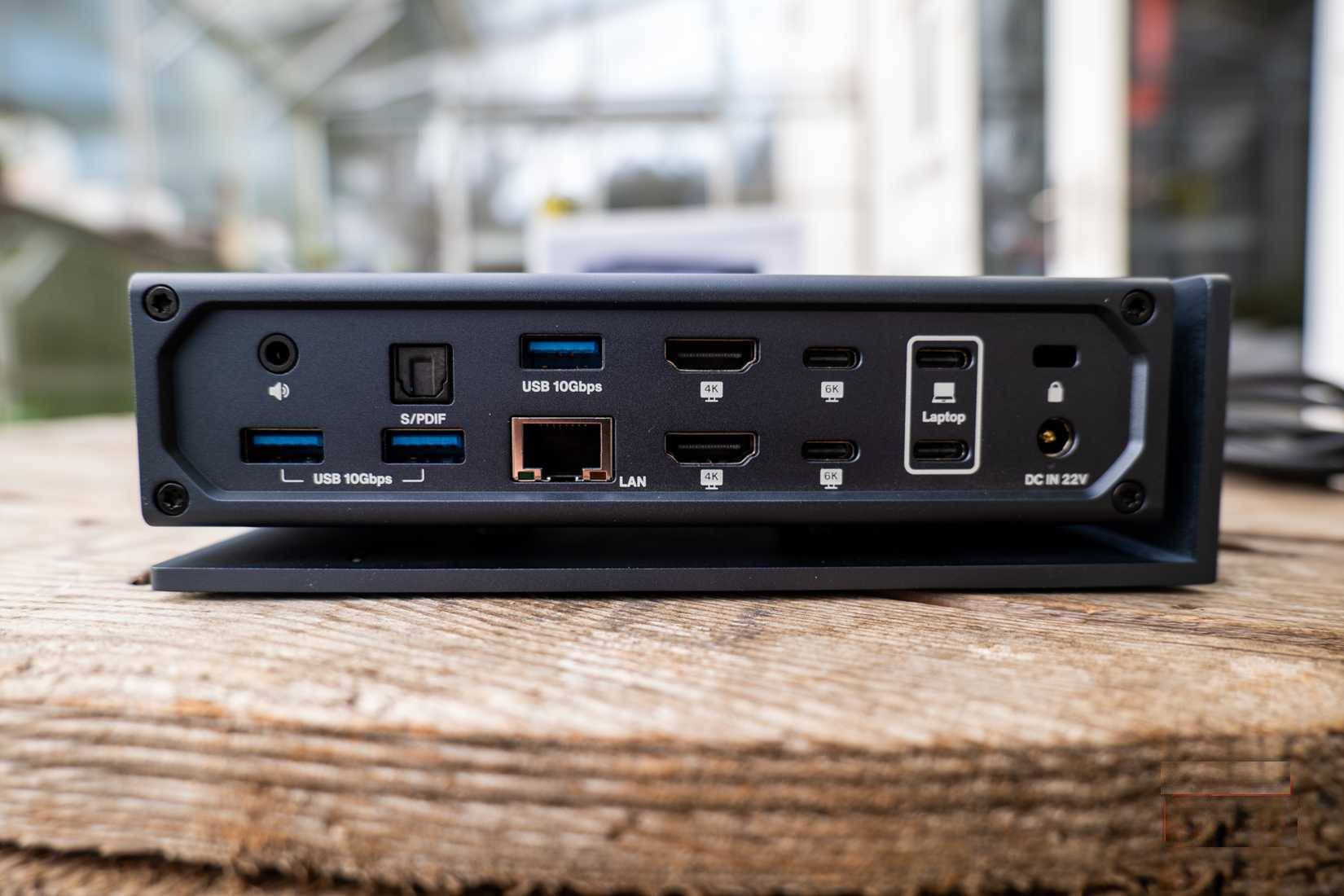
- Dock: match the dock's USB or Thunderbolt requirements to the computer. A dock's advertised display arrangement may depend on the computer and operating system.
- Charging: check power direction and wattage rather than reserving every lightning-marked port for a phone.
Intel's Thunderbolt 4 and USB-C comparison explains why connector shape and protocol are different. TipsMake also explains how Thunderbolt works.
Can you identify a port by color?
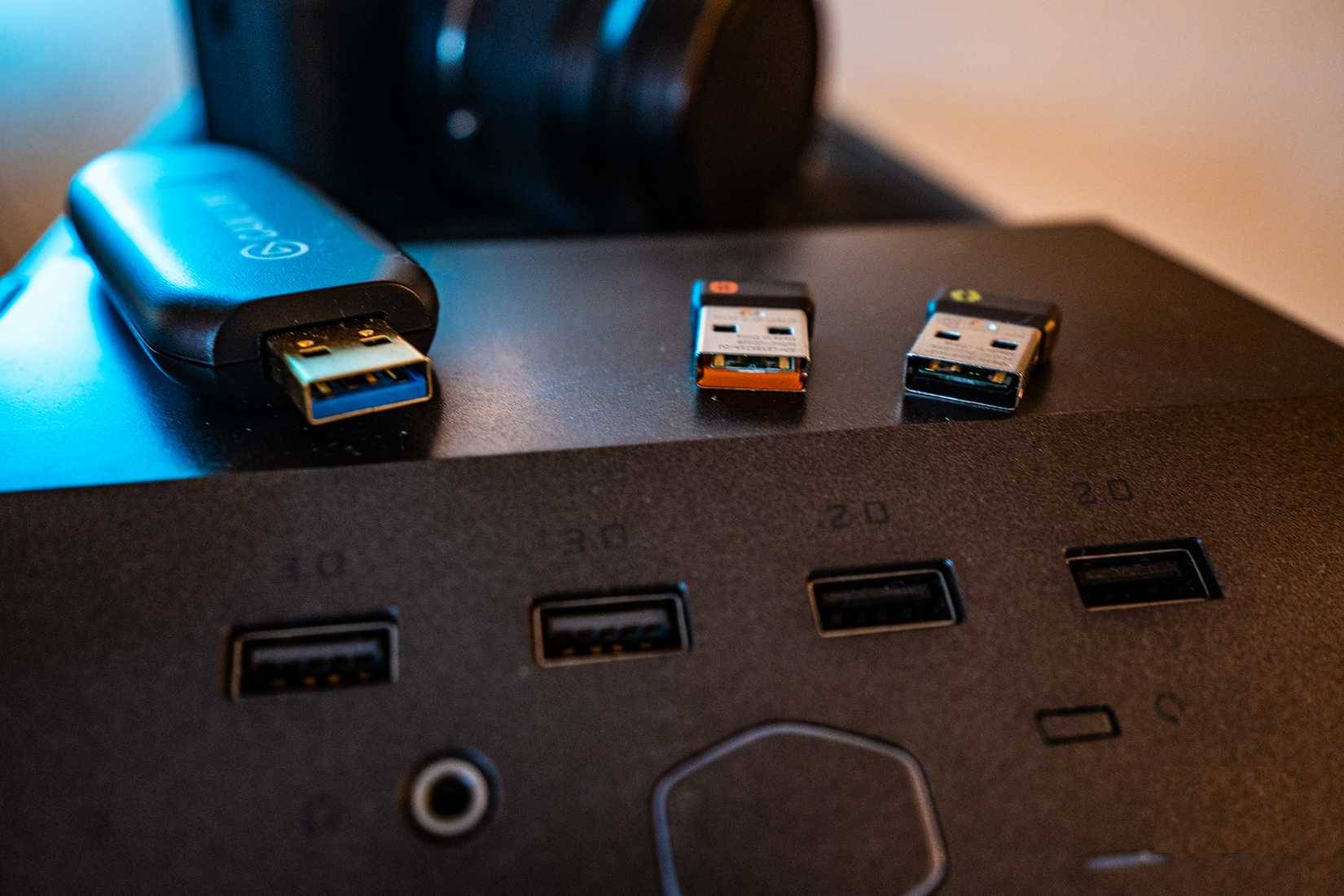
Blue often appears on USB 3.x Type-A ports; red, yellow, and other colors can have manufacturer-specific meanings. Color does not reliably prove data speed, charging power, or always-on behavior.
If a drive transfers slowly, a phone charges slowly, or a monitor shows no image, check the exact port specification and every component in the connection. Two ports that look identical may support different features.
Related Articles
 Use every day, but do we fully understand the meaning of these symbols
 Decode the 7 familiar symbols but few people know about their mysterious origins
 Meaning of symbols of fate
 16 connection ports are commonly found on computers and their functions
 USB-C Port Symbols Explained: Speed, Charging, and Displays
 How to Create and Install Symbols on Microsoft Word
Reader Comments 0
Sign in with email or Google to join the discussion.