Table of Contents
Excel's LAMBDA function turns a formula into a reusable custom function. You define parameter names, write the calculation, and can save it under a name in Name Manager. For example, a discount formula can become =NETPRICE(A2,B2) instead of being rewritten in every row.
LAMBDA is available in supported newer Excel versions, including Microsoft 365; it is not supported in Excel 2016. Check Microsoft's current LAMBDA function reference for version availability and syntax.
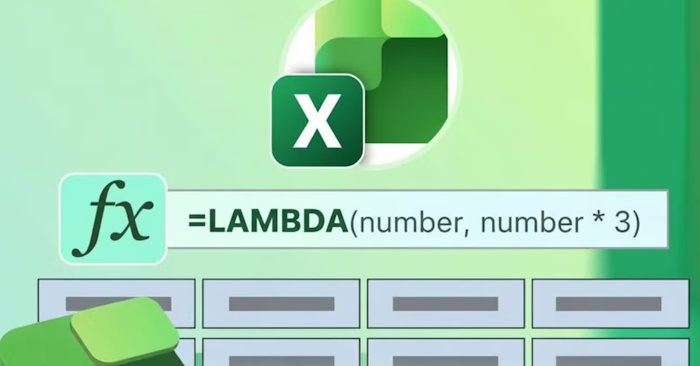
How LAMBDA works
The syntax is =LAMBDA(parameter1, parameter2, ..., calculation). Parameters are names used inside the calculation. The last argument is the calculation Excel should return.
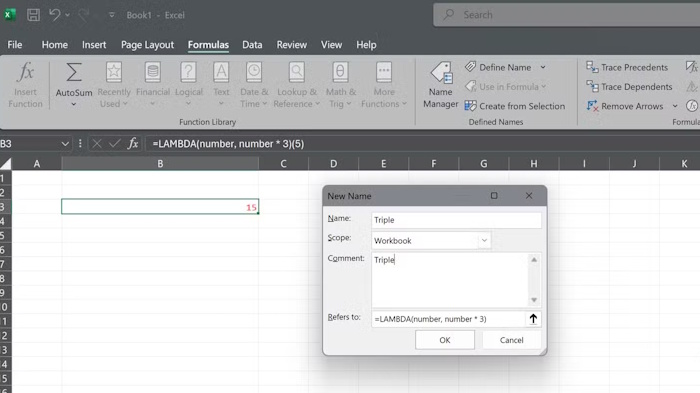
This example multiplies a number by three:
=LAMBDA(number, number*3)(5)The final (5) supplies a value for the test, so the formula returns 15. If you leave off the test call, Excel has a function definition but no supplied values to calculate.

Save a LAMBDA formula as a named function
- First test the formula directly in a worksheet. For example, try
=LAMBDA(price, rate, price*(1-rate))(100,0.2). It should return80. - Open Formulas > Name Manager > New. The labels may differ slightly between Excel versions.
- Enter a name such as
NETPRICE. In Refers to, enter the definition without the test arguments:=LAMBDA(price, rate, price*(1-rate)). - Save the name. In a cell, use
=NETPRICE(A2,B2), where A2 contains the price and B2 contains the discount rate as a decimal, such as0.2for 20%. - Try the named function with a few inputs and compare its results with the original formula before filling it down a column or sharing the workbook.
Common errors
#CALC!: A LAMBDA definition entered by itself has not been called with test values. Add arguments after it, or save it as a named function and call that name.- Wrong number of arguments: The number of values in the function call must match the parameters in the definition.
- Function name not recognized: Check that the name was saved in Name Manager and that the workbook is opened in a version of Excel that supports LAMBDA.
- Formula separator differences: Depending on regional settings, Excel may expect semicolons instead of commas between arguments.
Use LAMBDA when a formula is repeated and benefits from a clear name. For a one-off calculation, an ordinary formula is often easier to maintain.
Related Articles
 How to create reusable Excel functions with LAMBDA
 Excel SEQUENCE, LET, and LAMBDA: Practical Formula Examples
 How to Simplify Excel Formulas With LET and LAMBDA
 Excel MAP examples: Inventory checks, discounts, and text cleanup
 Anonymous function, Lambda in Python
 The Index function in Excel: Formulas and usage
Reader Comments 0
Sign in with email or Google to join the discussion.