Table of Contents
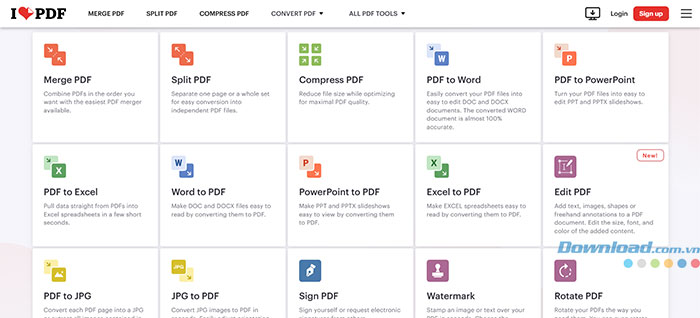
iLovePDF is a collection of PDF tools. Start by choosing the task you need—such as combining files, reducing file size, converting a document, adding annotations, or organizing pages—then select the PDF and review the available options. Tool names and limits can vary by device and may change over time.
For other browser-based file utilities, see TipsMake's file tools.
Choose a tool for the job
- Combine documents: Use a merge tool to join selected PDFs into one file.
- Separate or reorder pages: Use split or organize controls to extract pages, change their order, or rotate them when those options are available.
- Reduce file size: Use compression when a PDF is too large to upload or send. Check the output, since stronger compression may affect image quality.
- Add notes or marks: Use an editor or annotation tool for added text, shapes, comments, and highlights. This may not replace text already printed in the PDF.
- Convert a file: Choose a conversion tool that matches the source and destination formats, then check layout and fonts in the converted copy.
Typical workflow
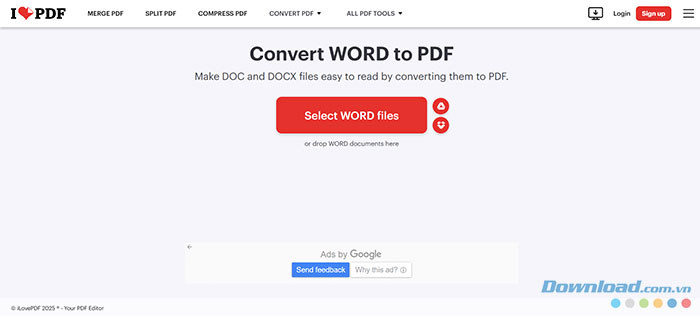
- Open iLovePDF in a browser or its mobile app and choose the specific tool.
- Select the source file from your device or a connected storage service, if offered.
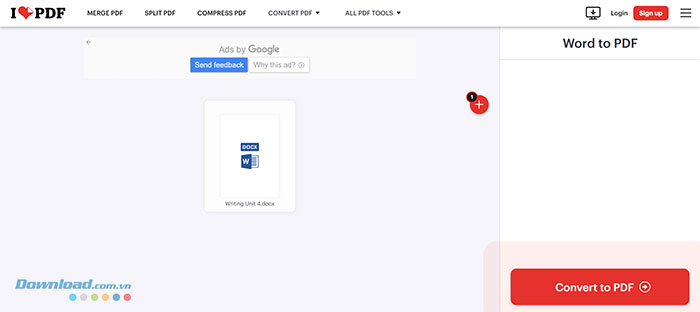
- Set the options for the task. For multi-file operations, check file order and selected pages before processing.
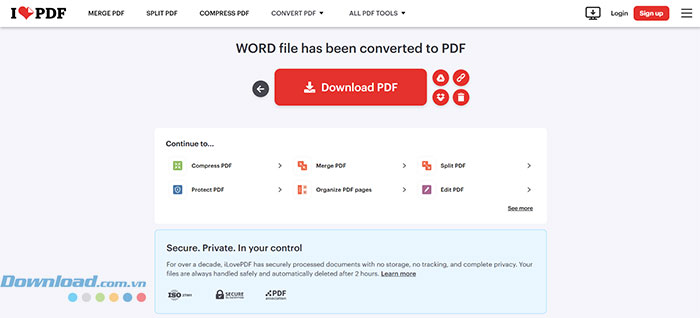
- Run the operation and download or save the resulting file.
- Open the result and check page order, formatting, images, and text before replacing or sharing the original.
Check the result and protect the original
Keep an untouched copy until you have verified the processed file. For conversions and compression, inspect several pages for missing text, shifted layouts, or reduced image quality. If a document includes confidential information, review the service's current privacy and file-handling terms before uploading it.
Some features may require an account or have usage limits. Check the current tool page for its supported formats and conditions rather than relying on an older screenshot or feature list.
Related Articles
 How to Edit a PDF with iLovePDF: Web and Mobile
 How to Convert a PDF to Word on Your Phone
 Basic operations on objects on slides in PowerPoint
 Basic operations on layers in Photoshop
 Instructions for basic operations with Dell computer monitors
 7 commands to manipulate the most basic files and folders everyone must know
Reader Comments 0
Sign in with email or Google to join the discussion.