Table of Contents
To turn a PDF into an editable Word document on your phone, open iLovePDF's PDF to Word converter, select the PDF, run the conversion, and download the resulting DOCX file. The exact buttons can vary between mobile browsers and app versions, so use the current on-screen prompts; older screenshots below may look different.
Convert a PDF to Word on a phone
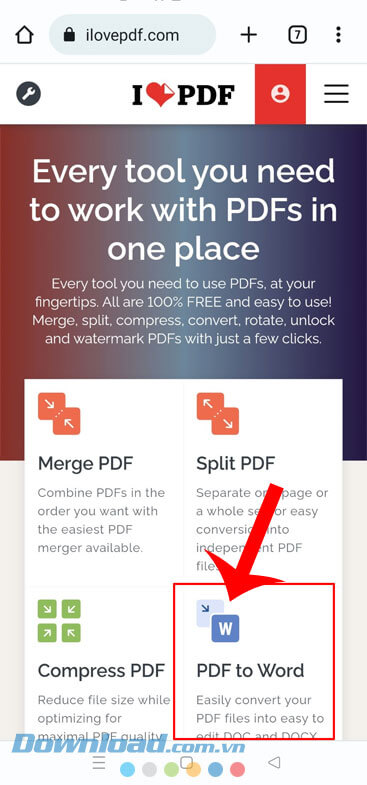
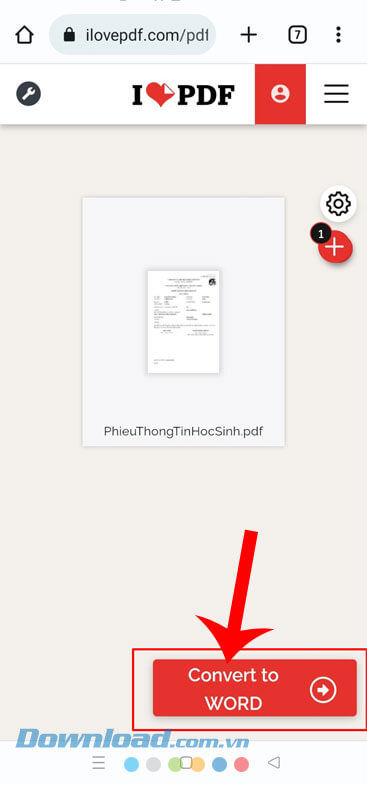
- Open the PDF to Word tool in your mobile browser.
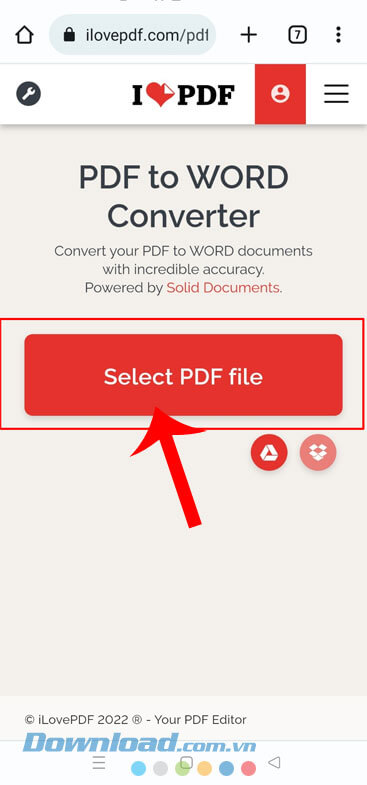
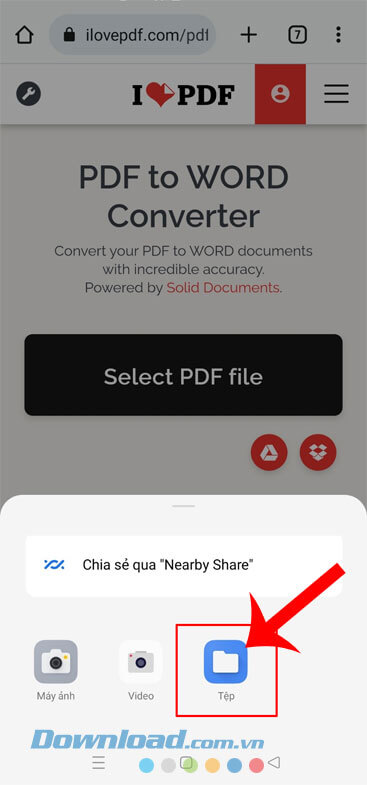
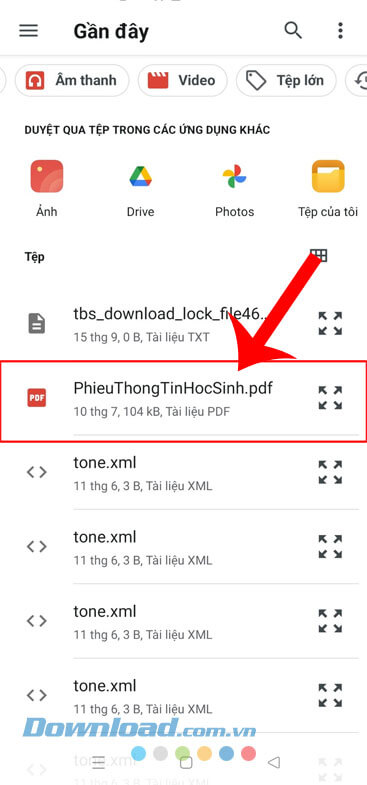
- Tap Select PDF file and choose a document from your device. If offered, you can also select a file from a connected cloud account.
- Wait for the file to upload, then start the conversion.
- When processing finishes, download the Word document and open it in a compatible word processor.
- Review the converted document before editing or sharing it. Check page breaks, tables, images, columns, and special characters against the original PDF.
What to expect from the converted file
A PDF conversion recreates editable text and layout in Word, but complex formatting may shift. Scanned PDFs contain page images rather than selectable text; they need optical character recognition (OCR) to produce editable words. If the output is incomplete or garbled, use an OCR-capable tool and proofread the result. For related browser-based utilities, see TipsMake's file tools.
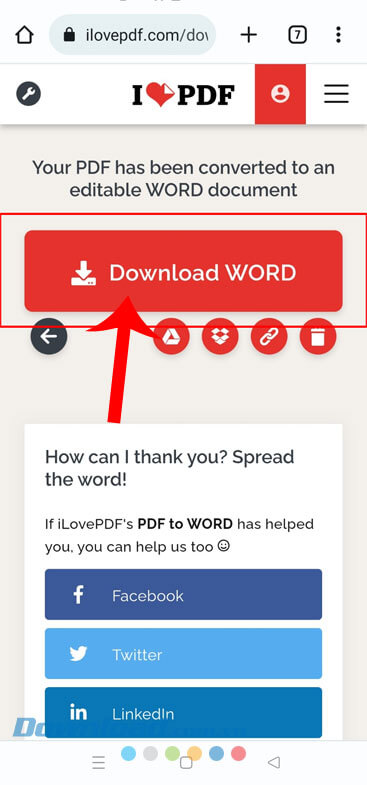
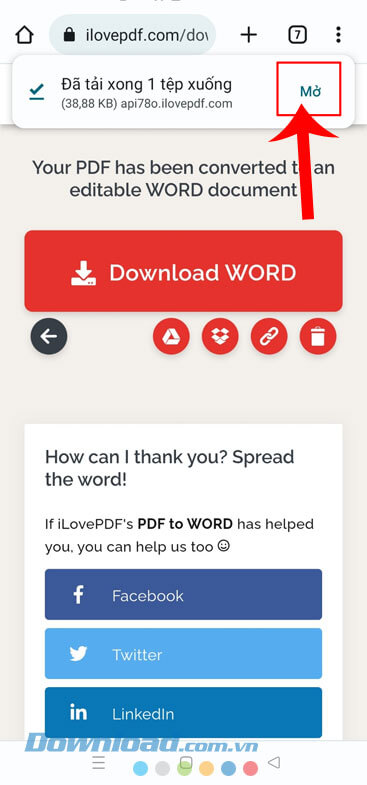
Keep the source PDF until you have checked the DOCX. Compare important figures, names, and page layout before relying on the converted copy.
Related Articles
 How to Convert Word to PDF on Android or iPhone
 Convert PDF to Word, convert PDF files for free
 How to Convert a PDF to Word Safely on Computer or Phone
 Professional PDF file conversion software for Word
 How to convert PDF files to Word Online very fast
 Instructions for transferring PDF files to Word are free of Vietnamese errors
Reader Comments 0
Sign in with email or Google to join the discussion.