Table of Contents
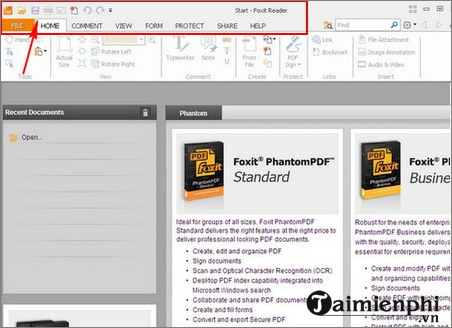
Foxit PDF Reader can open, search, print, annotate, fill, and sign PDF documents. The screenshots below show an older interface, so the position of commands may differ in the current release, but the basic workflow remains the same.
Install Foxit PDF Reader safely
- Download the installer from the official Foxit PDF Reader page.
- Open the installer, review the options, and decline any optional components you do not need.
- Launch Foxit PDF Reader after installation.
Open a PDF in Foxit
Open a file from the application
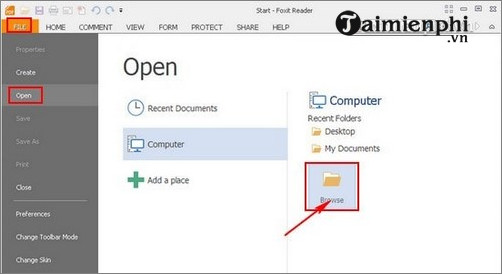
- Select File > Open. In newer versions, you may also see an Open File button on the start page.
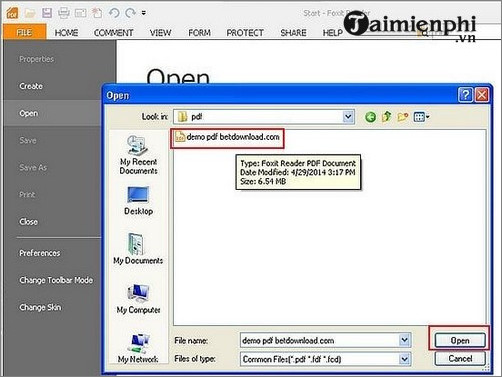
- Choose Computer or Browse, locate the PDF, and select Open.
Open a PDF from File Explorer
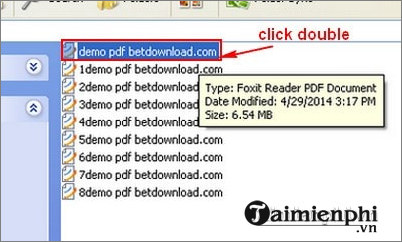
In Windows File Explorer, right-click a PDF and choose Open with > Foxit PDF Reader. To make Foxit the default, select Choose another app, choose Foxit, and enable the option to always use that app for PDF files. Installing Foxit does not convert your PDFs into another format; it only associates the .pdf file type with the reader.
Navigate and adjust the view
After a document opens, use the page controls and navigation pane to move through it. The toolbar provides common view commands such as zoom in, zoom out, fit page, fit width, and page rotation.
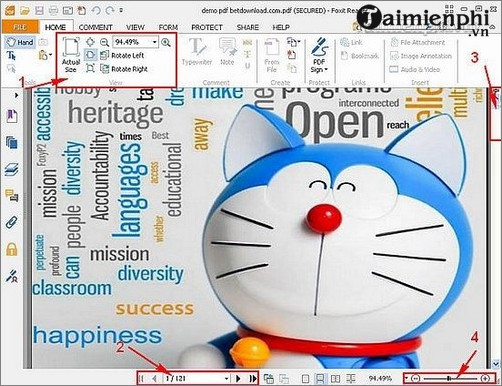
- Page box: enter a page number and press Enter to jump directly to it.
- Bookmarks or thumbnails: open the navigation pane to move between sections or pages.
- Zoom: use the percentage control, plus/minus buttons, or Ctrl + mouse wheel.
- Search: press Ctrl + F to find text in a searchable PDF.
- Rotate view: rotate pages on screen without necessarily changing the saved document.
Add comments, fill forms, and sign
Use the Comment tools to highlight text, underline it, draw shapes, or add a note. Form fields can be completed when the PDF contains an interactive form. Signature commands can place a saved handwritten-style signature or work with supported digital-signature features.
Reader tools are not the same as full content editing. Changing existing paragraphs, rearranging objects, applying redaction, or running OCR may require Foxit PDF Editor or another editor. For alternatives, see ways to edit a PDF.
If Foxit does not open a file
- Download the PDF again in case the file is incomplete.
- Try another trusted PDF to determine whether the problem affects one file or the application.
- Update Foxit PDF Reader and restart the computer.
- Check whether the file is password-protected or damaged.
- Use the steps in this PDF opening guide to check file associations and other readers.
Related Articles
 How to Rotate PDF Files on Foxit Reader: How to Use Foxit Reader3 minutes read
 minutes read
 How to Set up Voice Text Reading Mode in Foxit Reader?2 minutes read
 Instructions on editing PDF files using Foxit PDF Reader13 minutes read
 How to Install the Latest Version of Foxit Reader on Your4 minutes read
 Link Download Foxit Reader 10.1.1.375768 minutes read
Reader Comments 0
Sign in with email or Google to join the discussion.