Table of Contents
VMware Workstation can span a powered-on virtual machine across two or more physical monitors in full-screen mode. For reliable resizing and monitor detection, install a current VMware Tools version in the guest and make sure the host already recognizes all displays.
Before enabling multiple monitors
- Set the host operating system to extend the desktop across the physical displays.
- Update the host graphics driver from the computer or GPU manufacturer.
- Install or update VMware Tools inside the guest.
- Save work in the guest before changing display hardware or powering it off.
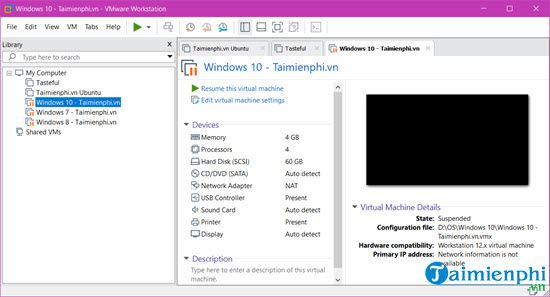
1. Power off the virtual machine
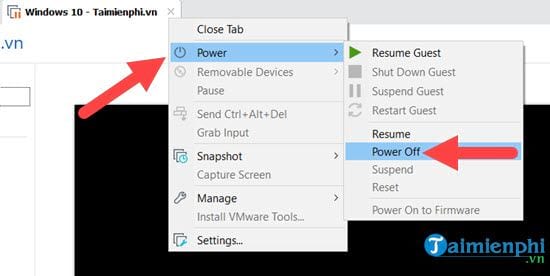
Shut down the guest normally. If it is suspended, resume it and perform a full shutdown before editing virtual hardware.
Avoid using Power Off as a substitute for a guest shutdown unless the VM is unresponsive, because it is comparable to cutting power to a physical computer.
2. Review the VM's display settings
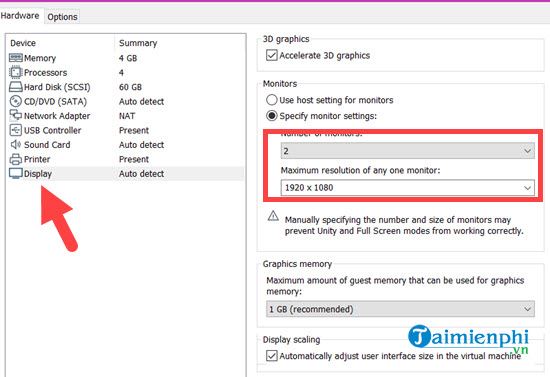
Select the VM and choose Edit virtual machine settings.
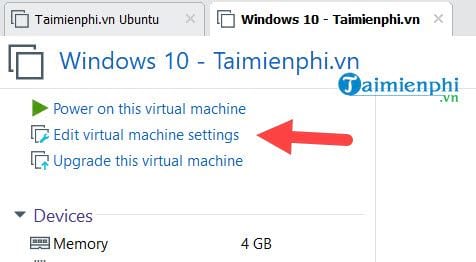
Open Display. If your VMware version provides Specify monitor settings, select the desired monitor count and a resolution that your host and guest can support. The exact options vary by Workstation release.
3. Enable guest autofit
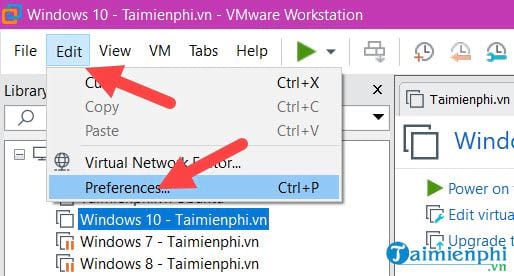
Open Edit > Preferences.
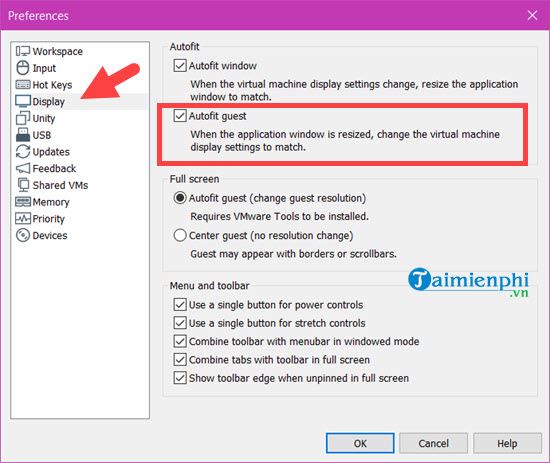
Under Display, enable the guest autofit option if you want the guest resolution to follow the Workstation window or full-screen topology.
4. Use all monitors in full screen
Start the VM, then select View > Full Screen. Use the Cycle Multiple Monitors control to span the VM across the host displays. If the guest mirrors the same image on both screens, open the guest operating system's display settings and choose its extend-desktop option.
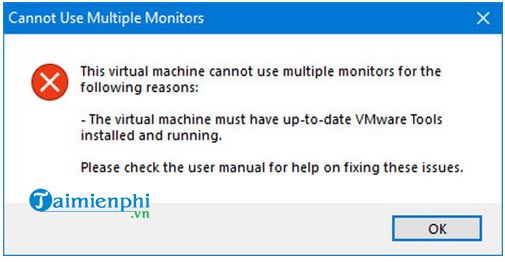
If VMware says it cannot use multiple monitors
- Confirm the VM is local rather than a shared or remote VM with display limitations.
- Verify that VMware Tools is installed and running in the guest.
- Check that every host monitor is enabled and arranged correctly in the host display settings.
- Reduce the requested monitor count or resolution if the configuration exceeds available virtual graphics memory.
- Update VMware Workstation and the host graphics driver, then restart the host if required.
- Temporarily disable 3D acceleration only as a troubleshooting test; re-enable it if it does not affect the problem.
Do not immediately edit the VM's .vmx file. Manual topology settings can conflict with Workstation's automatic display configuration and should be used only with documentation for the exact product version.
Broadcom maintains the current procedure in Use Multiple Monitors for One Virtual Machine.
If you are comparing desktop hypervisors, see VirtualBox, VMware, and Hyper-V. For a standard guest setup example, read the guide to creating a Windows virtual machine.
Related Articles
 Should I Choose an Ultra-Wide Monitor or a Dual Monitor Setup?8 minutes read
 How to Set Up the Perfect Dual Monitor on Windows with FancyZones10 minutes read
 How to Set up Dual Monitors10 minutes read
 How to Set Up Dual Monitors with XRandR: Step-by-Step Guide10 minutes read
 How to Set Up Dual Monitors With HDMI: Step-by-Step Guide8 minutes read
 Microsoft Silently Perfects Dual Screen Support for Edge3 minutes read
Reader Comments 0
Sign in with email or Google to join the discussion.