Table of Contents
This updated guide explains how to set up the perfect dual monitor on Windows with fancyzones with clear steps, practical tips, and useful context. If you regularly use a multi-monitor setup, FancyZones can be a game changer. This Windows PowerToys utility lets you completely customize your monitor layout.
Install PowerToys
To access FancyZones, you'll first need to download PowerToys. You can get it from the Microsoft Store or the official GitHub release page.
Install PowerToys on your Windows PC. Once the utility launches automatically, select FancyZones from the left menu to see an overview of the instructions.
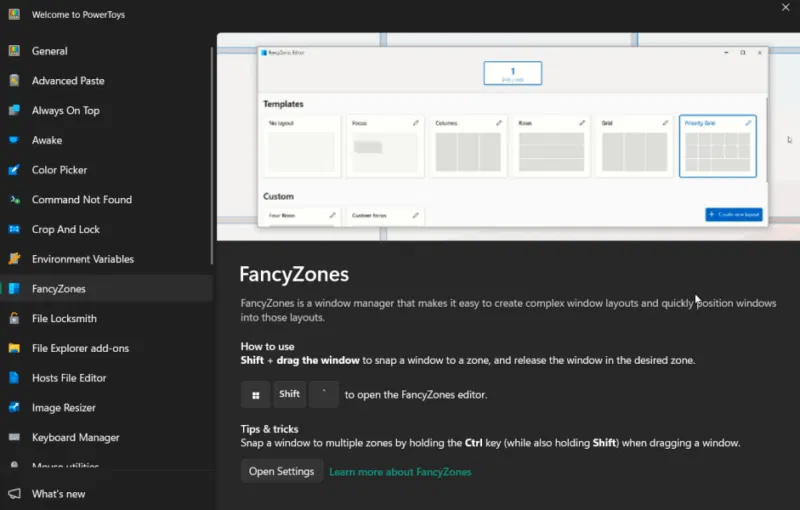
Remember that you can activate FancyZones by pressing Win + Shift + ` , which will take you directly into Editor mode.
Extend Your Screen
To get the most out of FancyZones with a dual monitor setup, ensure you extend your displays first. This tool lets you configure separate layouts for each monitor.
On your PC, open Settings -> Display . choose the Duplicate these displays button and select the Extend these displays option instead.
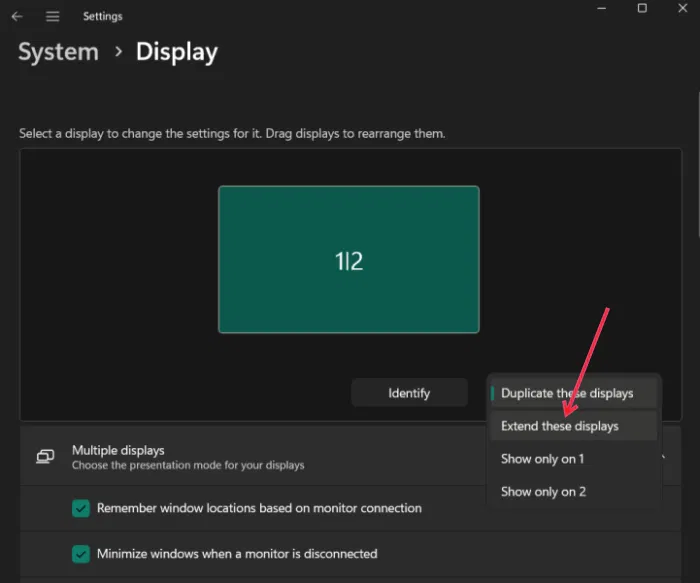
Confirm the changes in the pop-up window by clicking Keep the Changes . Your new dual monitor setup will take over and each monitor will be ready to support its own layout.
Choose Your Preferred Layout for Each Screen
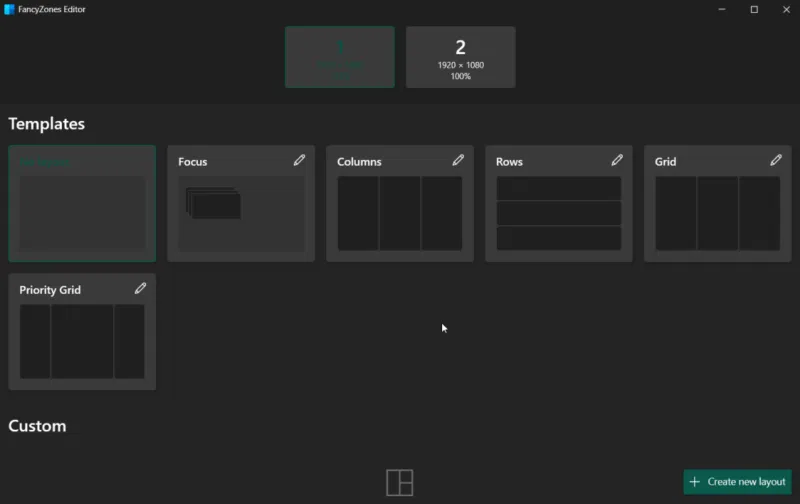
FancyZones works by resizing windows into pre-set grid layouts. To customize your setup, open the FancyZones Editor, with all your connected displays listed at the top.
Select one of the screens at the top and view the Templates section with available layouts. Start by choosing a layout that works for you.
Note : You need to manually select a layout for each screen.
If you feel these layouts could use improvement, you can easily edit them by tapping the pencil icon.
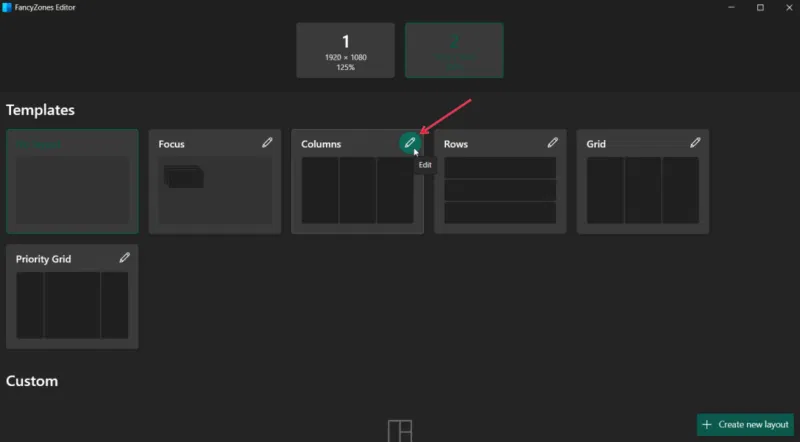
Increase the number of zones and add distance between them or increase the highlight distance.
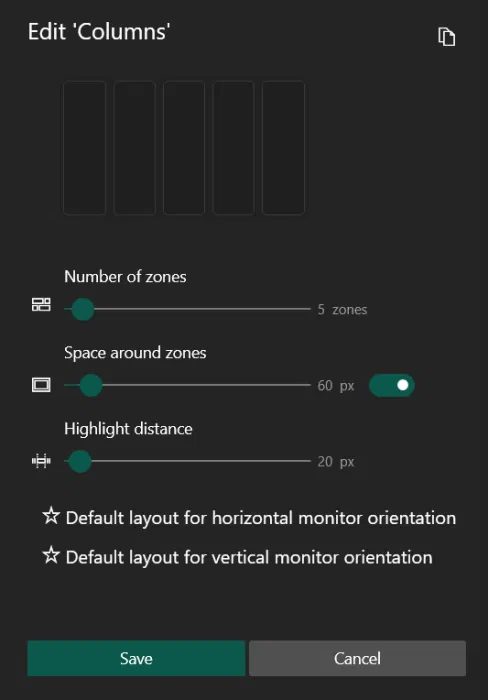
Set Up Dual Monitor Layouts with FancyZones
This article will configure a dual monitor setup optimized for everyday writing activities. The second screen (the larger one in this case) will handle writing tasks, while the main screen will keep other handy utilities within reach.
Open all the applications and browser pages you need for your session before opening the FancyZones Editor. Switch to the second screen and select the Columns template. For this purpose, 3 separate zones are enough, but if you need more, you can always add more at will.
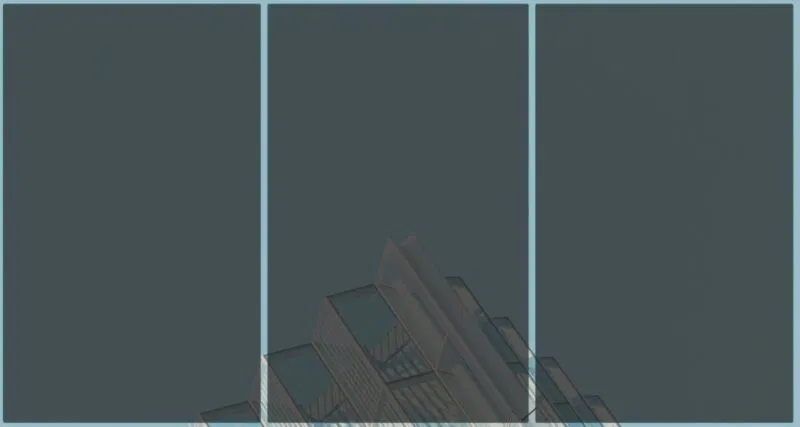
Now, to start snapping applications to the appropriate slots, select the application or program window to bring it to the front, then press the Shift key. Drag the window by its title bar to the appropriate slot and it will automatically snap into place.
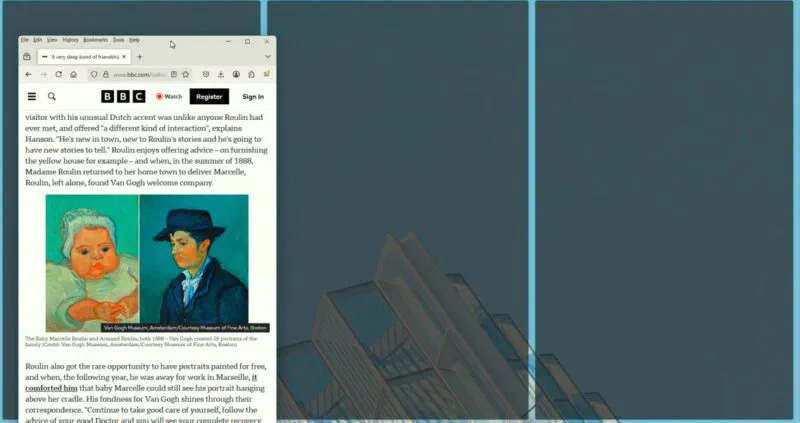
Repeat this for all regions.
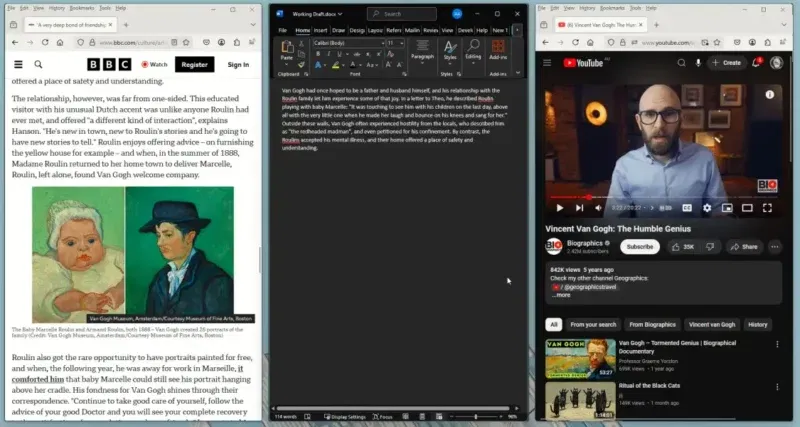
This example includes:
- Zone 1: Articles in the browser relevant to the study
- Area 2: Word document where the data needed for the article is being collected
- Zone 3: YouTube videos to extract additional information
Create Custom Layouts in FancyZones
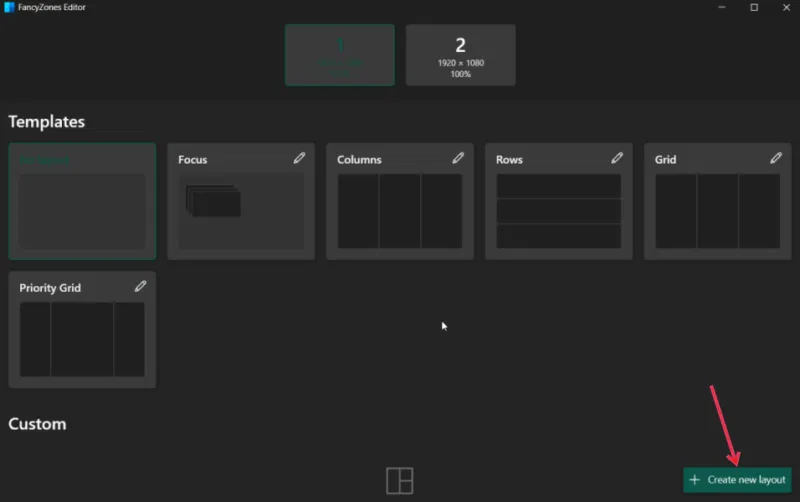
Now that you have a layout for the larger screen, you need to create a custom layout for the smaller screen. In the FancyZones Editor, switch to the main screen. choose the Create new layout button.
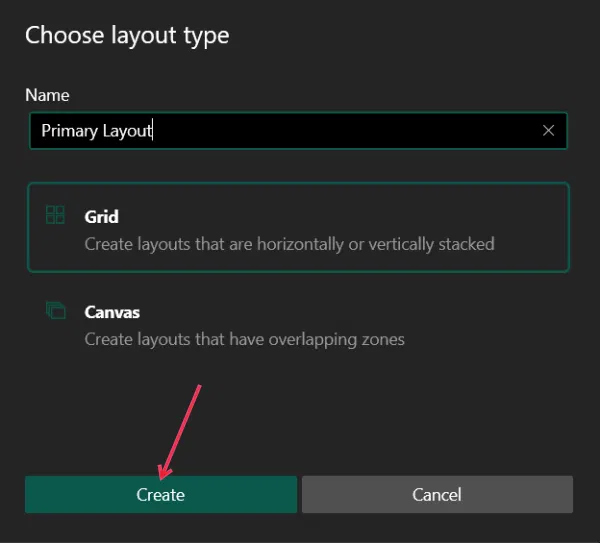
Name your new layout and choose whether you want to create a grid or canvas (for overlapping areas), then press Create . for instance, we'll choose the first option.
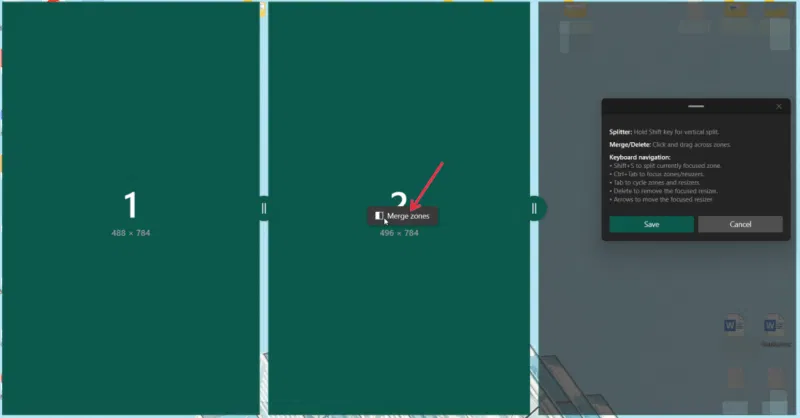
Start defining your layout on the next screen. By default, it starts with three columns. You can start modifying it from here. When you hover over a region, a blue bar will appear. choose to split the region into two. If you need to split vertically, just hold down the Shift key.
for instance, you do not need three evenly divided zones. Instead, you need one large zone and two smaller zones on the right that are horizontally divided. To do this, tap and hold the first zone, then choose the second zone. choose the Merge Zones button to merge the two zones into one.
Other possible actions include:
- Drag the corners to resize each area.
- Drag the middle of the window to move and place it elsewhere
- Use the + button to create a new window
Once you're done arranging your layout, hit Save in the small window (which also contains some instructions) to save your custom layout.
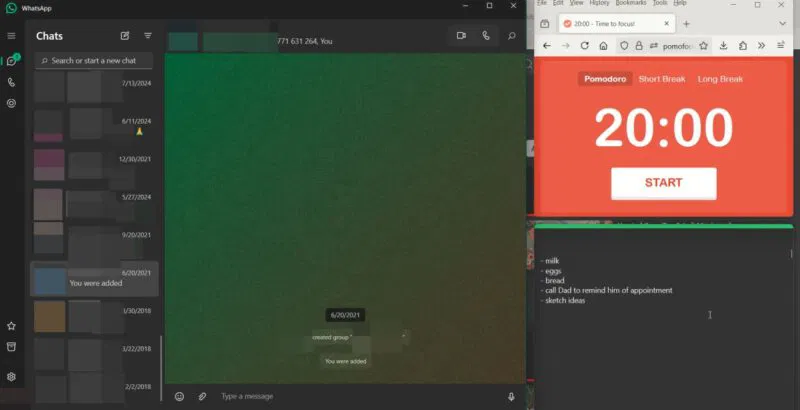
Once your custom layout is ready, add your apps:
- Zone 1: WhatsApp to stay in touch with project team members
- Zone 2: Pomodoro timer to time work sessions
- Zone 3: Sticky notes with tasks for the day
Some apps, like Spotify and Calculator, will not fit into smaller areas on a small screen. I was going to put Spotify or the Calculator app in area 3, but ultimately decided against it because they do not scale well.
How to Easily Switch Between Layouts in FancyZones
Once you create multiple custom layouts, you can easily switch from one layout to another as you move between tasks throughout the day.
In the FancyZones Editor, find the custom layout you use often and choose the pencil button.
select the Layout shortcuts bar and select a number. Hit Save at the bottom. Apply this layout by pressing the Win + Ctrl + Alt + Number shortcut.
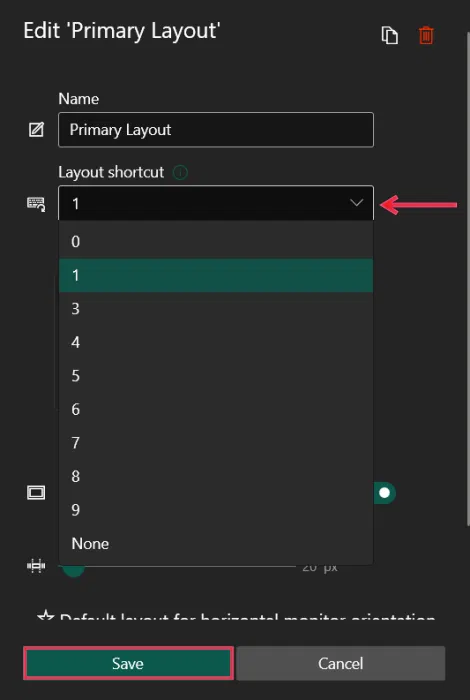
Note : ensure Enable quick layout switch is enabled in FancyZones Settings via PowerToys.
Adjust FancyZones Settings
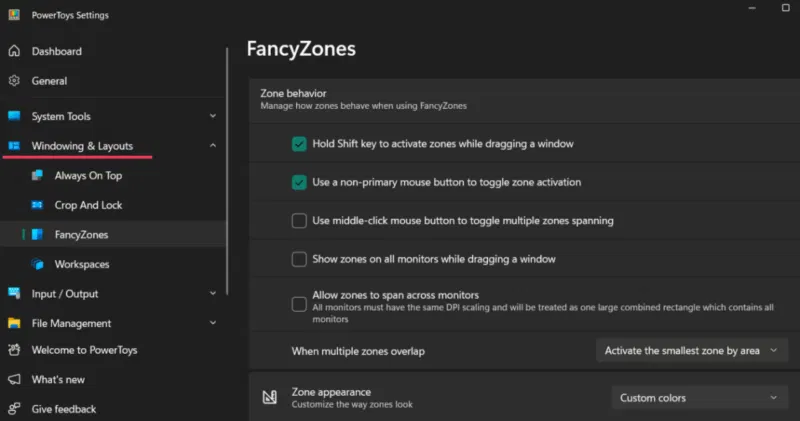
Open PowerToys Settings from the system tray. open Windowing & Layout -> FancyZones to see the Settings area.
Check the Zone behavior section to manage how zones behave when using FancyZones. for instance, you can enable the Allow zones to span across monitors option.
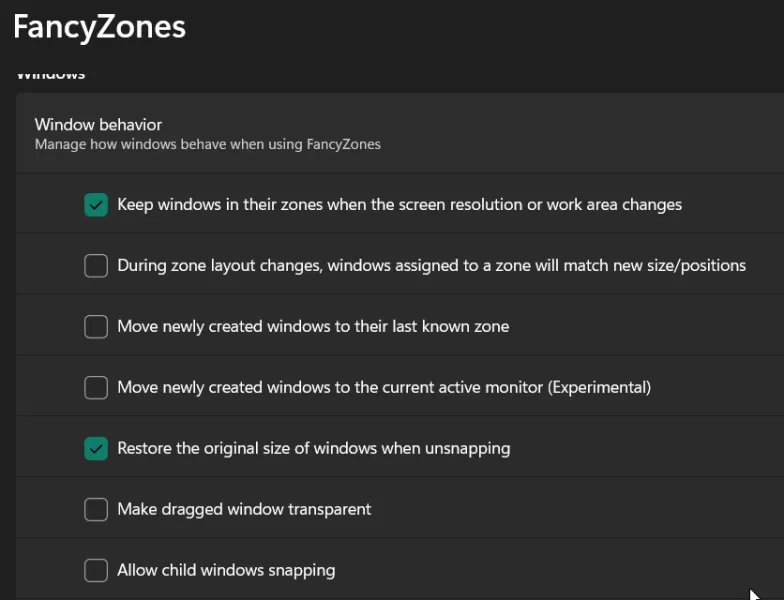
Manage window management on dual monitors in the Window behavior section. for instance, you can instruct FancyZones to restore the original size of windows when undocked. Review all of these options to see which ones might be useful.
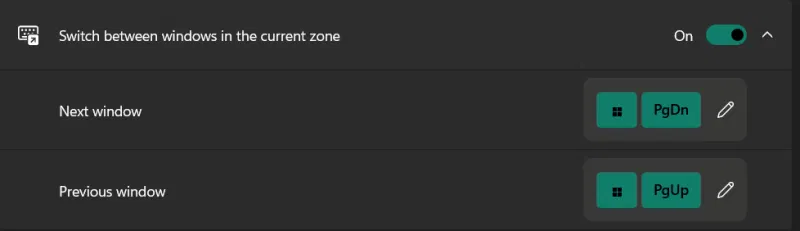
You can set custom keyboard shortcuts to switch between windows in the current area.
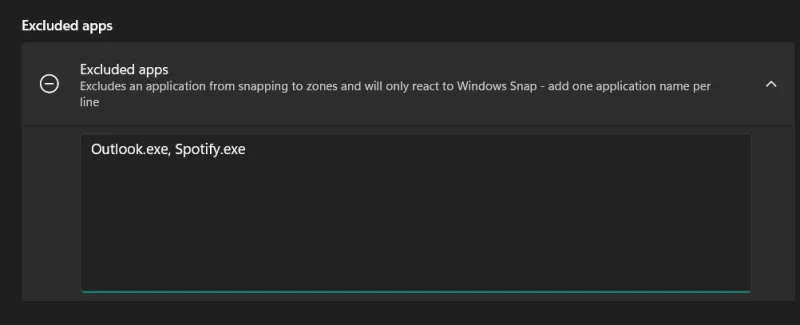
At the end, you can set up apps that you do not want to include in FancyZones for whatever reason.
Additional Tips to Increase Productivity
Here are some tips to help you create window management and increase productivity through FancyZones on a dual monitor setup:
- Use different layouts for each task, such as coding, writing, video editing, financial analysis, online meetings, general multitasking, etc.
- Use larger central regions for most important tasks and smaller peripheral regions for secondary or background tasks.
- Learn how to use FancyZones keyboard shortcuts because they can dramatically speed up your workflow. (Check out the relevant shortcuts above.)
- ensure you separate the work area from the utility area to minimize context switching and distraction.
- For multitasking, such as when writing a paper and researching a topic, try the Columns layout to split the window vertically for quick switching between references, charts, or media content.
- Save multiple custom layouts that fit your overall workflow (work, gaming, media, etc.).
Ultimately, everyone's ideal FancyZones window management on dual monitors will be different. Play around, experiment, and see what works for your workflow! do not be afraid to push the boundaries and create truly personalized zones.
If you're currently looking for a new monitor, learn which monitors are geared toward gaming. If you're new to dual monitor setups, check out this guide to using multiple computer monitors effectively.
FAQ
What should I prepare before I set up the perfect dual monitor on windows with fancyzones?
Review the requirements and options in the guide first. Having the correct device, app version, account access, or materials ready helps prevent avoidable errors.
How long does it take to set up the perfect dual monitor on windows with fancyzones?
The time depends on the task and your setup. Most basic steps can be completed quickly, while downloads, updates, scans, or troubleshooting may take longer.
What should I do if the steps do not work?
Repeat the instructions in order, confirm that your software or device is supported, and check permissions, connectivity, and available updates before trying again.
Related Articles
 Should I Choose an Ultra-Wide Monitor or a Dual Monitor Setup?8 minutes read
 How to Set Up Dual Monitors with XRandR: Step-by-Step Guide10 minutes read
 How to Set Up Dual Monitors With HDMI: Step-by-Step Guide8 minutes read
 Microsoft Silently Perfects Dual Screen Support for Edge3 minutes read
 How to Use 2 Monitors on Windows 105 minutes read
 Intel Unveiled a Foldable Dual-screen PC3 minutes read
Reader Comments 0
Sign in with email or Google to join the discussion.