Table of Contents
Learn how to share audio between two devices on Windows with clear steps, practical tips, and troubleshooting guidance for a reliable result.
How to share audio with two devices simultaneously on Windows
Step 1
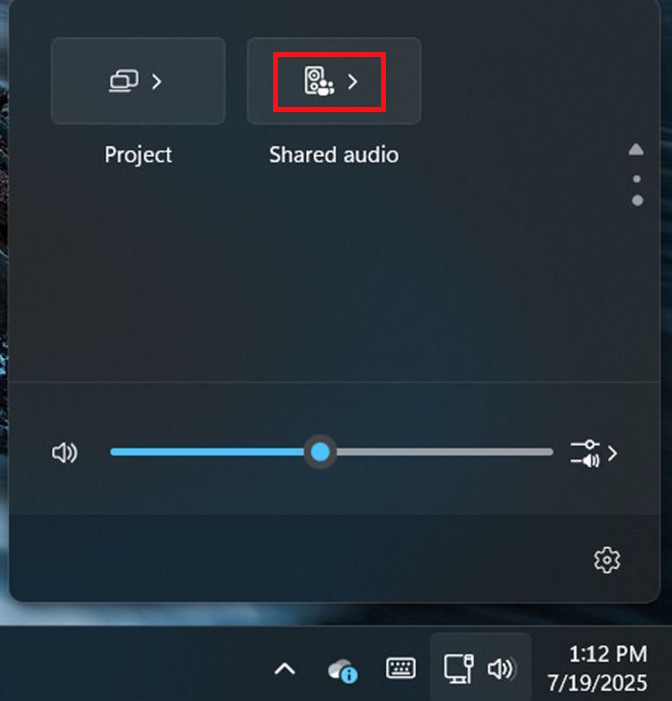
You need to connect both Bluetooth audio devices (headphones, speakers, etc.) to your Windows 11 computer as usual. Then open Quick Settings by pressing the Windows + A key combination.
Step 2
In the menu that appears, find and select the Shared audio setting as shown below.
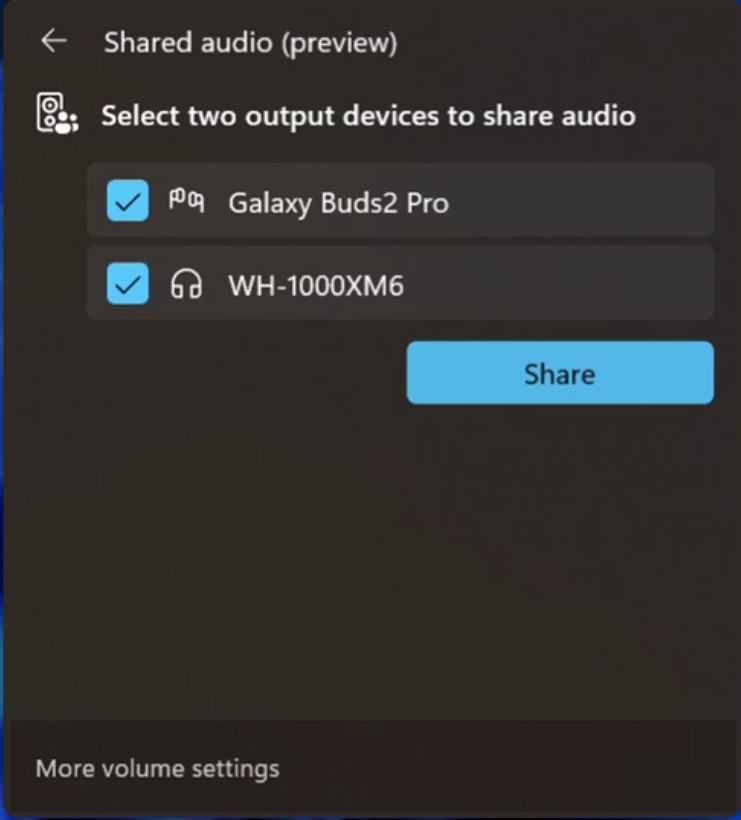
Here, the system will display the available audio devices; you simply need to select the two devices you want to share.
Finally, press the Share button to send the audio to the devices you are connected to your Windows 11 computer.
Currently, Shared Audio is in the testing phase and is only available to Windows Insider users in the Dev and Beta channels. Specifically, your computer needs to be running one of the following two builds:
- Windows 11 version 25H2 (Build 26220.7051)
- Windows 11 version 24H2 (Build 26120.7051)
Your device must be a Copilot+ PC equipped with hardware and drivers that support Bluetooth LE Audio. The list of devices that support Shared Audio is as follows:
- The latest Surface Laptop lineup, including both 13.8-inch and 15-inch versions, uses the Qualcomm Snapdragon X chip.
- The new generation Surface Pro, with its 13-inch screen, is also equipped with the Qualcomm Snapdragon X chip.
These devices will soon be supported in the future:
- The Samsung Galaxy Book4 Edge and the upcoming Galaxy Book5 models.
- Additional Surface Laptop and Surface Pro variants, including 12-inch and 13-inch models, run on Qualcomm Snapdragon X chips.
Final Thoughts
Use this guide as a practical checklist for how to share audio between two devices on windows. Work through the steps in order, verify each result, and adjust the options to match your needs.
FAQ
What do you need before following this How to Share Audio Between Two Devices on Windows guide?
Review the required tools, accounts, settings, or materials mentioned in the article. Learn how to share audio between two devices on Windows with clear steps, practical tips, and troubleshooting guidance for a reliable result.
What are the main steps for how to share audio between two devices on windows?
Follow the sections in order, especially How to share audio with two devices simultaneously on Windows, Step 1, Step 2. Complete each step before continuing and verify the result as you go.
What should you do if the process does not work as expected?
Recheck the prerequisites, update the relevant app or service, review the settings, and repeat the step that caused the issue. Use any troubleshooting notes included in the guide.
Related Articles
 Why You Should Rename an Audio Device in Windows 10 and How4 minutes read
 How to Use Audio Sharing on Iphone and Ipad3 minutes read
 How to Turn Off Multi-Device Sharing on Windows 112 minutes read
 How to Output Audio to Multiple Devices on Windows 113 minutes read
 How to Stop Sharing Safari Web History Across Multiple Devices3 minutes read
 Instructions for Recording CD Audio in Windows 83 minutes read
Reader Comments 0
Sign in with email or Google to join the discussion.