Table of Contents
Overview
This guide explains how to turn off the camera shutter sound on Samsung phones in clear, practical terms. It covers the key concepts, recommended steps, common limitations, and useful checks so you can make a better-informed decision.
While many people love taking pictures with their Samsung phones, the loud shutter sound every time they take a picture is an annoyance. No one wants to be the person who constantly annoys everyone around them with the camera shutter sound. Luckily, there is a way to turn off this annoying sound.
Note: Shutter sound muting should be done responsibly. It is important to be mindful of privacy and respect for your surroundings. Please be sure to use this feature judiciously, keeping in mind that shutter sound is required in some places for privacy and security reasons.
Turn off shutter sound via camera settings
Some Galaxy phones have an option in the camera settings that allows you to turn off or disable the shutter sound directly. If you are lucky enough to own a Samsung phone that supports this feature, you can easily turn off the camera shutter sound by following these steps:
- Open the Camera app on your Samsung Galaxy phone.
- Tap the gear icon in the top left corner.
- Scroll down to find the Shutter sound toggle and turn it off.
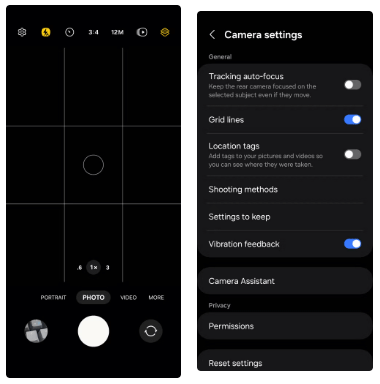
Depending on your phone model, region, and carrier restrictions, the shutter sound mute option may not be available in your camera settings. In some countries, such as Japan and South Korea, regulations require that the camera shutter sound be enabled for privacy and security reasons.
Mute the shutter sound using Modes and Routines
If you can't find the shutter sound option, don't worry - you don't need to put your phone on silent or vibrate mode, or connect headphones every time you take a photo.
Samsung's Modes and Routines make it easy to automate a variety of actions. Many people have used this feature to create a routine that automatically puts their phone into silent mode whenever they open the Camera app.
- Open the Settings app and tap Modes and Routines.
- Switch to the Routines tab and tap the plus icon in the upper right corner.
- Select the Add what will trigger this routine option.
- Scroll down to the Event section and tap App opened.
- Select Camera from the list of apps and tap Done.
- Click on the Add what this routine will do option.
- Go to Sounds and vibration > Sound mode and volume.
- Select Vibrate or Mute, then tap Done.
- Tap Save, name the routine whatever you want, and tap Done.
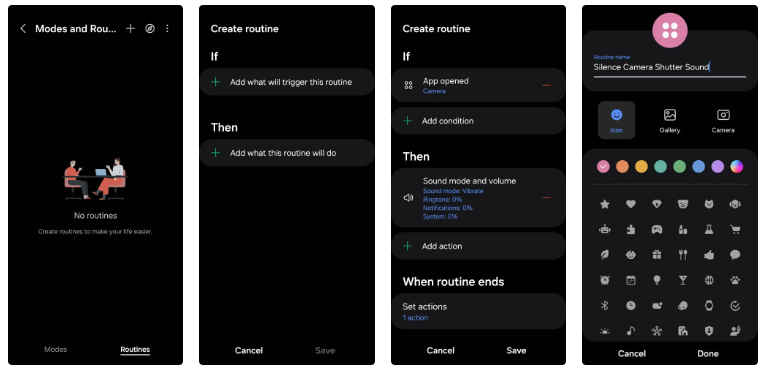
And that's it! Now, when you open the Camera app, your Samsung phone will automatically go into vibrate or silent mode and the camera shutter sound will be muted.
While it would be more convenient to have a simple option to turn off the camera shutter sound directly on your Samsung Galaxy phone, using Routines isn't bad either. It's a one-time setup that works seamlessly every time you use the Camera app.
Good luck!
Key Takeaways
Use the guidance above as a practical reference for turn off camera shutter sound on Samsung. Check compatibility, follow the steps carefully, and verify important details with official documentation when software, security, accounts, health, or purchases are involved.
FAQ
How do I turn off the camera shutter sound on Samsung phones?
Follow the steps in this guide in order, confirm each setting before continuing, and save, restart, or reconnect the device when the instructions require it.
What should I check before I begin?
Confirm the correct device, account access, software version, compatibility, and a current backup whenever the process could affect files, settings, or security.
What should I do if the process does not work?
Repeat the steps carefully, check for model or version differences, install available updates, and consult the manufacturer's official support documentation.
Related Articles
 2 Ways to Turn Off the Sound When Taking Photos on Samsung4 minutes read
 7 Samsung Features You May Not Be Using for Better Photos8 minutes read
 A Small Feature That Makes Taking Photos Easier on Your Samsung6 minutes read
 How to Take a Snapshot on Samsung Galaxy J7 Pro5 minutes read
 7 Gestures, Fast and Convenient Shortcuts on Samsung Phones8 minutes read
 How to Turn on, Turn Off Taking Photos When Calling Facetime on7 minutes read
Reader Comments 0
Sign in with email or Google to join the discussion.