Table of Contents
This practical guide explains how to turn off hard drive when not in use on Windows 11. Follow the steps in order, review the requirements first, and use the troubleshooting notes when a setting or option does not work as expected.
Instructions to turn off hard drive in Power Options Windows 11
Step 1:
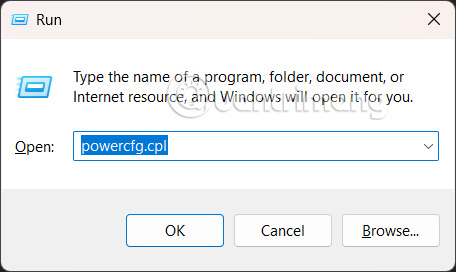
You open the Run dialog box, enter the keyword powercfg.cp and press OK to access.
Step 2:
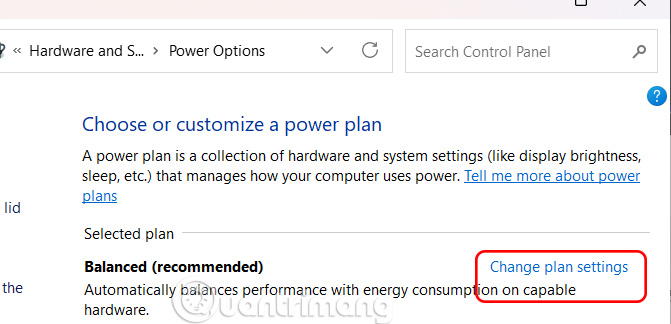
Display the Power Options interface, click Change Plan Settings as shown below.
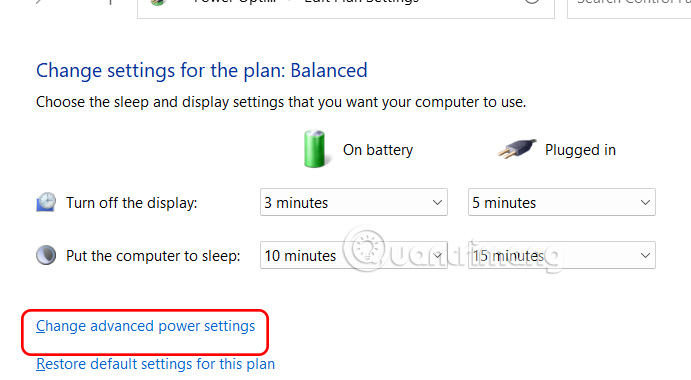
Continue to select Change advanced power settings .
Step 3:
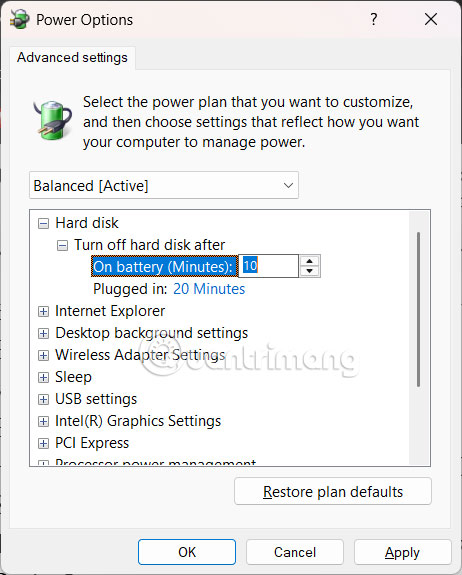
Display the new interface, we click Hard Disk to expand. At On Battery you will see the default battery for 10 minutes. To turn off the hard drive, you set a new time limit for both On Battery and Plugged in modes . Finally, click Apply to save.
How to Turn Off Windows 11 Hard Drive Using Command Prompt
Step 1:
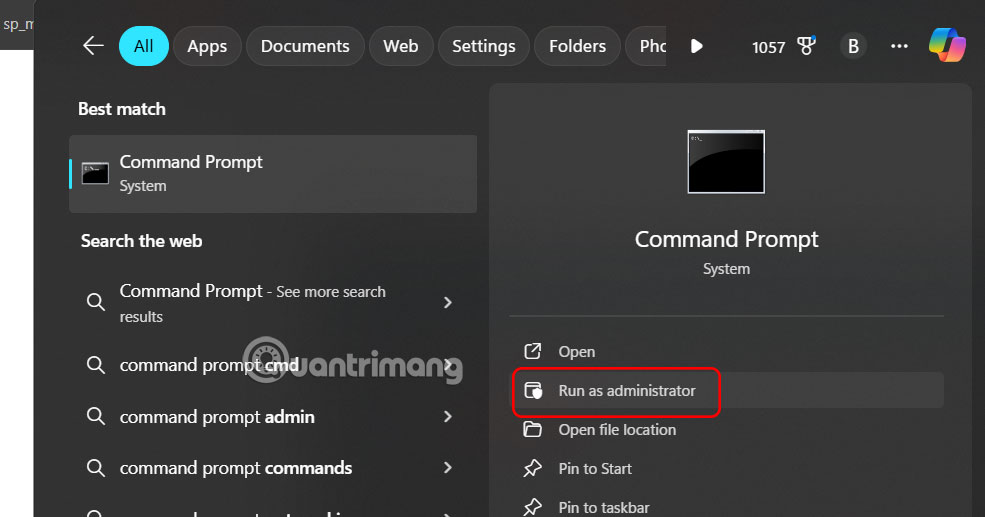
You enter the keyword Command Prompt and select Run as administrator .
Step 2:
Display the command prompt interface, enter the command powercfg -change -disk-timeout-dc 0 . Replace 0 with the amount of time (in minutes) you want to disable the hard drive after it has been inactive.
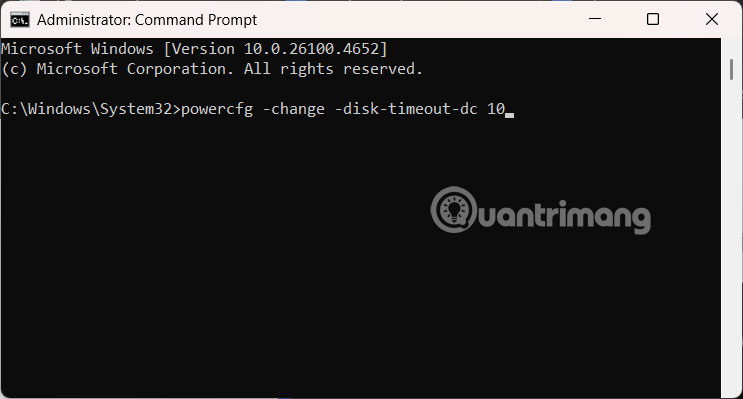
After performing the above steps, restart your Windows 11 computer to apply it.
FAQ
What should you know about instructions to turn off hard drive in Power Options Windows 11?
You open the Run dialog box, enter the keyword powercfg.cp and press OK to access.
How to Turn Off Windows 11 Hard Drive Using Command Prompt?
You enter the keyword Command Prompt and select Run as administrator.
What does this guide cover?
This guide explains turn off hard drive when not in use on Windows 11, including the main steps, important details, and practical considerations.
Related Articles
 How to Turn Off the Hard Drive After Not Working in Windows 104 minutes read
 How to Identify Hard Drive Failure, Hard Drive Failure, Bad Hard Drive7 minutes read
 How to Turn an Old Hard Drive into an External Drive?17 minutes read
 Instructions to Mount the Hard Drive Into a Folder on Windows 106 minutes read
 11 Things to Do When Using SSD Hard Drive on Windows 109 minutes read
 Instructions for Using Clonezilla to Copy Windows Hard Drives9 minutes read
Reader Comments 0
Sign in with email or Google to join the discussion.