Table of Contents
Not everything about Windows 11 is user-friendly, such as the Windows folder description pop-up when we hover over it. You will see a pop-up showing basic information such as creation date, size. Many people find this pop-up quite confusing and unnecessary. If so, you can turn off the Windows 11 folder description pop-up according to the instructions below.
1. Instructions to turn off Windows 11 folder description pop-ups
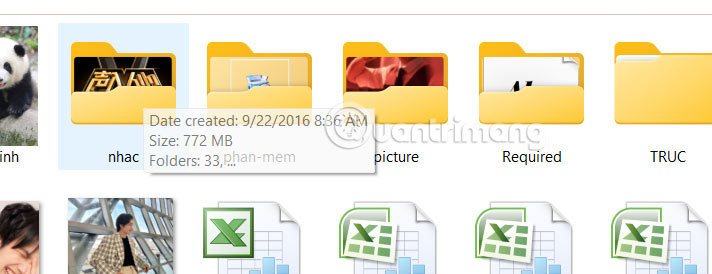
The pop-up displays basic information of the folder, or file displayed when we hover over it as shown below.
Step 1:
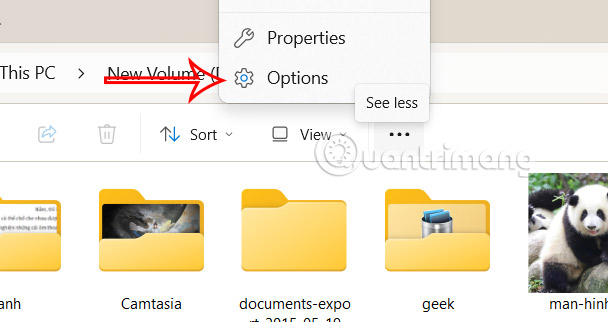
On the Windows 11 interface, users access File Explorer , then select the 3-dot icon and select Folder Options in the displayed list of options.
Step 2:
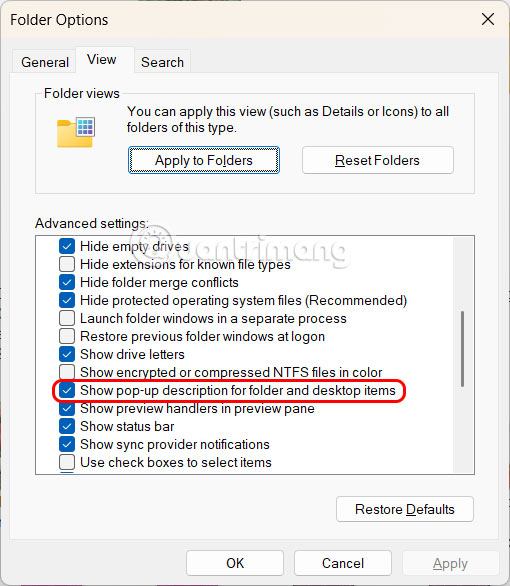
Switch to the new interface, select the View tab and then look down below. If you want to turn off the pop-up describing folder information , uncheck Show pop-up description for folder and desktop items . If you want to display it, check this setting again.
Finally, click Apply and click OK to save this new setting.
As a result, when we move the mouse to that folder, we will no longer see the pop-up describing the folder's information.
2. Turn off folder description pop-ups via Registry
This setting does not disable folder description pop-ups, but instead delays their pop-ups for a certain amount of time. That amount of time is up to you.
Step 1:
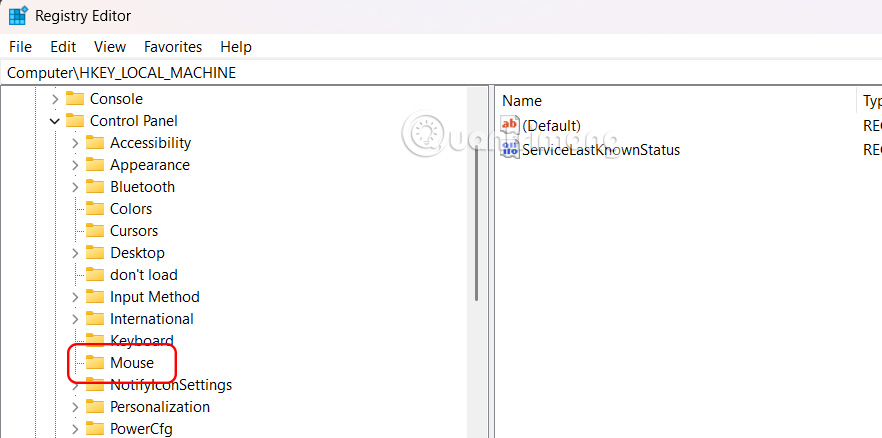
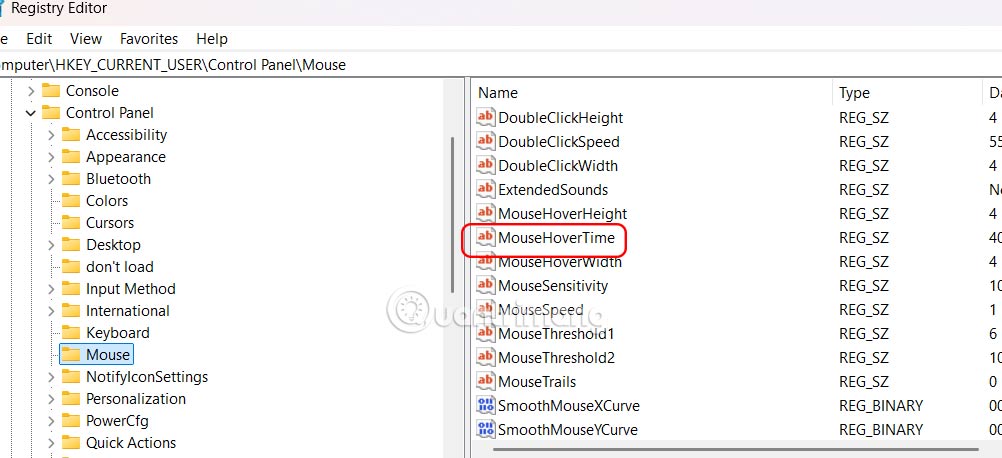
We enter Registry Editor in the search bar then access the path HKEY_CURRENT_USER > Control Panel > Mouse below.
Step 2:
Look at the interface next to it and double-select the MouseHoverTime value .
Now display the interface for you to fill in information, change the number of values to the extended time period from the default value of '10' and then press OK to save.
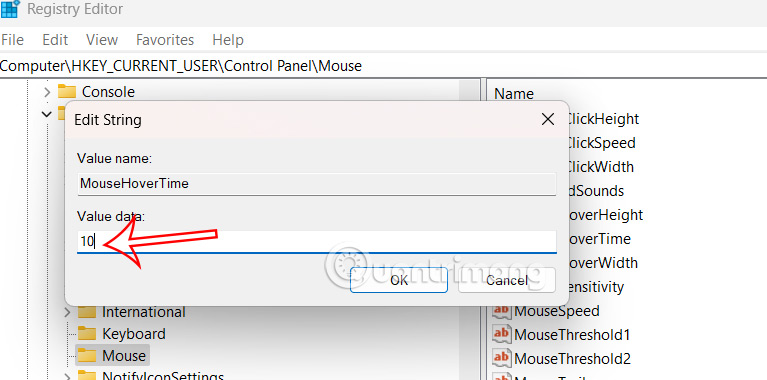
Restart your computer for the changes to take effect.
The pop-up interface will still appear, but only after a certain amount of time has passed. This way you can ensure that the pop-up is only called when it is really needed.
Step 3:
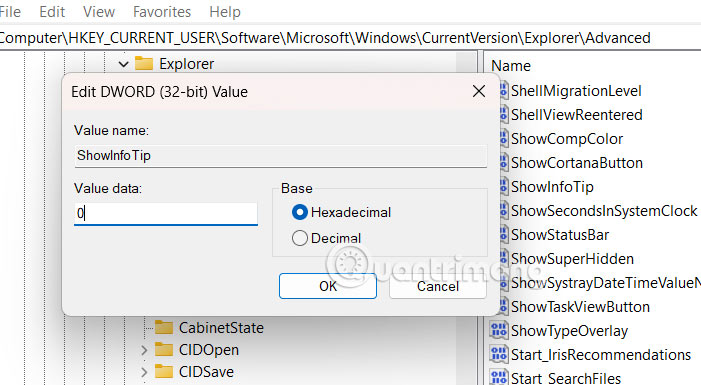
In case you want to disable it completely , go to the path HKEY_CURRENT_USERSoftwareMicrosoftWindowsCurrentVersionExplorerAdvanced
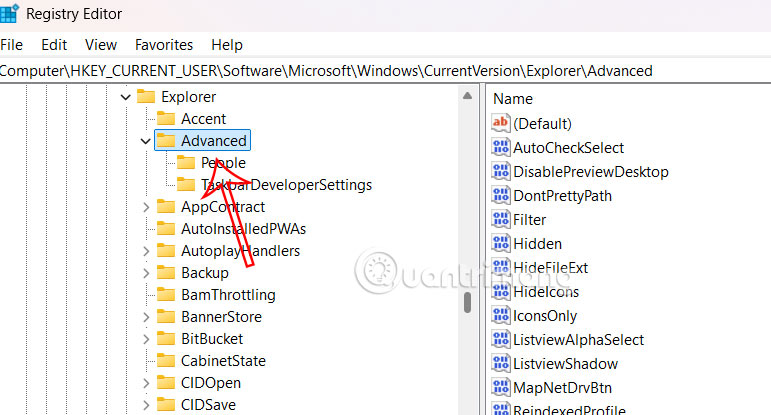
Look to the side and double select the ShowInfoTip value to adjust.
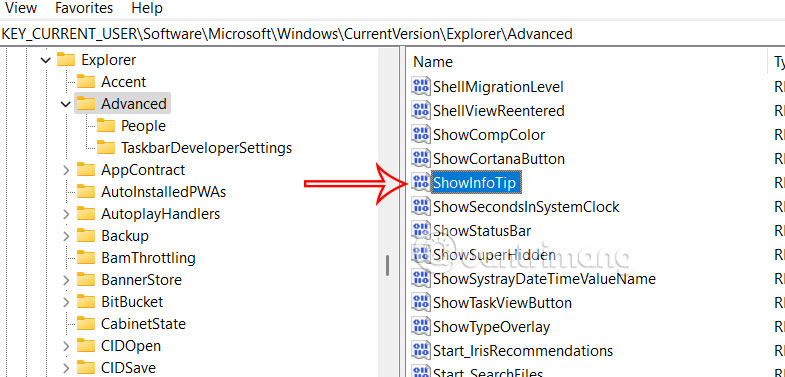
Then you enter the value to 0 and save.
Final Thoughts
Following the steps in order and checking version-specific settings should make it easier to Turn Off Windows 11 Folder Description Pop-ups. If an option looks different, verify the device, app, or operating-system version before changing additional settings.
FAQ
What is the best way to Turn Off Windows 11 Folder Description Pop-ups?
Start with the requirements described in the article and follow the steps in order. Not everything about Windows 11 is user-friendly, such as the Windows folder description pop-up when we hover over it. You will see a pop-up showing basic information such as creation date, size. Many people find this pop-up quite confusing and unnecessary.
What should you know about 1. Instructions to turn off Windows 11 folder description pop-ups?
The pop-up displays basic information of the folder, or file displayed when we hover over it as shown below.
What should you do if the instructions do not match your screen?
Check the device, software version, account permissions, and regional settings. Interfaces can change after updates, so use the closest matching option and consult the official support documentation when necessary.
Related Articles
 Steps to Turn Off Folder Options on Windows 104 minutes read
 How to Prevent Windows 10 from Reopening Folders and Applications4 minutes read
 How to Turn Off Folder Type Discovery Windows 11: Step-by-Step Guide4 minutes read
 Steps to Turn Off File Explorer's Folder Options on Windows9 minutes read
 What Is the Windows.old Folder and How Do You Delete It?5 minutes read
 How to Set the Default Name of a Newly Created Folder5 minutes read
Reader Comments 0
Sign in with email or Google to join the discussion.