Table of Contents
You can open Game Bar to control all your favorite gaming activities when playing on Windows 11 devices. There may be some reasons why Game Bar is broken, affecting your gaming process. The article below will guide you to uninstall or reinstall Game Bar for your account or all users on Windows 11.
Instructions for uninstalling Game Bar for current users
Step 1:
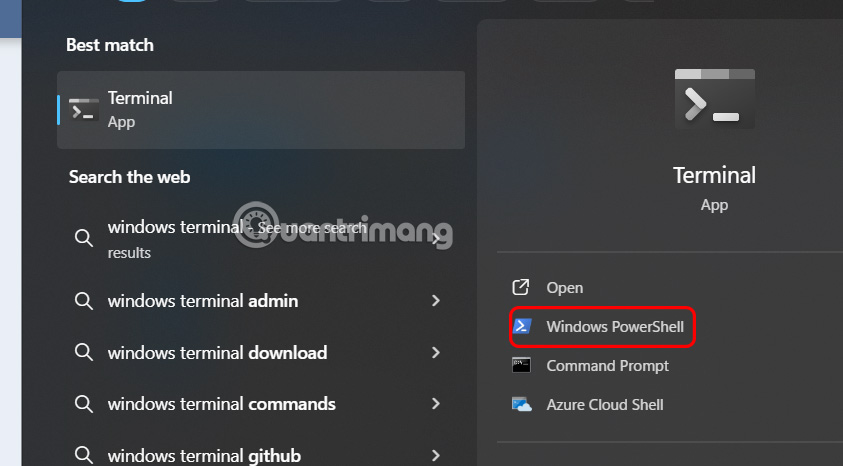
You type Windows Terminal in the search bar and select Windows Powershell.
Step 2:
In the new interface that appears, the user copies and pastes the command below into Windows Terminal and presses Enter.
Get-AppxPackage -PackageTypeFilter Bundle -Name "*Microsoft.XboxGamingOverlay*" | Remove-AppxPackage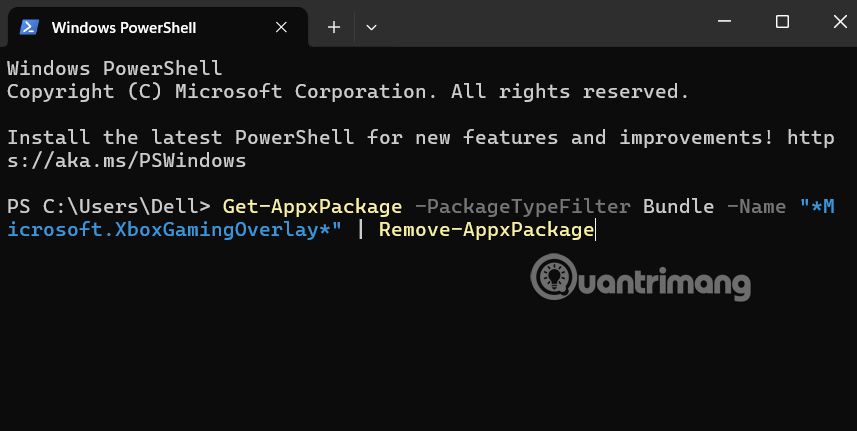
Game Bar Uninstall Guide for All Users
Step 1:
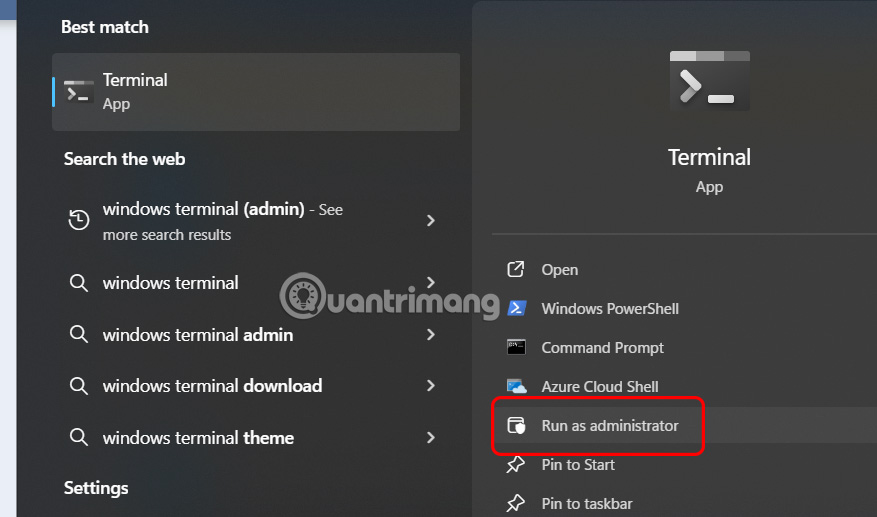
You also type Terminal in the search bar and select Run as administrator to launch Windows PowerShell in Admin mode.
Step 2:
In this interface you also enter the command below and press Enter.
Get-AppxPackage -AllUsers -PackageTypeFilter Bundle -Name "*Microsoft.XboxGamingOverlay*" | Remove-AppxPackage -AllUsers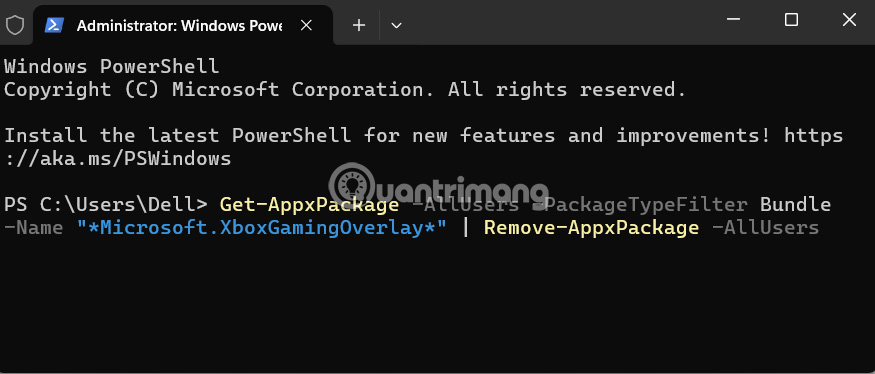
Reinstall Game Bar on Windows computer
You find the Game Bar application in Microsoft Store and then reinstall the application.
Final Thoughts
Following the steps in order and checking version-specific settings should make it easier to Remove Xbox Game Bar Windows 11 App. If an option looks different, verify the device, app, or operating-system version before changing additional settings.
FAQ
What is the best way to Remove Xbox Game Bar Windows 11 App?
Start with the requirements described in the article and follow the steps in order. You can open Game Bar to control all your favorite gaming activities when playing on Windows 11 devices. There may be some reasons why Game Bar is broken, affecting your gaming process.
What should you know about Instructions for uninstalling Game Bar for current users?
You type Windows Terminal in the search bar and select Windows Powershell.
What should you do if the instructions do not match your screen?
Check the device, software version, account permissions, and regional settings. Interfaces can change after updates, so use the closest matching option and consult the official support documentation when necessary.
Related Articles
 What Is Xbox Game Bar? Features, Uses, and Key Details6 minutes read
 How to Turn Off (or Enable) Xbox Game Bar on Windows 104 minutes read
 How to Remove XBox Completely from Windows 105 minutes read
 How to Use Xbox Game DVR to Record Screen in Windows 1010 minutes read
 How to Change the Keyboard Shortcut to Open Game Bar Windows4 minutes read
 5 Ways to Customize Xbox Game Bar on Windows PC6 minutes read
Reader Comments 0
Sign in with email or Google to join the discussion.