Table of Contents
Not all Windows 11 Services are important to start your computer. Some services run as bloatware that can affect your computer's performance and are unsafe for your personal data and privacy. The article below will guide you to disable some Windows Services to enhance your computer's performance and protect your privacy.
Instructions to disable Windows 11 Services
Step 1:
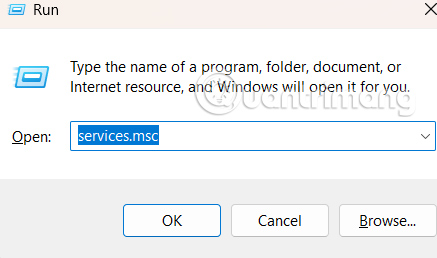
You type services.msc into the Run bar on your computer to access Windows Services.
Step 2:
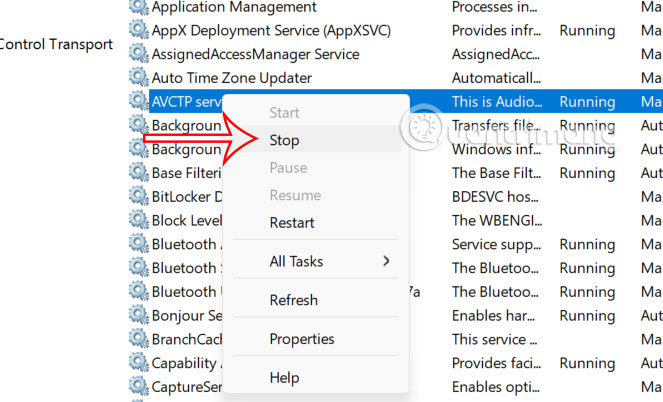
Switch to the interface of services running on Windows. We just need to right-select the service we want to disable and select Stop in the displayed list.
Step 3:
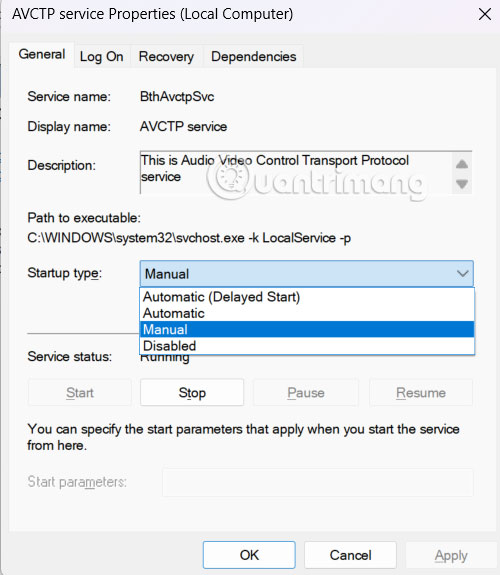
Or you double select the service and choose whether to start a service or not. If you want to disable a service for a long time, change the Startup type to Manual .
Windows Services should be stopped to increase performance
Microsoft Telemetry Data
Microsoft Telemetry Data collects performance and analytics data from computers around the world. Microsoft says the data is collected anonymously, but essentially all the information is still being collected. This service can also cause a significant performance drain, especially on older computers. Disabling it will not affect your computer's performance.
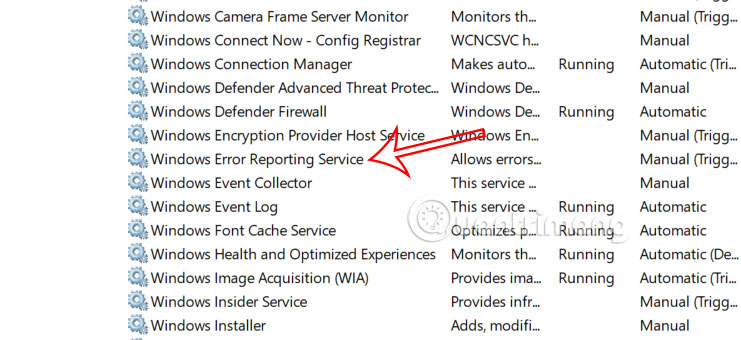
Error Reporting
Windows Error Reporting Service is for Microsoft to collect data about crashes and errors. Whenever there is a crash, a report is sent to Microsoft. This is a data collection service but does not necessarily need to be maintained.
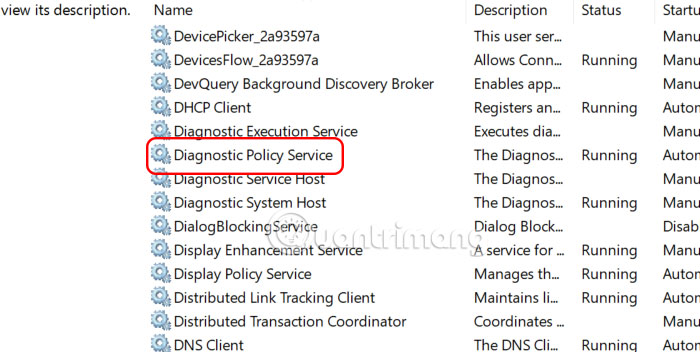
Diagnostic Policy Service
Similar to the Error Reporting service, the use of the Diagnostic Policy Service is not required. Similar services that you can also disable here are Diagnostic System Host, Diagnostic Service Host, Diagnostic Execution Service.
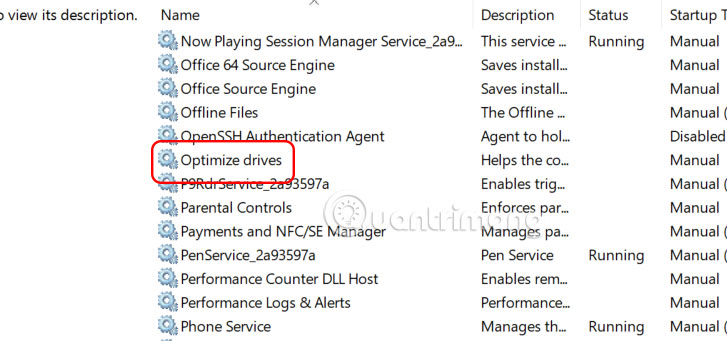
Optimize Drives
Defragmenting your hard drive is something you do quite often. Windows now offers this service to do automatically, and it is usually enabled if your computer is in standby mode. Defragmentation is a bit of a hassle because it affects performance, so if you remember to do it manually periodically, it is a good idea to disable this service.
Optional Services
Some services affect your computer if you use certain functions, and may be disabled if you do not use those functions.
- Phone Service: This service connects your phone to your computer. You can turn it off if not needed.
- Print Spooler: You can safely disable this feature if you are not using the printer.
- Geolocation Services: If you don't use maps and don't want to be tracked, turn this service off.
Final Thoughts
The development covered in this article is worth following, but specifications, dates, and feature details may change until the relevant company or organization publishes an official confirmation.
FAQ
What is the main development covered in this article?
Not all Windows 11 Services are important to start your computer. Some services run as bloatware that can affect your computer's performance and are unsafe for your personal data and privacy.
What should you know about Instructions to disable Windows 11 Services?
You type services.msc into the Run bar on your computer to access Windows Services.
Is every reported detail officially confirmed?
Not necessarily. Product leaks, preview builds, research reports, and early announcements can change. Confirm important specifications, dates, and availability through an official source before making a decision.
Related Articles
 Disable Unnecessary Services in Windows 78 minutes read
 How to Increase Gaming Performance on Windows 10 April 20184 minutes read
 How to Find Which Processes Stop or Start Windows Services4 minutes read
 7 Tools to Increase Hard Drive Performance on Windows8 minutes read
 How to Improve Gaming Performance on Mac6 minutes read
 How a Clean Windows 11 Install May Improve Performance4 minutes read
Reader Comments 0
Sign in with email or Google to join the discussion.