Table of Contents
The Apple Maps app on iOS 26 learns your daily driving habits to help you avoid traffic jams and choose more suitable routes.
The Apple Maps app on iOS 26 remembers your daily driving habits to help you avoid traffic jams and choose more suitable routes. However, users do not want the app to track and remember their daily routes. Here is a guide to shortcut favorite routes in Apple Maps.
How to shortcut favorite routes in Apple Maps
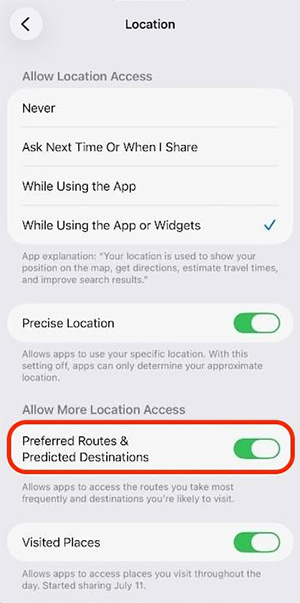
First, Go to Settings And select Apps To access the list of applications on your iPhone. Now, select the Maps application to customize the map. Click on Location To continue.
In this new interface, we Turn off the Preferred Routes and Predicted Destinations setting So that the Google Maps application does not save your travel habits.
FAQ
How do you turn off favorite routes in apple maps: step-by-step guide?
In practical terms, the Apple Maps app on iOS 26 learns your daily driving habits to help you avoid traffic jams and choose more suitable routes.
What should you check before getting started?
Review the requirements, compatible device or software version, and any warnings described in the guide before making changes.
What should you do if the steps do not work?
Repeat the steps in order, confirm that your app or system is up to date, and review the troubleshooting details provided above.
Related Articles
 Apple Maps: How to Rename Favorite Places on Iphone Map3 minutes read
 How to Change the Route on Google Maps4 minutes read
 How to Save a Route on Google Maps4 minutes read
 How to Turn on the Compass on Apple Maps4 minutes read
 How to Send Google Maps Routes from PC to Phone6 minutes read
 9 Reasons Google Maps Is Better Than Apple Maps7 minutes read
Reader Comments 0
Sign in with email or Google to join the discussion.