Table of Contents
Windows Update Delivery Optimization allows Windows 11 computers to receive updates from Microsoft and other sources.
Windows Update Delivery Optimization is a process that allows Windows 11 computers to receive updates from Microsoft and other sources. This process can scan other computers on the local network that are downloading duplicate files and receive updates from them. And your computer can also send updates to other computers when allowed. However, this feature is not really necessary, so you can turn it off according to the instructions below.
Turn off Delivery Optimization on Windows 11
Step 1:
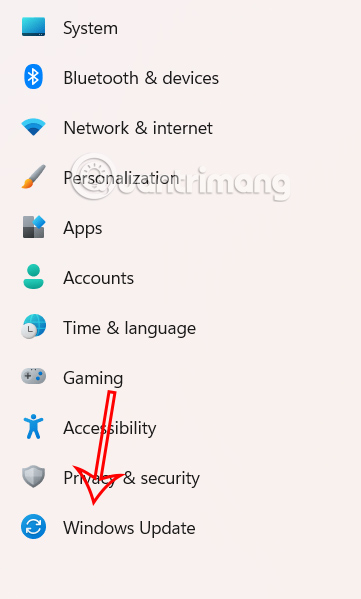
First, open Settings then Click Windows Update On the left side of the interface.
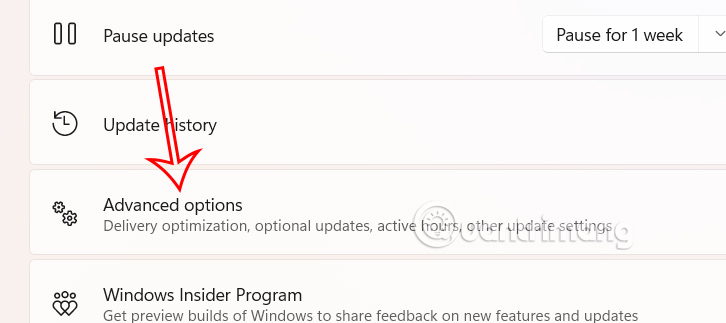
Look at the content next to it And click on Advanced options To see advanced options.
Step 2:
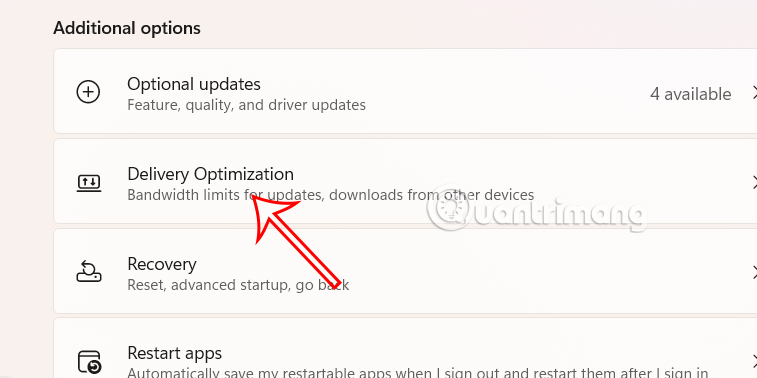
Now click on Delivery Optimization To make adjustments on your computer.
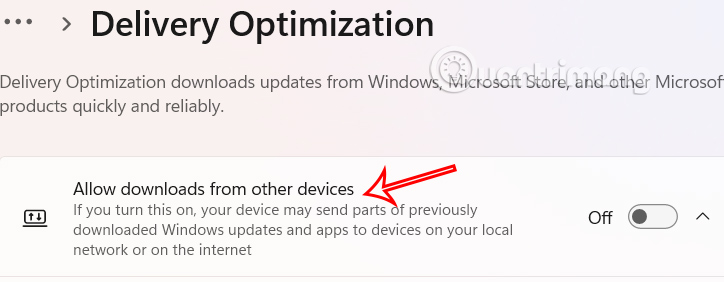
Now you need To turn off the Allow downloads from other devices setting To stop sending previously downloaded Windows updates and apps to devices on your local network or the Internet.
Disable Delivery Optimization from Windows Services
Step 1:
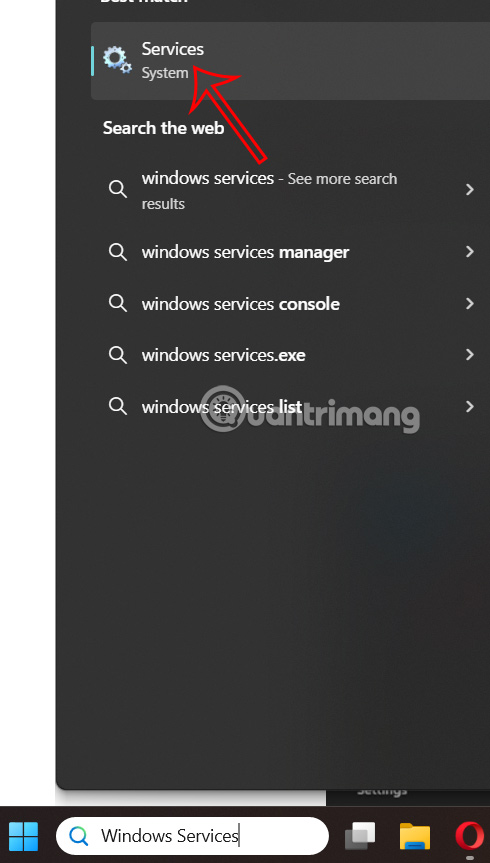
In the search box, Enter the keyword Services And click on the search result.
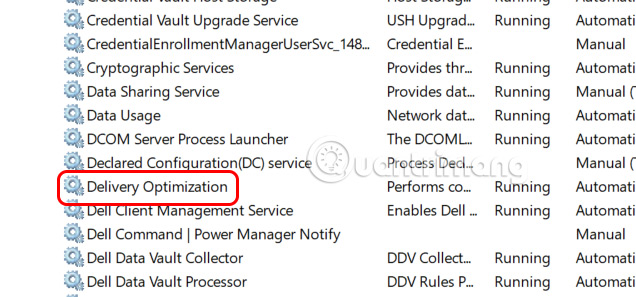
Then we find and Double-click the Delivery Optimization setting Next to it to make adjustments.
Step 2:
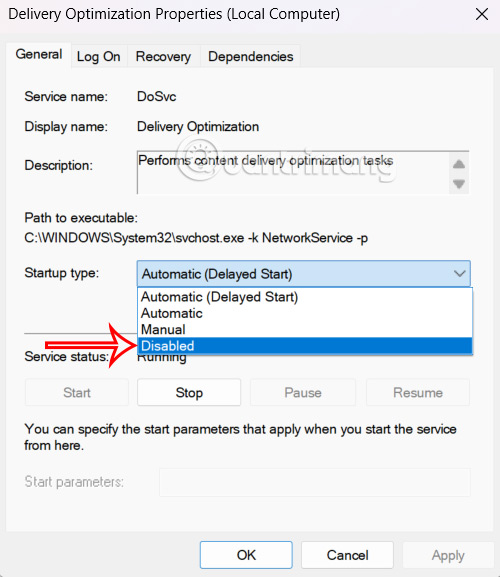
In the displayed interface, Click Disable To disable Delivery Optimization on your computer. Finally, click Apply and Ok to save the settings.
Turn off Delivery Optimization using Registry
Step 1:
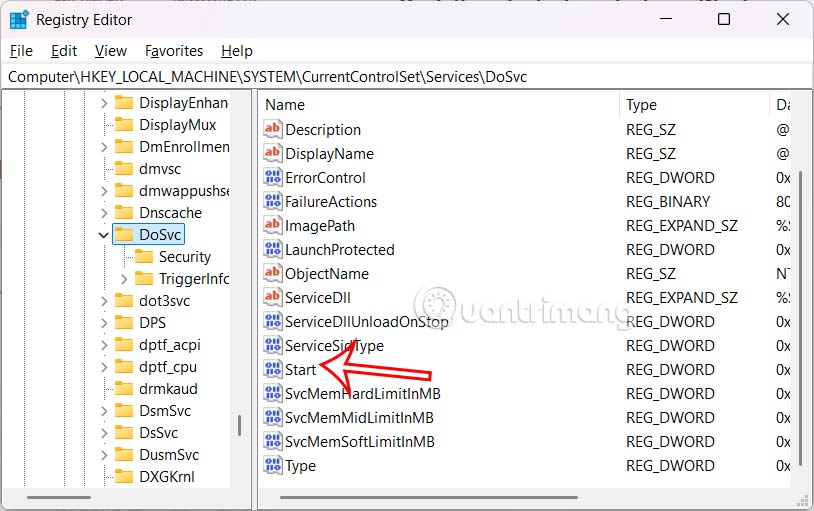
Open Registry Editor on your computer and then access the link below.
HKEY_LOCAL_MACHINESYSTEMCurrentControlSetServicesDoSvc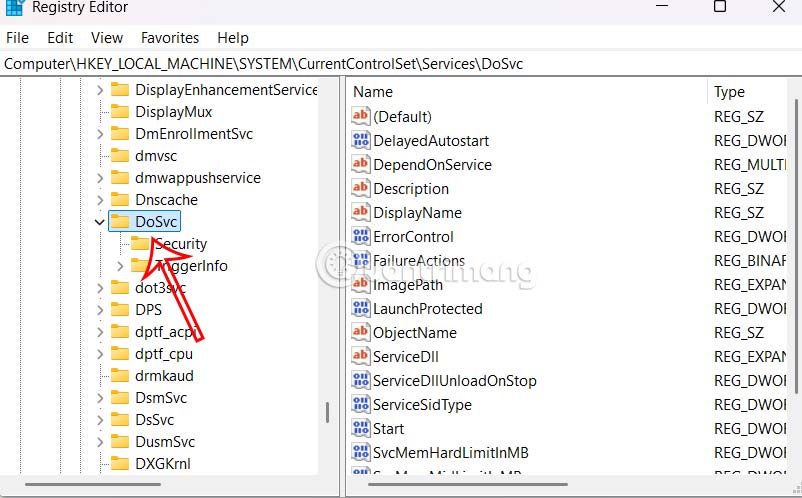
Look to the side And double click on the Start value .
Step 2:
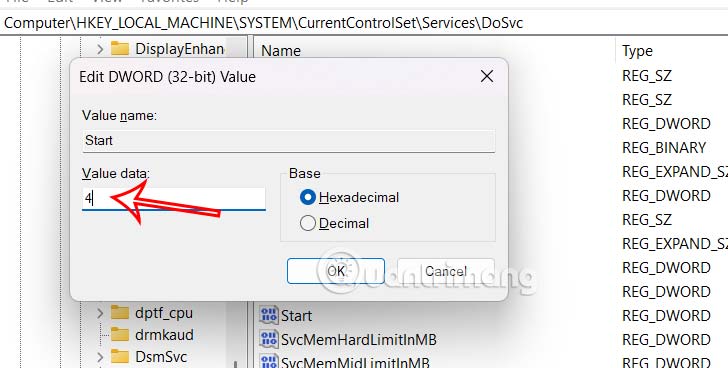
In The Value data section, We Enter the value 4 And then press OK to save.
Deleting Delivery Optimization files does not affect computer speed, but will free up some storage space, which will improve performance.
FAQ
How do you turn off delivery optimization on Windows 11: step-by-step guide?
In practical terms, Windows Update Delivery Optimization allows Windows 11 computers to receive updates from Microsoft and other sources.
What should you check before getting started?
Review the requirements, compatible device or software version, and any warnings described in the guide before making changes.
What should you do if the steps do not work?
Repeat the steps in order, confirm that your app or system is up to date, and review the troubleshooting details provided above.
Related Articles
 How to Optimize Delivery Optimization Cache in Windows 107 minutes read
 How to Turn Off Screen Optimization on Chrome, Firefox, Edge4 minutes read
 Top 5 RAM Optimization Software, Enhance Computer Performance6 minutes read
 Amazon Will Soon Deploy an Unmanned Aircraft Delivery Project4 minutes read
 Amazon Boss Deployed Delivery Service to Compete with UPS and FedEx3 minutes read
 The Emergence of Application Delivery Technology Is Controlled by Software and What It Can Do7 minutes read
Reader Comments 0
Sign in with email or Google to join the discussion.