Table of Contents
A fixed UltraViewer password allows someone with the computer's UltraViewer ID to connect without asking for the current random password. That is useful for your own managed PC, but it also creates persistent access. Set it only on a computer you own or administer, use a strong unique password, and remove it when unattended access is no longer required.
Before enabling a fixed password
- Install the current UltraViewer build from the vendor's website. Our UltraViewer installation guide covers the normal setup.
- Sign in to Windows with an administrator account. UltraViewer requires administrator approval for security-sensitive settings such as a custom password and starting with Windows.
- Decide whether unattended access is truly necessary. For one-time support, the random password is safer because it can change between sessions.
- Close sensitive apps and make sure the computer itself uses a secure Windows sign-in method.
Set a custom password in UltraViewer
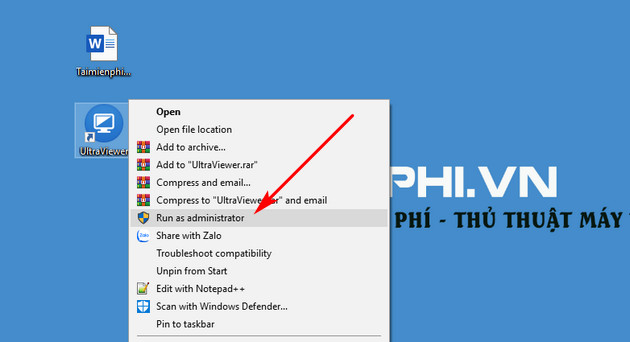
- Open the installed UltraViewer application. If Windows requests administrator approval when you change the security setting, verify that the prompt refers to the official UltraViewer executable and select Yes. You do not need to run every normal session as administrator.
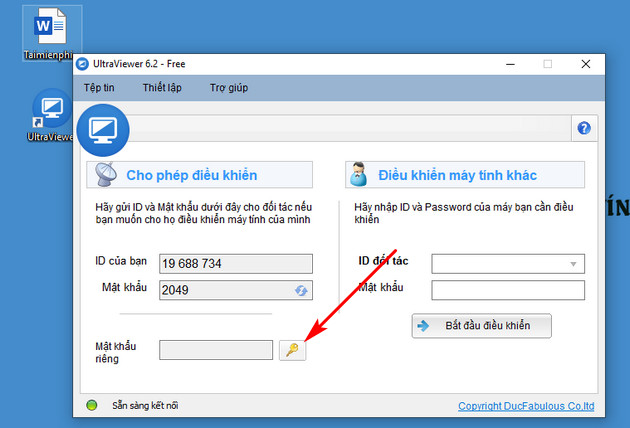
- In UltraViewer's main window, find Custom password, Private password, or Unattended access. Select the key icon. The exact label can vary by version.
- Enter the new password in both the password and confirmation fields. If the dialog asks for a device name, use a name that helps you identify the computer but does not reveal sensitive information.
- Select OK or Save. Restart UltraViewer if the setting does not appear to take effect.
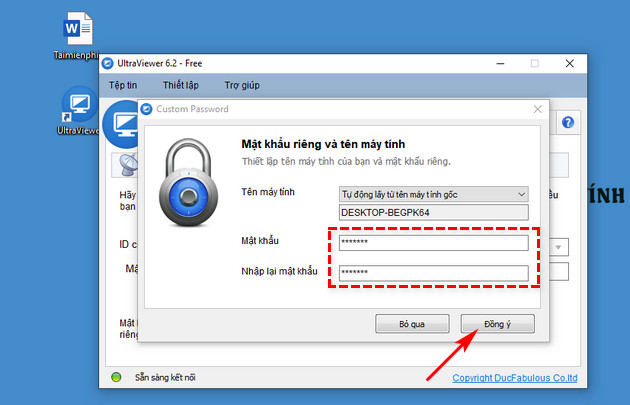
UltraViewer's unattended-access guide documents the key icon and custom-password workflow. Current interface labels should take priority over these older screenshots.
Choose a password that can withstand guessing
Do not reuse an email, Windows, banking, or company password. Prefer a long, randomly generated value stored in a password manager. Avoid names, dates, keyboard patterns, and predictable phrases. The practical checks in our guide to creating stronger passwords apply here as well.
Share the password only through an approved secure channel and only with the specific administrator who needs it. Do not paste it into a public ticket, ordinary group chat, or unencrypted email. An UltraViewer ID is an identifier; the fixed password is the secret that protects access.
Test access without weakening the computer
- From another trusted Windows PC, open UltraViewer.
- Enter the remote computer's UltraViewer ID and the custom password.
- Confirm that the connection works only for the intended account or operator.
- Disconnect, then review UltraViewer's connection log if available.
Do not test by giving the credentials to an unknown person. If a connection succeeds while nobody is present at the remote computer, treat those credentials with the same care as a key to the device.
Change or remove the fixed password
Open the same key or password-settings dialog and replace the existing value with a new unique password. Rotate it immediately if:
- a technician or contractor no longer needs access;
- the password was sent through an insecure channel;
- a connected device was lost or compromised;
- you see an unfamiliar connection in the log; or
- the same password was used anywhere else.
If you no longer need unattended access, disable the custom password rather than merely closing the window. Also turn off Run UltraViewer with Windows if the app does not need to remain available after restart. Verify the change from a second computer: the old password should no longer work.
Random password versus fixed password
| Option | Use it for | Main risk |
|---|---|---|
| Random password | Attended, one-time help | The remote user must share a fresh credential for each session. |
| Fixed custom password | Your own managed PC or approved unattended support | A stolen or shared credential can provide continuing access. |
Keep the random-password function enabled for occasional attended support unless you have a reason to change it. Disabling random passwords does not by itself make a weak fixed password safe.
Safety checks for unattended access
- Keep Windows and UltraViewer updated.
- Use a standard Windows account for daily work and limit administrator privileges.
- Review connection logs periodically and investigate unfamiliar IDs or times.
- End remote sessions when work is complete and lock the computer.
- Never give unattended access to an unexpected caller claiming to handle a refund, bank issue, investment, or security warning.
- If an organization manages the PC, follow its remote-access policy and approved software list.
A fixed password improves convenience, not privacy by itself. The computer is safer when persistent access is limited to a real need, the password is strong and unique, and credentials are revoked as soon as that need ends.
Related Articles
 How to Use Ultraviewer: How to Change Ultraviewer Access Password3 minutes read
 Link Downlaod Ultraviewer 6.24 minutes read
 Simple UltraViewer Usage Guide for Remote Computer Control5 minutes read
 4 Common Actions Users Perform When Using Ultraviewer5 minutes read
 How to Fix the Cannot Create Service Error on Ultraviewer2 minutes read
 How to Install the Latest Version of Ultraviewer for Remote Computer Control4 minutes read
Reader Comments 0
Sign in with email or Google to join the discussion.