Table of Contents
When an iPhone is put on silent mode, users will not hear ringtones or other alert sounds. However, the phone can still vibrate to indicate incoming calls or other notifications. This vibration, however, is quite strong and can still create a rather loud noise when in contact with other objects, which can be annoying to some people.
In this article, let's learn how to turn vibration on or off in silent mode on iPhones running iOS 15 through iOS 17, and how to troubleshoot the issue of your phone not vibrating in silent mode.
How to customize whether to turn vibration on or off in silent mode on iOS 17
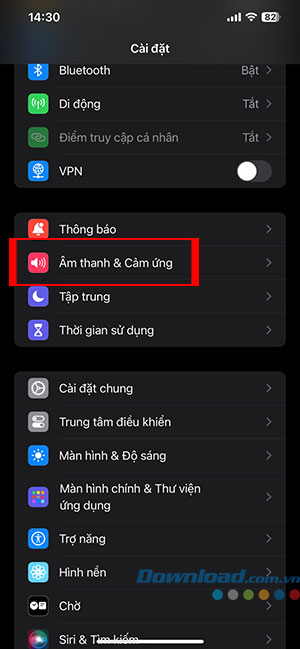
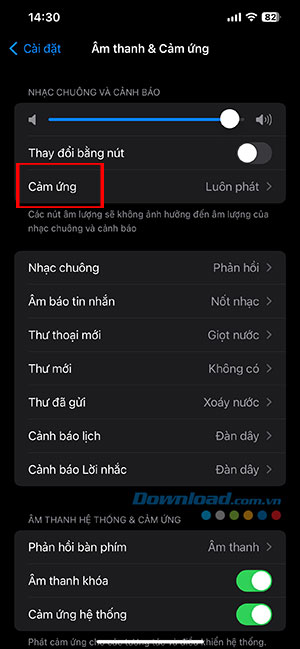
If you've updated your iPhone to iOS 17, you'll have more options to customize silent vibration. Instead of just one option, " Play Touch in Silent," to enable or disable on iOS 15 and iOS 16, iOS 17 users now have four options for playing touch for ringtones and alerts. To customize silent vibration on iOS 17, follow these steps:
Step 1: Open Settings on your iPhone and select Sound & Touch.
Step 2: In the Ringtone and Alerts section, tap Touch.
Step 3: In the Touch settings, the user selects one of the four vibration settings as shown below:
- Always Play: Touch will play when your iPhone rings or receives an alert.
- Playback in Silent Mode: Touch will play when your iPhone rings or receives an alert while in Silent Mode.
- No sound in Silent Mode: Touch will not trigger the iPhone to ring or receive alerts while in Silent Mode.
- Never Play: Touch will not play when the iPhone rings or receives an alert.

How to enable vibration in silent mode on iOS 16
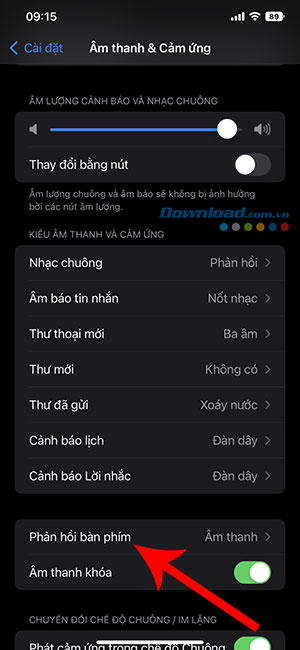
In iOS 16, Apple made some improvements to the vibration settings. First, it renamed it to Silent Touch Playback. And second, instead of appearing at the top in the Sound & Touch settings, users will find it at the bottom. To enable vibration in Silent Mode on iOS 16, follow these steps:
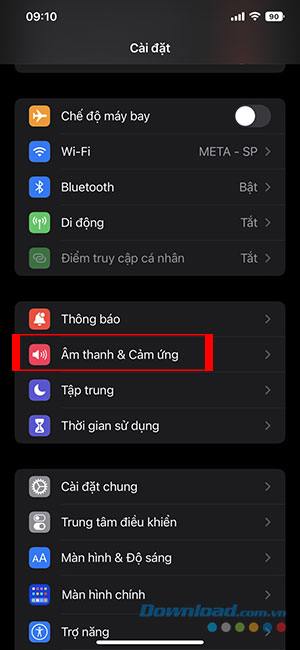
Step 1: Open Settings on your iPhone and select Sound & Touch.
Step 2: Scroll down to the Ring/Silent mode toggle and turn on the switch for Touch Play in Silent mode.
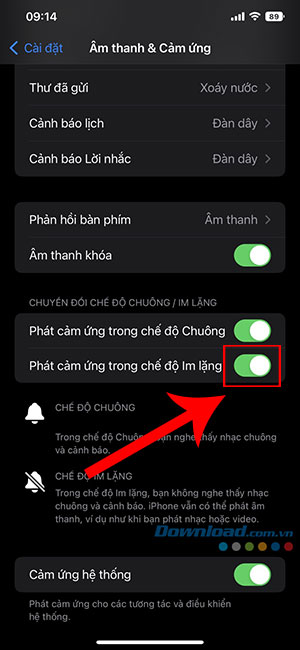
Now, your iPhone will vibrate when in silent mode. If you want your iPhone to vibrate when it rings or in normal mode, toggle the switch next to " Play Touch in Ringtone Mode ".
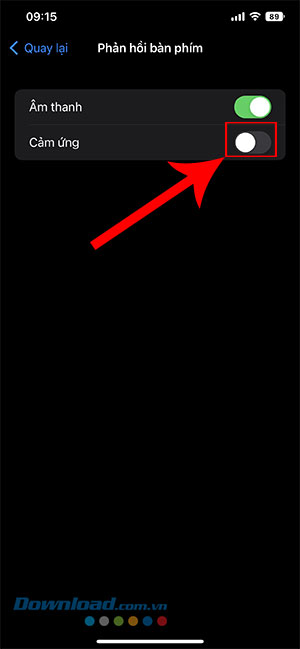
In iOS 16, you can also make the keyboard vibrate by going to Settings > Sound & Touch > Keyboard Feedback > and toggling the switch next to Touch.
How to enable vibration in silent mode on iOS 15
To enable vibration in silent mode on an iPhone running iOS 15, follow these steps:
Step 1: Open Settings on your phone.
Step 2: Tap on Sound & Touch.
Step 3: Turn on the switch next to Vibrate on Silent.
How to turn off vibration in silent mode
If you don't want your iPhone to vibrate in silent mode, you can turn off touch sensitivity in silent mode as follows:
Step 1: Open Settings on your iPhone.
Step 2: Go to Sound & Touch.
Step 3: On iOS 16, scroll down and turn off the toggle switch next to Play Touch in Silent mode. For devices running iOS 15, turn off the toggle switch next to Vibrate in Silent mode.
Fixing the issue of iPhone not vibrating when silent mode is enabled
If your phone doesn't vibrate in silent mode after enabling the setting, follow the troubleshooting steps below:
Turn on Vibration in Accessibility settings
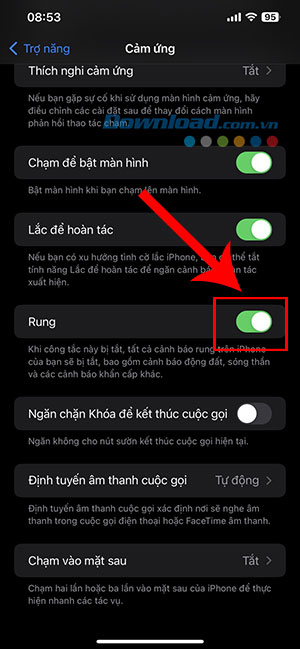
On iPhones, there's a dedicated vibration setting in Accessibility. If it's turned off, all types of vibration will stop working on the phone, including vibration when silent mode is enabled. To ensure that the vibration setting is enabled even when the phone is in silent mode, follow these steps:
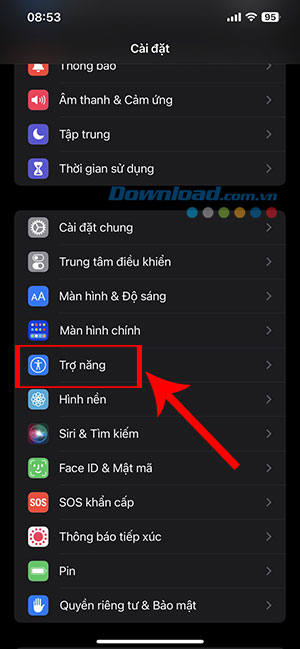
Step 1: Open Settings on your iPhone and access Accessibility.
Step 2: Touch the sensor.
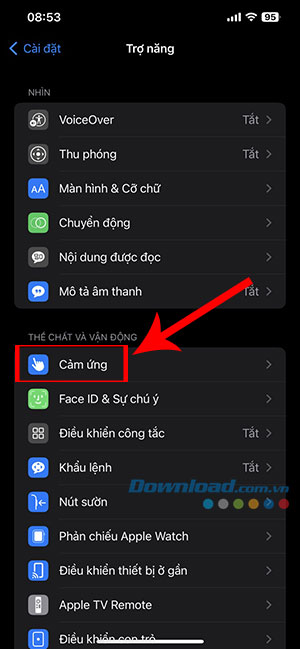
Step 3: Scroll down and toggle the switch next to Vibration.
Activate vibration mode for each type of alarm
On iPhones, you can customize vibration settings and choose different vibration patterns for each type of notification. This means that notifications such as ringtones, messages, emails, etc., can all have different vibration patterns.
However, in the vibration settings for each alert, there's an option for "None." If selected, that specific alert will not vibrate. So, if your iPhone isn't vibrating in silent mode, it's likely you haven't selected a vibration pattern in the alert settings. Follow these steps to select a vibration pattern for different alerts:
Step 1: Open Settings on your iPhone and go to Sound & Touch.
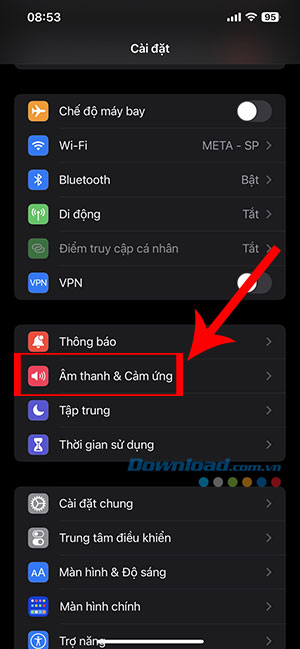
Step 2: Tap on one of the notification sound settings, for example Ringtone, then select Vibrate.
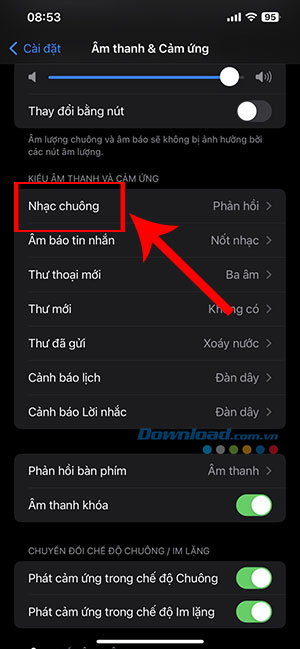
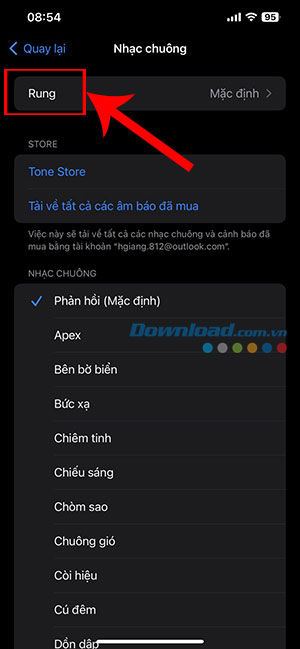
Step 3: Now, make sure the "None" option is not enabled. To remove this option, tap "Synchronized (Default)" or select a different vibration pattern from the list.
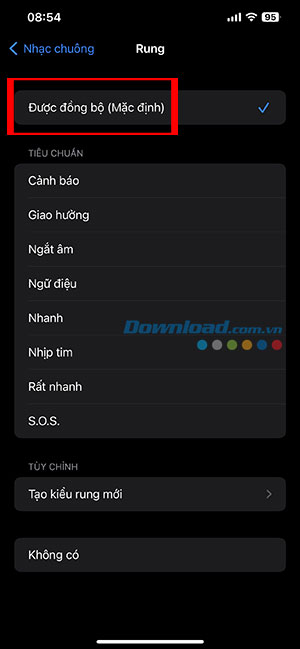
Step 4: Similarly, check other notification types such as message tones, voicemail tones, etc., and make sure that some vibration patterns are selected.
Video Tutorial: How to turn off vibration in silent mode on iPhone
Related Articles
 How to Turn Off Vibrating iPhone in Silent Mode5 minutes read
 How to Activate Silent Mode on iPhone: Complete Guide8 minutes read
 How to Enable Message Vibration on iPhone3 minutes read
 Distinguish Silent Mode and Non-disturbing Mode on iPhone4 minutes read
 5 Steps to Set the Vibration Mode Characteristic for Callers on iPhone3 minutes read
 How to Android Phone in Silent Mode for a Certain Period of Time4 minutes read
Reader Comments 0
Sign in with email or Google to join the discussion.