Table of Contents
Launchpad is the app grid used in macOS versions before macOS Tahoe 26. It displays installed applications in pages and folders, similar to the Home Screen on an iPad. In macOS Tahoe 26 and later, Apple replaced Launchpad with an Apps view integrated with Spotlight.
Launchpad or Apps: which interface does your Mac use?
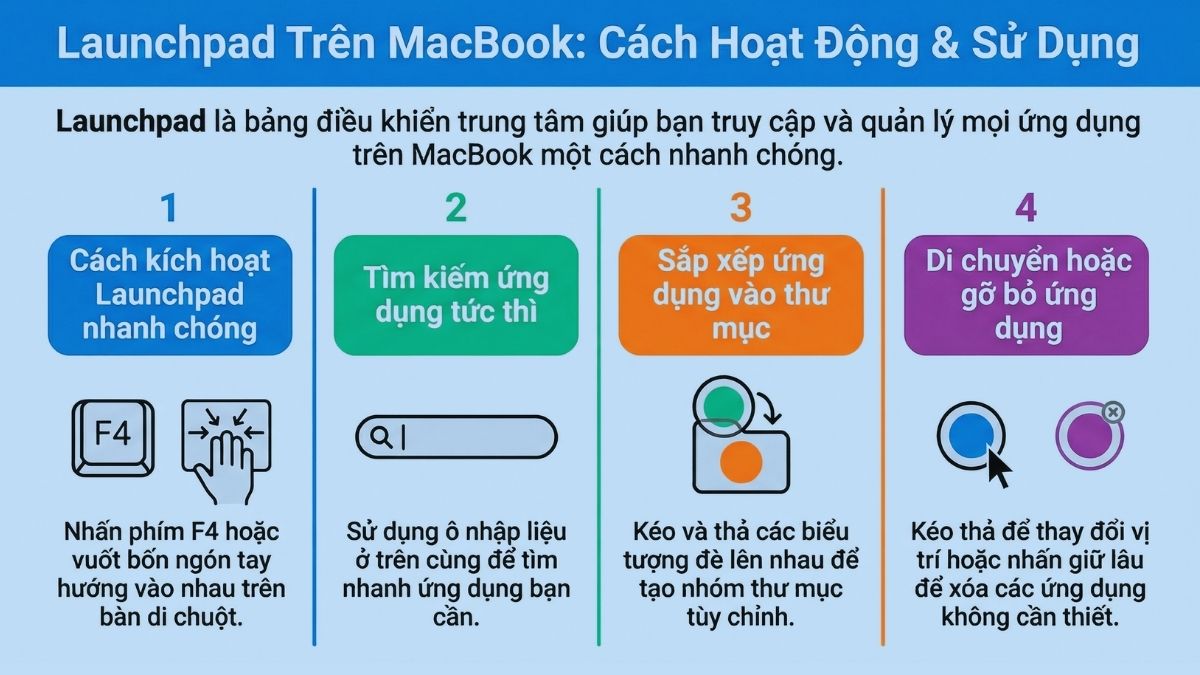
- Earlier macOS versions: open Launchpad from its Dock icon, a configured keyboard shortcut, Spotlight, or a trackpad gesture.
- macOS Tahoe 26 or later: click the Apps icon in the Dock, or open Spotlight and choose Applications. Apple lists Fn-Shift-A as the shortcut for Apps on Tahoe and Launchpad on earlier systems.
Apple's current instructions are available in its guide to viewing and opening apps on Mac.
How to open Launchpad on an older macOS version
Use the Dock or Spotlight
Click the Launchpad icon in the Dock. If it is not present, open Spotlight, type Launchpad, and press Return. Removing a Launchpad icon from the Dock does not remove the apps it displays.
Use the keyboard or trackpad
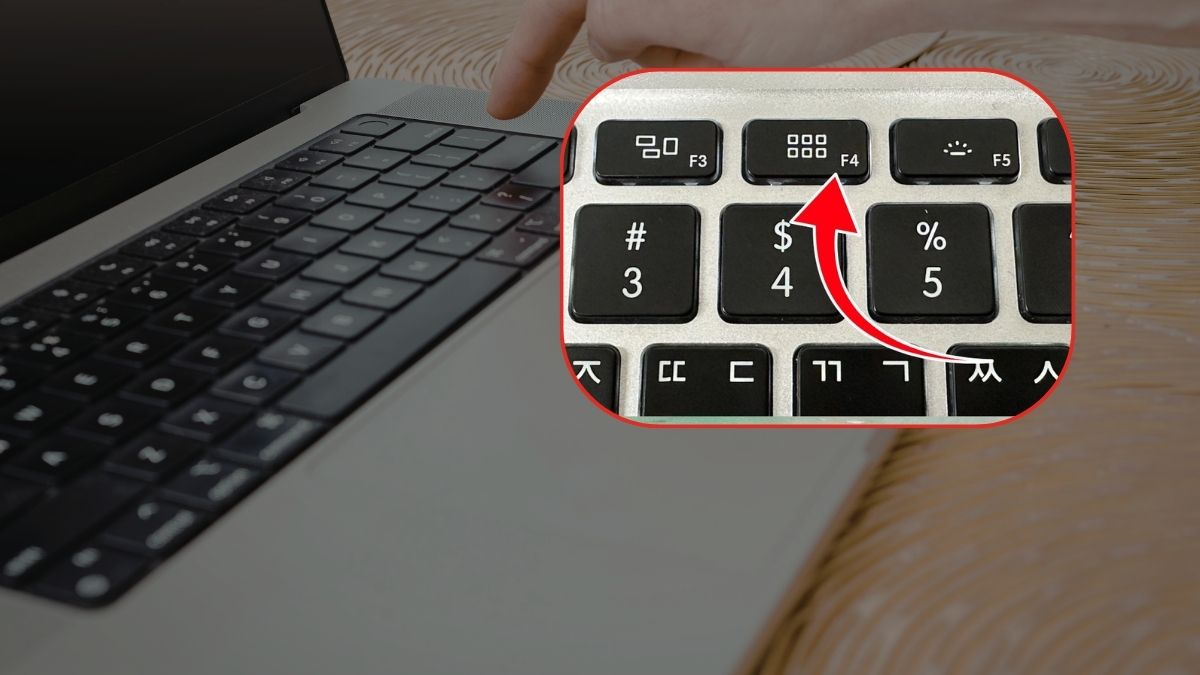
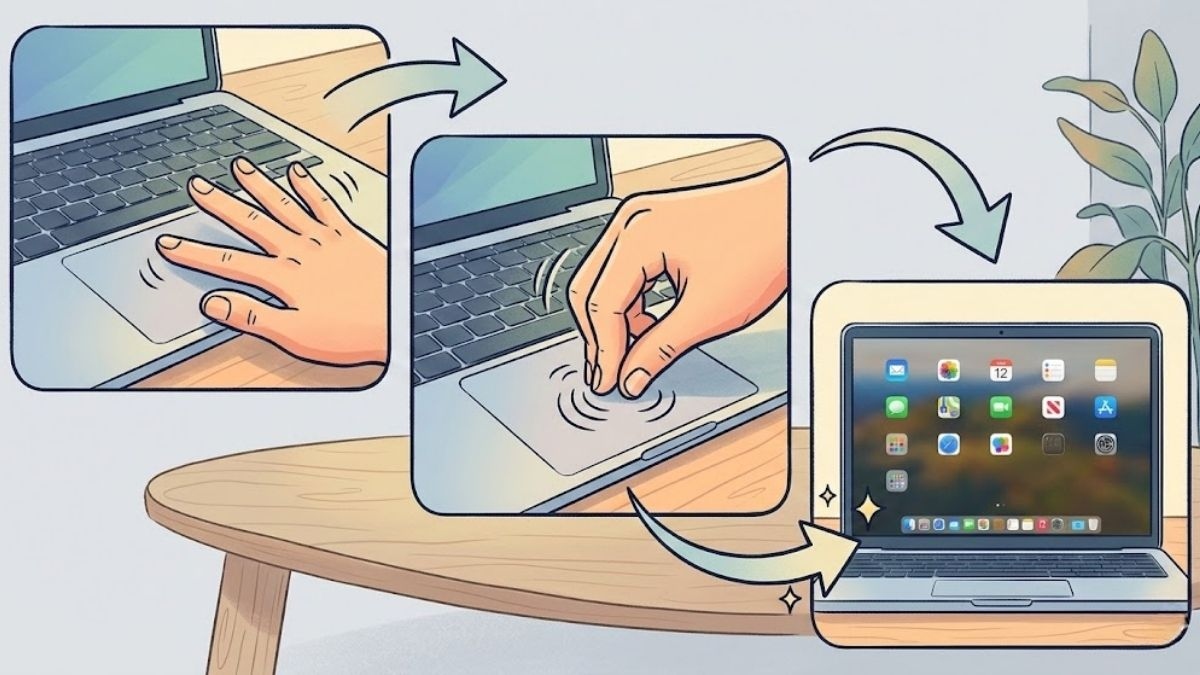
Keyboard shortcuts depend on the Mac model and your settings. Try the Launchpad symbol on a function key, or check System Settings for keyboard shortcuts. On supported trackpads, pinching with the thumb and three fingers can open the app grid.
Find and organize apps
In Launchpad, start typing an app name to search. Drag an icon to another position to rearrange it, or drag one app onto another to create a folder. Drag an app out of a folder to remove it from that folder.
In the newer Apps view, use the search field or category filters. Apps installed in the Applications folder appear automatically. You can drag an app to the Dock for quicker access.
Adding and removing apps
Apps downloaded from the App Store normally appear automatically. For software downloaded elsewhere, place the application in the Applications folder. Launchpad and Apps are views of installed software; they are not separate storage locations.
On older macOS versions, some App Store apps can be deleted by holding an icon until it jiggles and clicking the delete control. For other software, open Finder's Applications folder and use the developer's uninstaller when one is supplied. Do not delete an icon merely to remove it from the Dock—the Dock contains shortcuts.
If an app is missing
- Search for the app with Spotlight.
- Check the Applications folder in Finder.
- Confirm that the app finished installing and is compatible with the current macOS version.
- Restart the Mac if the interface has not refreshed.
Key point
If instructions mention Launchpad but your Mac shows Apps in Spotlight, the difference is probably the macOS version. Use the interface present on your Mac; both are designed to find and open installed applications.
Related Articles
 How to Use Launchpad on Macbook Is Very Simple6 minutes read
 How to Use Launchpad on macOS Sierra6 minutes read
 Click: How to Quickly Open the Launchpad on a Mac3 minutes read
 How to Add Launchpad to Dock on Mac3 minutes read
 How to Use Launchpad in Free Fire Most Effectively4 minutes read
 Cách để Mở Nhanh Launchpad Trên Máy Mac: What to Know6 minutes read
Reader Comments 0
Sign in with email or Google to join the discussion.