Table of Contents
Instructions on setting a password in Windows 10
Learn how to set a Password in Windows 10: easy and Detailed Instructions with clear steps, practical tips, and troubleshooting guidance for common issues.
1. The most common method
Step 1: With this method, simply open the Start Menu , click your account icon, and select Change Account settings . 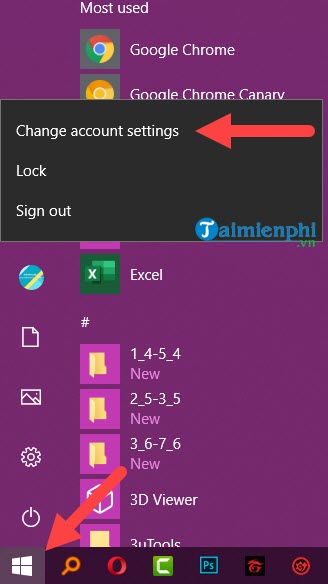 Step 2: In the Settings interface, go to Sign-in Options . There are three methods here.
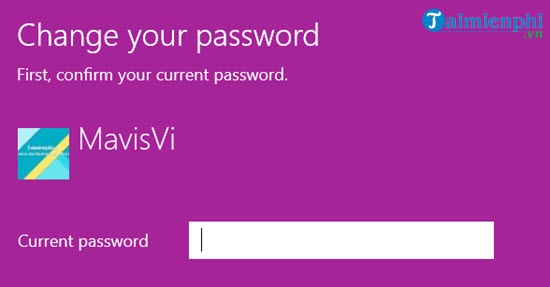
 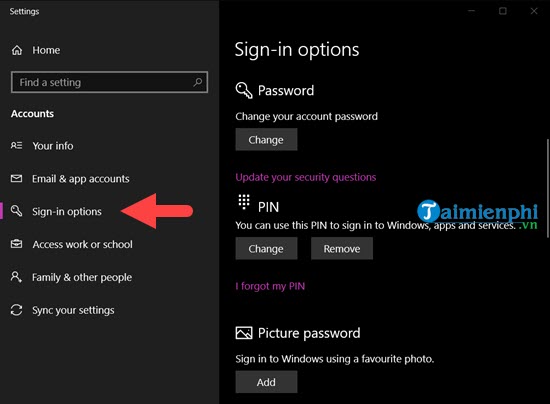 Step 3: First, enter your regular password; this determines whether the other methods will be enabled.
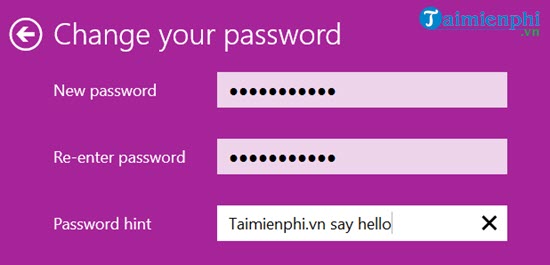
  Step 4: Then, enter your new password twice consecutively. You can also enter a password hint as a message to help you remember your password.
  Step 5: Once all steps are complete, simply click Finish to complete this first method.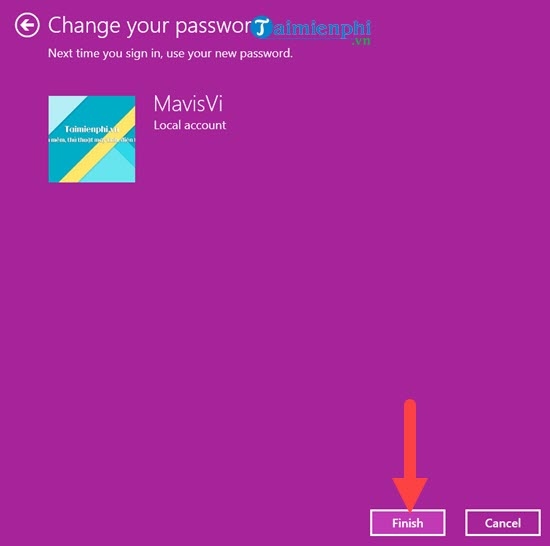
2. Use a PIN code
Setting up a PIN is quick and easy; just enter it correctly to log into Windows 10. Step 1: Still in Settings as shown above, click PIN > select add and enter your current password. 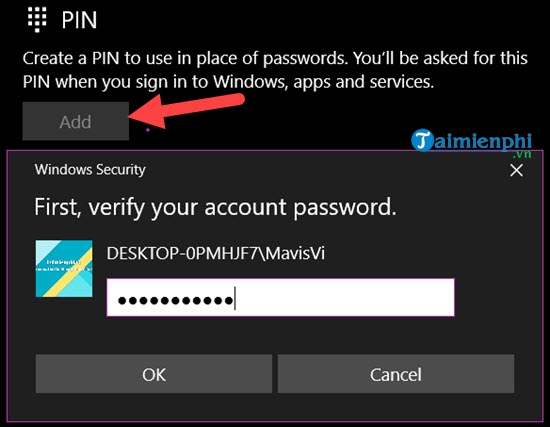 Step 2: Then proceed to set up a PIN with all numbers. You can also choose Include letters and symbols to add letters and special characters if you want to further enhance security.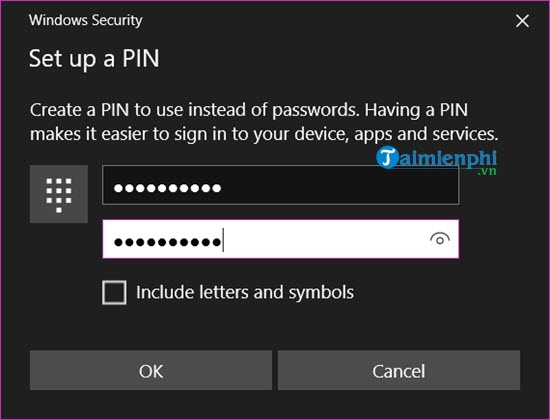
3. Use photos
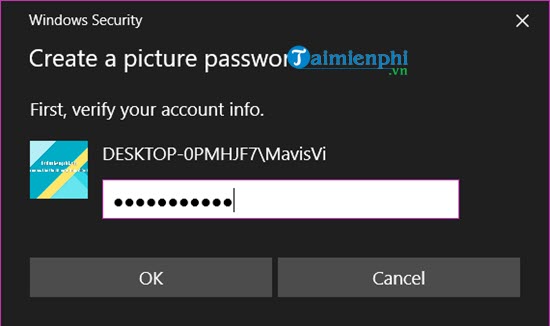
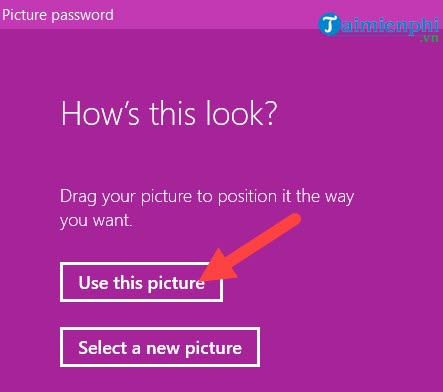
This feature has been around for a while, but setting a Windows 10 computer password using an image isn't really useful because it's inconvenient and the security method is easily copied. Step 1: In the same section, click Add under Picture Password . 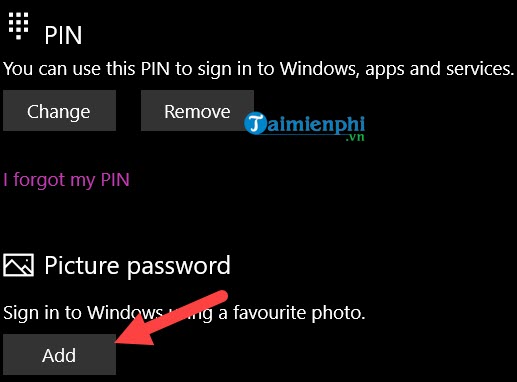 Step 2: Of course, you'll need to enter your computer password first. Here you'll see the Picture Password
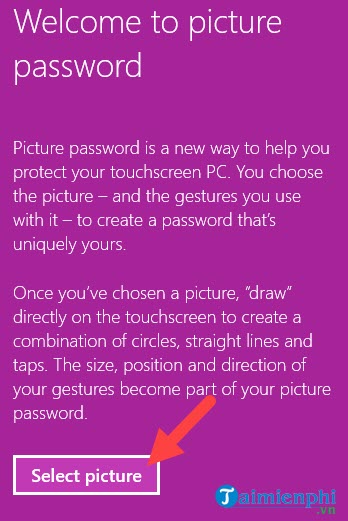
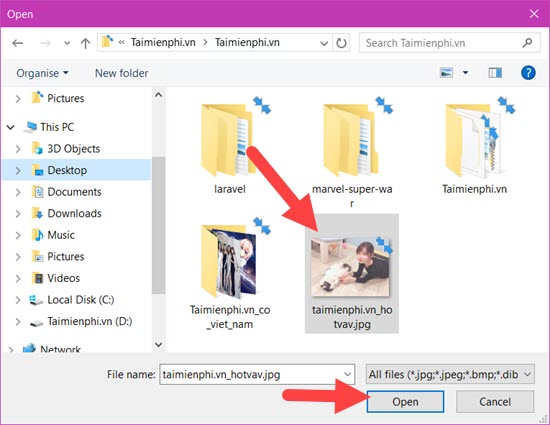
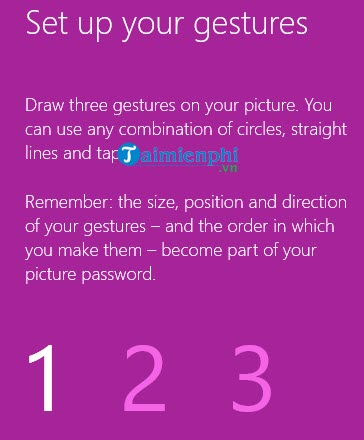
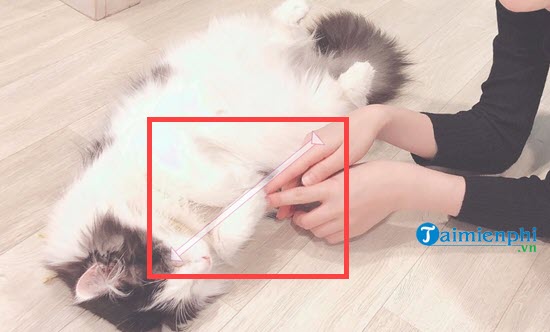
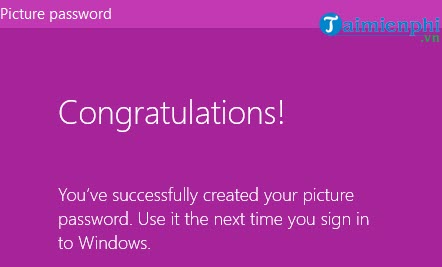
  interface. Step 3: On the interface, click Select picture to change the default image for this feature. Step 4: Choose your favorite picture from your computer to set as your password screen. Step 5: Click Use this picture to confirm using that picture. Step 6: Here, the mode will let you move your mouse three times as desired. Remember these actions because they are your unlock actions. After each action, a faint arrow will appear to show how you moved your mouse; note that the position is not fixed. Step 7: When the "Congratulations" message appears, it means the process was successful.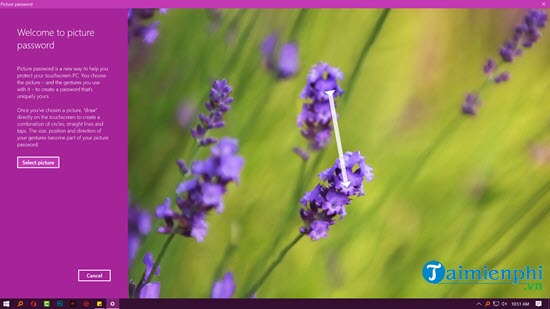
Set a Windows 10 password with a Microsoft account
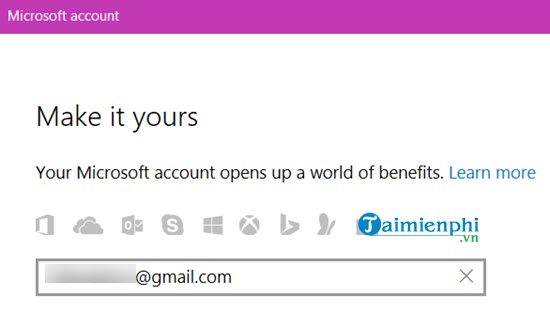
Step 1: Still in the settings, select Your info and click Sign in with a Microsoft account instead. 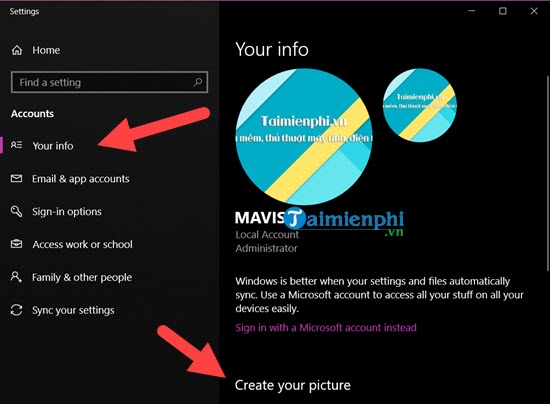 Step 2: Log in by entering your Microsoft account.
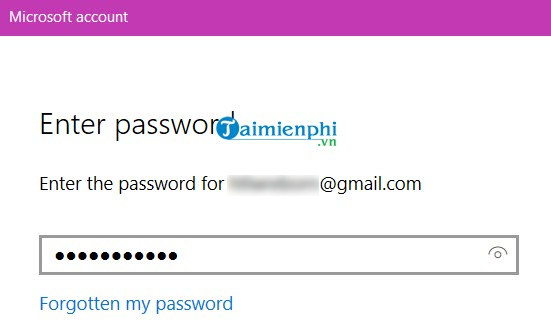
  Enter your password to complete the login process.
  Step 3: Finally, enter your password to complete the process.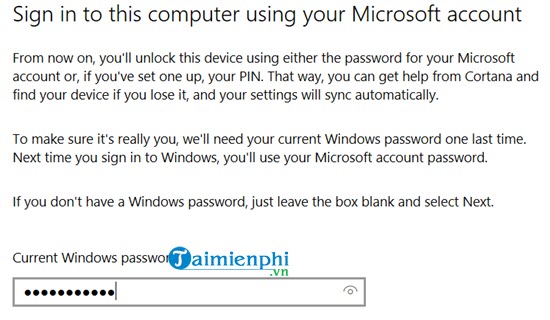
Using Control Panel to set a password in Windows 10
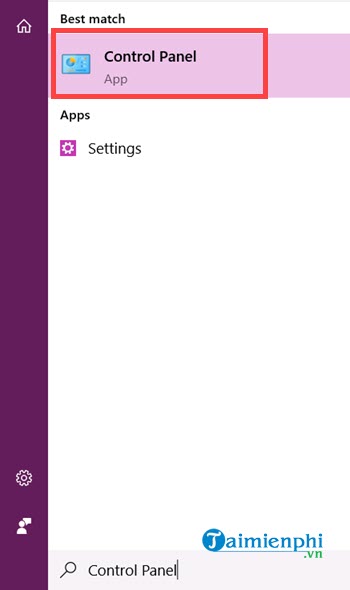
Step 1: First, open the Start Menu , then type "Control Panel" and access the search result.
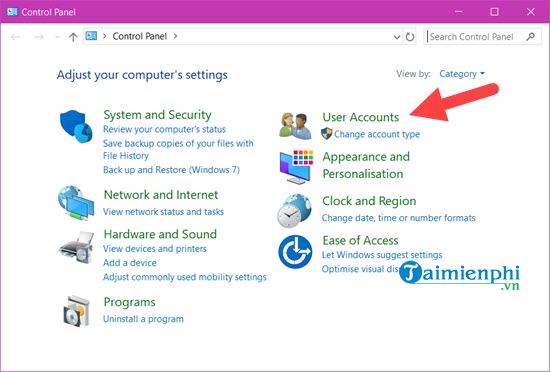
 Step 2: The Control Panel interface will appear. click " User Accounts " (Note: click the correct word to access the correct section).
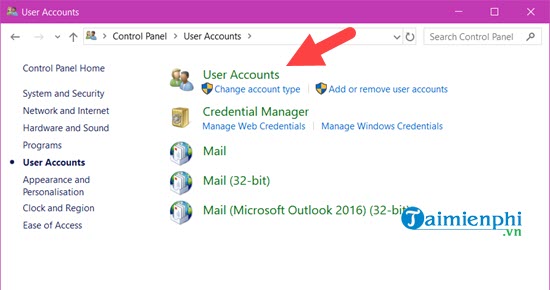
  Step 3: In the "User Accounts" section, click "User Accounts" again.
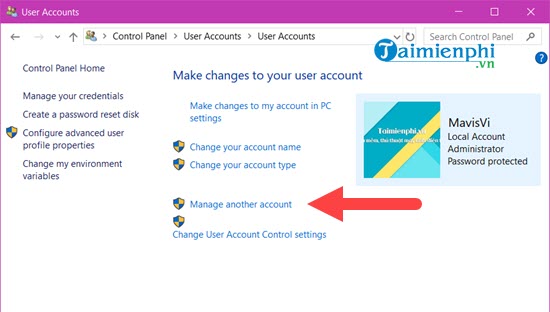
  Step 4: Here, select " Manage another account" to manage any accounts on your computer.
  Step 5: click the account you want to set a password for. Of course, if you just installed the computer, this will be your main account.
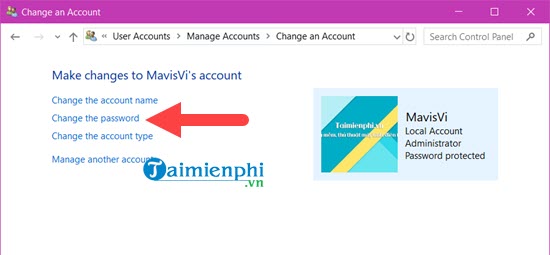
 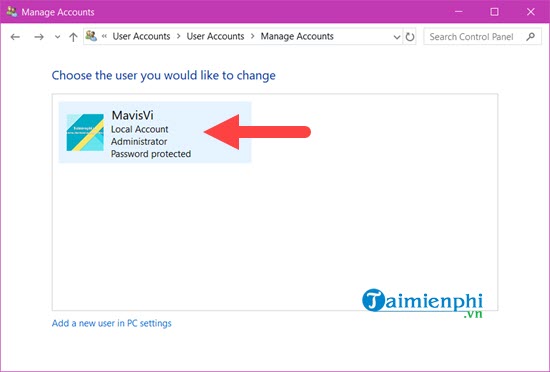 Step 6: Select "Change the password" to change the password if you set it previously, or " Create the password" if this is your first time setting a password.
  Step 7: Finally, enter your old password (leave it blank if it's your first time) and enter your new password twice. Below is a password hint, so you can choose whatever you like.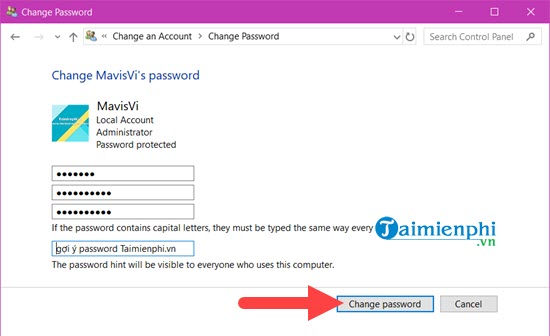
Setting a password on Windows 10 helps protect personal data and prevent unauthorized access. If you want to learn more computer security tips, check out Free Downloads now.
FAQ
How can you set a Password in Windows 10: easy and Detailed Instructions?
Learn how to set a Password in Windows 10: easy and Detailed Instructions with clear steps, practical tips, and troubleshooting guidance for common issues.
What should you know about instructions on setting a password in Windows 10?
Learn how to set a Password in Windows 10: easy and Detailed Instructions with clear steps, practical tips, and troubleshooting guidance for common issues.
What should you know about the most common method?
Step 1: With this method, simply open the Start Menu, click your account icon, and select Change Account settings.
Related Articles
 How to Set a Windows 11 Computer Password, Set a Windows 113 minutes read
 Turn Off Win 10 Password When Logging in on the Computer: Complete Overview7 minutes read
 How to Set a Password for a PDF File?: PDF Password2 minutes read
 Recover Windows 7 Password, Restore Win 7 Pro, Ultimate Password5 minutes read
 Instructions for Changing Windows Passwords Without Having to3 minutes read
 Instructions to Change Garena Password on the Phone6 minutes read
Reader Comments 0
Sign in with email or Google to join the discussion.