Table of Contents
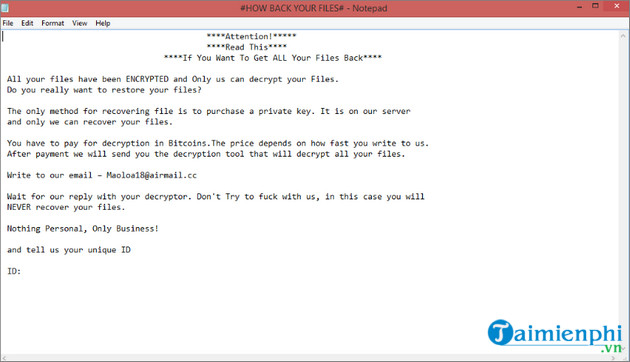
Maoloa is a file-encrypting ransomware family reported in multiple campaigns. Some documented samples append a .Maoloa extension to encrypted files and leave a ransom note with a name similar to # HOW BACK YOUR FILES #.txt. Those indicators can help an analyst identify the incident, but extensions and note names can be copied by other malware, so do not rely on the filename alone.
If files are being encrypted now, disconnect the affected computer from wired and wireless networks, detach external storage, and pause cloud synchronization from a separate clean device if doing so will prevent encrypted copies from replacing good versions. Do not keep using the system to search for a fix.
What Maoloa ransomware does
Ransomware makes data unavailable and demands payment for a purported recovery method. A Maoloa infection may encrypt documents, images, archives, databases, and other user files that the malicious process can reach. Network shares, synchronized folders, and connected backups can also be at risk if they are writable from the infected account.
The ransom note may contain a contact method, a payment demand, and instructions involving cryptocurrency. Do not follow links or run files supplied by the attacker. Paying does not guarantee a working decryptor, complete recovery, deletion of stolen data, or protection from another demand.
Immediate response checklist
- Isolate the computer. Unplug Ethernet, turn off Wi-Fi and Bluetooth, and disconnect external drives. If several devices are affected, isolate the relevant network segment rather than moving between systems and spreading the infection.
- Preserve evidence. Photograph the ransom note and screen, record the time, and keep copies of the note, a small encrypted file, relevant email, and suspected download. Do not open samples on a normal computer.
- Protect backups. Keep offline media disconnected. Do not connect a clean backup to the affected system.
- Notify the right people. In a workplace, contact the security or IT incident-response team immediately. Home users should consider a qualified malware-removal or data-recovery professional for important data.
- Report the incident. Follow the cybercrime or data-breach reporting rules that apply in your country and organization.
Do not delete encrypted files before you understand the available recovery options. A decryptor may become available later, and investigators may need samples to identify the variant.
Can Maoloa-encrypted files be decrypted?
Removing the ransomware stops the malicious program; it does not reverse encryption. Successful recovery generally comes from one of three sources:
- a verified, unaffected backup;
- previous file versions or cloud version history that the attacker could not delete;
- a decryptor published for the exact ransomware variant.
Use the No More Ransom Crypto Sheriff from a clean device to help identify the ransomware from a ransom note and encrypted sample. Search its official decryptor repository for the identified family. At the time of review, the public decryptor list did not provide a clearly labeled Maoloa tool, so do not download a program merely because it claims to decrypt “all” Maoloa files.
Work on copies of encrypted data, not the only originals. Preserve the original filenames and extensions. A wrong or poorly written decryptor can damage files further.
Safe recovery process
- Identify the scope: affected devices, accounts, shares, backups, and cloud services.
- Determine how the attacker gained access and close that path. Common possibilities include phishing, stolen credentials, exposed remote access, vulnerable software, and untrusted installers.
- Reset compromised credentials from a known-clean device, revoke active sessions, and enable multi-factor authentication.
- Rebuild or thoroughly remediate affected systems. For a serious infection, reinstalling the operating system from trusted media is often easier to verify than piecemeal cleanup.
- Patch the rebuilt system, install applications from trusted sources, and scan it before restoring data.
- Restore only from a backup created before the compromise and verify that it is not encrypted or infected.
- Monitor accounts, endpoints, and network activity for recurrence.
CISA's StopRansomware Guide provides a detailed response checklist for organizations. Home users can apply the same core principles: isolate, preserve evidence, eliminate the entry point, rebuild trust, and restore clean data.
Why the old Safe Mode and System Restore method is not enough
Older instructions often recommend starting Windows in Safe Mode with Command Prompt and launching System Restore. Safe Mode may help a technician run a tool when normal Windows is unusable, but it does not identify the ransomware, preserve evidence, close the intrusion path, or decrypt files. System Restore is not a backup of personal documents, and ransomware may delete restore points.
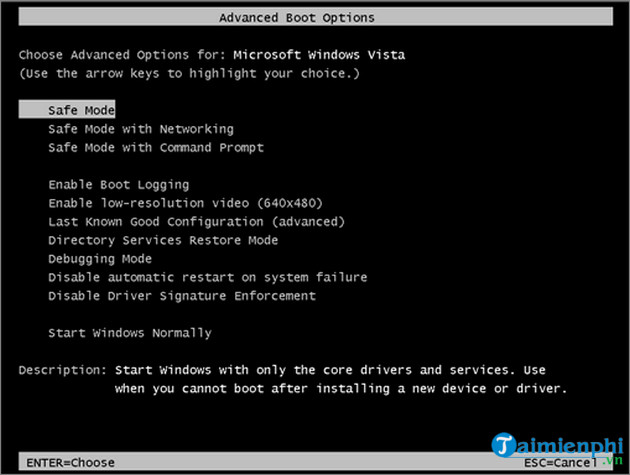
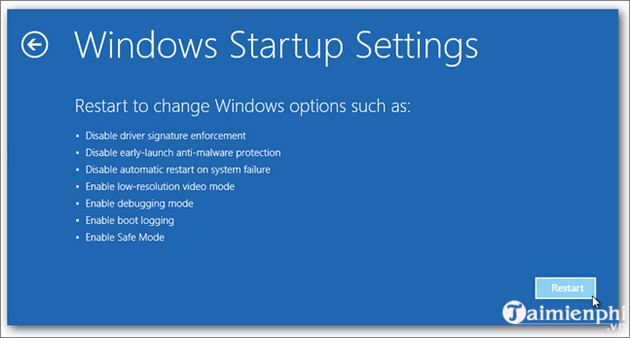
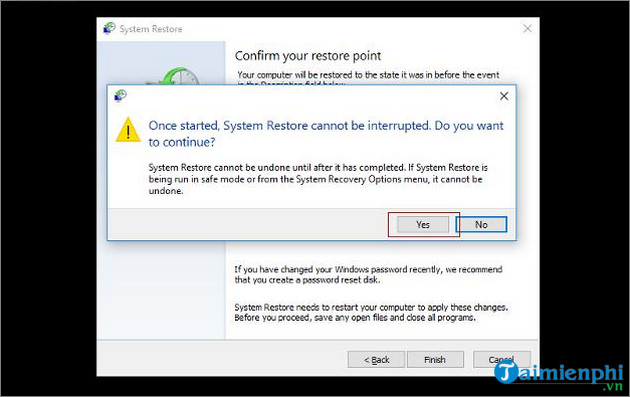
Running rstrui.exe without an incident plan can also change the system before evidence is collected. Use recovery tools only as part of a deliberate remediation process, ideally after making forensic or data-preservation copies when the information matters.
How to reduce ransomware risk
- Keep offline, versioned backups. Test that files can be restored and keep at least one copy inaccessible to normal user accounts.
- Patch quickly. Update Windows, browsers, office software, VPNs, remote-access tools, routers, and other internet-facing systems.
- Secure accounts. Use unique passwords, multi-factor authentication, and the least privilege required for each user.
- Limit remote access. Do not expose Remote Desktop directly to the internet. Use secured gateways, VPNs, logging, and access restrictions.
- Control scripts and macros. Block internet-sourced macros and unnecessary script execution where practical.
- Use active endpoint protection. Keep real-time antivirus and behavior monitoring enabled and review alerts.
- Segment important data. A normal workstation account should not have write access to every server, share, and backup.
- Train users. Verify unexpected attachments, invoices, password resets, and software-update prompts through a separate channel.
Windows users can add another layer with Controlled Folder Access, but it must be configured and tested so legitimate applications can still work. Compare current Windows security products with ransomware protection if the built-in setup does not meet your needs.
After recovery
Keep the ransom note and encrypted samples in protected storage, document what happened, and update the backup and access controls that failed. If personal, customer, or regulated data may have been stolen—not merely encrypted—treat the event as a potential data breach and obtain appropriate legal or incident-response guidance.
Related Articles
 7 Effective Ways to Protect Businesses from Ransomware5 minutes read
 Protect Your Computer Right Before the Return of Two Extremely Dangerous6 minutes read
 Can a VPN Protect You from Ransomware?8 minutes read
 What Is Ransomware? How to Protect Your Device from Ransomware7 minutes read
 List of the 3 Most Dangerous and Scary Ransomware Viruses6 minutes read
 7 Kinds of Ransomware You Didn't Expect8 minutes read
Reader Comments 0
Sign in with email or Google to join the discussion.