Table of Contents
This updated guide examines How to Reinstall Mac Os X (Leopard and Earlier) and organizes the essential facts, background, and practical takeaways in clear American English.
Part 1of 3:
Preparing to Install
 Backup your data. Reinstalling OS X will erase all of the data on your computer. Because of this, you should ensure that all of your important documents, photos, videos, and other files are copied onto at least one other storage location.[1]
- You can burn your backup files to a DVD, copy them to an external hard drive, or even upload them to online storage.
- Make sure that everything you need is safely backed up. Once you install, you won't be able to retrieve the files anymore.
- You can choose to export all of your user settings and files during the installation process, but performing a clean install where everything is deleted is recommended for the best performance.
 Start the installation from a working computer. If your computer can boot into OS X, you can start the installation process from within the operating system. Insert the installation DVD into your computer, and wait for it to appear on your desktop. Double-click the "Install Mac OS X" icon, and then clickRestart.
 Start the installation from a nonworking computer. If your computer is not booting into OS X, you can start the installation by booting from the DVD. Reboot the computer while holding the⌥Optionkey. This will load the "Startup Manager", which displays all of the sources you can boot from.
- Once you are on the Startup Manager screen, insert the OS X installation DVD. After a few moments, the DVD will appear on the list of sources. Select it to reboot the computer and boot from the DVD.
Part 2of 3:
Installing OS X
 Choose a language and start the installation. Once your computer reboots, the installation process will start. You will be asked to choose your language, and then the Welcome screen will appear. Click theContinuebutton to start installing.
 Choose your installation type. Click theOptions...button on the "Select a Destination" screen. When reinstalling OS X, you will have two different installation options: "Archive and Install" and "Erase and Install". Choose the process that meets your needs and click theOKbutton.
- "Archive and Install" will make a copy of your system files, and then installs a new copy. If you choose this, you can also choose to preserve your user and network settings. This is not recommended if you are experiencing issues with your current installation of OS X. Any programs you had will need to be reinstalled after choosing this method, or they may not work properly.
- "Erase and Install" will delete everything on the disk and install a fresh copy of OS X. All data will be erased, so ensure that everything important is backed up. This is the recommended option as it will solve most issues you were experiencing, and gives the best performance.
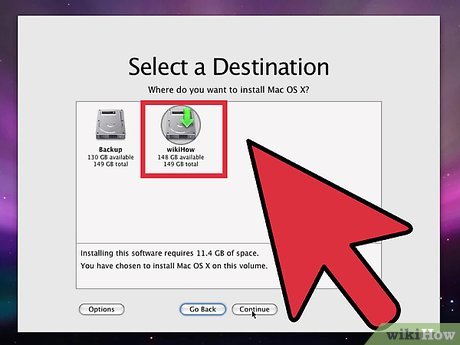 Choose the destination. If you have multiple hard drives or partitions installed in your computer, you can choose which one you want to install OS X on. The amount of space on the disk and the amount of space OS X requires will be displayed. Select the hard drive you want to install to and clickContinue.[2]
- Use the "Format disk as" drop-down menu to set the disk format to "Mac OS X Extended (Journaled)".
- Make sure you don't install onto a Recovery or Storage drive.
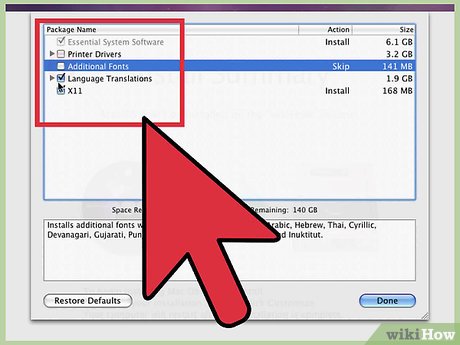 Choose the software you want to install. The installer will display a list of all the extra software packages that will be installed with OS X. If you don't have a lot of hard disk space, you can deselect some of the less-important files by clicking theCustomize...button.
- Expand the "Print Drivers" section and deselect any of the print drivers you won't need.
- Expand the "Language Translation" section and deselect any languages you won't be using.
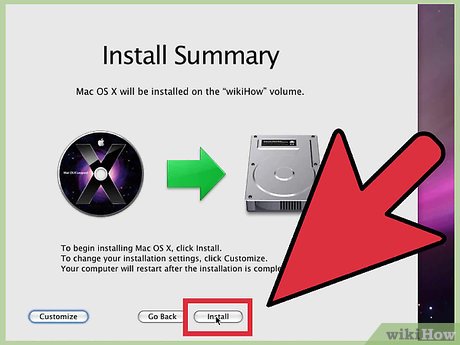 Start the installation. Once you have chosen your extra software options, you can begin the installation of the operating system. Click theInstallbutton to begin.
- A progress bar will let you know how much time is left during the installation. The installation process is automatic once it begins. Your computer will reboot when the process is complete.
Part 3of 3:
Setting Up OS X
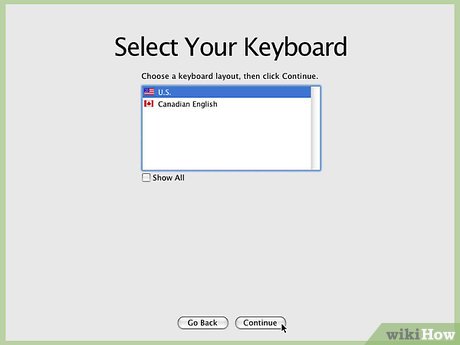 Set up the keyboard. The first thing you will be asked to do after the computer restarts is to set up the keyboard. Follow the on-screen prompts to detect and setup the keyboard.
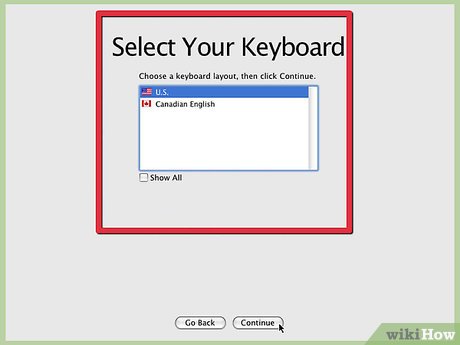 Set your region and keyboard layout. After the keyboard has been detected, you will be asked to set your region and choose your keyboard layout. If you take the computer traveling often, set the region to your home region.
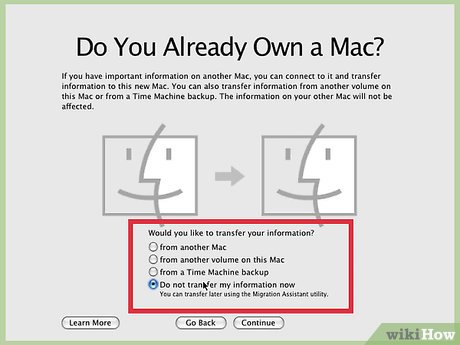 Choose whether or not you want to transfer data. Since you performed a clean installation, there will be no data to import. You will be copying your old backed-up files over later. Choose "Do not transfer my information now" and clickContinue.
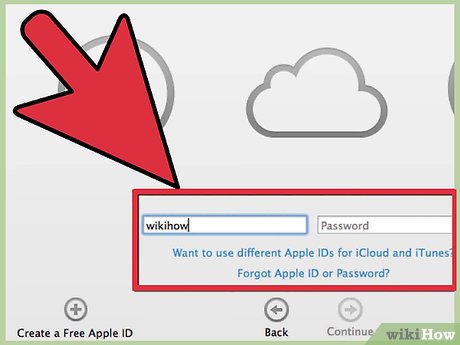 Enter your Apple ID. If you have an Apple ID, you can use it to log in. This will sync your settings with your other Apple devices. See this guide for details on creating an Apple ID. Entering an Apple ID is optional.
- You can also choose whether or not you want to register your software with Apple. This can help you if you need to get official support.
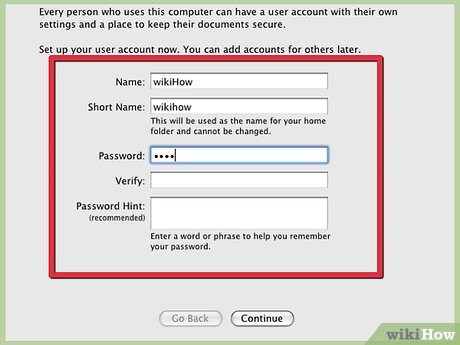 Create an administrator account. The administrator account is the account that has permission to change system settings and install software. If the computer is yours, enter your name in the "Name" field, and a nickname in the "Short Name" field. Oftentimes users will simply use a lowercase version of their name in the "Short Name" field.
- Your Short Name is used to label your Home directory.
- It is very difficult to change your Short Name later, so make sure you're happy with it.
- The administrator account needs a password. You can add a password hint if you'd like as well.
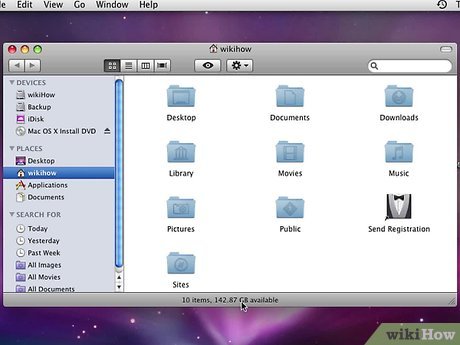 Start using OS X. Once the Setup Assistant has finished, you're ready to begin using your newly-installed operating system. You will need to reinstall any programs you had before, and you can copy back your old backed-up files to your User folders.
 Install any available updates. After OS X has finished installing, you'll want to install all the available updates as quickly as possible. these help secure your system and can improve performance. You will need to download the updates from Apple, so your computer will need to be connected to the internet.[3]
- To get the latest updates, click the Apple menu and select "Software Update...". The tool will check for any available updates and then display them. Select all of the updates you want to install and clickInstallbutton. The updates will be downloaded from the Apple servers and then installed. You will need to reboot after installation has finished.
- Repeat the process. Some updates only become available after other updates have been installed. Keep checking for and installing updates until there are none left.
FAQ
What is How to Reinstall Mac Os X (Leopard and Earlier) about?
It provides a structured overview of install, explains the main context, and highlights practical takeaways for readers.
Why does this topic matter?
Understanding the main concepts helps readers evaluate the issue, avoid common mistakes, and make better-informed decisions.
How should readers use this information?
Use the guidance as a practical starting point, confirm details that may have changed, and follow current product, safety, or security recommendations.
Related Articles
 How to Update Safari on Mac: Clear Instructions7 minutes read
 How to Upgrade Leopard3 minutes read
 Scientists Have Discovered 3 New Species of Snow Leopard3 minutes read
 10 Support for Snow Leopard for Admin10 minutes read
 How to Install Snow Leopard: Things You Need to Know17 minutes read
 See the Cat That Looks Like a Leopard3 minutes read
Reader Comments 0
Sign in with email or Google to join the discussion.