Table of Contents
UltraViewer's core workflow has four parts: connect to an authorized partner computer, let a trusted helper connect to yours, communicate during the session, and end access when the work is complete. The controls are simple, but the ID and password are security credentials—share them only for a session you expect.
Before starting
- Install a current UltraViewer version on both Windows computers.
- Confirm the purpose and scope of the session with the other person.
- Save open work before allowing control.
- Close private messages, password managers, banking pages, medical records, and unrelated documents.
- Never grant access because an unsolicited caller claims to be from a bank, government office, Microsoft, or another support organization.
1. Control another computer
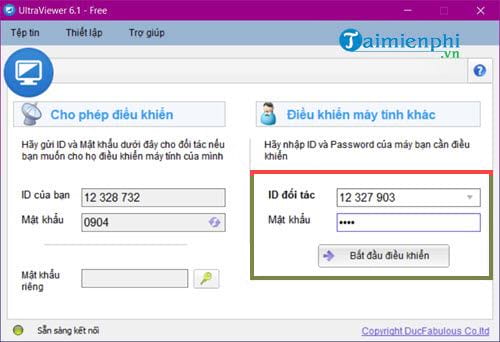
You need the remote computer's Partner ID and current Password. The person at that computer can read both from their UltraViewer window and send them to you through a private channel.
- Open UltraViewer on your computer.
- Enter the partner's ID in the control section.
- Enter the password exactly as provided.
- Select Start control or Connect to partner, depending on the installed version.
- Wait for the remote desktop to appear, then confirm with the partner that they can see the session.
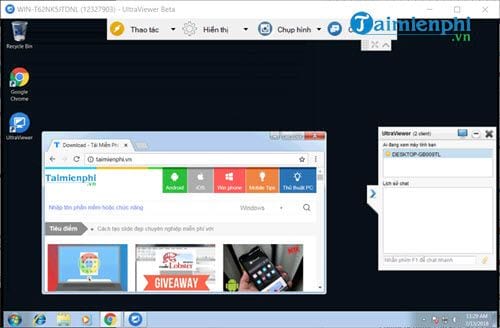
Explain what you are about to do before opening settings, installing software, moving files, or entering an administrator prompt. Remote access should not be used to conceal actions from the person receiving support.
2. Let a trusted person control your computer
Open UltraViewer and find Your ID and the temporary or session password in the allow-control area. Send both only to the person who is actively helping you.
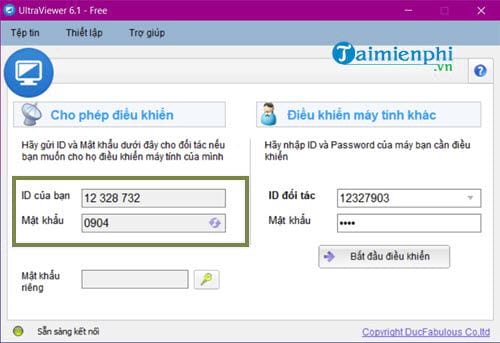
UltraViewer can generate or display a session password, and its settings may let you change the password length. Do not remove password protection simply because the other person is a friend or coworker. A password is still necessary because anyone who discovers an unprotected ID could try to connect.
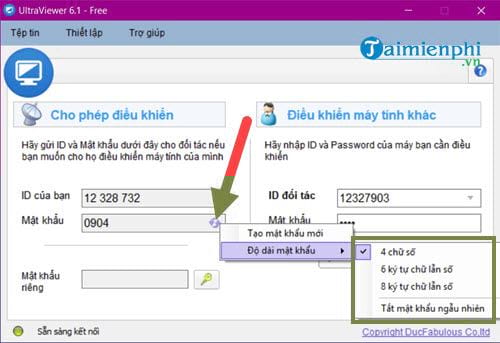
During an attended session, watch the screen. You can move the mouse, close a window, or end UltraViewer if the helper opens something outside the agreed task. Do not type an account password while an untrusted controller can see or capture the screen.
Temporary access versus unattended access
A normal support session should use the temporary password shown in the app. A custom password and Run UltraViewer with Windows are intended for deliberate unattended access to a computer you own or administer. If you configure unattended access, use a long unique password, store it in a password manager, and disable the feature when the business need ends.
3. Chat and exchange information during the session
Press F1 during a connection to show or hide the chat window. You can also select the chat control in the session interface. Use chat to confirm instructions, paste non-sensitive text, or tell the remote user before a disruptive action.
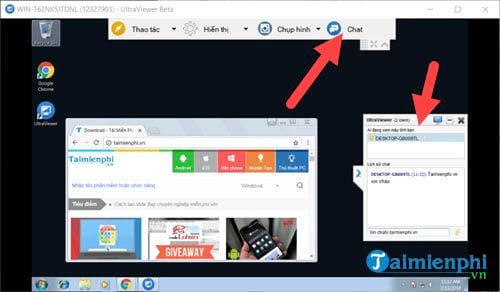
The chat window can also support file transfer. Before sending or accepting a file:
- state what the file is and why it is needed;
- confirm the filename and destination;
- scan unexpected downloads before opening them;
- avoid sending password databases, identity documents, or full folders when one specific file is enough;
- keep a copy of important files before allowing anyone to edit or replace them.
TipsMake's separate guide explains how to send and receive files with UltraViewer. A remote connection does not make a file trustworthy; the sender and content still need verification.
4. End the session and revoke future access
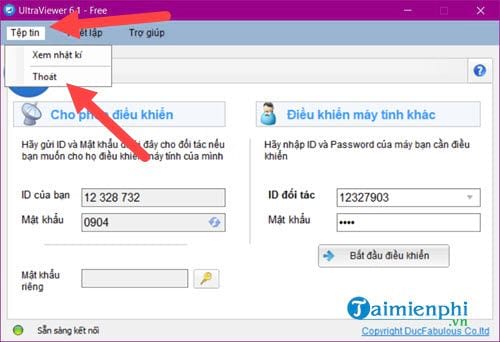
To stop a current session on the computer being controlled, close UltraViewer. The controller should lose access when the connection closes.
The controlling side may briefly show that the connection was lost before its session window closes or returns to the connection screen.
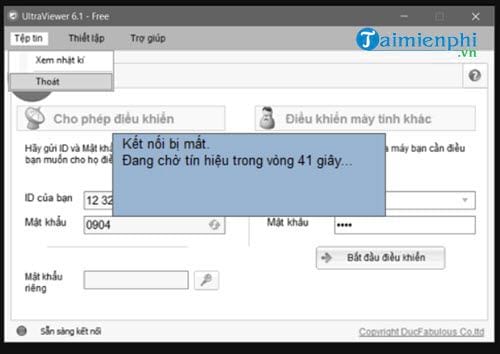
Closing one session is not always enough if unattended access was configured. Complete the following checks when access should be fully revoked:
- Close UltraViewer on the remote PC.
- Clear or change any custom unattended-access password.
- Turn off Run UltraViewer with Windows if recurring access is no longer needed.
- Remove the device from any UltraViewer address book or account association you no longer use.
- Uninstall UltraViewer from Windows Settings if the software itself is no longer required.
- Review Windows for unexpected accounts, startup items, software, or changed security settings if the session was suspicious.
Common connection problems
- Invalid password: ask the remote user to read the current password again. Do not repeatedly guess it.
- Stuck while getting an ID: check Internet access, the system clock, firewall policy, VPN, and proxy settings. On a managed network, ask the administrator.
- Black or frozen screen: wait for the remote user to unlock Windows, dismiss a secure desktop prompt locally, or reconnect after a graphics or network interruption.
- Slow response: reduce the session image quality, pause large downloads or streaming, and use a stable wired connection when possible.
- Remote PC sleeps: adjust power settings only when authorized. For ongoing access, use the product's supported wake or unattended-access configuration rather than disabling every sleep control.
The official UltraViewer usage FAQ confirms the F1 chat shortcut and the close-to-stop behavior. For a fuller introduction to installation and on-screen controls, see TipsMake's step-by-step UltraViewer remote-control guide.
Signs you should end the session immediately
- The controller asks you to hide the session, turn off security software, or ignore browser and Windows warnings.
- They open email, banking, cryptocurrency, tax, identity, or password-manager data unrelated to the agreed task.
- They ask you to transfer money, buy gift cards, disclose a verification code, or log in to a financial account.
- They install another remote-access tool without explaining why.
- The person's identity or organization cannot be independently verified.
If any of these occur, close UltraViewer, disconnect the network if necessary, change exposed passwords from a clean device, contact the relevant provider through an official channel, and have the computer checked by a trusted professional.
Related Articles
 Link Downlaod Ultraviewer 6.24 minutes read
 How to Fix the Common Error Ultraviewer When Connecting to a4 minutes read
 Gemini Tips for Multitasking on Android3 minutes read
 How to Install Ultraviewer on Windows 11 and How to Use It3 minutes read
 How to Fix Ultraview Not Being Able to Retrieve ID7 minutes read
 Simple UltraViewer Usage Guide for Remote Computer Control5 minutes read
Reader Comments 0
Sign in with email or Google to join the discussion.