Table of Contents
This updated guide explains how to number pages in WPS office with clear steps, practical tips, and useful context. WPS Office is a lightweight, convenient office suite, especially with the Docs application that fully supports editing features. If you are looking for a way to number pages in WPS Office, let's explore the detailed instructions below with TipsMake.com.
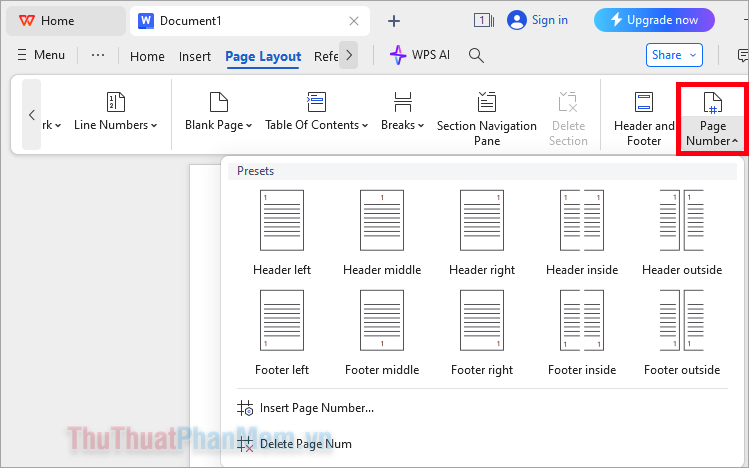
1. How to Number Pages in WPS Office
To number pages in WPS Office Docs, do these:
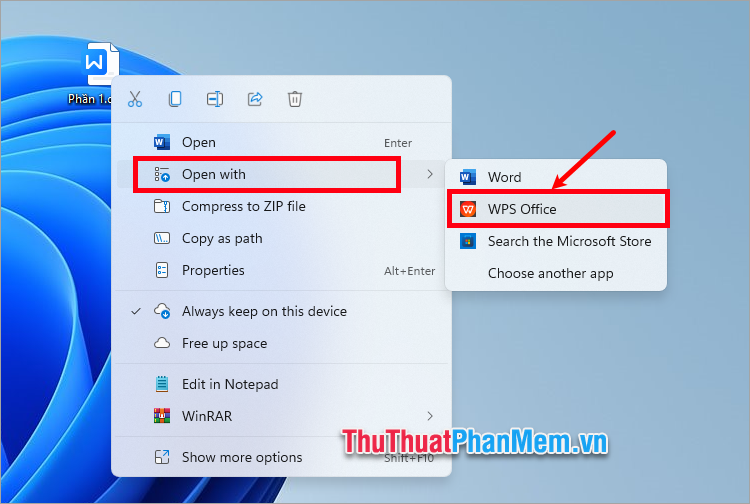
Step 1 : Open the document you want to number pages in WPS Office.
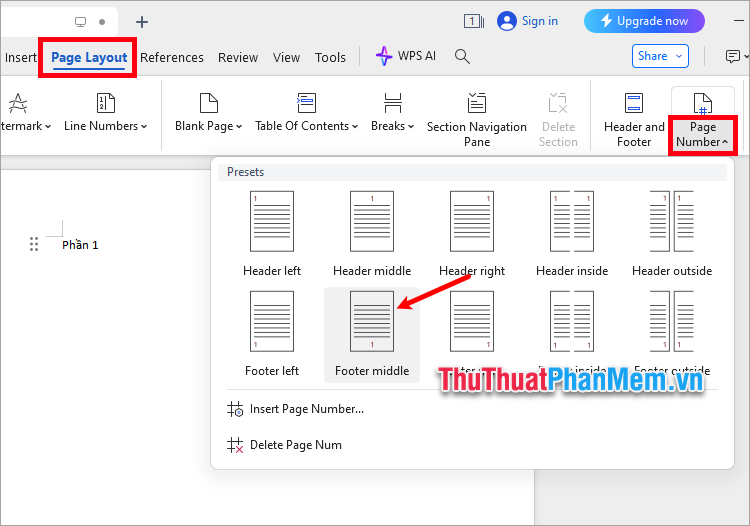
Step 2 : Select the Page Layout tab → Page Number → select the page numbering position you want.
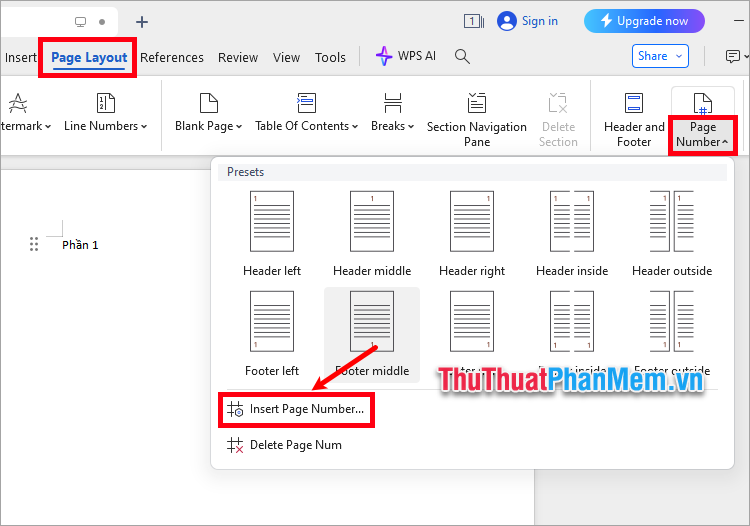
Step 3 : to customize the page numbers before numbering the pages, select Page Layout → Page Number → Insert Page Number .
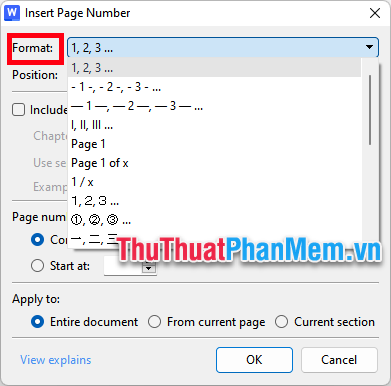
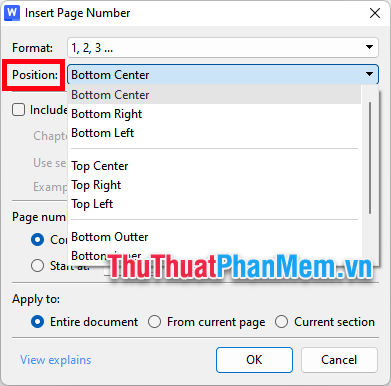
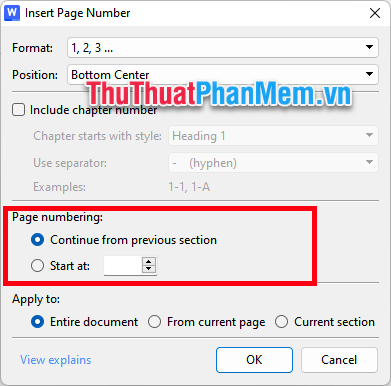
Step 4: The Insert Page Number dialog box appears, you perform some page numbering customizations.
- Format : Page numbering style
- Position : Page numbering position ( Bottom - Bottom, top - Top, center - Center, left - Left, right - Right)
- Page numbering : The starting number for page numbering ( Continue from previous section - continue from previous section , Start at - start at), for instance to number pages from number 2 then choose Start at as 2
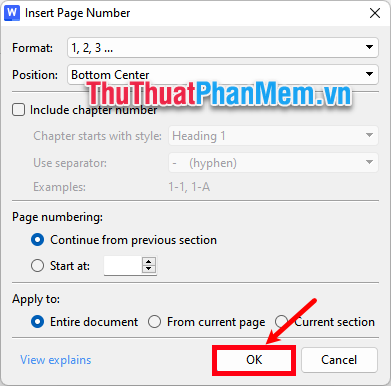
Then you select OK to number the pages.
Step 5 : Edit page numbers.
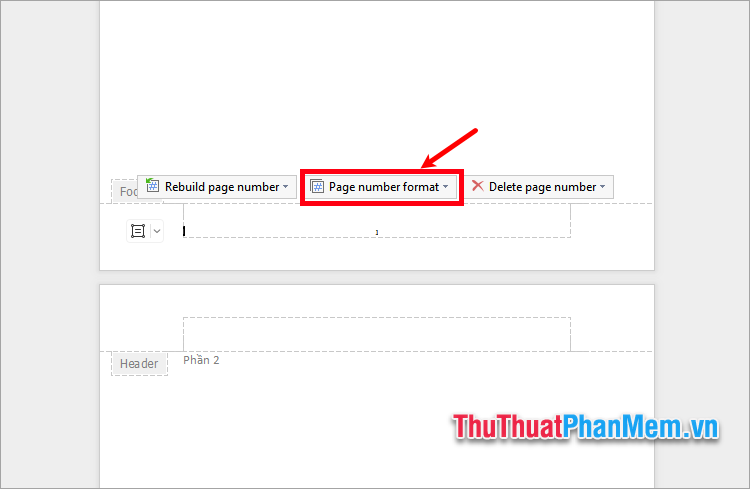
After numbering pages in WPS Office of the Docs program, to edit the page number, double-choose the left mouse button on the page number and select Page number format .
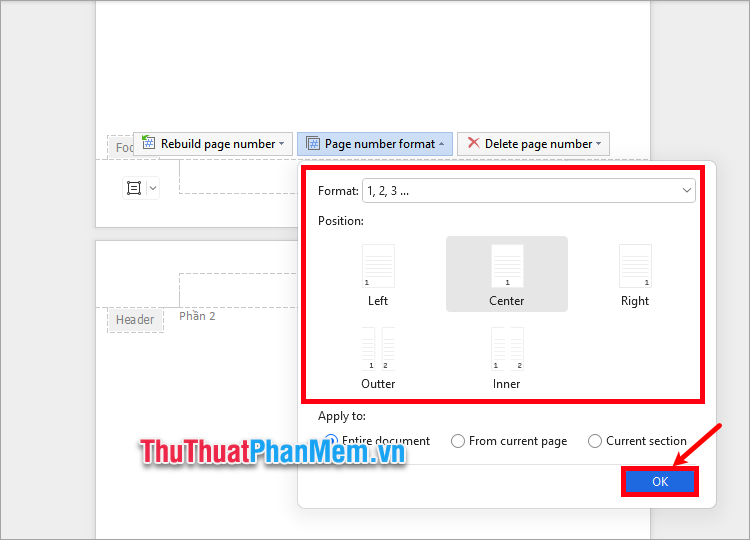
Here you can choose the page numbering style in Format , the page numbering position in Position . Then select OK .
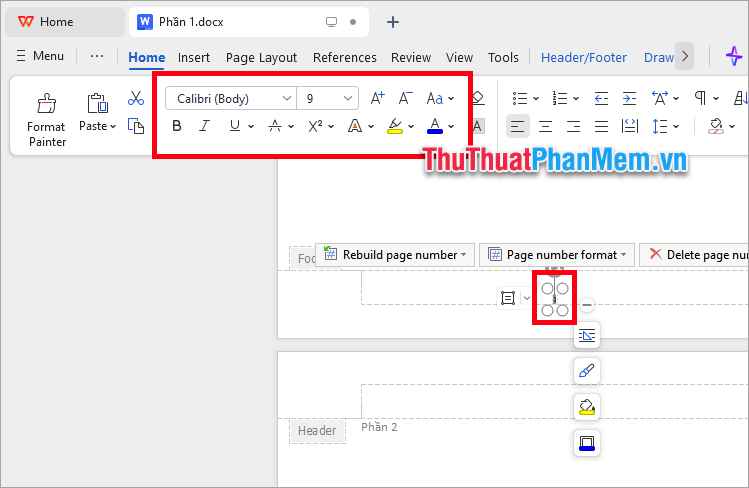
to change the color, font, background color, etc. for the page number on the page you select, select (highlight) the page number and customize it in the Font section of the Home tab.
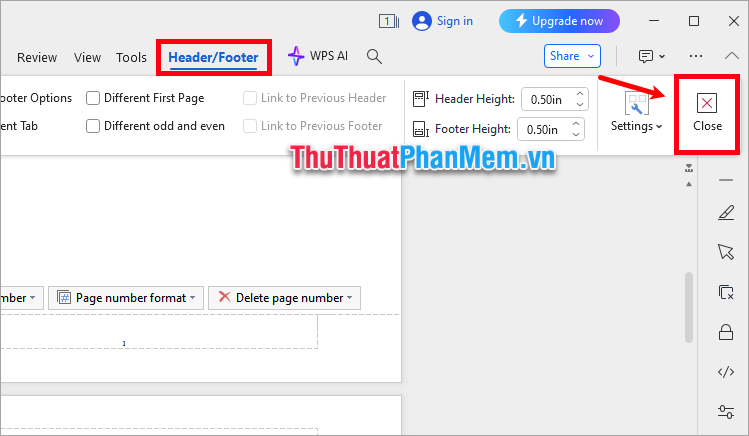
After editing, select the Header/Footer tab → Close , or double-choose the left mouse button on the text area (outside the header and footer areas).
2. How to Remove Page Numbering in WPS Office
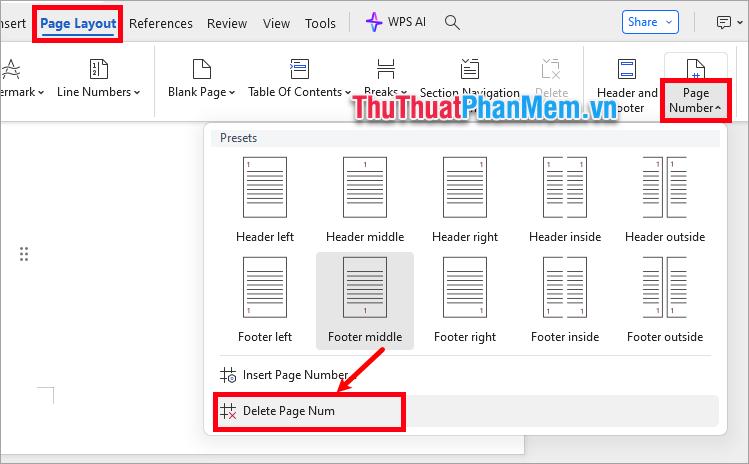
After performing page numbering in WPS Office, for some reason you do not want to number the pages but want to delete the page numbering in WPS Office, you just need to select Page Layout → Page Number → Delete Page Num .
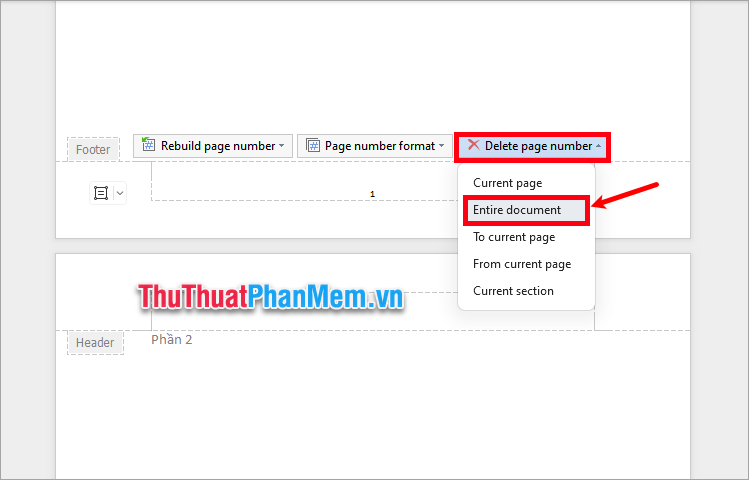
Or you double-choose the left mouse button on the page number on any page in the document and select Delete page number → Entire document .
In this guide, TipsMake.com has shared with you how to quickly number pages in WPS Office Docs. So, if you need to number pages for any document in WPS Office, you just need to open the document that needs page numbering and follow the simple steps that the article shares to number pages for your document. Thank you for your interest and following this article.
FAQ
What should I prepare before I number pages in wps office?
Review the requirements and options in the guide first. Having the correct device, app version, account access, or materials ready helps prevent avoidable errors.
How long does it take to number pages in wps office?
The time depends on the task and your setup. Most basic steps can be completed quickly, while downloads, updates, scans, or troubleshooting may take longer.
What should I do if the steps do not work?
Repeat the instructions in order, confirm that your software or device is supported, and check permissions, connectivity, and available updates before trying again.
Related Articles
 How to Number Pages Without First Page in WPS Office6 minutes read
 How to Number Pages in Word Starting from Page 24 minutes read
 How to Number a PDF Page, Add Pages to the PDF File3 minutes read
 How to Style Pages Symmetrically on Word: Number Word Pages4 minutes read
 How to Quickly See the Total Number of Pages of Word Files?3 minutes read
 Number Pages in Word 2013, Insert Page Numbers Automatically4 minutes read
Reader Comments 0
Sign in with email or Google to join the discussion.