Table of Contents
This updated guide explains how to change comma to period in WPS office with clear steps, practical tips, and useful context. When working with decimals in WPS Office Sheets, displaying commas instead of periods can cause difficulties in calculations or data formatting. If you are looking for a way to convert commas to periods, these article will guide you through the process quickly and accurately.

to change the comma to the dot of a decimal number in WPS Office, you can do one of these:
1. Changes in WPS Office Sheets App
Setting in Options is a quick way to change commas to periods in WPS Office. You do as follows:
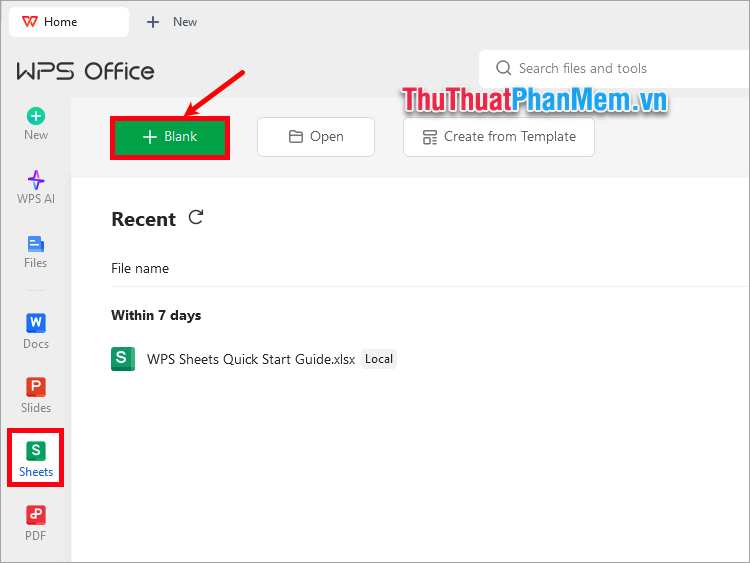
Step 1 : Open the WPS Office Sheets application, select Blank to open a new document.
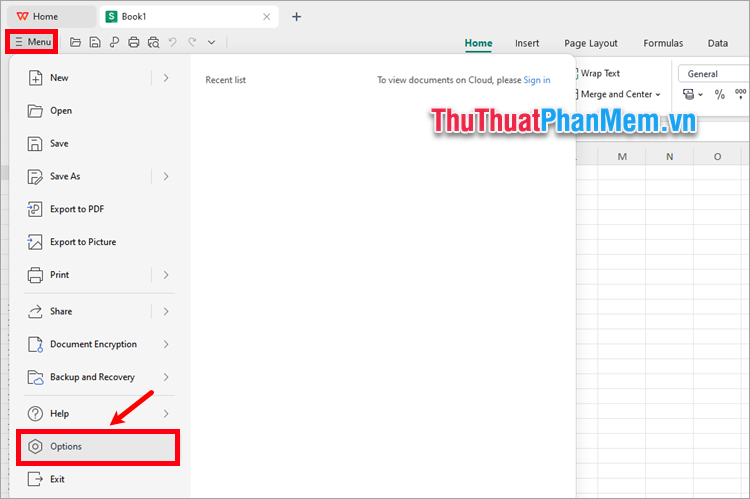
Step 2 : On this new document interface, select Menu → Options .
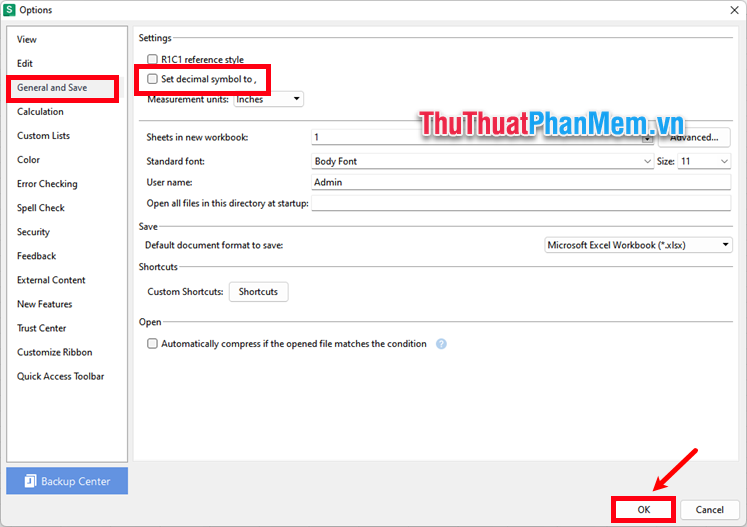
Step 3: Options appears, select General and Save , uncheck Set decimal symbol to , (set decimal symbol to,). Then select OK .
A message appears, select OK .
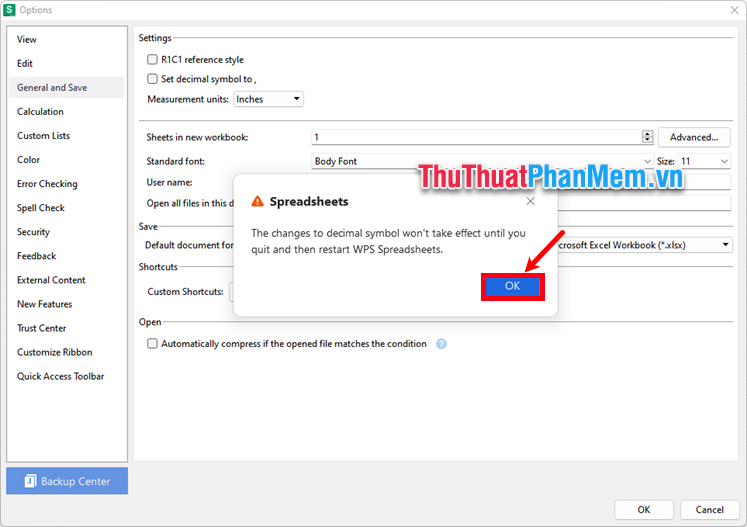
So you have done how to change commas to periods in WPS Office. You just need to exit the Sheets program and relaunch WPS Office to apply the changes.
2. Changes in Windows Control Panel
Customizing the settings in Control Panel is a way to change commas to periods in WPS Office. You do these steps:
Step 1 : Open the Start menu, type the keyword Control Panel and select Control Panel in the search results.
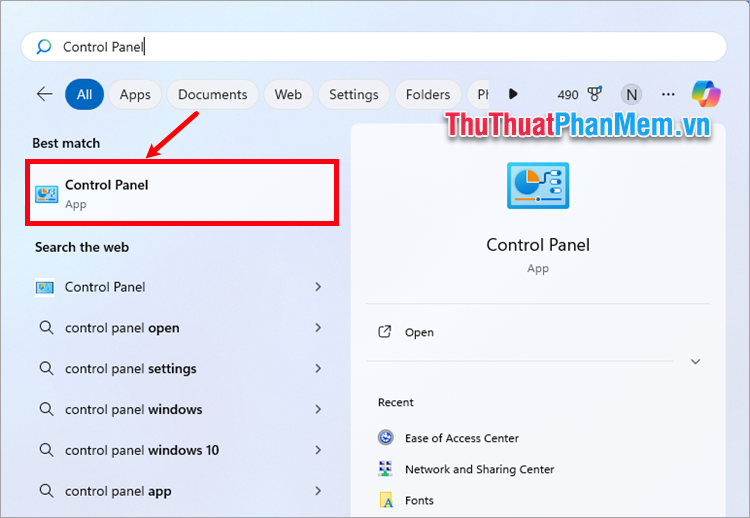
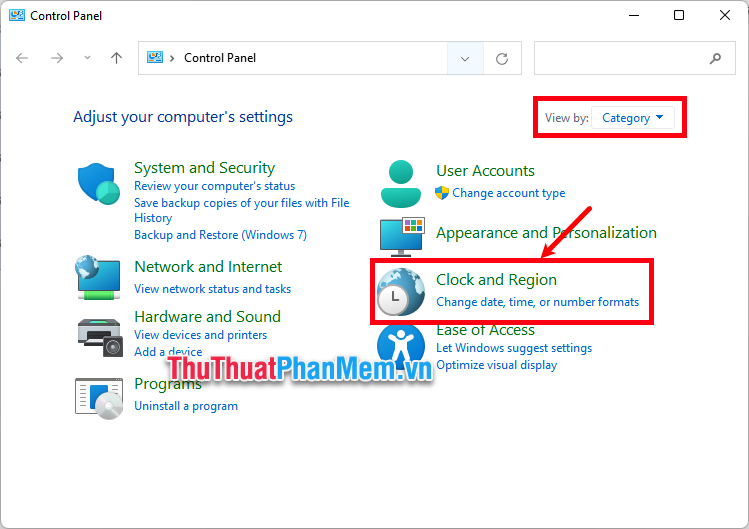
Step 2: In the Control Panel window, select View by as Category , then select Clock and Region .
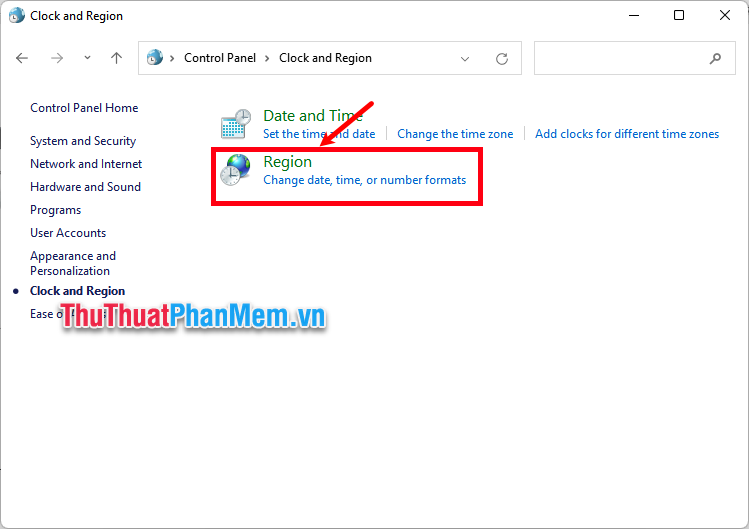
Step 3 : Select Region .
Step 4: The Region dialog box appears, select Additional settings .
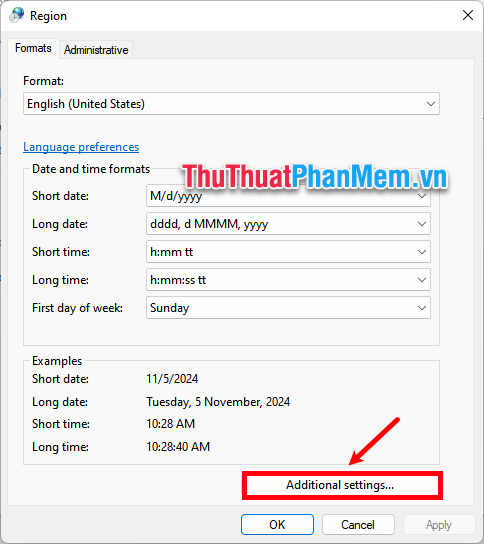
Step 5 : In Decimal symbol , delete the comma and enter a period and select OK .
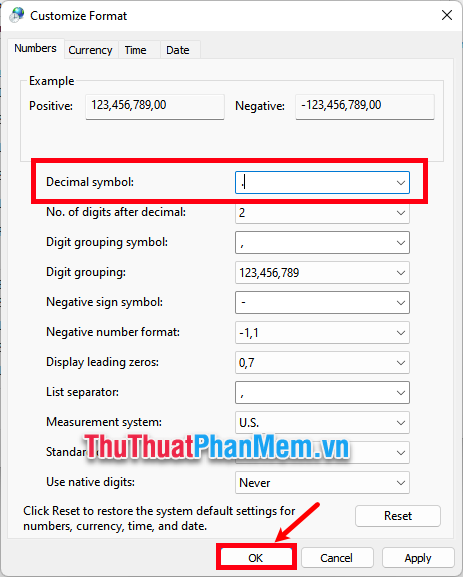
So you have done how to change commas to periods in WPS Office by setting up in the computer's Control Panel.
Above, TipsMake.com has shared with you 2 ways to change commas to dots in WPS Office Sheets. So, to change commas to dots of decimal numbers in WPS Office, you just need to perform one of the 2 setup methods that the article has shared and you have quickly changed commas to dots in WPS Office. Hope this article is useful to you!
FAQ
What should I prepare before I change comma to period in wps office?
Review the requirements and options in the guide first. Having the correct device, app version, account access, or materials ready helps prevent avoidable errors.
How long does it take to change comma to period in wps office?
The time depends on the task and your setup. Most basic steps can be completed quickly, while downloads, updates, scans, or troubleshooting may take longer.
What should I do if the steps do not work?
Repeat the instructions in order, confirm that your software or device is supported, and check permissions, connectivity, and available updates before trying again.
Related Articles
 How to Change the Dot to a Comma in Win 102 minutes read
 How to Change Commas into Dots on Word: Dot to Comma on Word4 minutes read
 How to Use a Period in Writing: Step-by-Step Guide11 minutes read
 How to Extend the Trial Period of Office 365/2013 to 6 Months4 minutes read
 How to Change a Comma to Dot in Excel4 minutes read
 How to Change Number Format in Windows 113 minutes read
Reader Comments 0
Sign in with email or Google to join the discussion.