Table of Contents
You can find many applications that create battery charging animation on iPhone. And in this article you will have more ways to create battery charging sound on iPhone, create funny iPhone battery charging sound.
If you own an iPhone (or any Apple device), you know how important battery life is. So we do everything you can to keep it strong, for resale value, and for peace of mind.
While modern phone batteries don't mind charging overnight, you can't shake the feeling that leaving it plugged in for too long just generates enough heat to silently wear down the battery. But sometimes you just need a reminder. When your phone is running low, you can just plug it in, set it aside, and move on, but you need something to tell you when the battery is ready. So let's make a little tweak to do just that.
How to make iPhone notify when battery is finished charging
It's all thanks to a built-in app that many people completely overlook.
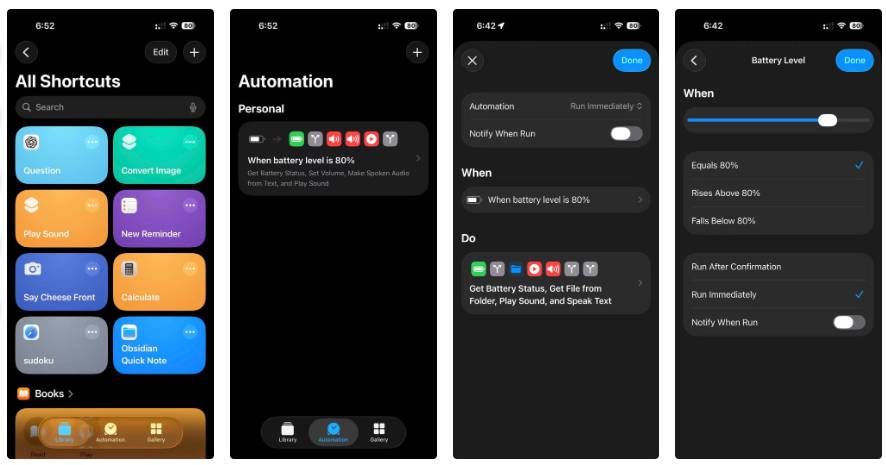
The reason many people are doing this tweak comes after the initial motivation of curiosity. After seeing Mahesh's post about adding custom charging sounds to his Android phone, many people had to try it for themselves. It's easy to set up and uses a built-in iOS app that many people have completely overlooked but only recently learned about: Shortcuts. It has a whole world inside it.
Normally, shortcuts require manual activation, but we want ours to be triggered automatically. That means we're going to use automation. They're in the same Shortcuts app. Before we go any further, let's go over the logic: When the battery reaches 80%, play this sound.
Pretty simple, except that Shortcuts doesn't actually have a "reach" condition. That means it will also trigger if the battery drops from 81% to 80%. The fix is simple: Add another layer. When the phone is plugged in, play a sound when the battery reaches 80%. Perfect!
The important part is: Set the When Condition to Battery Level , not Charging State . Basically, the feature automatically activates based on the battery level, then checks the battery status. If it's charging, it plays a sound; if not, it doesn't play a sound.
Note : There's a small caveat here: The auto-off feature will still run when the phone is unplugged but at 80% - it just won't play a sound. It would make more sense to check the status first, but that would require the auto-off feature to be running constantly, monitoring the battery level. In fact, it only triggers when you plug in your phone, not when it's charging - so it won't work. Since Shortcuts only allows one "When" condition, this setup is the most reliable.
How to set to play custom audio at 80%
You can actually let it do whatever you want.
The rest is simple. You can have it play any custom sound you want—but you might get bored and not find a suitable sound. I tried the Legend of Zelda sound, but it didn't work, so I used Siri instead. I used the Speak Text gesture to ask Siri to tell me the battery was full. There's a problem, though: If the phone's volume was turned down before charging, you won't hear the sound. You can try to fix this by adding a gesture at the beginning to increase the volume of your music and ringtone before playing the sound.
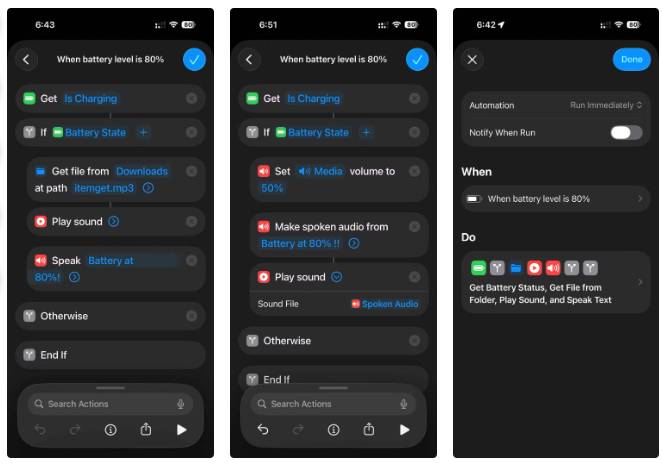
But that didn't work either. It turns out that Siri's voice volume is on a separate channel from the rest of your phone. Unfortunately, you can't control Siri's volume directly. But don't give up! There's a workaround. Use Make Spoken Audio To convert text to speech, then use Play Sound To play the file you created. Of course, you're not limited to audio. You can have your phone send you a message when it's finished charging, or even push notifications to your MacBook. The sky's the limit.
Many people like this little tweak. It's not really about preventing 'overcharging,' since the 80% limit solves that problem. It's about convenience. For example, if you want to FaceTime your family and your phone's battery is low, you can just plug it in and go about your day. When the battery is full, Siri will let you know it's time to unplug it and you're ready to go. This feature is also useful when you're charging multiple devices. Many people use one charger and rotate between different devices. When you hear that sound, you know your iPhone is fully charged and can move on to the next device.
It's certainly not a groundbreaking upgrade, but it's one of those small but interesting changes that makes the phone more accessible to everyone, and many have enjoyed it since installing it.
FAQ
How do you make a full charge sound on iPhone: step-by-step guide?
In practical terms, there are many applications that create battery charging animation on iPhone. And in this article you will have more ways to create battery charging sound on iPhone, create funny iPhone battery charging sound.
What should you check before getting started?
Review the requirements, compatible device or software version, and any warnings described in the guide before making changes.
What should you do if the steps do not work?
Repeat the steps in order, confirm that your app or system is up to date, and review the troubleshooting details provided above.
Related Articles
 iPhone Battery to Full Explained6 minutes read
 How to Add Full Battery Charge Notification for Windows 10/114 minutes read
 How to Fast Charge Iphone 113 minutes read
 Fast Charging iPhone: How to Fast Charge the Latest iPhone and iPad6 minutes read
 How to Charge iPhone Without Using a Charger: Clear Instructions12 minutes read
 How to Charge iPhone on a New MacBook Pro4 minutes read
Reader Comments 0
Sign in with email or Google to join the discussion.