Table of Contents
You can find a few solutions to fix Invalid SIM or No SIM error on iPhone that you can refer to in the article below.
Invalid SIM or No SIM error on iPhone is not a rare error and can occur on any iPhone model. There are a few solutions to fix Invalid SIM or No SIM error on iPhone that you can refer to In this guide.
Restart iPhone
Restarting your iPhone has solved the No SIM or Invalid SIM issue for some users and it might work for you. It is a simple troubleshooting method and should be the first thing you try when trying to fix this issue.
Update iOS
It is possible that the old iOS version you are using is causing a SIM connection error, which reports an invalid SIM or No SIM error. Please check the iOS version your phone is using and upgrade to resolve the remaining errors.
Check if SIM is installed correctly
It's possible that the SIM card isn't inserted properly, so you'll want to open the SIM tray on your iPhone and make sure it's inserted properly. The SIM card should fit snugly into the tray, with the metal contacts facing down and the edges aligned properly.
Try another SIM card or switch to E-Sim
Your SIM card can also be damaged, possibly because you inserted the wrong card into the SIM tray or the metal contacts are damaged.
You should test your iPhone with a different SIM card that works in other phones. If that SIM card works, then your original SIM card is the problem.
Check carrier settings
If your carrier settings are outdated, your iPhone may not recognize your SIM card. This could be why you see a No SIM or Invalid SIM error on your iPhone.
Go to Settings then tap General, select About then check if there is a carrier settings update.
Reset iPhone network settings
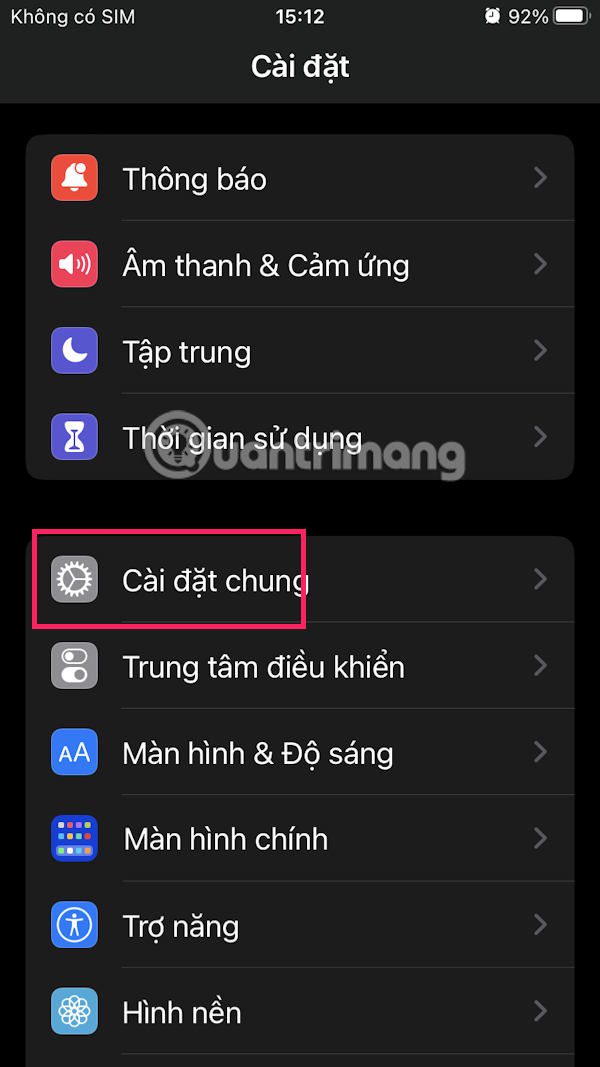
You can reset network settings on your iPhone in case your device's network is having problems. Go to Settings, then Select General , then tap Switch or reset iPhone .
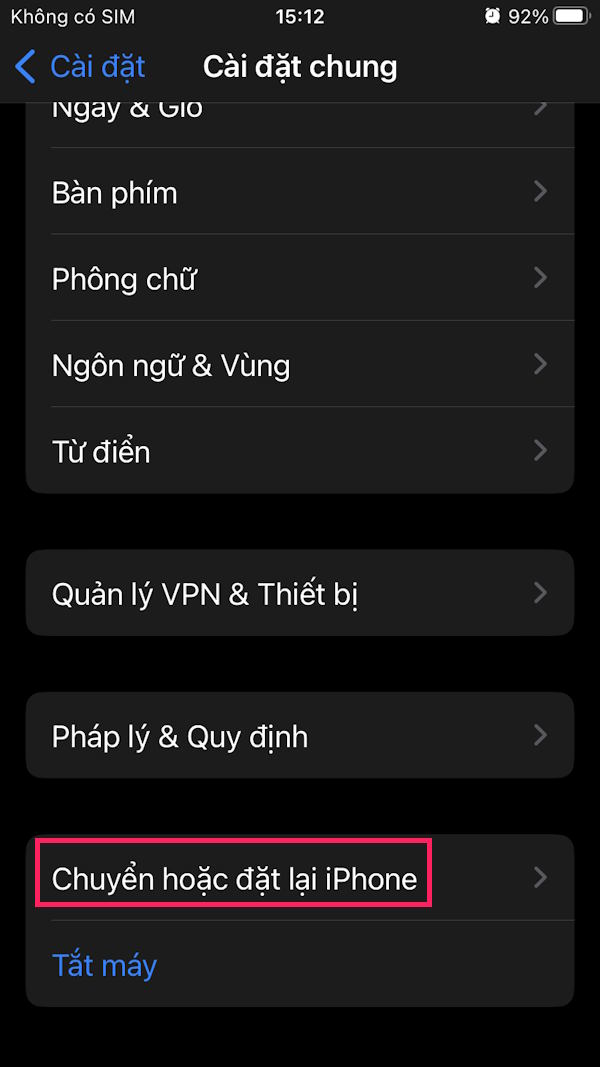
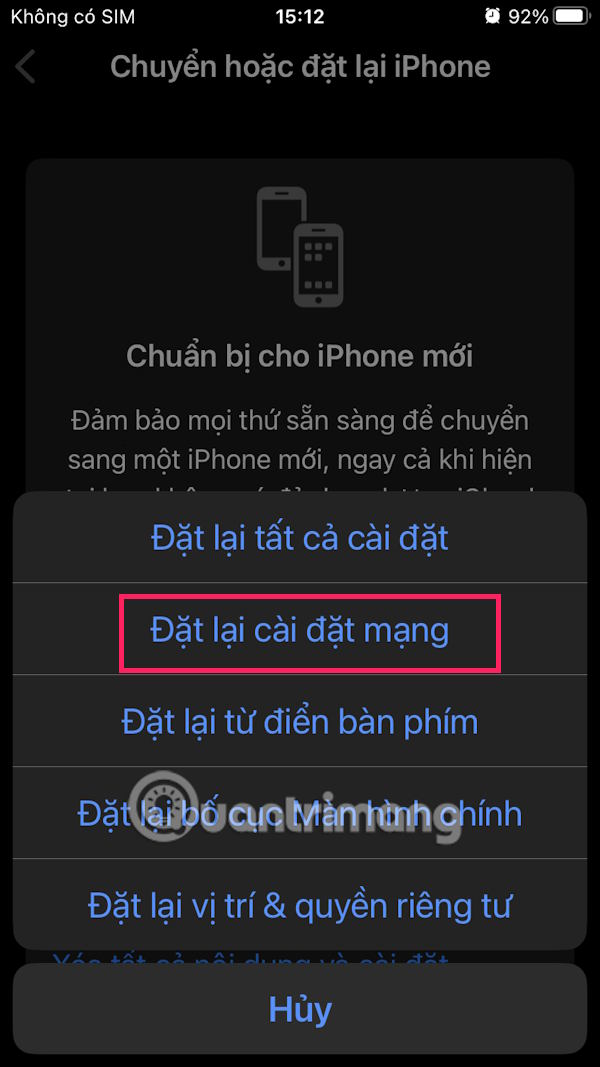
Then you will select Reset and choose Reset network settings To do it.

FAQ
What should you know about the options in this guide?
In practical terms, there are a few solutions to fix Invalid SIM or No SIM error on iPhone that you can refer to in the article below.
Which option is the best choice?
The best choice depends on your priorities, compatibility, budget, and the specific features discussed in the comparison.
What should you compare before deciding?
Compare core features, limitations, ease of use, compatibility, and long-term value before making a decision.
Related Articles
 How to Fix ''pc Name Is Invalid'' Error on Windows 118 minutes read
 Fix Windows Error: Complete Guide: 7 Ways to Fix ''compressed (Zipped)7 minutes read
 How to Fix 'Docker: Invalid Reference Format' Error7 minutes read
 How to Fix 'Invalid Partition Table' Error on Windows2 minutes read
 Fix Computer Errors: Complete Guide: 7 Ways to Fix ''invalid Value for8 minutes read
 Invalid Partition Table Is What Error and How to Fix It6 minutes read
Reader Comments 0
Sign in with email or Google to join the discussion.