Table of Contents
Apple devices will sync all content between devices, but sometimes sync errors will affect the content syncing.
You wrote all your work notes in the Notes app, but when you check on your Mac, the notes are gone. Normally, Apple devices sync all content between devices, but sometimes sync errors can affect the syncing of content. Here's how to fix Notes not syncing between iPhone and Mac.
Confirm sign in with the same Apple ID
If your iPhone and Mac are signed in with different Apple IDs, your notes won't show up on either device.
If they're different, sign out and sign back in with the same Apple ID. Otherwise, your notes will be linked to different accounts.
Is iCloud Notes turned on?
Notes won't sync unless iCloud sync is enabled on all devices.
Go to Settings, select iCloud, then Tap on Adjustments . Then turn On Sync This iPhone .
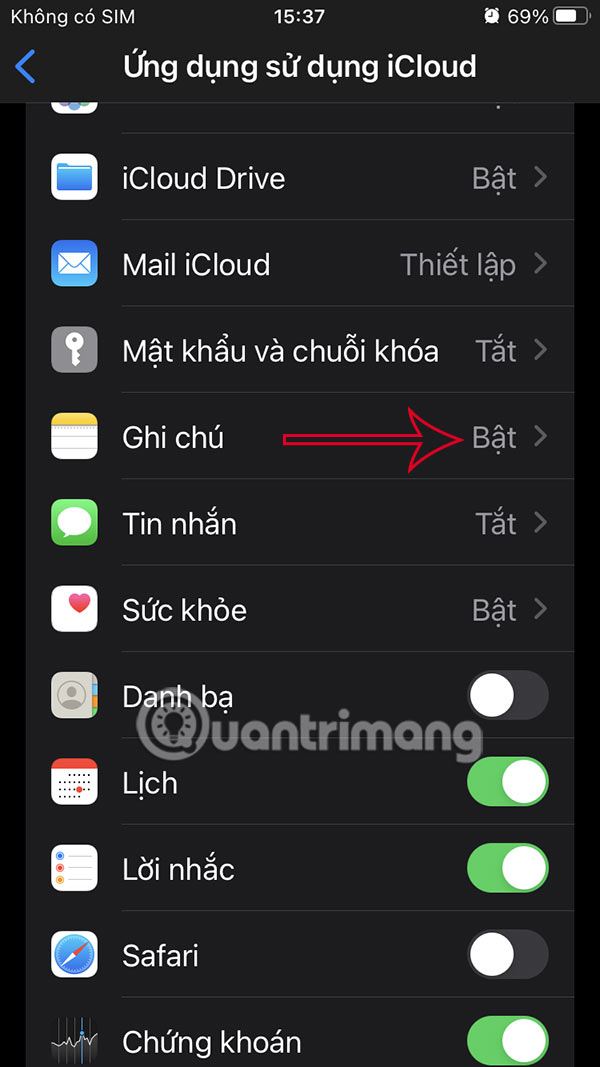
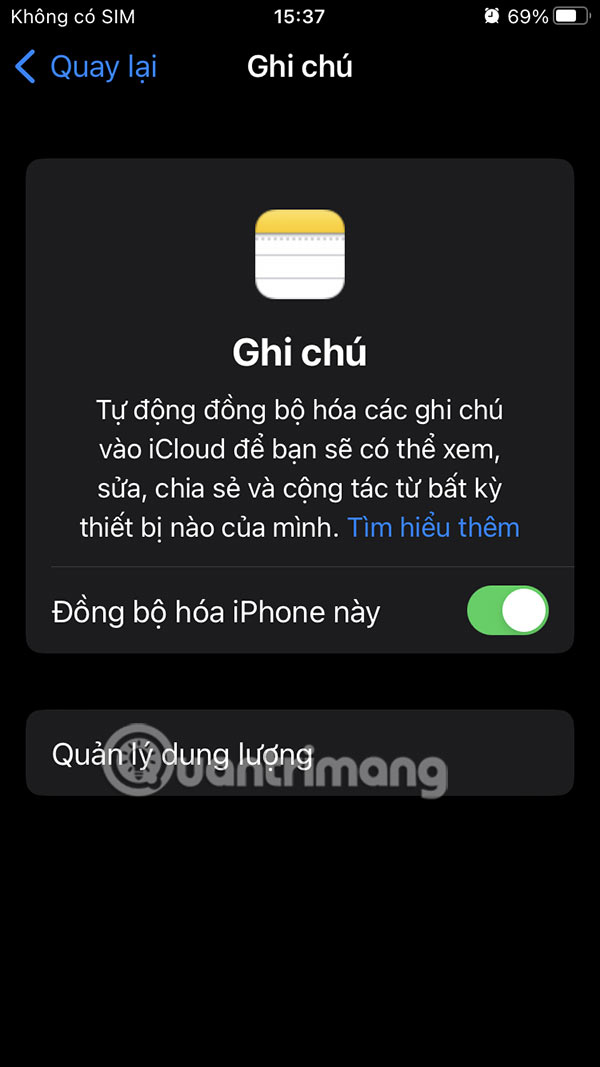
Notes stored on iCloud
Notes saved in "On My iPhone" or "On My Mac" are only on that device. They won't sync until you switch to iCloud.

Check iCloud storage
If we run out of iCloud storage, you can't upload new notes. Syncing will have problems until iCloud storage is freed up.
- 6 ways to free up iCloud space
Check Apple System Status
Sometimes Apple's servers are the problem. If iCloud Notes is down, syncing won't work.
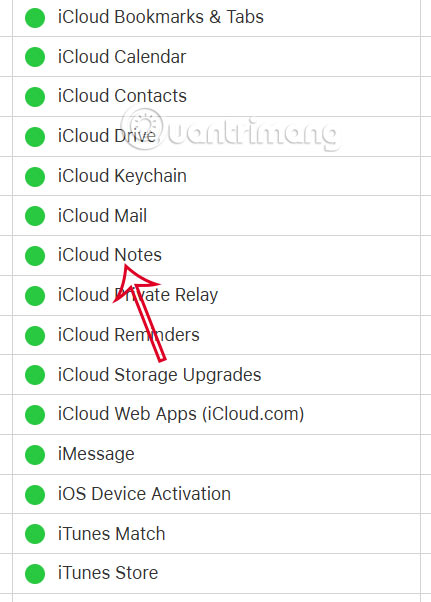
You go to Apple's system status page, then check iCloud Notes, iCloud Web Apps, Apple Account, Sign In.
- Apple System Check
Then you check if iCloud Notes service is working or not.
Exit and restart the note
Please exit the note completely on the app and then restart. You can delete the note and restart and write the note again.
FAQ
How do you fix notes not syncing between iPhone and mac: step-by-step guide?
In practical terms, apple devices will sync all content between devices, but sometimes sync errors will affect the content syncing.
What should you check before getting started?
Review the requirements, compatible device or software version, and any warnings described in the guide before making changes.
What should you do if the steps do not work?
Repeat the steps in order, confirm that your app or system is up to date, and review the troubleshooting details provided above.
Related Articles
 Instructions for Retrieving Deleted Notes on iPhone / iPad7 minutes read
 How to Pin Notes on Apple Notes - Mark Important Notes4 minutes read
 How to Share Notes on iPhone4 minutes read
 How to Set Notes Notes Password on iPhone6 minutes read
 How to Set Notes Password on iPhone2 minutes read
 How to Arrange Notes by Name or Date on iPhone and iPad3 minutes read
Reader Comments 0
Sign in with email or Google to join the discussion.