Table of Contents
SQL Server 2019 can still be installed on supported 64-bit Windows systems when an application specifically requires that release. It left mainstream support in 2025 but remains in extended support until January 9, 2030, so use the latest SQL Server 2019 cumulative and security updates. For a new system without a version constraint, evaluate a newer SQL Server release instead.
Before you install SQL Server 2019
- Sign in with a Windows account that has local administrator rights.
- Confirm that the operating system and hardware meet Microsoft's requirements for the edition you plan to install.
- Install pending Windows updates and make a current backup before changing an existing database computer.
- Choose an edition and license appropriate for the workload. Developer is free for development and testing but not production. Express is free and intended for smaller workloads. Standard and Enterprise require suitable licensing.
- Decide whether you need a default instance or a named instance. Express commonly uses the named instance
SQLEXPRESS.
Get installation media through your organization's licensing channel or Microsoft's SQL Server 2019 Evaluation Center. The Evaluation edition is time-limited; it is not a permanent production license.
Start the SQL Server installer
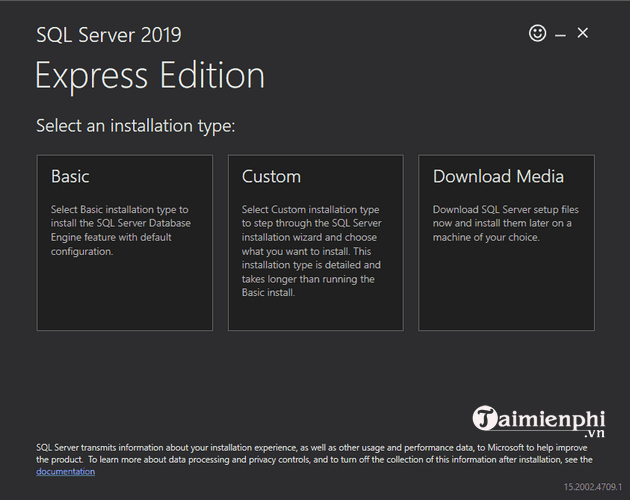
Run the downloaded bootstrapper or setup.exe as an administrator. A web bootstrapper may offer three choices:
- Basic: installs the Database Engine with a small set of choices.
- Custom: downloads the media and opens the full setup wizard. Use this when you need to choose features, instance name, service accounts, directories, or authentication.
- Download Media: saves an ISO or package for an offline or repeatable installation.
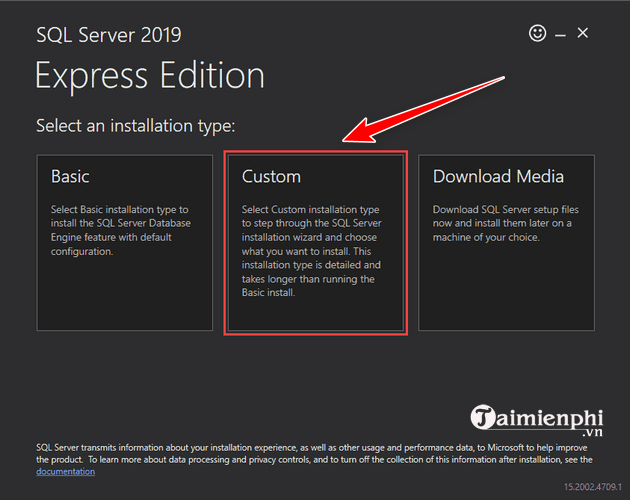
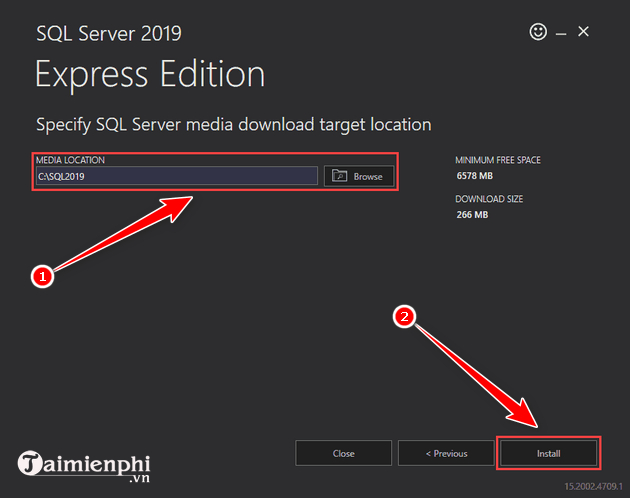
This guide uses Custom. Select a download location with enough free space and let the bootstrapper retrieve the setup files.
Run a new stand-alone installation
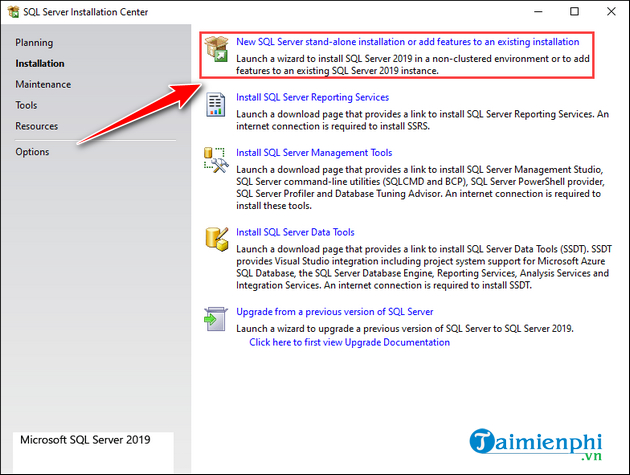
In SQL Server Installation Center, select Installation > New SQL Server stand-alone installation or add features to an existing installation. The wording and number of pages can differ slightly by edition and by the media's update level.
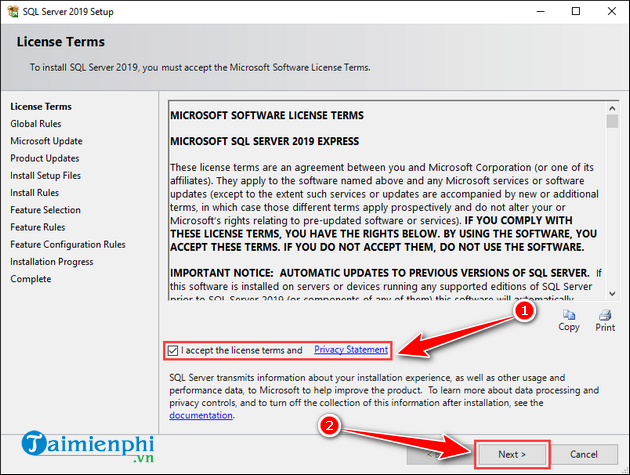
Review the edition and product-key page, accept the license terms only if they match your intended use, and continue.
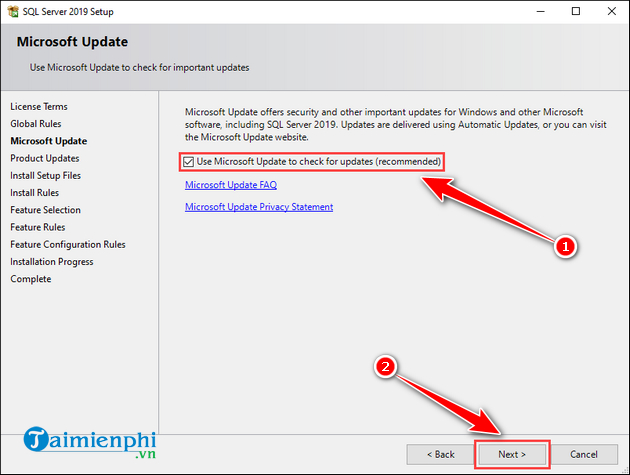
Enable Microsoft Update unless your organization manages SQL Server servicing through another approved process. Setup then runs checks for conditions that can block installation.
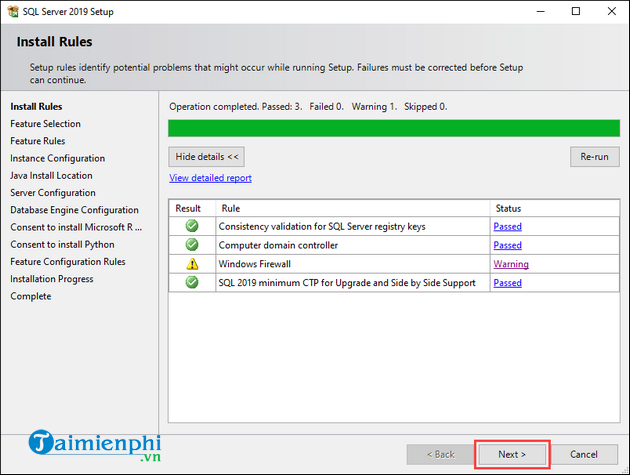
Resolve every failed installation rule before continuing. Warnings may be acceptable in a deliberate configuration, but read them rather than dismissing them automatically.
Select only the features you need
For a typical local database used by an application or training project, select Database Engine Services. Add Full-Text Search, replication, Machine Learning Services, Analysis Services, or Integration Services only when the workload requires them. Extra services increase disk use, patching work, and attack surface.
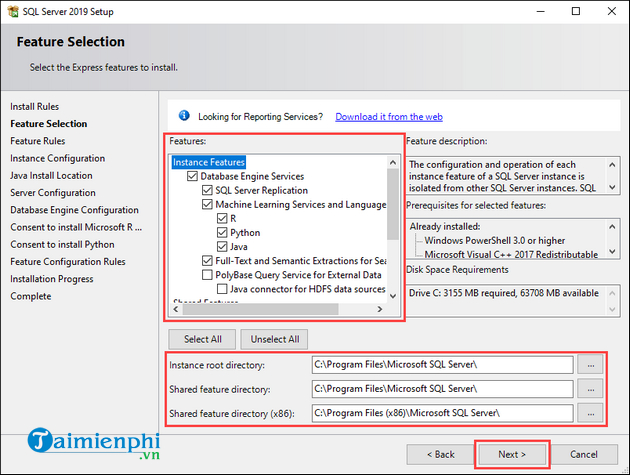
SQL Server Management Studio is installed separately; selecting Database Engine Services does not install the current SSMS application.
Configure the instance
On Instance Configuration, choose one of these arrangements:
- Default instance: connect with the computer name,
localhost, or.. A computer can have only one default Database Engine instance. - Named instance: connect with
computer-name\instance-name. SQL Server Express commonly suggestsSQLEXPRESS.
Keep the instance ID and installation paths unless you have a documented reason to change them. Record the instance name because you will need it when connecting.
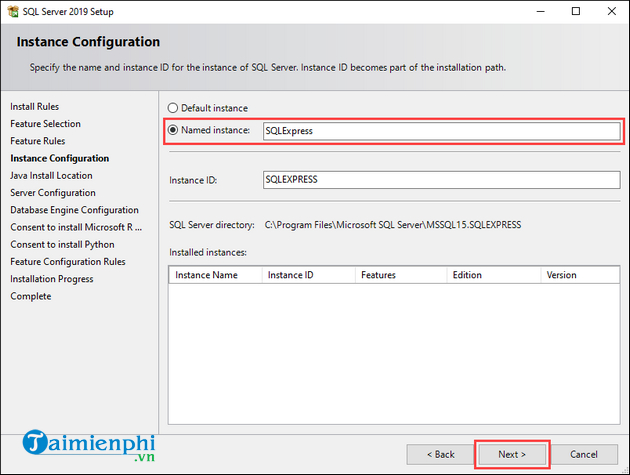
Configure services and authentication
On Server Configuration, keep the generated virtual service accounts for a basic local installation. In managed production environments, use organization-approved service identities and grant only the required rights. Do not run the Database Engine service as a personal administrator account.
On Database Engine Configuration, select an authentication mode:
- Windows authentication mode is the safer default when Windows identities can be used.
- Mixed Mode enables both Windows and SQL Server logins. Choose it only when an application requires SQL authentication, and set a strong, unique password for
sa.
Select Add Current User so your Windows account is a SQL Server administrator. Add other administrator groups only when they are genuinely responsible for the instance.
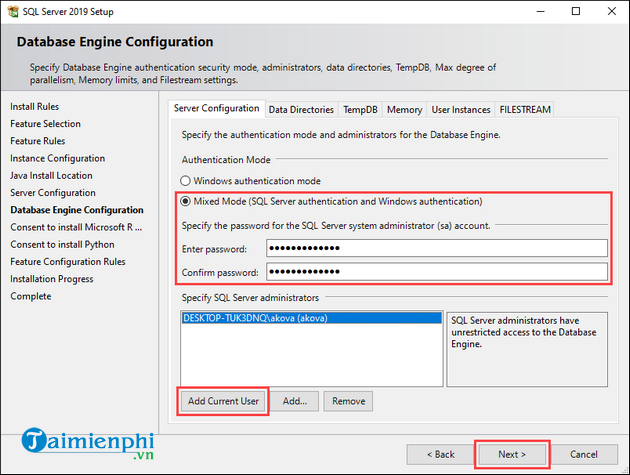
Review data directories, TempDB, memory, collation, and FILESTREAM settings if the server will host a production workload. Defaults are convenient for a local lab but are not a capacity plan.
Complete setup and check the result
Review the summary page and start the installation. When Setup finishes, confirm that each required feature reports Succeeded. If a feature fails, open the detailed setup log before closing the wizard; repeated reinstall attempts can hide the original cause.
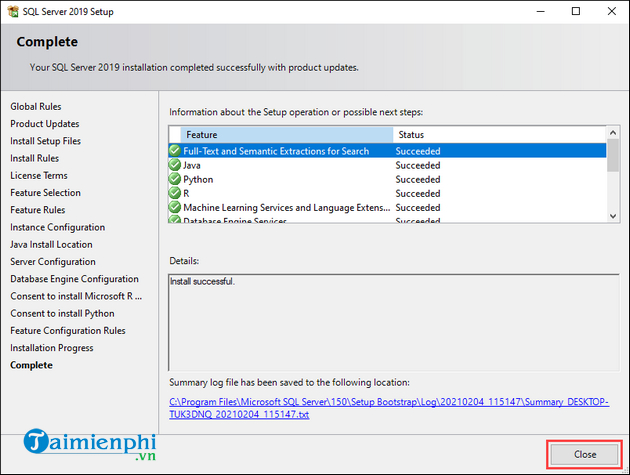
Restart Windows only if Setup requests it or if a prerequisite remains pending. A routine restart is not required after every successful installation.
Install SQL Server Management Studio
Download the latest supported SQL Server Management Studio from Microsoft. SSMS is versioned separately from the Database Engine; you do not need an application called “SSMS 2019” to manage SQL Server 2019. The current SSMS installer uses Visual Studio Installer, so its screens differ from older standalone screenshots.
- Run the SSMS bootstrapper.
- Select the required workload and optional components.
- Choose Install, then launch SSMS when installation completes.
Connect to the new instance
In SSMS, set Server type to Database Engine. Use the server name that matches your installation:
localhostor.for a default local instance..\SQLEXPRESSfor the usual local Express named instance.computer-name\instance-namefor another named instance.
Choose Windows Authentication first if your Windows account was added as an administrator. Use SQL Server Authentication only when Mixed Mode is enabled and you have an intentionally created SQL login. Avoid using sa as an application's everyday account.
Open a new query window and run:
SELECT
    SERVERPROPERTY('ProductVersion') AS ProductVersion,
    SERVERPROPERTY('ProductLevel') AS ProductLevel,
    SERVERPROPERTY('Edition') AS Edition;
The returned values verify which Database Engine you reached. They are more reliable than assuming a connection succeeded simply because SSMS opened.
Apply updates and secure the instance
- Install the current SQL Server 2019 cumulative/security update through your approved servicing process.
- Enable remote network protocols and Windows Firewall rules only if remote clients need them. A local-only training instance does not need to be exposed.
- Create separate least-privilege logins for applications and administrators.
- Configure backups and test a restore before storing important data.
- Keep SQL Server Browser disabled unless named-instance discovery or the chosen network configuration requires it.
Microsoft's SQL Server installation-wizard documentation covers pages and options that vary by feature. The SQL Server 2019 lifecycle page lists the support dates.
Troubleshooting installation or login failures
If Setup fails, read the summary and detail logs, correct the reported prerequisite or permission problem, and rerun Setup. Do not delete SQL Server folders or registry keys by hand. When an incomplete instance must be removed first, follow a controlled SQL Server uninstall process and preserve any databases that still matter.
If Windows Authentication works but a required SQL login does not, check whether Mixed Mode is enabled and whether the login is disabled. If administrative access is genuinely lost, use a supported recovery path rather than a third-party password editor; TipsMake also explains how to reset an SQL Server sa password.
Related Articles
 Instructions for Installing Windows Server 2016 on Windows 104 minutes read
 How to Installing Windows Server 2012 Step by Step6 minutes read
 How to Install Iis in Windows Server 20122 minutes read
 Steps to Install Windows Server 2022 on a Virtual Machine6 minutes read
 How to Install a VPN on Windows Server 20194 minutes read
 How to Install and Use IIS on Windows Server 20195 minutes read
Reader Comments 0
Sign in with email or Google to join the discussion.