Table of Contents
If SQL Server reports that the sa account is disabled, connect with another authorized sysadmin login—preferably through Windows Authentication—and use ALTER LOGIN to enable it. Do not edit master.mdf or use an offline password-changing utility.
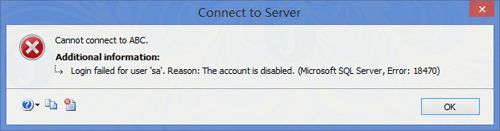
Because sa is a well-known, highly privileged login, leave it disabled unless an application or recovery policy genuinely requires it. A named Windows or Microsoft Entra identity is usually easier to audit.
1. Connect with an existing sysadmin account
In SQL Server Management Studio, choose Windows Authentication and connect with a Windows account or group that already belongs to the sysadmin fixed server role. You can also use another working SQL login with sufficient permission.
Confirm the current login before changing anything:
SELECT ORIGINAL_LOGIN() AS OriginalLogin,
       IS_SRVROLEMEMBER('sysadmin') AS IsSysadmin;
Continue only if the result confirms the intended identity and administrative role.
2. Enable sa and set a strong password
ALTER LOGIN sa WITH PASSWORD = '<StrongUniquePassword>';
ALTER LOGIN sa ENABLE;
GO
Replace the placeholder with a long, unique password stored in an approved password manager. Microsoft documents both operations in the ALTER LOGIN reference.
Test the login from a new connection. Do not disconnect the working administrator session until the test succeeds and you have confirmed which application, if any, needs sa.
3. Verify the authentication mode
The sa login uses SQL Server Authentication, which is available only in mixed mode. Check the instance setting:
SELECT SERVERPROPERTY('IsIntegratedSecurityOnly')
AS IsWindowsAuthenticationOnly;1means Windows Authentication only;sacannot connect.0means mixed mode; Windows and SQL Server Authentication are enabled.
If the instance is Windows-only and mixed mode is an approved requirement, change the server authentication setting in SSMS and restart the Database Engine during a maintenance window. Enabling mixed mode does not automatically enable sa. Follow Microsoft’s authentication-mode procedure.
If no sysadmin login works
Use SQL Server’s supported locked-out administrator recovery process:
- Sign in to the Windows host as a local administrator.
- Stop SQL Server Agent and clients that could take the only connection.
- Start the Database Engine in single-user mode, ideally restricted to
SQLCMD. - Connect with
sqlcmdusing Windows Authentication. - Create or restore a named sysadmin login, or enable
saonly if required. - Restart the instance normally and verify access.
Single-user mode causes an outage and allows only one connection. Microsoft’s locked-out administrator guide provides the official steps; TipsMake’s SQL Server access recovery walkthrough adds practical checks.
Prefer a named administrative identity
If sa is not a hard requirement, create or restore access for an approved Windows group while connected as a sysadmin:
CREATE LOGIN [CONTOSO\SQL-DBA-Admins] FROM WINDOWS;
ALTER SERVER ROLE sysadmin
    ADD MEMBER [CONTOSO\SQL-DBA-Admins];
GO
Test the group-based login, document the recovery path, and disable sa again if it is unnecessary:
ALTER LOGIN sa DISABLE;For day-to-day database access, avoid sysadmin and assign smaller permissions through roles. See TipsMake’s GRANT, REVOKE, and roles guide.
Checks after recovery
- Review the SQL Server error log and audit records to determine why the login was disabled.
- Update applications or scheduled jobs that use obsolete credentials.
- Confirm password policy and rotation requirements.
- Maintain at least one tested, named emergency administration path.
- Do not leave the instance in single-user mode.
Related Articles
 How to Recover a Disabled Facebook Account: Clear Instructions7 minutes read
 How to Fix Errors Facebook Account Is Disabled5 minutes read
 How to Unlock SQL Server Account2 minutes read
 How to Set up POP Server for Outlook. Com Account4 minutes read
 How to Unlock Blocked Facebook: Unlock Blocked Facebook Accounts6 minutes read
 Server Core -- Manage Account and Server5 minutes read
Reader Comments 0
Sign in with email or Google to join the discussion.