Table of Contents
A SQL Server IDENTITY column generates a numeric value when a row is inserted. It is useful for surrogate keys, but it does not by itself guarantee uniqueness or gap-free numbering. Add a PRIMARY KEY or UNIQUE constraint when values must be unique.
The syntax IDENTITY(seed, increment) defines the first generated value and the amount added for each later value. If both arguments are omitted, SQL Server uses IDENTITY(1,1).
Create a table with an IDENTITY column
CREATE TABLE dbo.TechJourney
(
    TechJourneyId   INT IDENTITY(1,1) NOT NULL,
    TechJourneyCode NVARCHAR(10) NOT NULL,
    Description     NVARCHAR(100) NULL,

    CONSTRAINT PK_TechJourney
        PRIMARY KEY (TechJourneyId),
    CONSTRAINT UQ_TechJourney_Code
        UNIQUE (TechJourneyCode)
);
Only one identity column is allowed in a table. The primary key enforces uniqueness; the identity property merely generates values according to its seed and increment. Microsoft lists the guarantees and limitations in the IDENTITY property documentation.

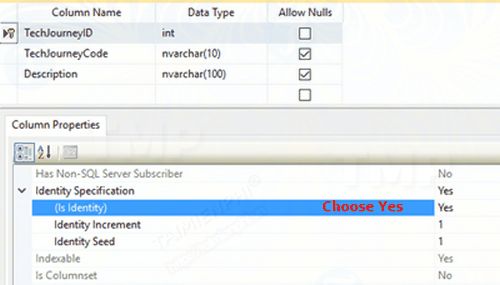
Insert rows and return the generated IDs
Omit the identity column from a normal INSERT. The OUTPUT clause can return every generated key, including for a multi-row insert:
INSERT INTO dbo.TechJourney (TechJourneyCode, Description)
OUTPUT inserted.TechJourneyId, inserted.TechJourneyCode
VALUES
    (N'TJ1', N'Tech Journey 1'),
    (N'TJ2', N'Tech Journey 2');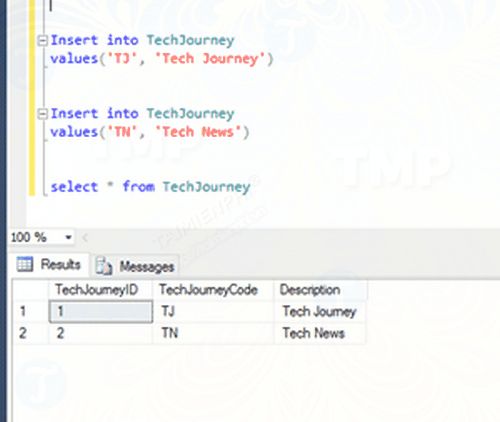
For an existing single-row pattern, SCOPE_IDENTITY() returns the last identity value created in the same session and scope. Convert its numeric(38,0) return value to the expected key type. Prefer it over @@IDENTITY, which can return a value inserted by a trigger in another scope. See Microsoft’s SCOPE_IDENTITY reference.
Check identity metadata
Query the catalog to see the configured seed, increment, and last generated value:
SELECT
    name,
    seed_value,
    increment_value,
    last_value
FROM sys.identity_columns
WHERE object_id = OBJECT_ID(N'dbo.TechJourney');
To compare the current identity value with the maximum stored value without changing anything, run:
DBCC CHECKIDENT (N'dbo.TechJourney', NORESEED);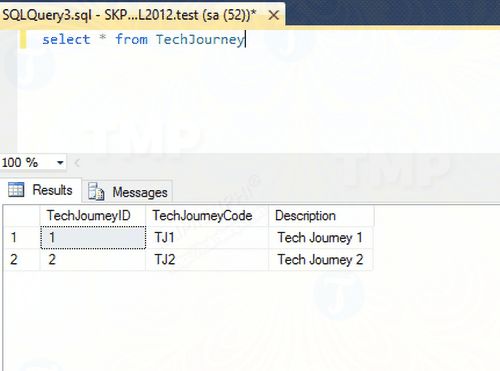
NORESEED is an option, not the current value. The command reports identity information and leaves it unchanged.
Reseed the current identity value
Reseeding changes what SQL Server treats as the current identity value. It does not renumber existing rows. On a table that already contains rows, this example makes the next generated value 21 when the increment is 1:
DBCC CHECKIDENT (N'dbo.TechJourney', RESEED, 20);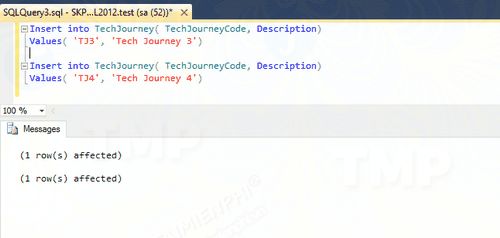
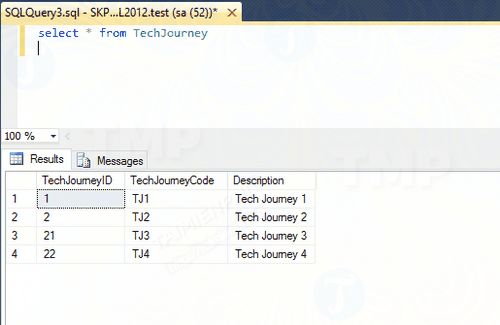
Before reseeding, check MAX(TechJourneyId), stop concurrent writes, and understand the effect on replication or downstream systems. Reseeding below an existing maximum can cause a duplicate-key error; without a unique constraint, it can create duplicate identity values.
The next-value rule depends on table state:
- If rows are present, or all rows were removed with
DELETE, the next value is the reseed value plus the increment. - If the table was newly created or emptied with
TRUNCATE TABLE, the first later insert uses the reseed value itself.
The exact behavior and required permissions are documented in DBCC CHECKIDENT.
Reset an empty table
TRUNCATE TABLE removes every row and normally resets the identity to its original seed, but it cannot be used in every foreign-key or replication scenario. If rows were removed with DELETE and an IDENTITY(1,1) table must restart at 1, set the current value to 0:
DBCC CHECKIDENT (N'dbo.TechJourney', RESEED, 0);Use this only after confirming the table is empty and no concurrent insert can occur.
Can you change or remove the IDENTITY property?
You cannot simply alter an existing identity column to change its original seed or increment, and the identity property cannot be removed in place. A controlled migration usually creates a replacement table or column with the required definition, copies and validates the data, recreates keys and dependencies, and switches consumers during a maintenance window.
Do not reseed merely to hide gaps. Failed or rolled-back inserts, concurrent activity, and identity caching can consume numbers permanently. Identity values should normally be treated as opaque keys rather than invoice numbers or other gapless business sequences.
Insert an explicit value only for controlled migration
SET IDENTITY_INSERT permits explicit values for one table at a time in a session:
SET IDENTITY_INSERT dbo.TechJourney ON;

INSERT INTO dbo.TechJourney
    (TechJourneyId, TechJourneyCode, Description)
VALUES
    (100, N'TJ100', N'Imported row');

SET IDENTITY_INSERT dbo.TechJourney OFF;
Explicit imports can advance the current identity value. Check the result before resuming normal writes.
For more table-design guidance, see CREATE DATABASE and CREATE TABLE in SQL Server. If an administrator account is unavailable during maintenance, use the supported steps in TipsMake’s SQL Server access recovery guide.
Related Articles
 MS Excel 2007 - Lesson 10: Modify Columns, Rows and Cells5 minutes read
 Validate Secedit: Secedit: Validate Command in Windows3 minutes read
 MS SQL Server: ALTER LOGIN Command in SQL Server5 minutes read
 How to Add a Column in a Pivot Table5 minutes read
 Excel 2019 (Part 5): Modifying Columns, Rows, and Cells13 minutes read
 Use Remote Connection Analysis Tool for Exchange Server -- Part 19 minutes read
Reader Comments 0
Sign in with email or Google to join the discussion.