Table of Contents
PowerShell Desired State Configuration (DSC) can make a SQL Server installation repeatable: you declare the instance name, features, source media, and administrator group, compile that configuration into a MOF document, and apply it through the Local Configuration Manager.
This guide uses classic Windows PowerShell DSC in PowerShell 5.1 with the maintained SqlServerDsc community module. Microsoft DSC v3 is a different command-line platform and is not a drop-in replacement for the MOF and Start-DscConfiguration workflow shown here.
Why use DSC for SQL Server?
- Keep installation settings in version-controlled configuration.
- Apply a consistent baseline to multiple Windows servers.
- Test whether the declared state is present before making a change.
- Separate reusable configuration from machine-specific parameters.
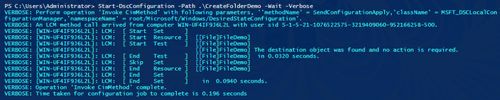
DSC resources are designed to be idempotent: applying the same configuration again should not reinstall a compliant instance. However, the SqlSetup resource primarily manages setup state. Microsoft notes that it does not continually enforce every setting supplied during installation; use other SqlServerDsc resources for ongoing configuration.
Prerequisites and safety checks
- A supported Windows Server and SQL Server combination.
- Windows PowerShell 5.1, running as administrator.
- Licensed SQL Server installation media copied to a local folder or approved share.
- A named Windows group for SQL Server administrators; avoid granting the local Administrators group by default.
- Current backups and a tested rollback or rebuild plan for an existing server.
Test the configuration on a disposable VM before production. Confirm storage paths, service identities, collation, firewall policy, patching, and restart behavior with the DBA and security teams.
1. Install and verify SqlServerDsc
The old xSqlPs module and instructions that manually edit its resource files are obsolete. Install SqlServerDsc from the PowerShell Gallery instead:
Install-Module -Name SqlServerDsc -Scope AllUsers
Get-Module -Name SqlServerDsc -ListAvailable
In an automated environment, test and pin an approved module version rather than silently consuming a new release. Review the module’s repository and examples, and place the same required version on both the authoring machine and target node.
2. Prepare SQL Server installation media
Copy the extracted installation media to a stable location such as C:\SQLMedia. The target computer account must be able to read a network source when DSC runs under the Local System account; if credentials are required, follow the resource’s supported SourceCredential pattern and protect credentials in the MOF.
Do not embed plaintext passwords in a script or commit generated MOF files containing secrets. For configurations that require PSCredential, configure certificate-based MOF encryption and control access to the build output.
3. Write a minimal configuration
The following example installs a default Database Engine instance. Replace the media path and administrator group with values approved for your environment:
Configuration SqlInstall
{
    Import-DscResource -ModuleName SqlServerDsc

    Node localhost
    {
        SqlSetup InstallDefaultInstance
        {
            InstanceName        = 'MSSQLSERVER'
            Features            = 'SQLENGINE'
            SourcePath          = 'C:\SQLMedia'
            SQLSysAdminAccounts = @('CONTOSO\SQL-DBA-Admins')
        }
    }
}
MSSQLSERVER denotes the default instance. For a named instance, supply the intended instance name and confirm all related service names, ports, and application connection strings.
The SqlSetup resource exposes many more properties, including service accounts, data directories, TempDB settings, collation, and update source. Add only values that have been designed and tested. Microsoft’s SQL Server DSC walkthrough explains the core properties.
4. Compile and inspect the configuration
. .\SqlInstall.ps1
SqlInstall -OutputPath C:\DscBuild
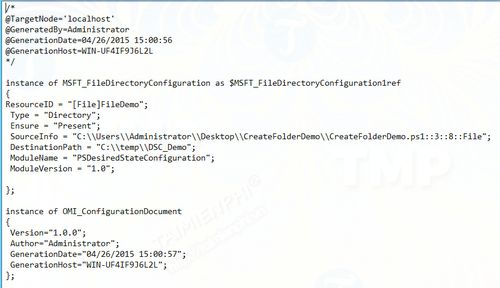
This creates C:\DscBuild\localhost.mof. Treat the MOF as a deployment artifact: inspect it for the expected module and values, ensure it contains no exposed secret, and restrict access to the folder.
5. Apply the configuration
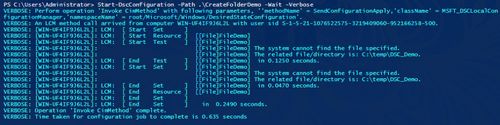
Start-DscConfiguration -Path C:\DscBuild -Wait -Force -VerboseThe operation can take time and may require a restart depending on the selected features and prerequisites. Do not interrupt SQL Server Setup merely because progress pauses. Coordinate reboot handling explicitly in production automation.
6. Validate the installation
Test-DscConfiguration
Get-DscConfigurationStatus
Get-Service -Name MSSQLSERVER
Test-DscConfiguration should return True for the state the resource tests. Then connect with an authorized client and run an independent query such as:
SELECT @@SERVERNAME AS ServerName,
       SERVERPROPERTY('ProductVersion') AS ProductVersion,
       SERVERPROPERTY('Edition') AS Edition;
Verify service startup, database and log locations, TempDB, collation, authentication, patch level, network protocol, firewall rules, backup jobs, monitoring, and the intended administrative group. Installation success alone is not a complete production readiness check.
Manage settings after setup
Use additional SqlServerDsc resources to manage properties such as server roles, logins, protocols, memory, and maximum degree of parallelism. Keep installation and post-install configuration in separate logical sections so a review can distinguish one-time setup from continuously enforced state.
Apply least privilege when defining administrators and application identities; this SQL Server GRANT and role guide explains database permissions. If every SQL administrator is accidentally locked out, follow the supported process in TipsMake’s SQL Server access recovery guide.
Troubleshooting
- Run
Get-DscConfigurationStatus -Alland review the DSC operational event log. - Check SQL Server Setup’s
Summary.txtand detailed logs under the Setup Bootstrap log directory. - Confirm that the source path contains the expected version and is readable by the execution identity.
- Check that the approved SqlServerDsc version exists on the target and matches the compiled configuration.
- Validate service-account rights and storage permissions before retrying.
- Do not patch a module file at a hard-coded line number; update the module, adjust supported parameters, or report a reproducible issue upstream.
Related Articles
 How to Use Powershell in Windows Server 20124 minutes read
 12 Most Useful PowerShell Commands for Windows8 minutes read
 10 Tips with Powershell in Windows Server 2008 -- Part 114 minutes read
 Microsoft Windows Powershell and SQL Server 2005 SMO - Part 78 minutes read
 Microsoft Windows Powershell and SQL Server 2005 SMO - Part 117 minutes read
 Microsoft Windows Powershell and SQL Server 2005 SMO - Part 28 minutes read
Reader Comments 0
Sign in with email or Google to join the discussion.