Table of Contents
What is FTP Server?
This guide explains how to install FTP Server on Ubuntu, with clear steps, practical tips, and important checks before you begin.
For this to happen, FTP server software must be installed on the remote file host.
Whether you are building a Linux home server, web server, game server or whatever server is suitable for your project, FTP is the simplest way to transfer data from one system to another.
Install a server on Ubuntu
Installing FTP server on Ubuntu is very simple. The best approach is probably vsftpd. Follow the steps below to install and configure FTP server on Ubuntu with vsftpd.
1. Install Vsftpd
You may already have vsftpd installed on your machine. To test it out, open a command line window and type:
sudo apt list --installedVsftpd could be near the bottom of the list. If you haven't already, just install with:
sudo apt install vsftpd Once installed, it's time to get started with configuring vsftpd. Let's start by making a copy of the original configuration file. If something goes wrong or mistaken, the default configuration can be restored.
sudo cp /etc/vsftpd.conf /etc/vsftpd.conf_defaultOnce done, launch it with the command:
sudo systemctl start vsftpd Confirm the server is running with:
sudo systemctl enable vsftpdWith vsftpd installed, you can begin the setup.
2. Create FTP user
First you need an FTP user account. With this account, you can use any FTP client to access files stored on the server through vsftpd. In the terminal, enter:
sudo useradd –m usernameWith the username and password set, create a test file in your account's home directory to confirm that it works:
sudo password usernameWhen you first connect to your FTP Ubuntu server, you will see testfile. txt.
cd /home/username sudo nano testfile.txt3. Secure Ubuntu FTP server
However, before setting up the connection, you need to make sure that the FTP ports are open in Ubuntu. By default, they are closed for security reasons in ufw (Uncomplicated Firewall).
To allow access via port 20, use:
sudo ufw allow 20/tcpIf your distribution uses a different firewall or you have an alternative installed, check the documentation for open ports.
For users to upload and install files in the configuration file:
sudo nano /etc/vsftpd.confLook for write_enabled and uncomment the entry, make sure it's set to "YES":
write_enable=YESPress Ctrl + X to exit and Y to save.
For publicly accessible FTP servers, you will want to limit access per user. chroot can limit each user in its home directory. In vsftpd. conf, find and uncomment this line (uncomment the #):
chroot_local_user=YESPress Ctrl + X to exit, Y to save.
For many users, creating a list is a smart choice.
First, open vsftpd. chroot_list in a text editor.
sudo nano /etc/ vsftpd.chroot_listHere, list the usernames you want to limit in their own folders. Save and exit, then go back to vsftpd. conf and make sure chroot_local_user = YES uncommented:
#chroot_local_user=YESInstead, uncomment:
chroot_list_enable=YESand
chroot_list_file=/etc/vsftpd.chroot_listThe result will look like this:
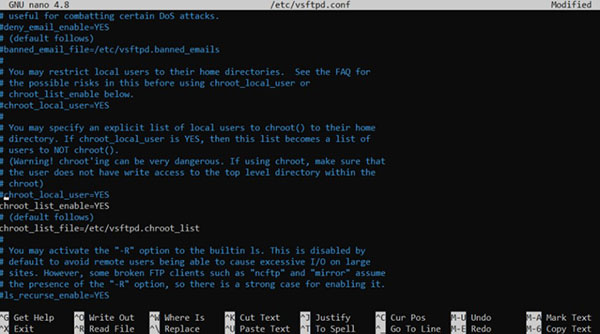
Continue, save and exit. Finally, restart the FTP service:
sudo systemctl restart vsftpd.serviceFinally, use the hostname command to check the name of your Ubuntu server. You can then use it to connect to the FTP server. If you prefer to use an IP address, enter the command ip address and make a note of it.
4. Connection encryption: FTP + SSL = FTPS
You can also force encryption of traffic to and from your FTP Ubuntu server using SSL / TLS.
In the vsftpd. conf file look for "SSL encrypted connections" and add the following information:
ssl_enable=YES rsa_cert_file=/etc/ssl/certs/ssl-cert-snakeoil.pem rsa_private_key_file=/etc/ssl/private/ssl-cert-snakeoil.keySave and exit the file. Now you can specify FTPS as the connection protocol in your FTP client.
FAQ
What should I know about Install FTP Server on Ubuntu?
Focus on the key features, requirements, limitations, and practical use cases explained in this guide.
How do I get the best results with Install FTP Server on Ubuntu?
Follow the recommended steps, use current software or information, confirm compatibility, and review settings before major changes.
Are there any risks or limitations?
Potential limitations depend on compatibility, data quality, cost, privacy, support, and how the product or method is used.
Related Articles
 Computer: How to Install Ubuntu Server9 minutes read
 How to Install Desktop/GUI Environment in Ubuntu Server5 minutes read
 What Is the Difference Between Ubuntu Desktop and Ubuntu Server?5 minutes read
 Instructions for Installing Ubuntu Web Server on Remote Host6 minutes read
 Ubuntu Server Upgrade Steps6 minutes read
 How to Configure DNS Server on Ubuntu Server 11.044 minutes read
Reader Comments 0
Sign in with email or Google to join the discussion.