Table of Contents
Apple Notes has added new Markdown support, allowing you to easily import and export files using the popular plain text formatting language.
Apple Notes has added new Markdown support, allowing you to easily import and export files in the popular plain text formatting language. You can bring existing Markdown files into Notes while preserving formatting like headings, links, and lists, or export Notes content as Markdown for use in other apps. Here's how to import and export Markdown files in Apple Notes.
How to import Markdown files into Notes
Step 1:
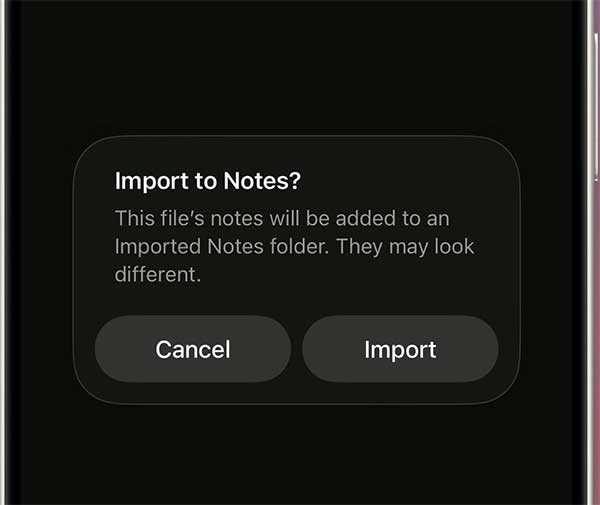
Open The Markdown file On your iPhone, then tap The Share icon And select Notes. Then Tap Import To save the file to the Imported Notes folder.
Step 2:
Open the folder and you'll see your newly saved note. When you import a Markdown file, Notes automatically converts plain text formatting to rich text, preserving headings, links, bulleted lists, and typography like bold and italics.
How to export notes in Markdown format
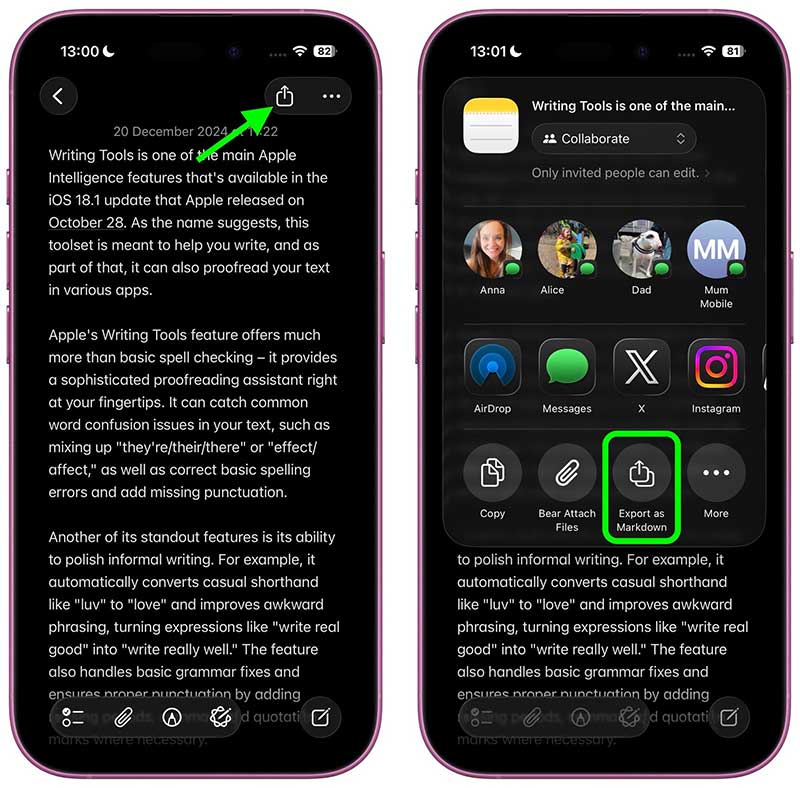
Open the note you want to export, then tap The share icon In the top right corner and select Export as Markdown In the menu that appears.
This feature is currently in the works and will be available soon.
FAQ
How do you import and export markdown files in apple notes: step-by-step guide?
In practical terms, apple Notes has added new Markdown support, allowing you to easily import and export files using the popular plain text formatting language.
What should you check before getting started?
Review the requirements, compatible device or software version, and any warnings described in the guide before making changes.
What should you do if the steps do not work?
Repeat the steps in order, confirm that your app or system is up to date, and review the troubleshooting details provided above.
Related Articles
 6 Best Free Online Markdown Editors and Converters10 minutes read
 What Is Markdown and Why Should You Learn It Today?11 minutes read
 Cu Phap Markdown Co Ban: Basic Markdown Syntax13 minutes read
 Temporary Solutions When NotebookLM Fails to Export Files Correctly8 minutes read
 How to Import and Export Ova Files in Virtualbox4 minutes read
 7 Best Markdown Editors for Android and iPhone7 minutes read
Reader Comments 0
Sign in with email or Google to join the discussion.