Table of Contents
Create a dropdown list in WPS Spreadsheet by selecting the destination cells and adding a List validation rule. A short set of choices, such as Pending, In progress and Completed, keeps entries consistent and makes filtering easier.
The desktop interface offers a direct dropdown command in some versions and the standard Data Validation route. Use whichever is available in your build.

Method 1: use Insert Drop-Down List
- Select the cells that should receive choices, such as E2:E100. Leave the Status header outside the selection.
- Open the Data tab and choose Insert Drop-Down List or the corresponding command.
- Enter each choice in the dialog. Use the plus or Add control to create additional entries.
- Confirm with OK, select a destination cell and test its arrow.
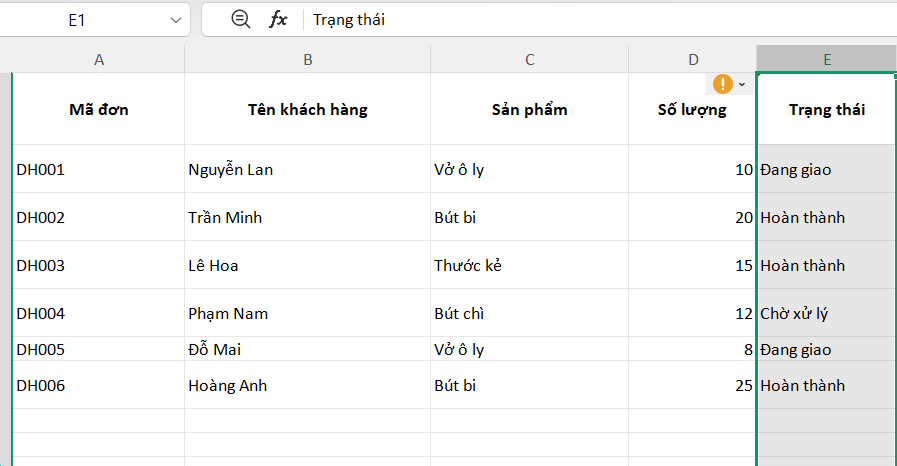
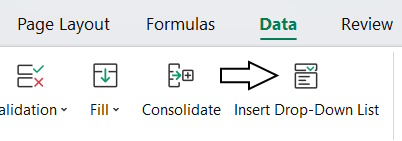
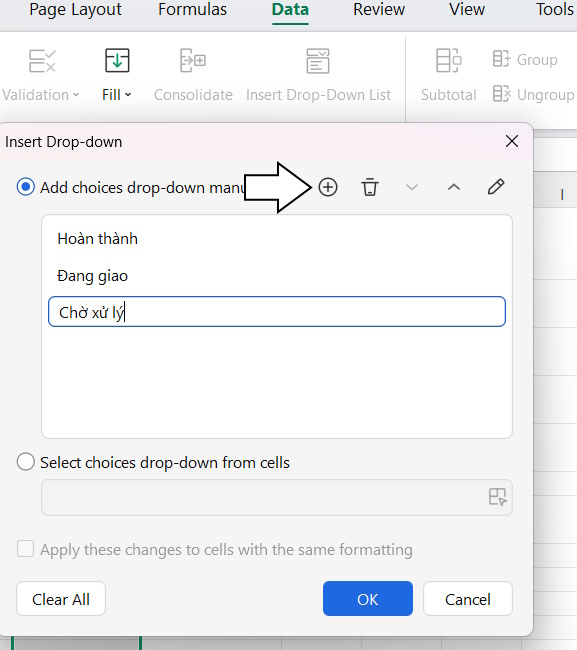
Choose labels that do not overlap. For a task tracker, Pending, In progress and Completed are clearer stages than mixing delivery and completion statuses without defining them.
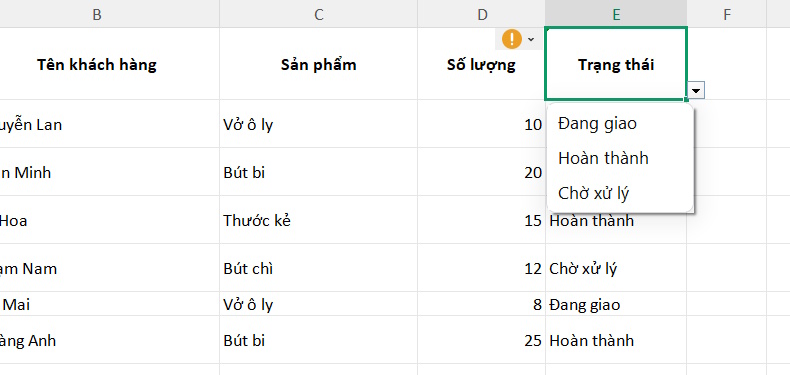
Method 2: use Data Validation
- Select the destination range.
- Choose Data > Validation or Data Validation.
- In Settings, set Allow to List.
- In Source, enter a short list separated by commas, for example
Pending,In progress,Completed. - Enable the in-cell dropdown option if shown, then confirm.
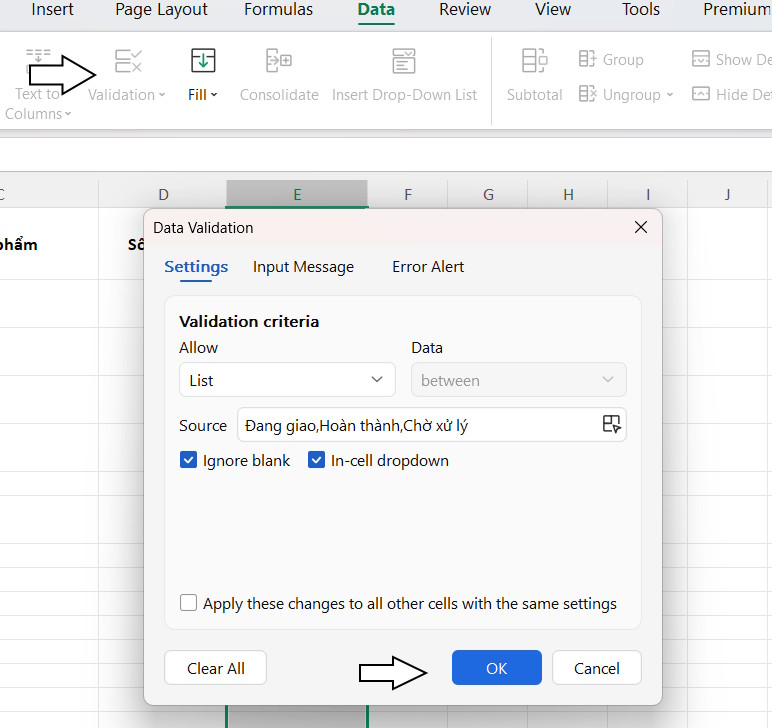
Do not add spaces after separators unless you want them included in a label. If your regional settings use a different separator, follow the dialog's expected format. An arrow with one long combined choice usually means the separator was not recognized.
Use a cell range for a longer list
Put allowed values in a separate column, one per cell—for example H2:H4. In the validation Source box, use the range selector to choose those cells. An absolute reference such as =$H$2:$H$4 keeps the source fixed.
Keep the source range free of blank entries and duplicate labels. If you add a new choice outside the selected source range, extend the reference as well. Check the list again after moving or deleting source cells. The WPS dropdown guide covers source-range selection.
Edit or remove the dropdown
To change the options, select the affected cells and reopen their validation settings. Edit the typed Source list or the referenced source cells, then test the result.
To remove the rule, select only the intended cells and choose Clear All inside the Data Validation dialog. This clears validation settings; it is different from clearing the cell contents. Existing values may remain, so inspect them afterward.
Check input behavior before sharing
Try choosing an option and typing a value outside the list. Review the Error Alert settings if you need invalid manual entries rejected rather than merely warned about. Validation is an entry aid, so also check data pasted into the range and values that existed before the rule was created.
For related workflows, see dropdown lists in Excel or data validation in Google Sheets. Their menus differ, but the distinction between allowed choices and existing data is the same.






Reader Comments 0
Sign in with email or Google to join the discussion.