Table of Contents
Windows Explorer has a Preview Pane that lets you preview any file, including Word documents. Here's how to fix Word file preview errors in Explorer.
Windows Explorer has a Preview Pane that lets you preview any file, including Word documents. However, this feature doesn't always work well, and you may encounter problems with Word previews not appearing in Explorer. Here's how to fix Word preview problems in Explorer.
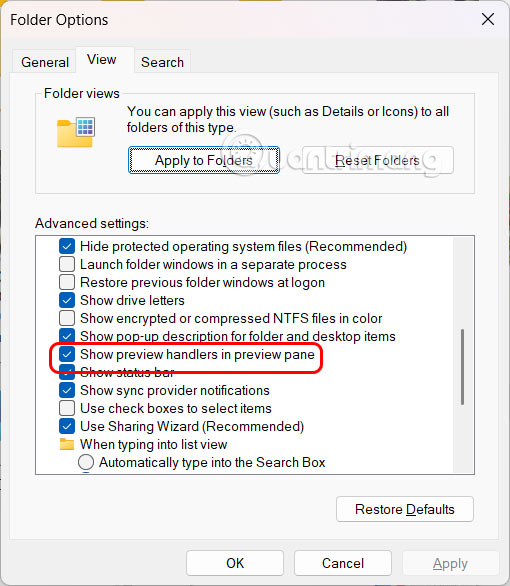
Turn on preview mode in Explore
If Explorer isn't previewing Word files, you may have accidentally turned off preview, so double-check that it's turned on.
- How to Show File Explorer Preview Pane on Windows 10/11
Adjust Word Trust Center settings
Step 1:
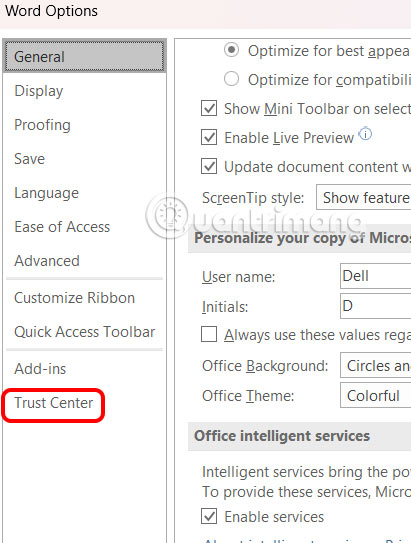
Open The Word file , click File, select Options . Then select Trust Center In the menu on the left of the interface.
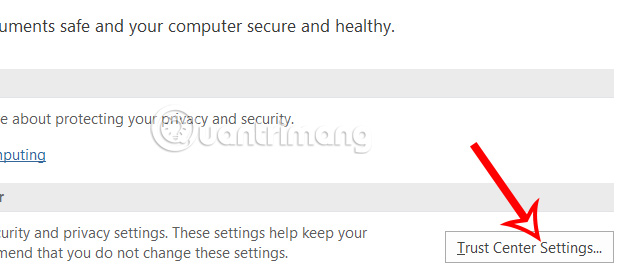
Then look to the side And select Trust Center Settings .
Step 2:
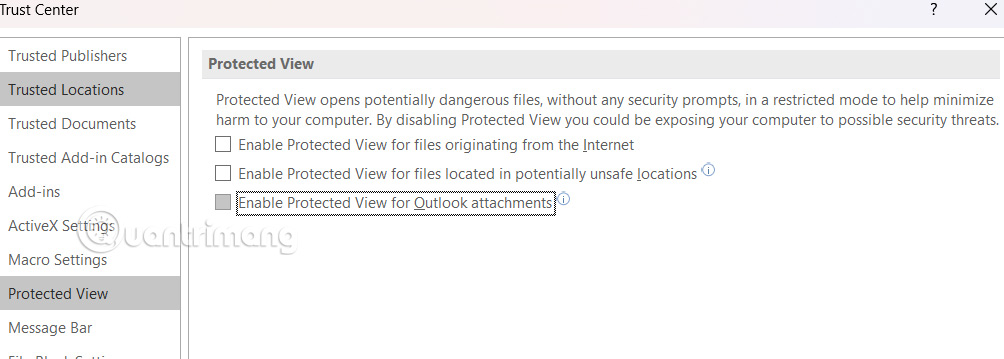
In Protected View You look to the side and Uncheck all the boxes But be aware this can expose your device to potential security threats if you download dangerous or corrupted files.
Adjust Windows default applications
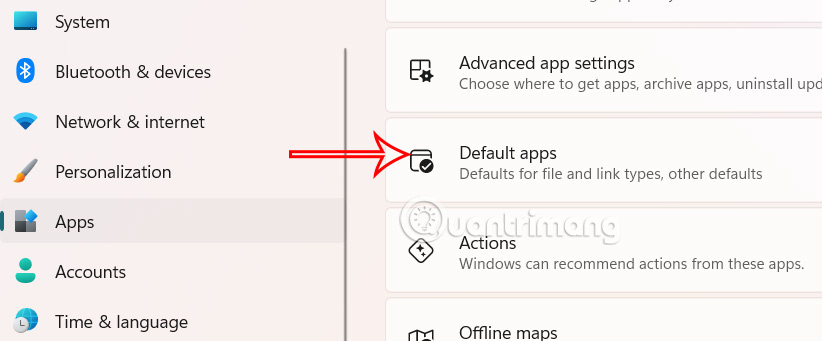
Go to Settings on your computer, then click on Apps And select Default apps .
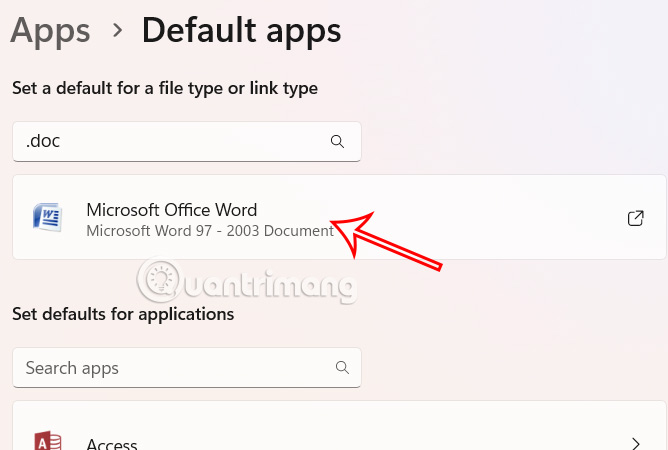
Now you Enter the.doc file format And have Word selected as the default application to open the file . If not, reset to always open.doc files with the Word application on your computer.
FAQ
How do you fix word file preview error in explorer: step-by-step guide?
In practical terms, Windows Explorer has a Preview Pane that lets you preview any file, including Word documents. Here's how to fix Word file preview errors in Explorer.
What should you check before getting started?
Review the requirements, compatible device or software version, and any warnings described in the guide before making changes.
What should you do if the steps do not work?
Repeat the steps in order, confirm that your app or system is up to date, and review the troubleshooting details provided above.
Related Articles
 How to Display the File Pane Preview Pane on Windows 103 minutes read
 How to Enable Preloading File Explorer Windows 11: Step-by-Step Guide4 minutes read
 How to Display File Explorer's Preview Pane on Windows 10/115 minutes read
 Warning File Explorer Error on Windows 10 Data Loss When Connected to Android5 minutes read
 Fix File Explorer Error Not Working on Windows 105 minutes read
 How to Easily Preview a Word File Without Opening It11 minutes read
Reader Comments 0
Sign in with email or Google to join the discussion.