Minecraft Dungeons is an action -adventure game featuring gameplay involving exploring caves and dungeons in the blocky world of Minecraft. After downloading and installing Minecraft Dungeons on PC, players can explore the storyline and face the largest enemy, Arch Illager.
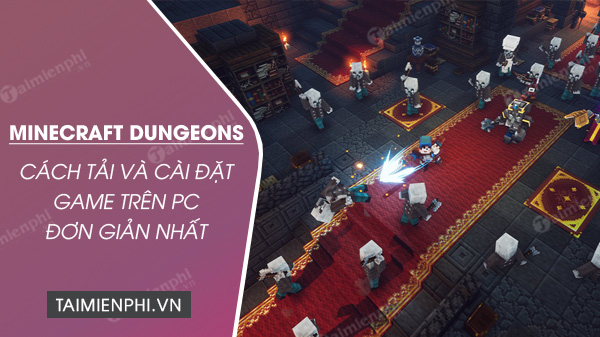
Minecraft Dungeons - Minecraft dungeon exploration adventure game
Step 1: First, you need to download the Minecraft Dungeons Launcher software to your computer using the link provided by tipsmake below. The software is relatively small and only takes a few seconds to download.
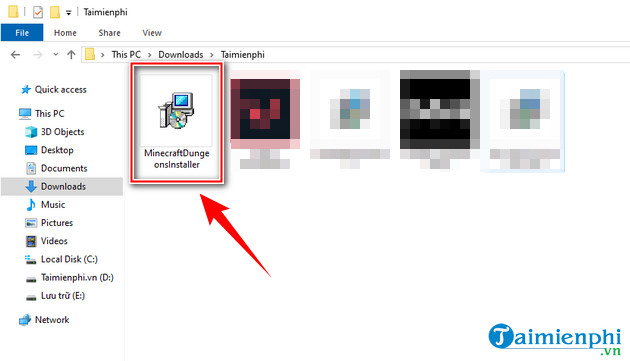
Step 2: Immediately after the download is complete, click directly to begin installing Minecraft Dungeons on your computer. The installation file will be named ( MinecraftDungeonsInstaller ) as shown in the image below.
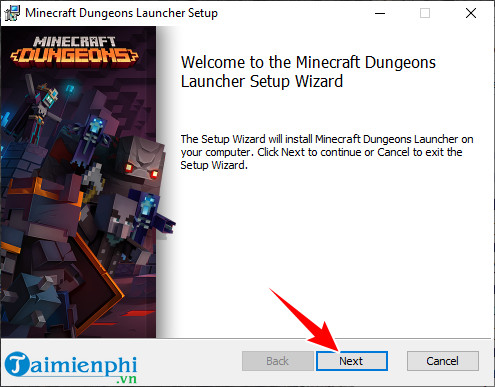
Step 3: In the Minecraft Dungeons Launcher Setup window , click Next .
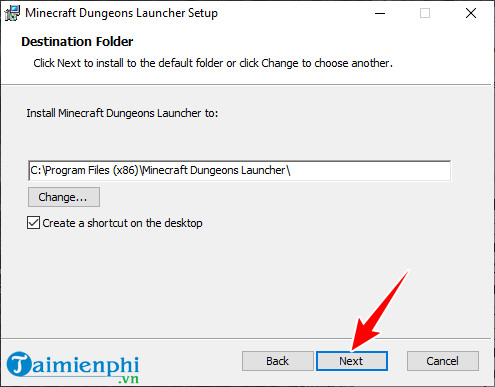
Step 4: Next, you can change the default Minecraft Dungeons installation directory on your PC by clicking the Change. button and then selecting a location. If it doesn't change, simply click Next .
Step 5: Finally, simply press the Install button and the Minecraft Dungeons installation process on your PC will begin immediately. Simple, right?
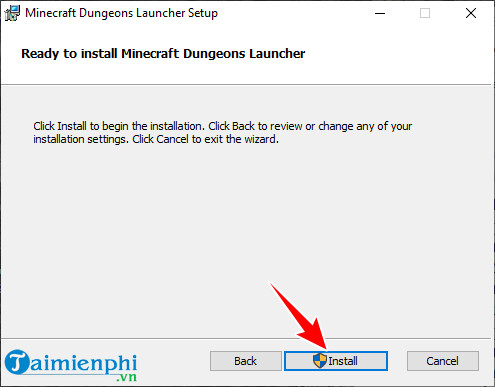
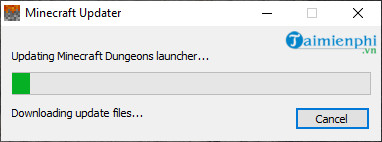
Once the Minecraft Dungeons installation process on your computer is complete, you can directly launch the game using the icon that appears on your Desktop (main screen) as usual. The game will immediately update to the latest version if available; just wait for the update to finish.
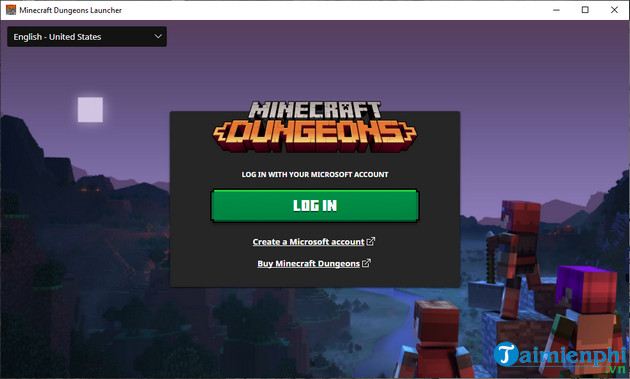
Step 6: After successfully installing Minecraft Dungeons on your PC, click Log In and log into the game using your Microsoft account .
- Instructions on how to create a new Microsoft account can be found here.
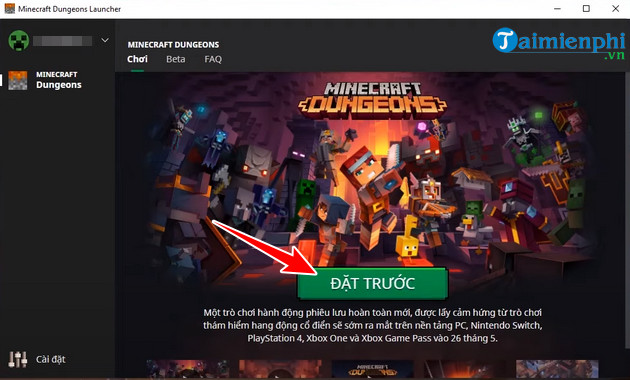
Step 7: Currently, the game is not released for free, so readers need to purchase Minecraft Dungeons to play it on their computer. Click Pre-order (buy now).
- For those who don't have the budget or online payment account but still want to experience the free version of the game, access this link to receive a shared Minecraft Dungeons account from other players.
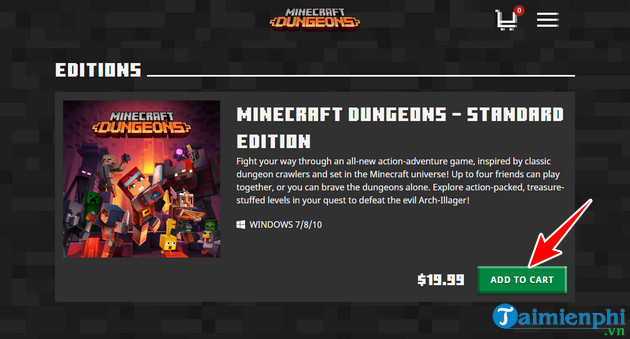
Step 8: The system will automatically take you to the game catalog, where you can buy and sell game versions. Minecraft Dungeons Standard Edition is currently priced at $19.99 (approximately 470,000 VND) => click Add to Card .
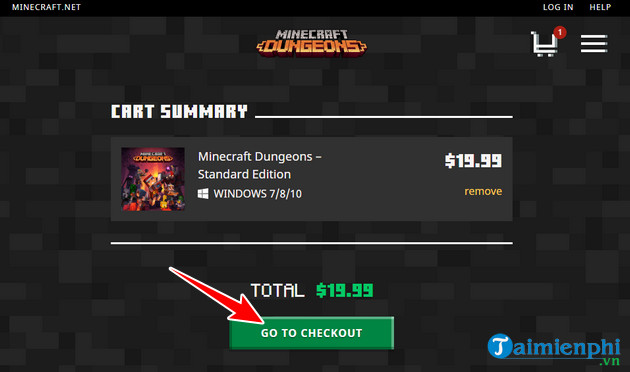
Step 9: Click Go To Checkout to proceed to the payment step.
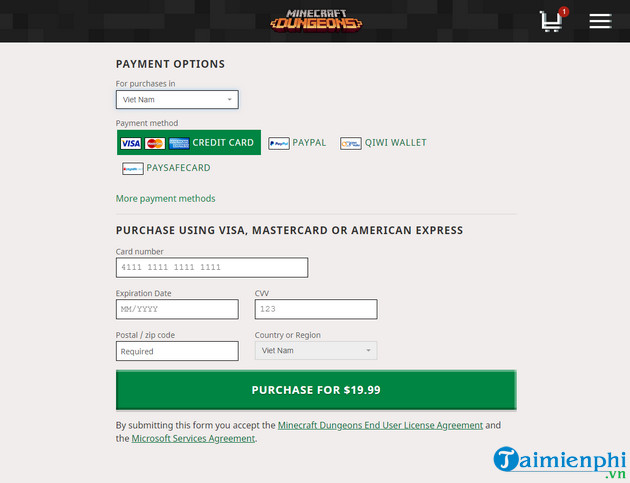
Step 10: You can pay for Minecraft Dungeons using various methods, such as Credit Card , Paypal , etc., and provide the information below => click Purchase For $19.99 .
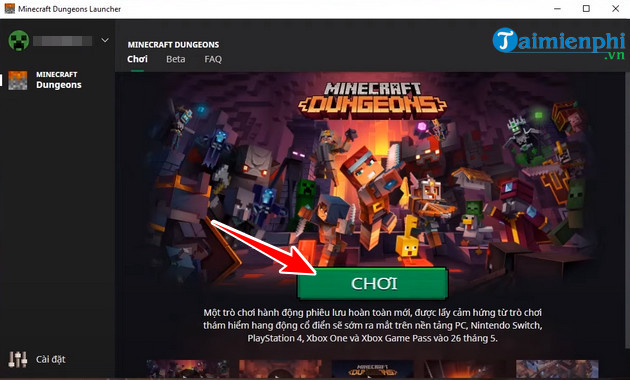
Step 11: After the purchase is complete, return to the Minecraft Dungeons Launcher interface. You will see the "Pre-Order" button disappear and be replaced by another button. Click "Play" to start playing Minecraft Dungeons on your computer.
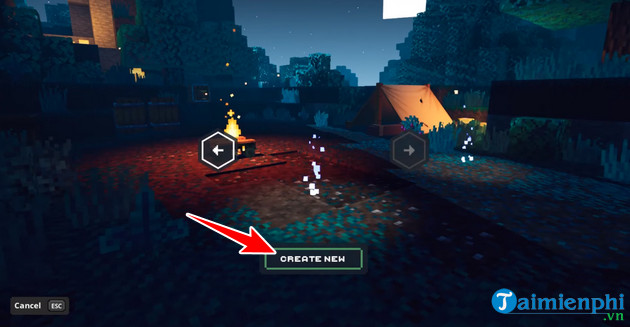
To start Minecraft Dungeons, you need to create a character by clicking the Create New button and then choosing a character image; there are many different character designs for players to choose from.
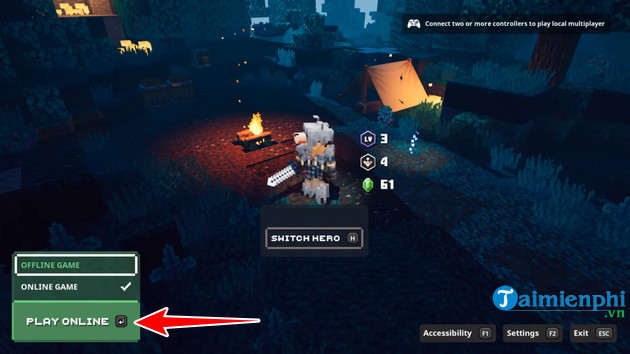
Minecraft Dungeons on PC allows you to play in two modes: Offline Game (play alone) or Online Game (play with friends or others) => choose your game mode and start your journey exploring Minecraft Dungeons on PC by pressing Play .
Therefore, by simply following the basic instructions above, you can play Minecraft Dungeons on your PC normally. The game requires relatively light system requirements, which you can refer to below:
- OS: Windows 7/8/8.1/10
- Processor: Intel Core i3-3210 3.2 GHz / AMD A8-7600 APU 3.1 GHz or higher
- Memory: 2 GB RAM
- Graphics: Integrated: Intel HD Graphics 4000 (Ivy Bridge) or AMD Radeon R5 series (Kaveri line) with OpenGL 4.4; Discrete: Nvidia GeForce 400 Series or AMD Radeon HD 7000 series with OpenGL 4.4
- Storage: 4 GB of available space
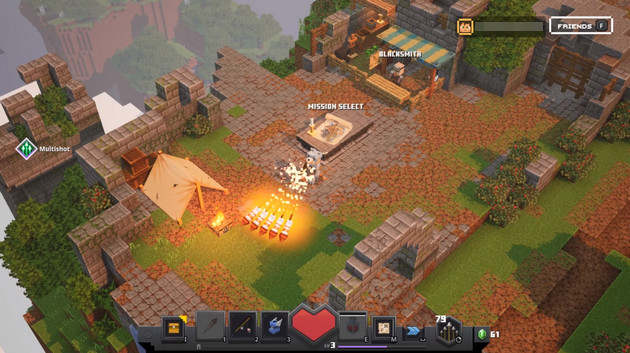
Playing Minecraft Dungeons on PC is quite simple; you just need to:
- Left-click to Attack
- Right-click to shoot the bow
- Press the number keys on your computer keyboard to use the corresponding items and skills displayed directly on the game screen.
- Press E to restore health.
Press M to view the Minimap.
- Press I to open the inventory.
Related Articles
 Download Minecraft Map: How to Download and Install Map Minecraft5 minutes read
 Minecraft Dungeons Tips and Tricks for Beginners: What You Need to Know8 minutes read
 Instructions to Download and Install Mods for Minecraft Pocket Edition7 minutes read
 How to Download and Install Minecraft Launcher: Step-by-Step4 minutes read
 How to Download and Install Minecraft 1.19 APK on PC3 minutes read
 Steps to Download and Install Optifine to Play Minecraft5 minutes read
Reader Comments 0
Sign in with email or Google to join the discussion.