Table of Contents
When you often miss important pages among the countless open tabs, the pinned tab feature on Chrome Android will be extremely useful.
When you often miss important pages among the many open tabs, the pinned tab feature on Chrome Android will be extremely useful. This feature will fix the website in the tab management interface on Chrome and the pinned tabs will always appear on top even when you close the browser. Here is a guide to pin tabs on Chrome Android.
How to pin tabs on Chrome Android
Step 1:
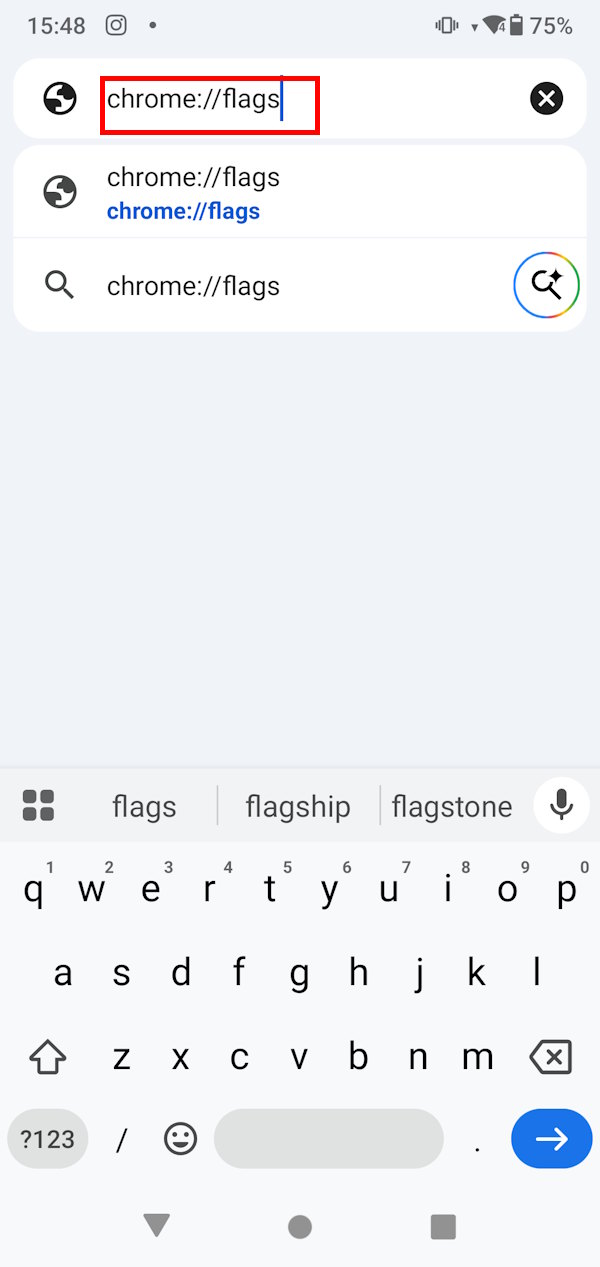
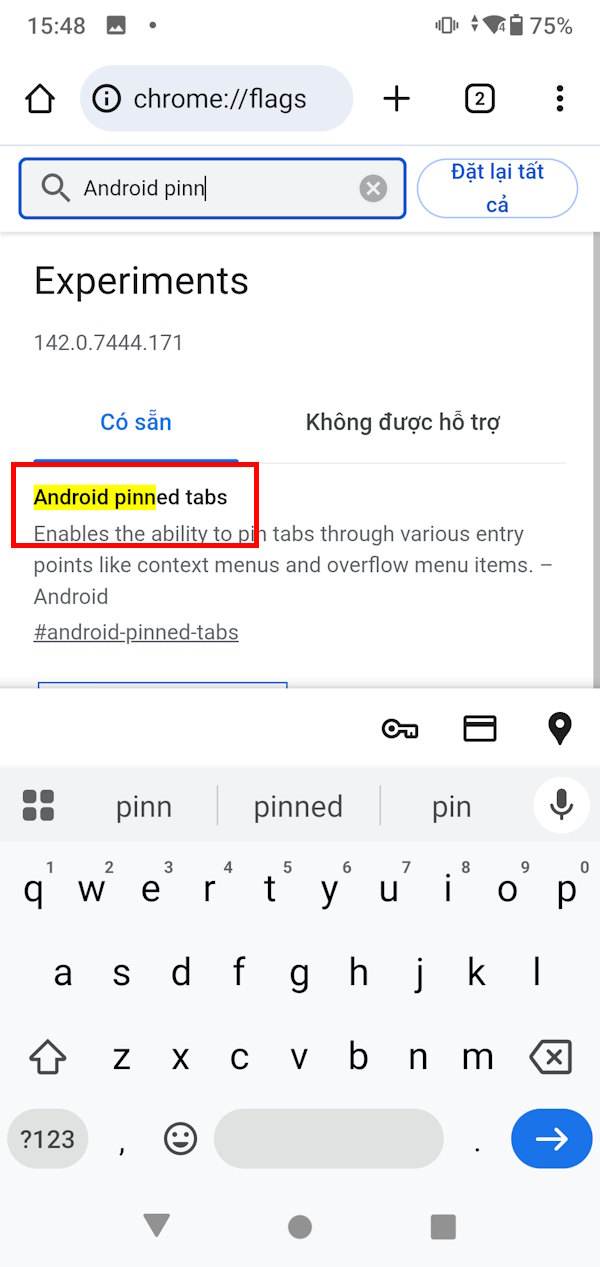
On the Chrome browser, users Enter chrome://flags in the address bar And access. Here you enter the keyword Android pinned and you will see The flag Android pinned tabs To adjust.
Step 2:
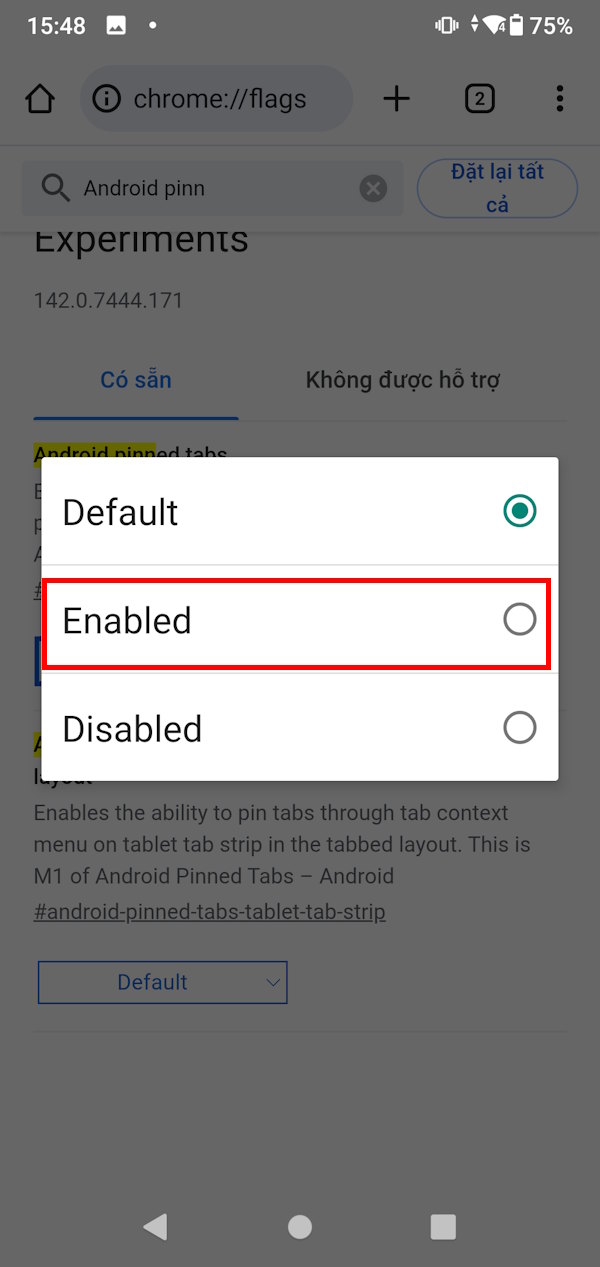
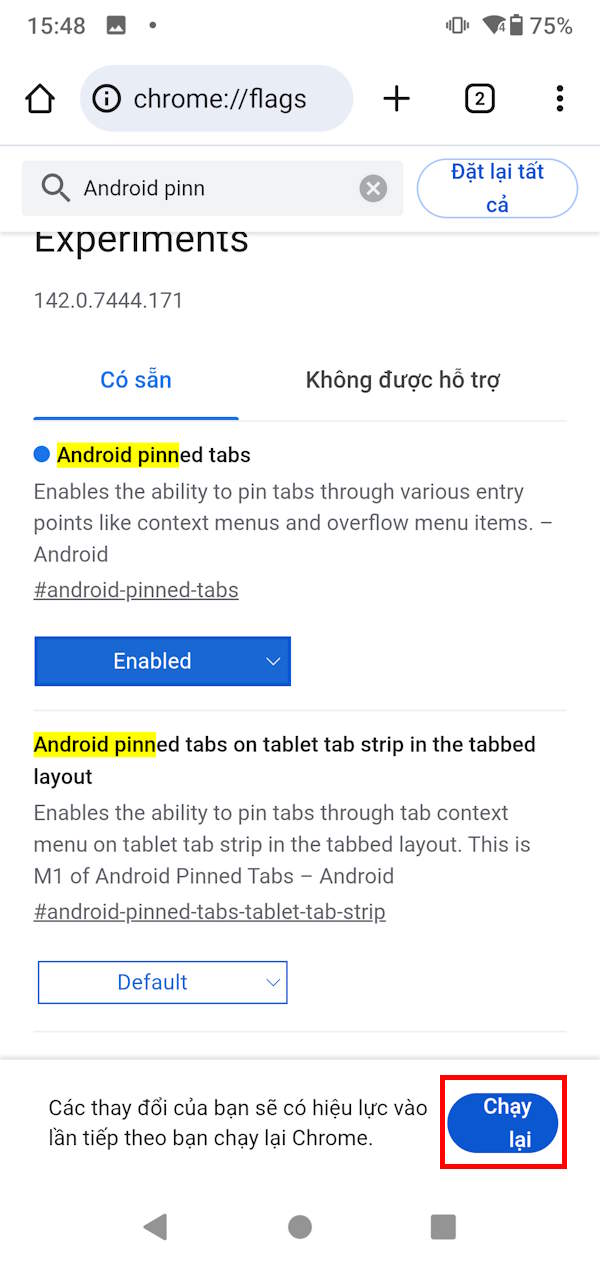
Now you will Click Enabled To start the tab pinning feature on Chrome. Finally, you Restart the browser To apply the changes to Chrome on Android.
Step 3:
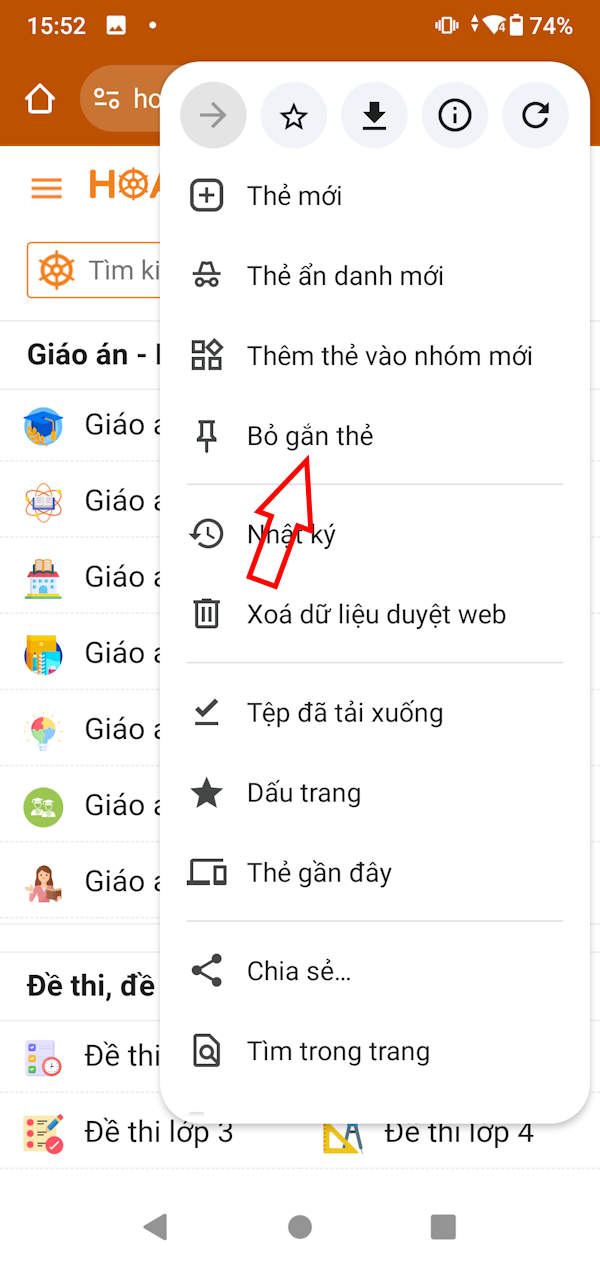
Return to Chrome browser, open the website as usual. Click on The 3-dot icon And Select Pin tab From the displayed list.

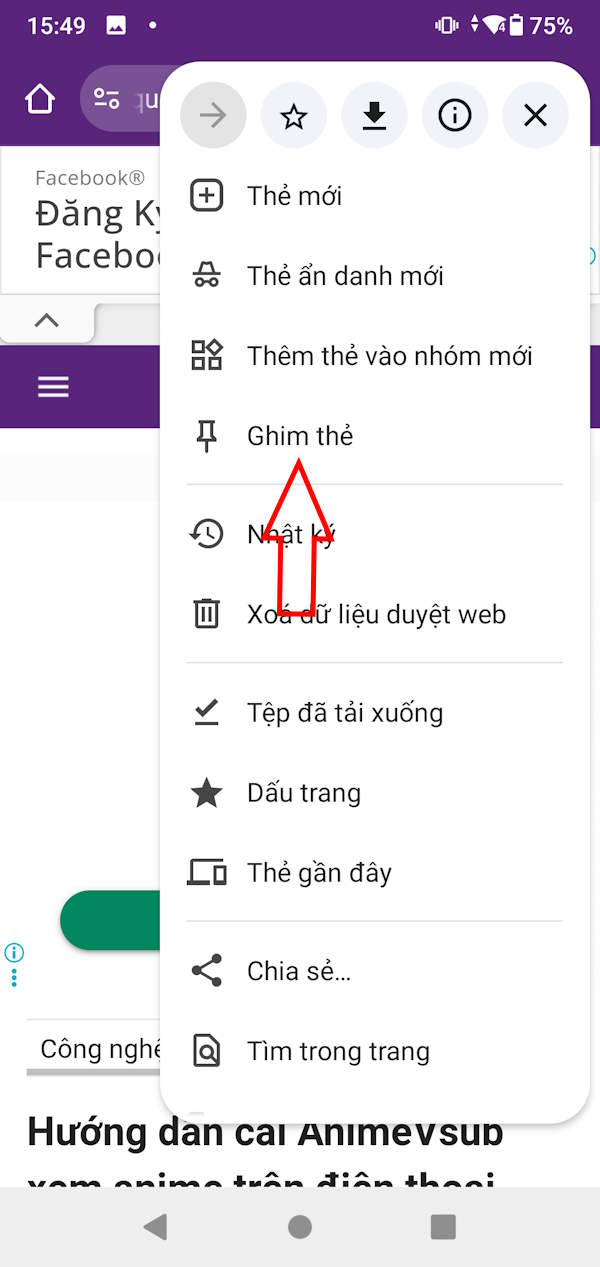
Step 4:
As a result, this guide will see the pinned tab as shown below with the pin icon in the right corner of the tab thumbnail.
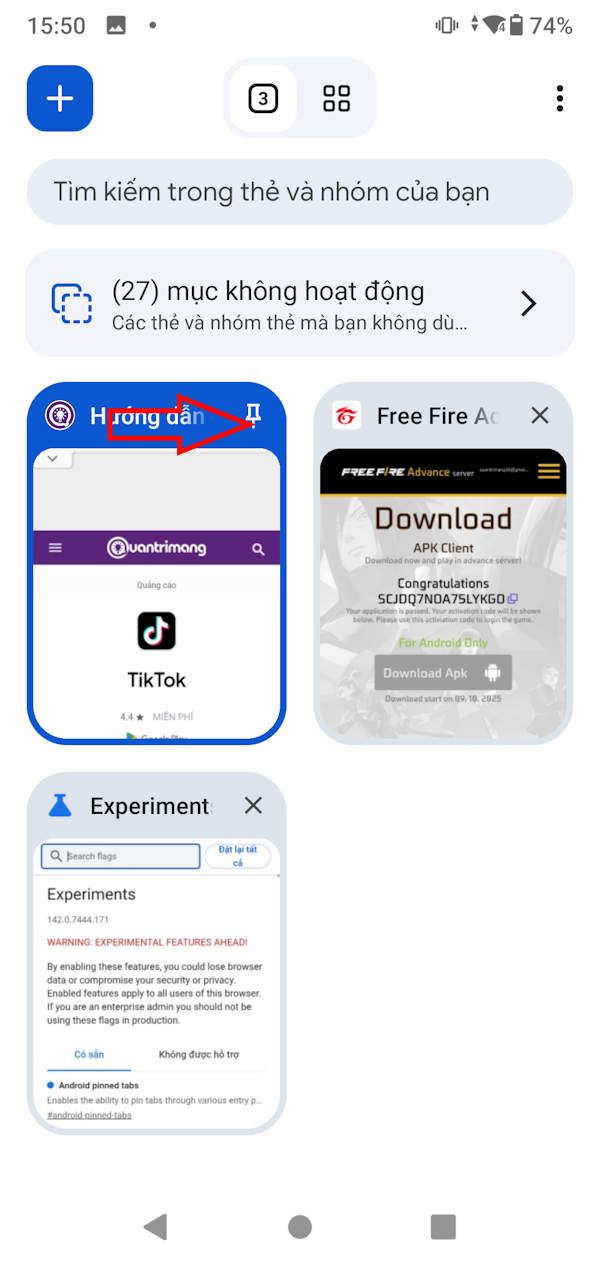
We continue to Pin another tab on the Chrome browser . You will not be limited to the number of pinned tabs on the browser.
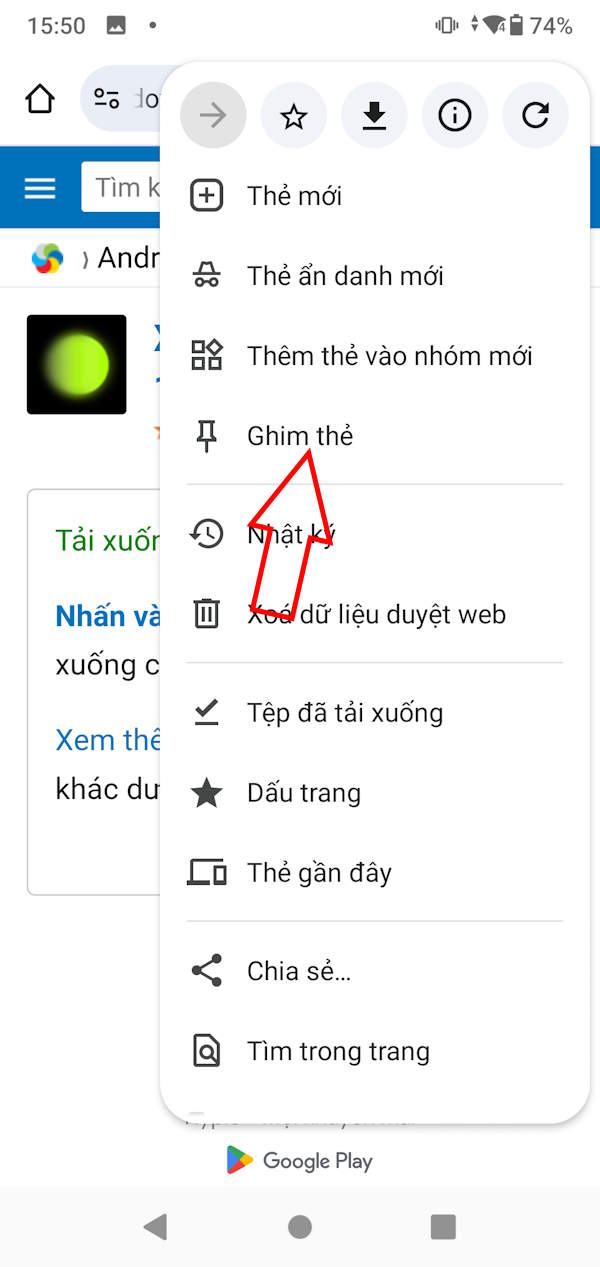
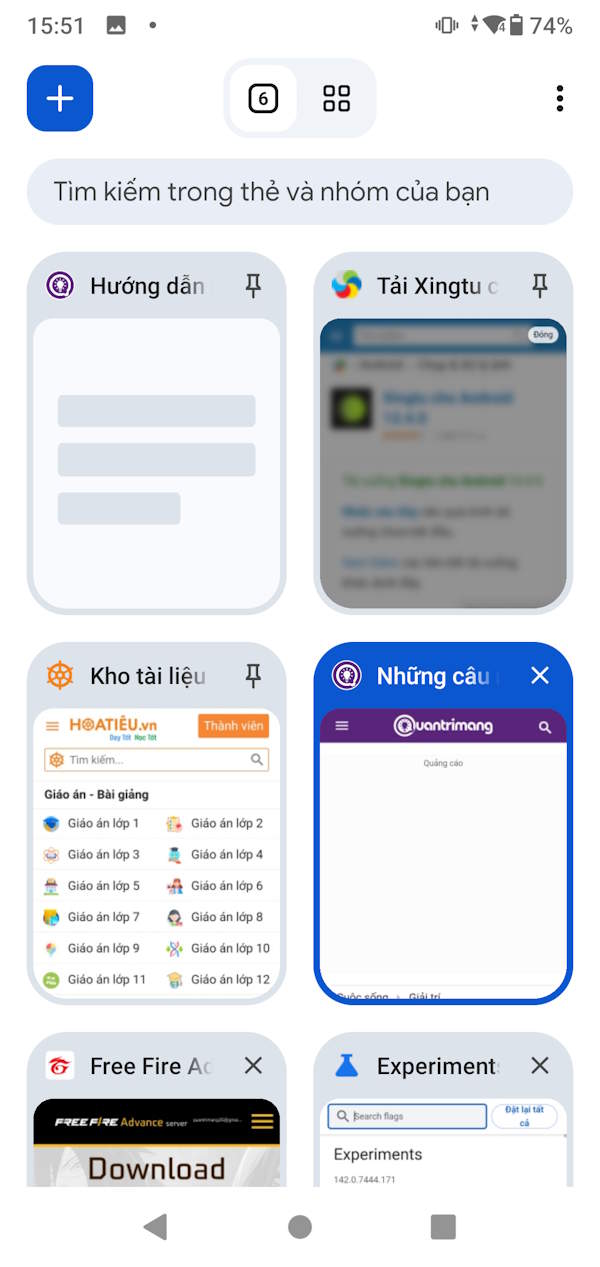
Step 5:
To Unpin a tab on Chrome Android , you can Long-press on the tab And Select Unpin .
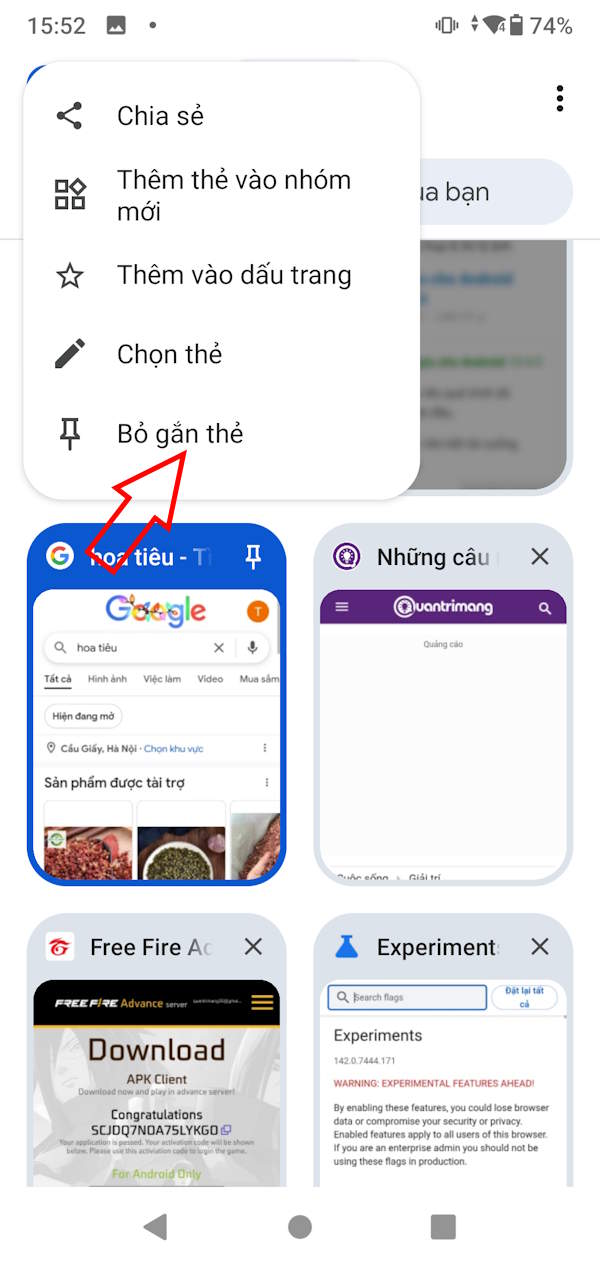
Or in the tab interface, click on the 3-dot icon and select Untag.
FAQ
How do you pin tabs in Chrome for Android?
In practical terms, if you often miss important pages among the countless open tabs, the pinned tab feature on Chrome Android will be extremely useful.
What should you check before getting started?
Review the requirements, compatible device or software version, and any warnings described in the guide before making changes.
What should you do if the steps do not work?
Repeat the steps in order, confirm that your app or system is up to date, and review the troubleshooting details provided above.
Related Articles
 Close All Tabs at the Same Time Will Appear on Google Chrome for Android3 minutes read
 How to Enable Tab Pinning Mode on Chrome Android: Step-by-Step Guide4 minutes read
 How to Hide Tabs for Later Viewing on Chrome6 minutes read
 How to Group Tabs with Web Pages on Chrome5 minutes read
 How to Reopen Many Tabs on Google Chrome: Keeper Chrome Tab4 minutes read
 How to Use Switch Workstation to Manage Tabs on Chrome3 minutes read
Reader Comments 0
Sign in with email or Google to join the discussion.