Table of Contents
A fantasy-map app in Canva can generate an illustrated base map from a text description. Open Canva Apps, find the map generator, choose a map type and art style, describe the geography and landmarks, then add the result to your design. For a usable story or game map, expect to correct labels, routes, scale cues, and geographic continuity manually.
The screenshots below show a Canva app called Fantasy Map. Canva Apps may be supplied by third-party developers, so the app's provider, permissions, limits, and interface can change.
Plan the world before generating it
Write a short map brief before opening the app. An AI generator can illustrate a concept, but it cannot make world-building decisions consistently if the prompt is vague.
| Decision | Example |
|---|---|
| Purpose | Regional map for a tabletop campaign |
| Land shape | One crescent continent with three offshore islands |
| Terrain | Northern mountains, central forest, southern marsh |
| Settlements | One capital, two ports, four villages |
| Routes | Road from the capital to both ports; river from mountains to the eastern sea |
| Visual style | Top-down ink and watercolor, muted earth colors, aged paper |
| Output use | Landscape presentation slide with room for a legend |
If names must be spelled correctly, ask for an unlabeled map and add text in Canva afterward. Image generators frequently distort letters or invent inconsistent place names.
1. Open Canva Apps
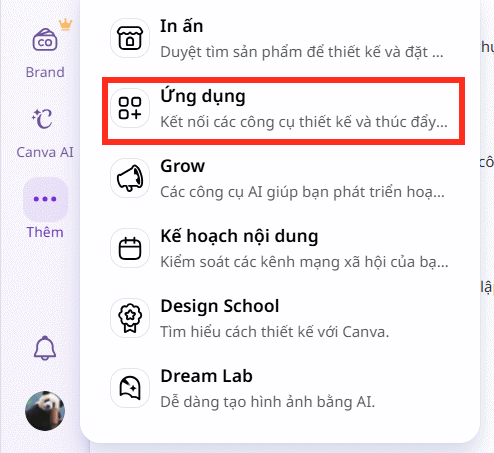
Open an existing design or create a blank canvas with the intended aspect ratio. Select Apps from the side panel or from a More/Add menu in compact layouts.
2. Find the Fantasy Map app
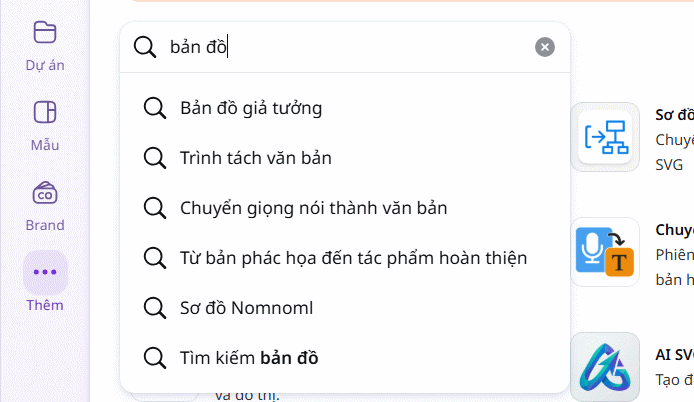
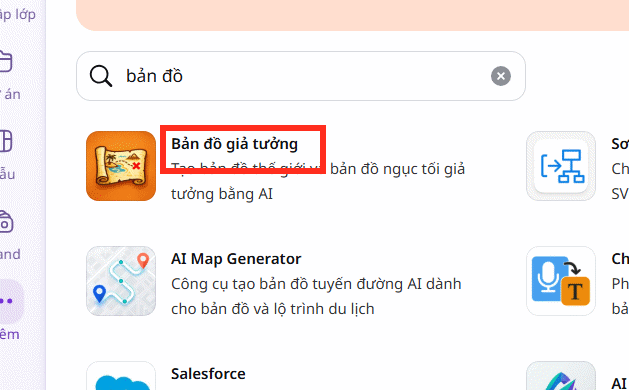
Search for map or fantasy map. Verify the app name, developer, permissions, privacy information, and current usage terms before opening it. Do not assume that every Canva Apps result is created or operated by Canva.
3. Add the app to a design
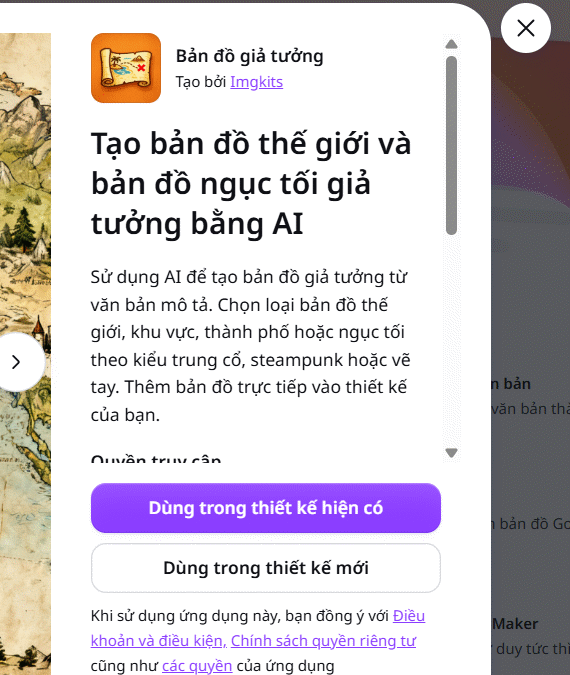
Choose whether to use the generator in the current design or a new design. Create a new design if you still need to choose orientation and size. Use the current design when the map must fit an existing book page, campaign handout, lesson slide, or social post.
4. Choose the map type and visual style
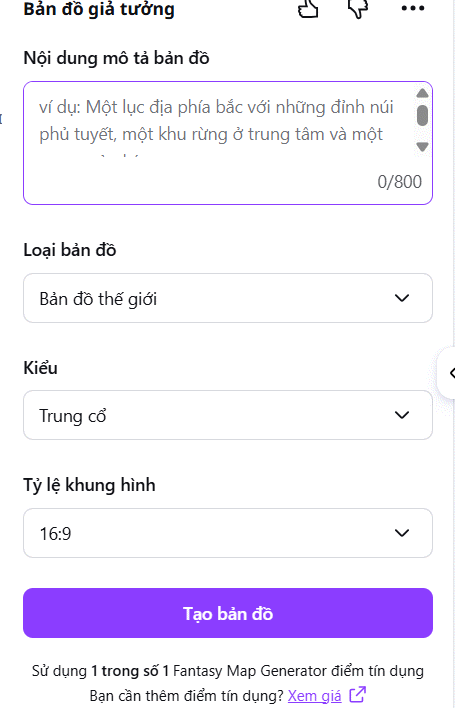
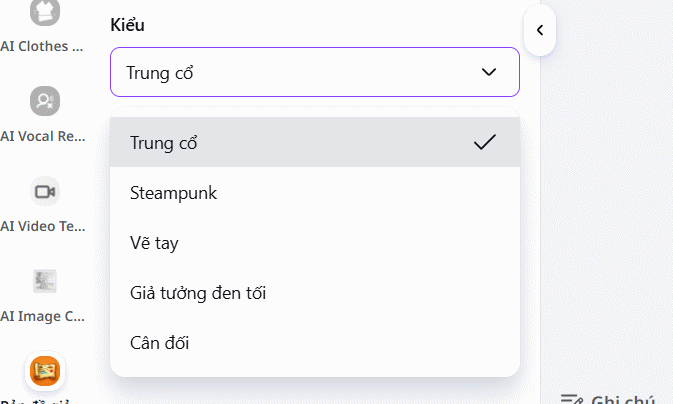
Open the available generation controls. The app may offer world, region, island, city, dungeon, or educational-map categories, plus art-style presets. Choose a type that matches the scale you need: a continental map should not try to show individual city streets, while a city map does not need an entire planet.

5. Write a structured map prompt
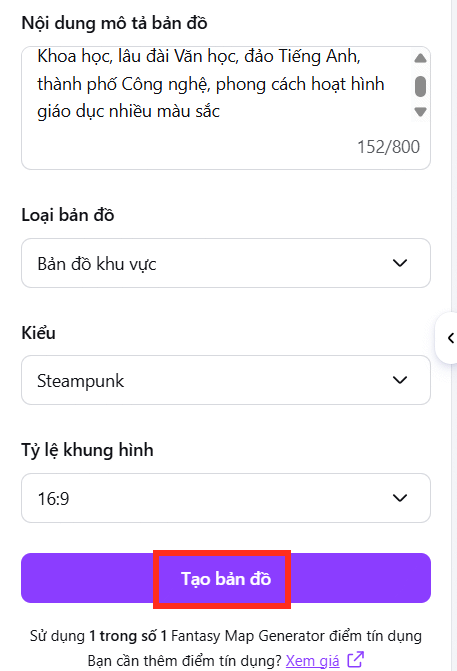
Describe the map in a consistent order: scale, landform, terrain, settlements, routes, important landmarks, viewpoint, art style, palette, and exclusions. For example:
Top-down regional fantasy map for a tabletop campaign. One crescent-shaped landmass with three islands to the east. Snowy mountains in the north feed a river through a central pine forest to a southern port. Add one walled capital, two coastal towns, an abandoned tower, roads connecting the settlements, and space for a legend. Hand-drawn ink and watercolor on aged parchment, muted blue and brown palette, no labels, no modern buildings, no decorative frame.
Avoid contradictions such as requesting a “minimal map” with dozens of named landmarks. If a result is close, change one variable at a time instead of rewriting the entire prompt.
6. Generate and add the map to Canva
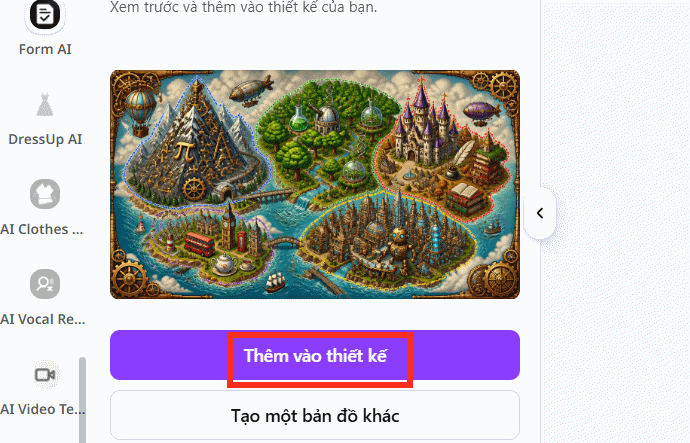
Select Create and review the result before using another generation credit. Choose Add to design when the base image is usable.
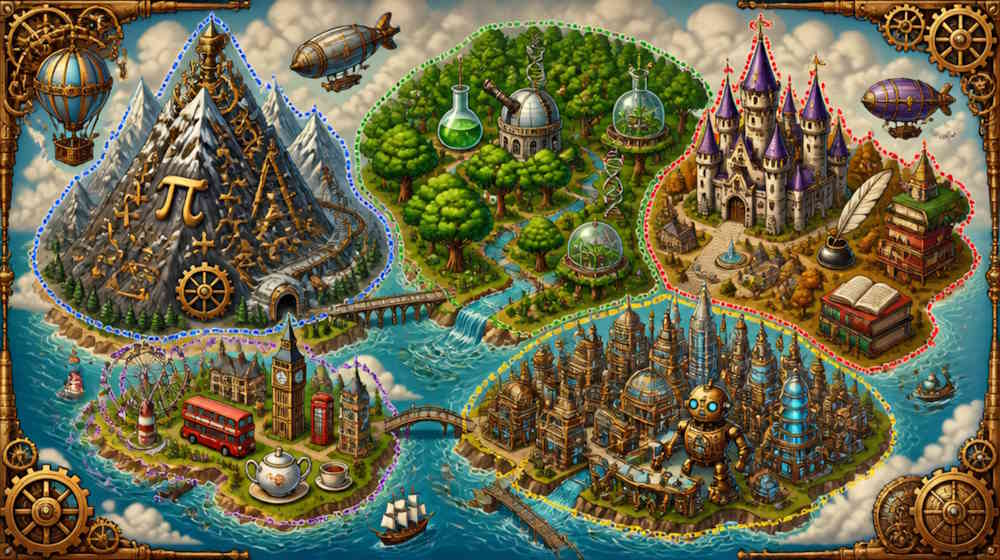
Check the map before adding labels
- Land and water: coastlines should be readable and islands should not merge accidentally with decorative textures.
- Terrain: mountain ranges, forests, deserts, and marshes should occupy intentional regions.
- Rivers and routes: paths should connect the places the story requires and should not end randomly.
- Scale: icons should not imply conflicting distances or settlement sizes.
- Story continuity: borders, travel routes, ports, and obstacles should match the plot or game rules.
- Legibility: major features should remain visible at the final print or screen size.
For real-world geography, safety instructions, classroom facts, or navigation, use verified map data instead of an AI fantasy image. Canva's map maker also supports manual maps, elements, labels, lines, and drawing tools.
Add reliable labels and map furniture manually
Use Canva text boxes for every important place name. Apply a small, consistent type hierarchy: largest for continents or kingdoms, medium for cities and regions, and smallest for rivers or landmarks. Add a subtle outline or background only when labels disappear into the artwork.
A legend, compass rose, border, grid, and scale bar should serve the project rather than decorate it automatically. Add a scale only if distances are intentional and consistent. Group each label with its marker so edits do not leave names behind.
Improve the result without losing consistency
- Generate the base map without text, then label it in Canva.
- Duplicate the design before making a major visual change.
- Use one palette and one icon family across the map.
- Crop or mask an attractive region rather than forcing a flawed full map to work.
- Keep a written map key with canonical spellings, distances, and settlement roles.
- Use broad art descriptions rather than asking to copy a named living artist or an existing franchise map.
TipsMake's review of Canva's AI background workflow shows why prompt iteration matters. For alternate image-generation approaches, compare its list of AI tools that turn photos into art, while checking current terms and output rights for each service.
Export the finished map
Use PNG for a crisp digital image, JPG for a smaller image file, or PDF Print for a handout. Test the map at its actual display or print size: labels that look clear at 200% zoom may disappear on a phone or A4 page. Keep the editable Canva design and the written map key so later chapters or game sessions use the same names and geography.
If Fantasy Map is unavailable
The app may have been renamed, removed, limited by a Canva administrator, or made unavailable in your region. Search Canva Apps for a verified alternative, or create a fantasy map manually from a base land shape, Draw strokes, map illustrations, lines, labels, and symbols. Manual construction takes longer but gives much better control over exact geography and spelling.
Related Articles
 5 Steps to Design a Free Logo on Canva3 minutes read
 Design Infographics in Canva AI from Data4 minutes read
 How Do I Convert Between Different Design Formats in Canva: Explained4 minutes read
 How to Design iPhone Logos and Cards with Canva7 minutes read
 Guide to Creating 3D Designs Using AI in Canva4 minutes read
 How to Create Leaflets Using Canva9 minutes read
Reader Comments 0
Sign in with email or Google to join the discussion.