How to delete Edge tabs from Alt + Tab
Displaying multiple browser tabs on the Alt + Tab window can sometimes be annoying for users because the interface is quite messy. In case you don't like this display style, follow the instructions below to remove the Edge tab from Alt + Tab..
Displaying multiple browser tabs on the Alt + Tab window can sometimes be annoying for users because the interface is quite messy. In case you don't like this display style, follow the instructions below to remove the Edge tab from Alt + Tab.
Turn off Multitasking mode delete Edge tab from Alt + Tab
Windows has a multitasking feature that makes it easier to switch between apps and windows and tabs. For browsers like Edge, opening multiple tabs can become overwhelming.
Step 1:
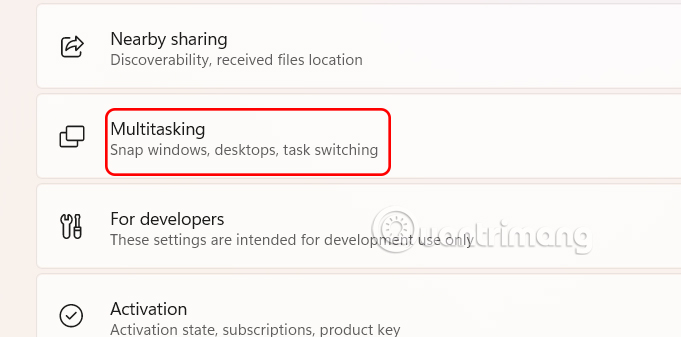
Press Windows + I key combination then press System then look to the right and select Multi-tasking .
Step 2:
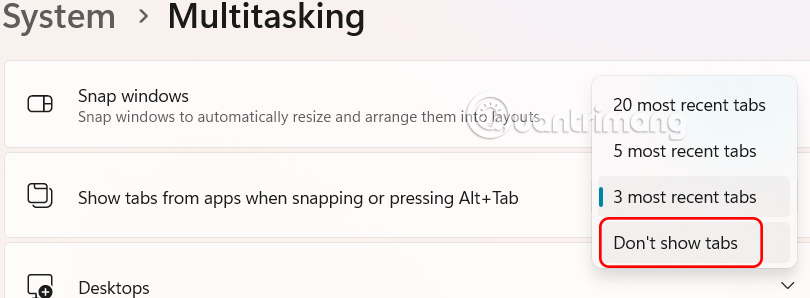
Switch to the new interface at Show tabs from apps when snapping or pressing Alt + Tab , we select Don't show tabs in the display menu.
You will now have a window for each application on the Alt + Tab menu.
How to Remove Edge Tabs from Alt + Tab via Regedit
Step 1:
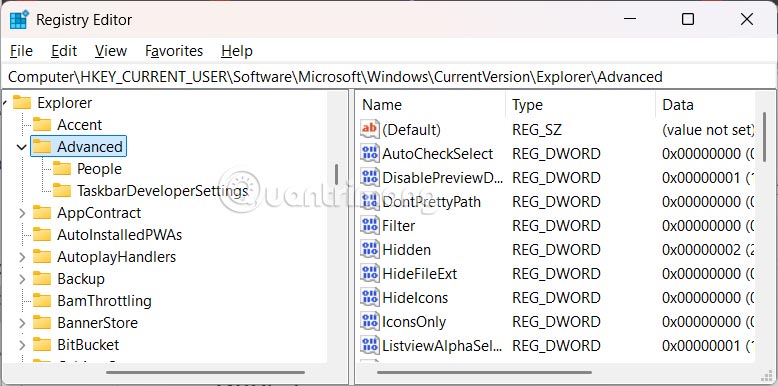
You press the Windows + R key combination and then type regedit in the interface. Next, we navigate to the item.
HKEY_CURRENT_USERSOFTWAREMicrosoftWindowsCurrentVersionExplorerAdvanced
Step 2:
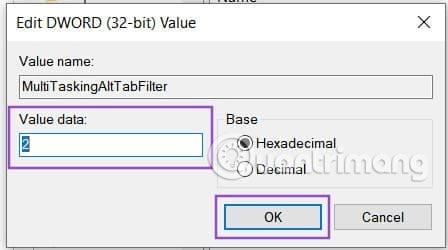
Double-click MultiTaskingAltTabFilter to make your adjustments. Change the value in the Value Data field to the number you want. In this case, 0 will display up to 20 tabs, 1 will display five tabs, 2 will display three tabs, and 3 will display no tabs. Enter your preferences and click OK.
 Marvin Fry