Table of Contents
Learn how to customize the liquid glass lock screen clock on iPhone with clear steps, practical tips, and troubleshooting guidance for a reliable result.
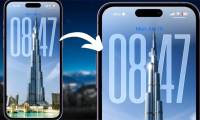
Guide to customizing the Liquid Glass lock screen clock on iPhone
Step 1
We press and hold the iPhone lock screen and then select Customize to edit the lock screen.
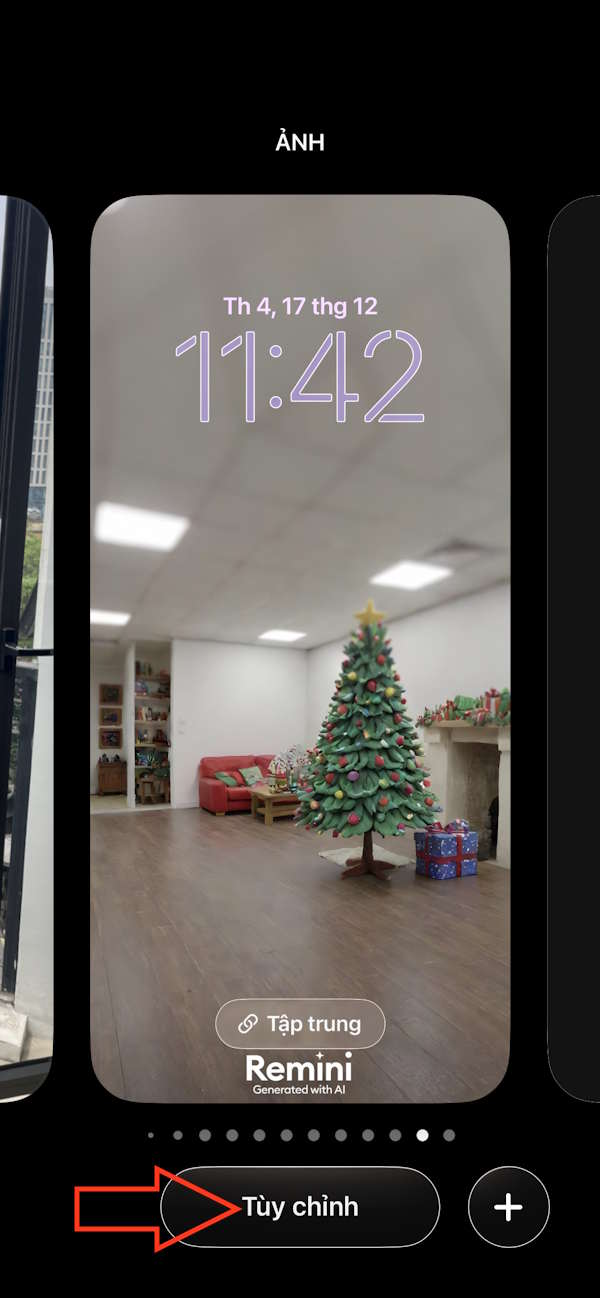
Step 2
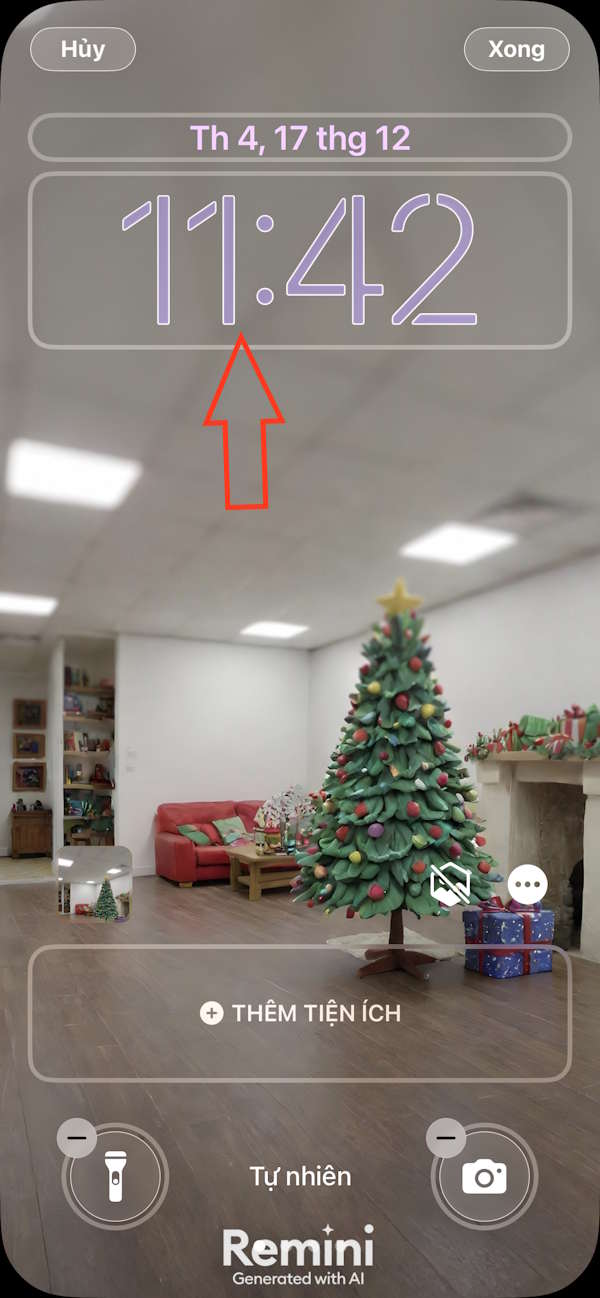
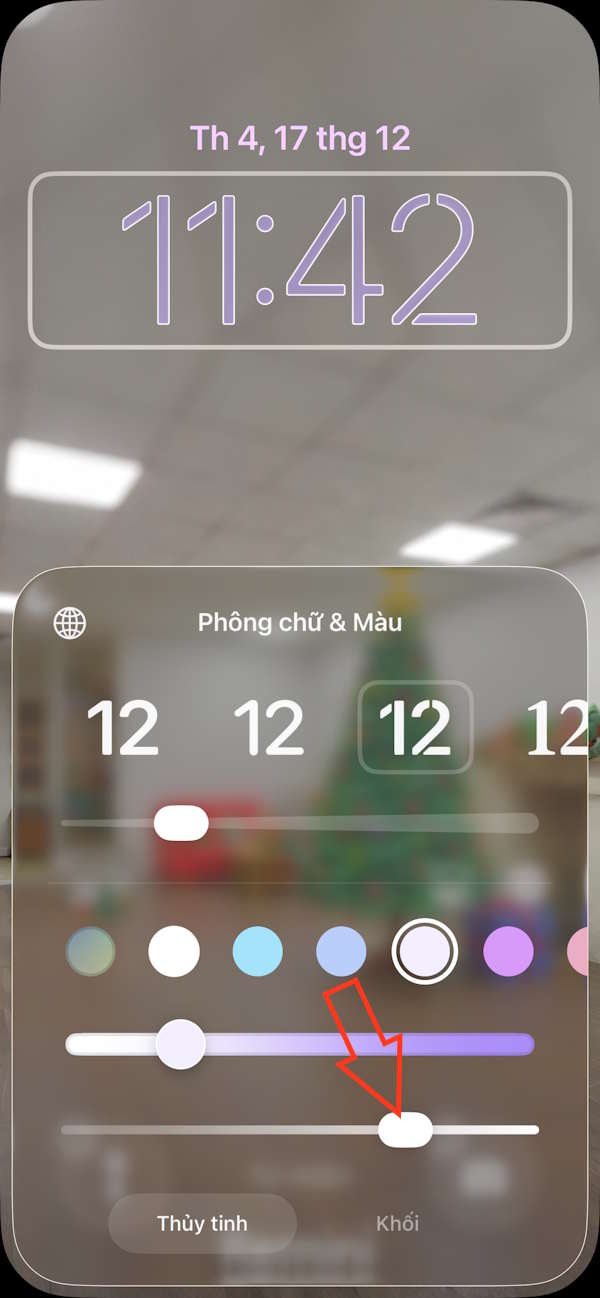
Switch to the lock screen settings interface, then tap the clock area to adjust it . Now, adjust the Glass slider to set the Liquid Glass effect for the lock screen clock on your iPhone.
Step 3
You can adjust the Liquid Glass effect for your lock screen clock to your liking. Dragging the slider to the left will increase the Liquid Glass effect.
The clock also changes its effects so you can preview them before exiting this editing interface.
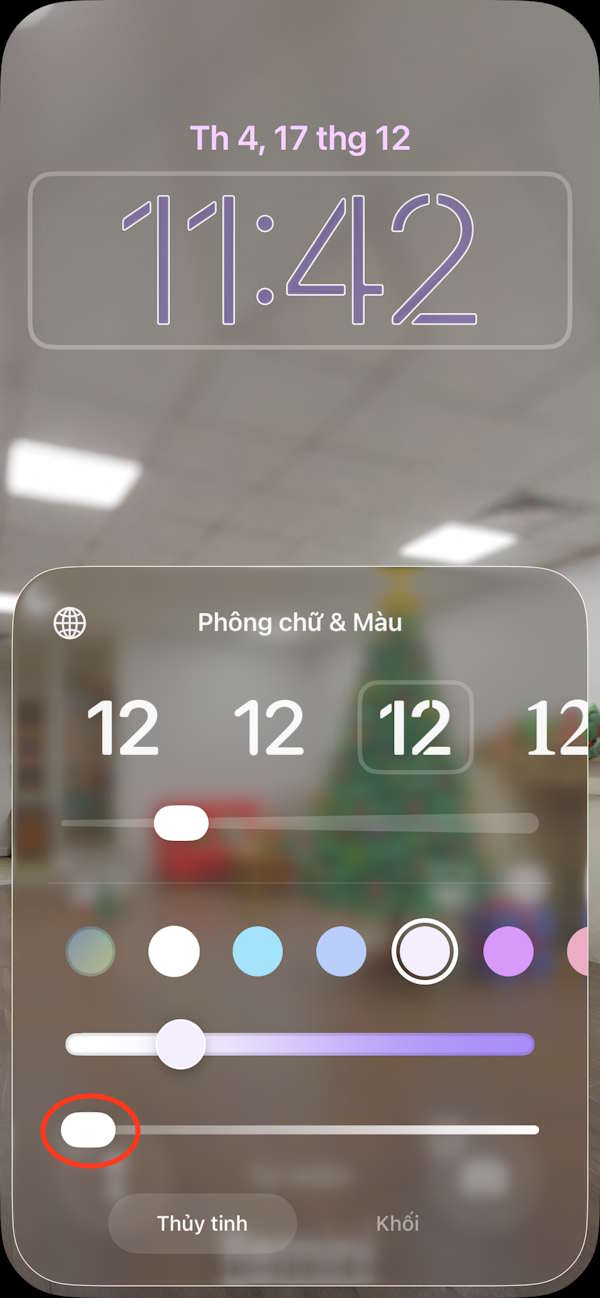
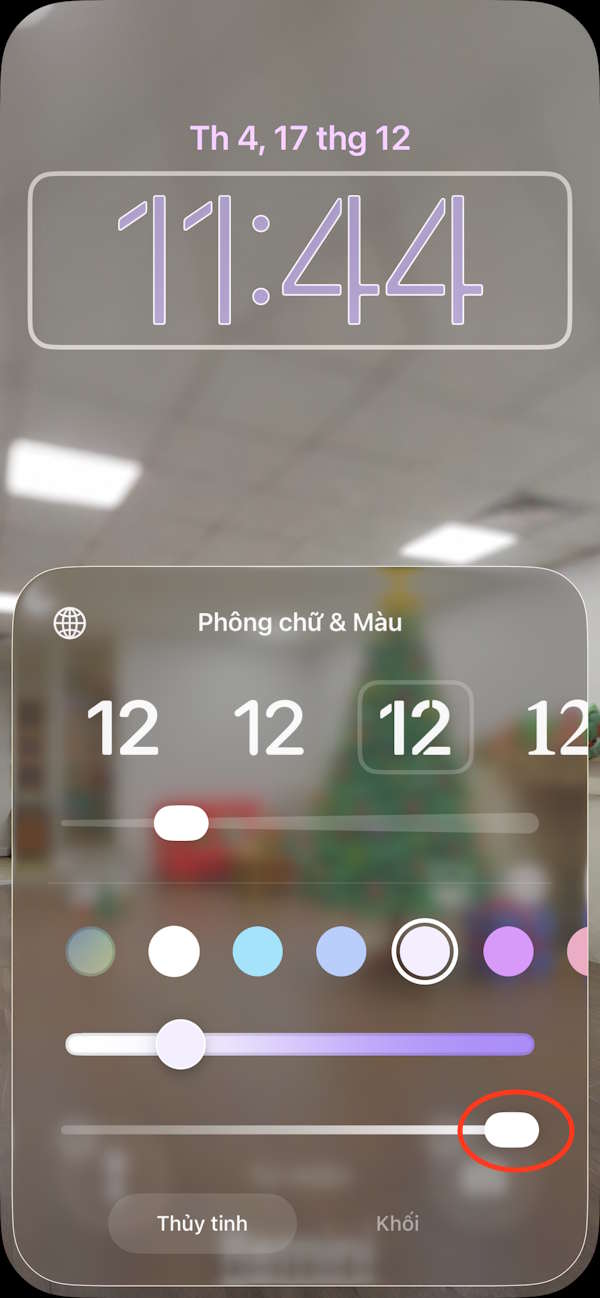
Finally, simply exit the iPhone lock screen editing interface to save the Liquid Glass effect for your iPhone lock screen clock.
Final Thoughts
Use this guide as a practical checklist for how to customize the liquid glass lock screen clock on iphone. Work through the steps in order, verify each result, and adjust the options to match your needs.
FAQ
What do you need before following this How to Customize the Liquid Glass Lock Screen Clock on iPhone guide?
Review the required tools, accounts, settings, or materials mentioned in the article. Learn how to customize the liquid glass lock screen clock on iPhone with clear steps, practical tips, and troubleshooting guidance for a reliable result.
What are the main steps for how to customize the liquid glass lock screen clock on iphone?
Follow the sections in order, especially Guide to customizing the Liquid Glass lock screen clock on iPhone, Step 1, Step 2. Complete each step before continuing and verify the result as you go.
What should you do if the process does not work as expected?
Recheck the prerequisites, update the relevant app or service, review the settings, and repeat the step that caused the issue. Use any troubleshooting notes included in the guide.
Related Articles
 How to Create Liquid Glass Effect on iPhone Screen4 minutes read
 Is It Possible to Move the Clock Position on the iPhone Lock Screen? Options to8 minutes read
 How to Disable Liquid Glass in iOS 26 on iPhone6 minutes read
 Tips for Creating a Moving iPhone Lock Screen Wallpaper Effect4 minutes read
 How to Customize iPhone Lock Screen4 minutes read
 Instructions to Enlarge iPhone Lock Screen Clock2 minutes read
Reader Comments 0
Sign in with email or Google to join the discussion.