Table of Contents
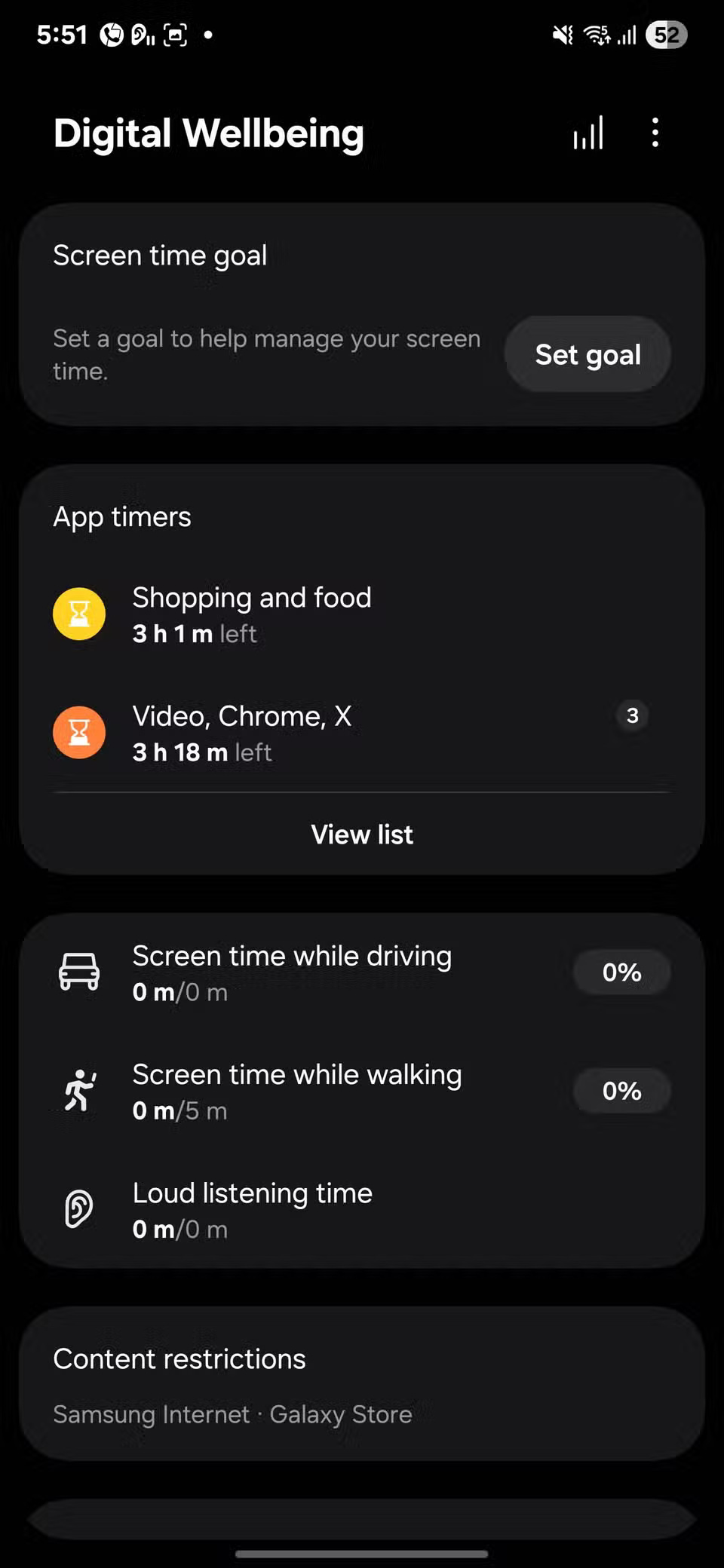
Open Settings > Digital Wellbeing and parental controls on your Samsung Galaxy phone to check your screen time, most-used apps, and alerts. The numbers can show when you reach for your phone and which apps take up time. Use them to choose one change you can measure over a week.
Read your daily and weekly reports
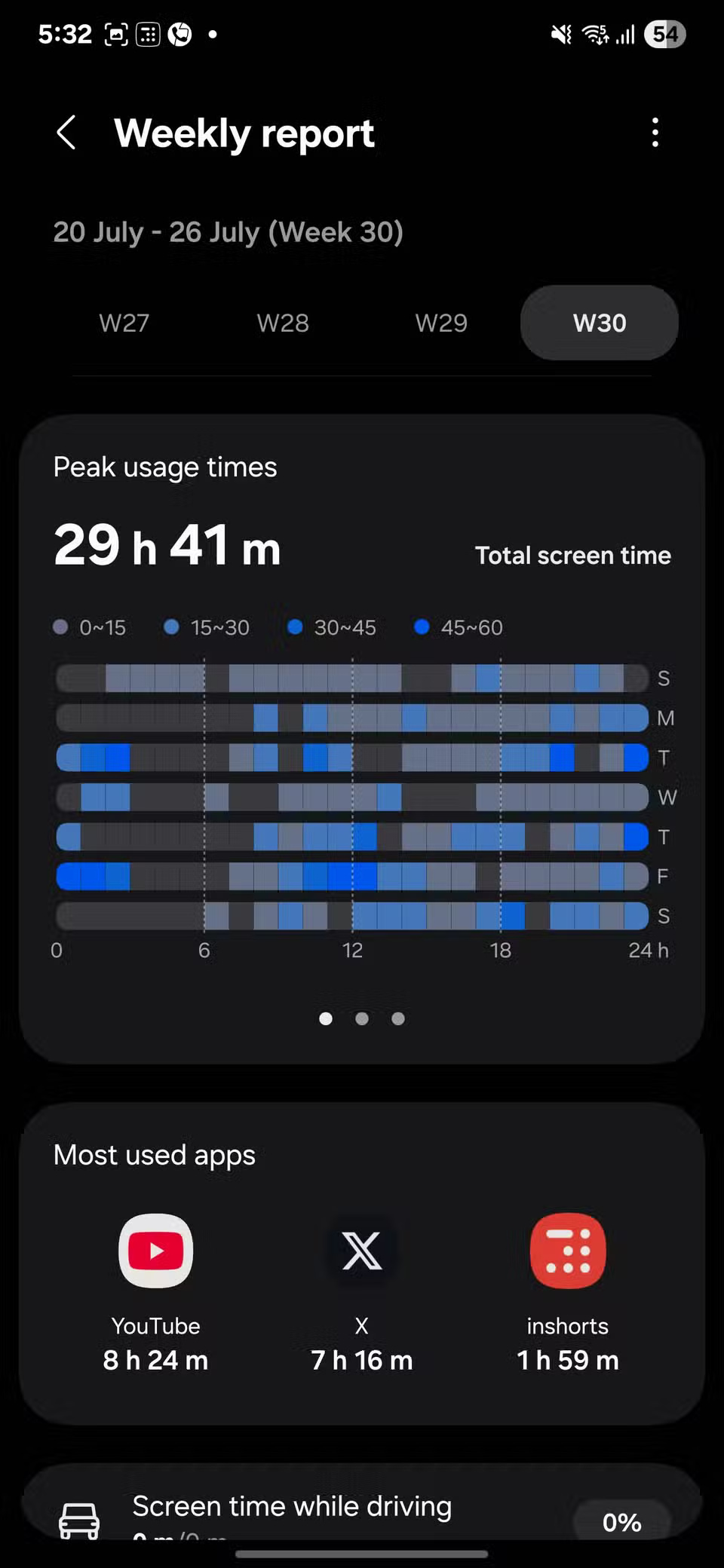
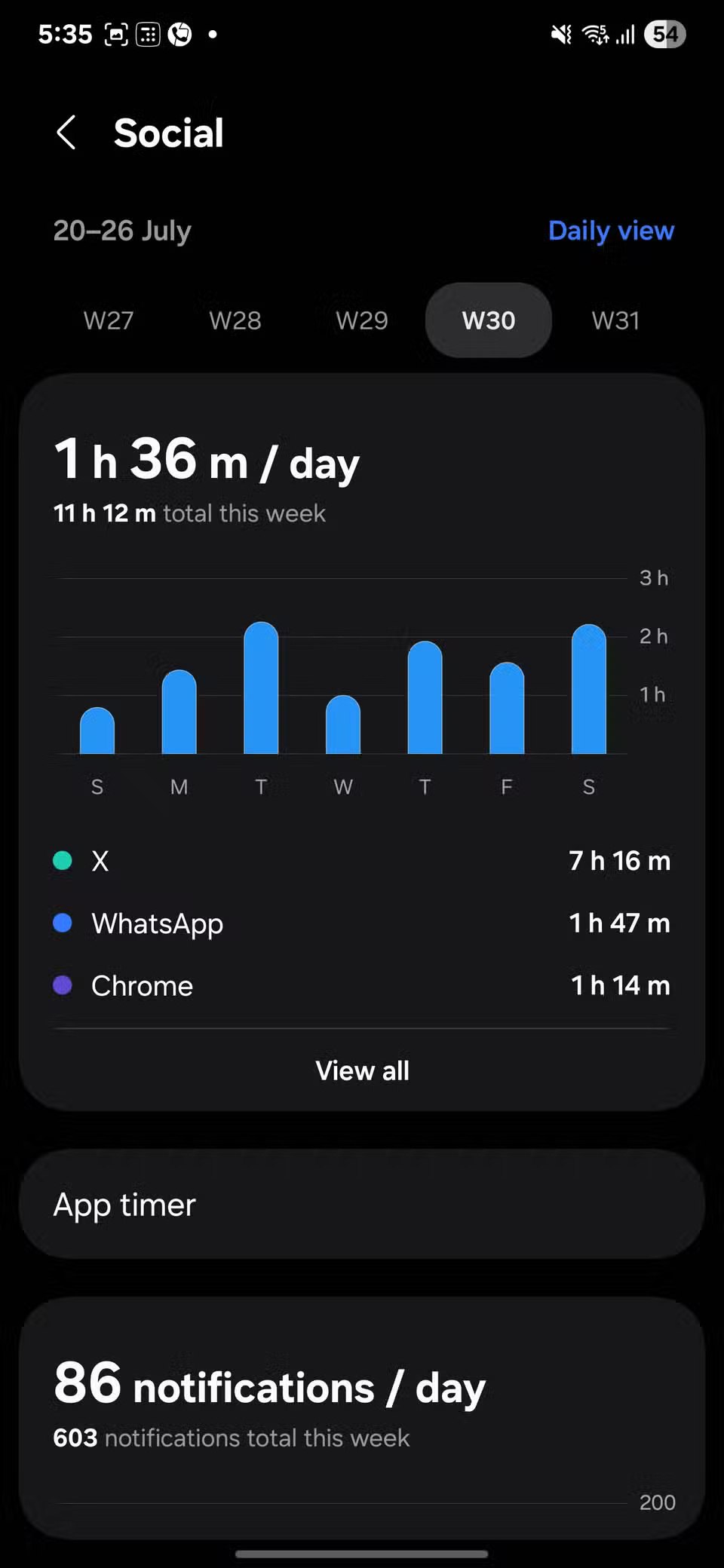
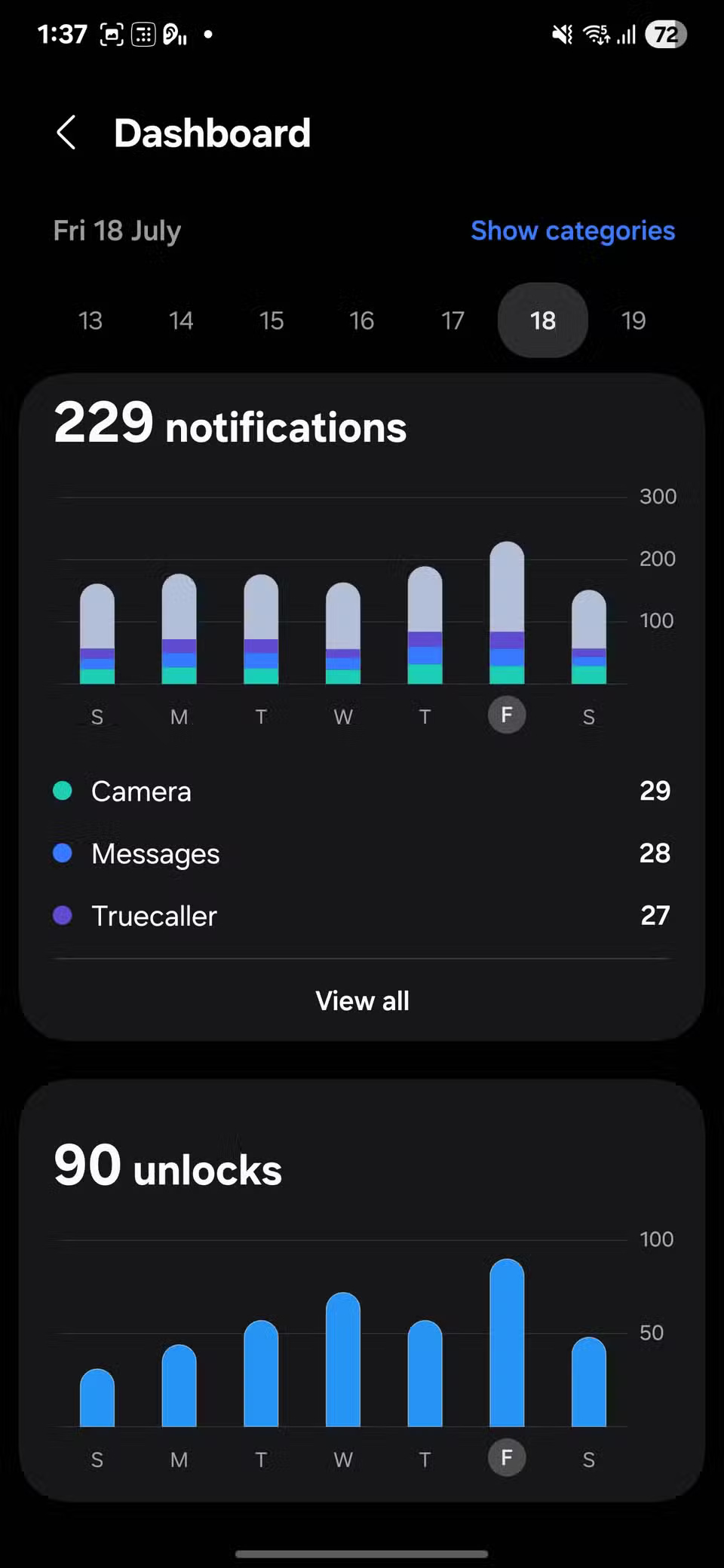
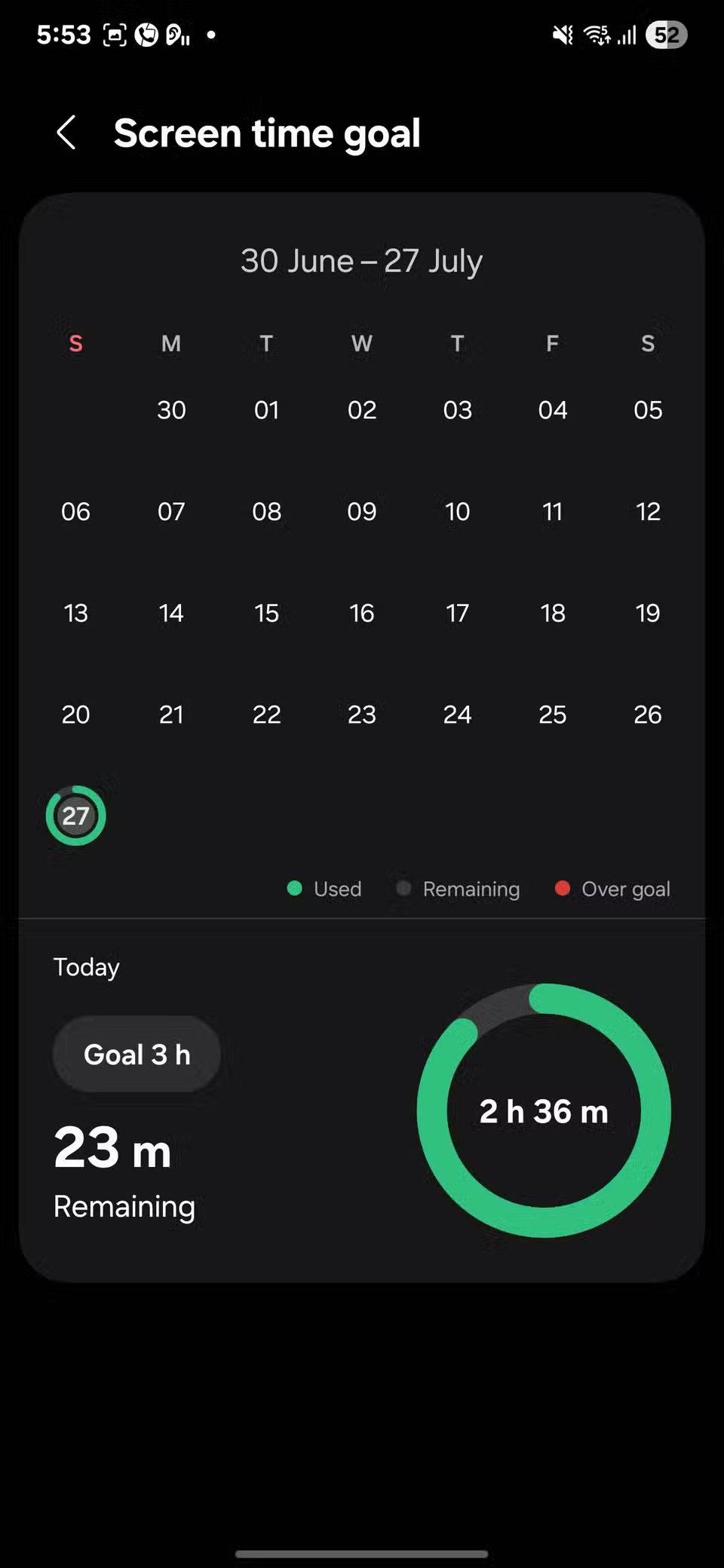
Tap the chart for details by app. Where available, compare time on screen with the number of times you opened apps or unlocked the phone and the notifications you received. Use the weekly report to spot patterns, such as video after bedtime or repeated interruptions while working. Time on maps or a work call means something different from time in an app you meant to close.
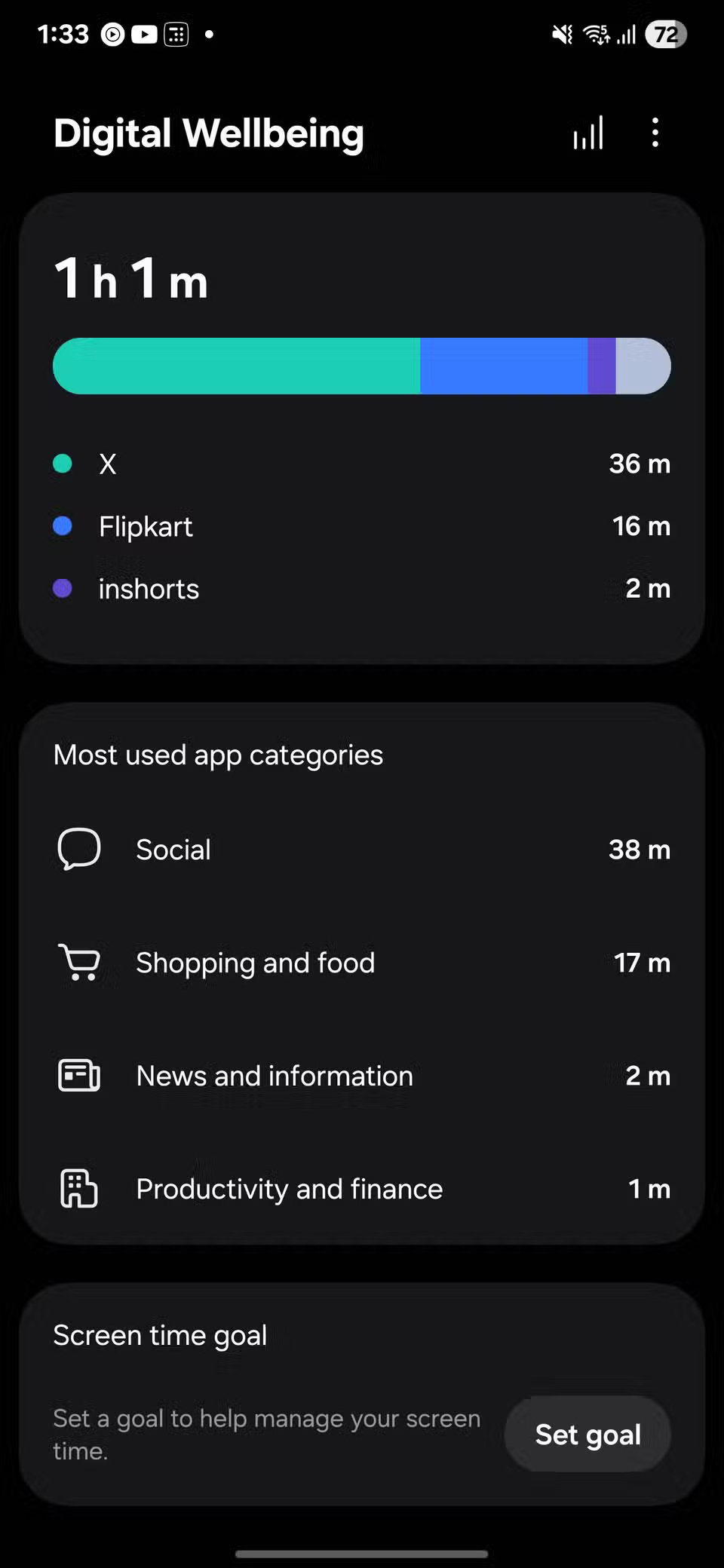
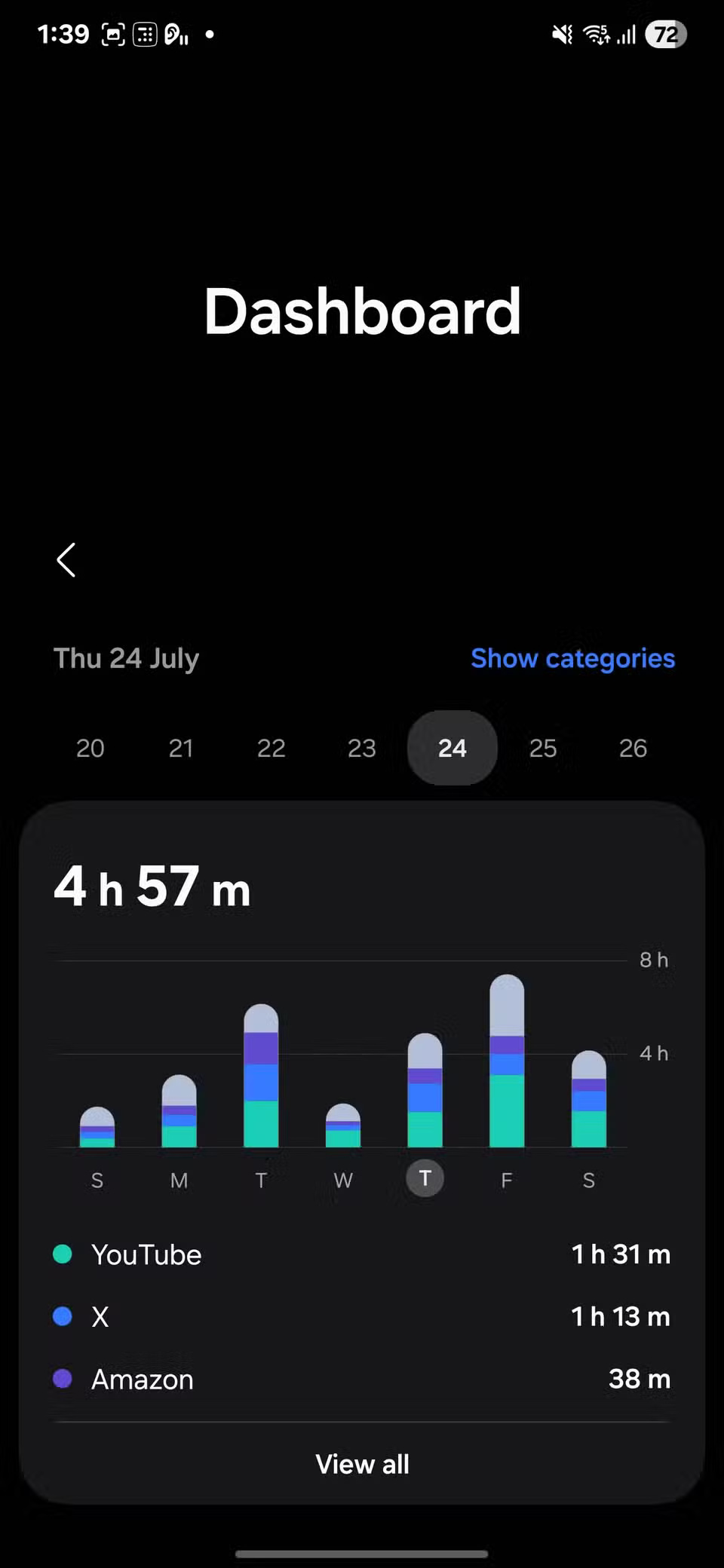
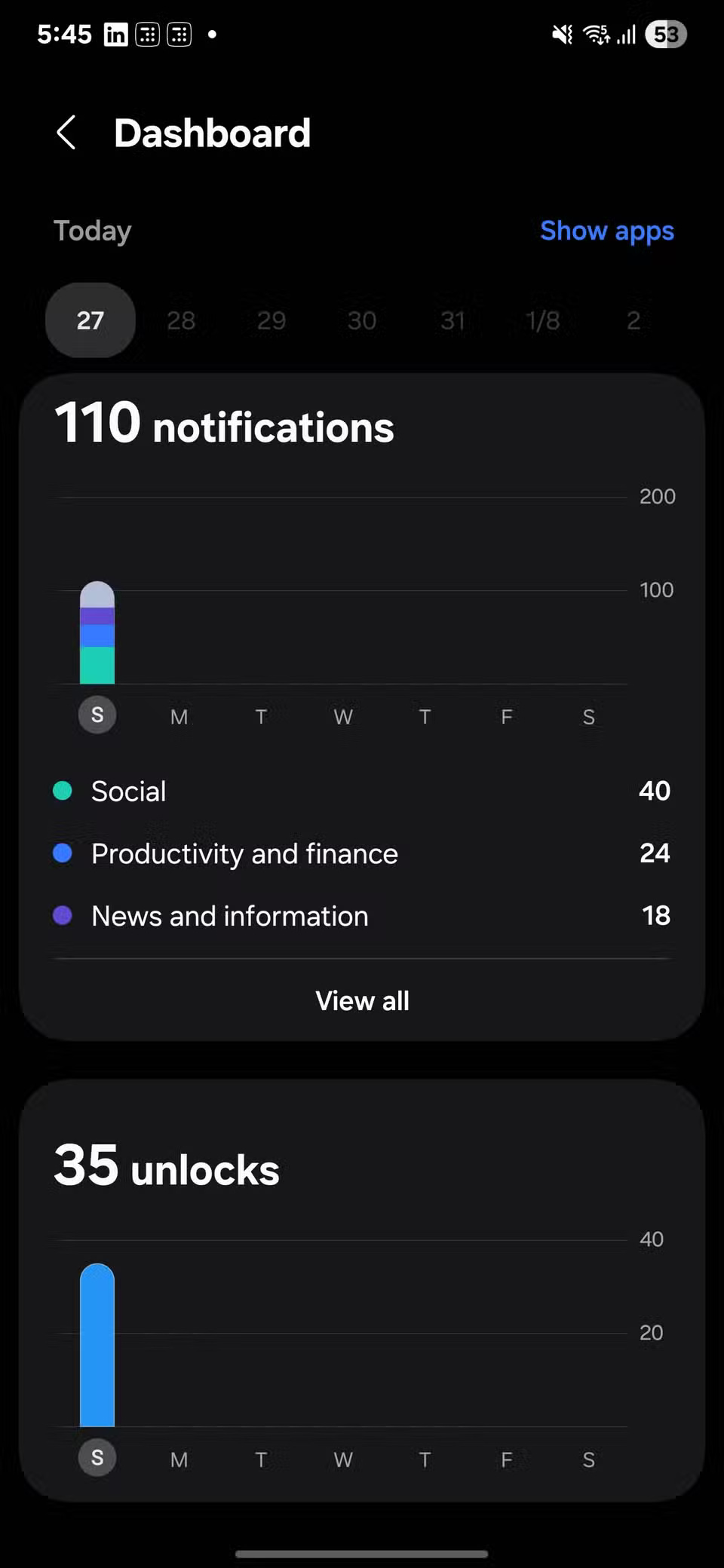
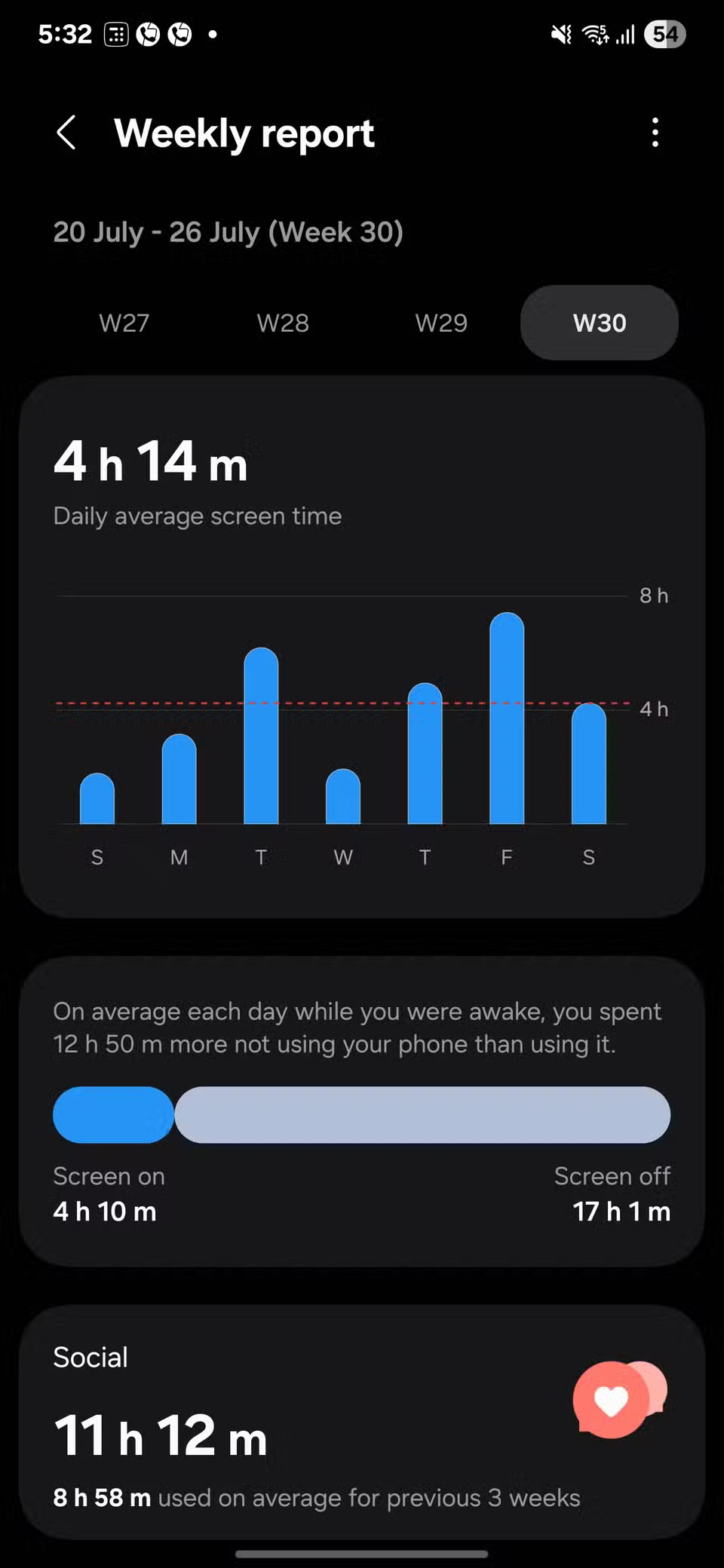
Choose a goal or limit one app
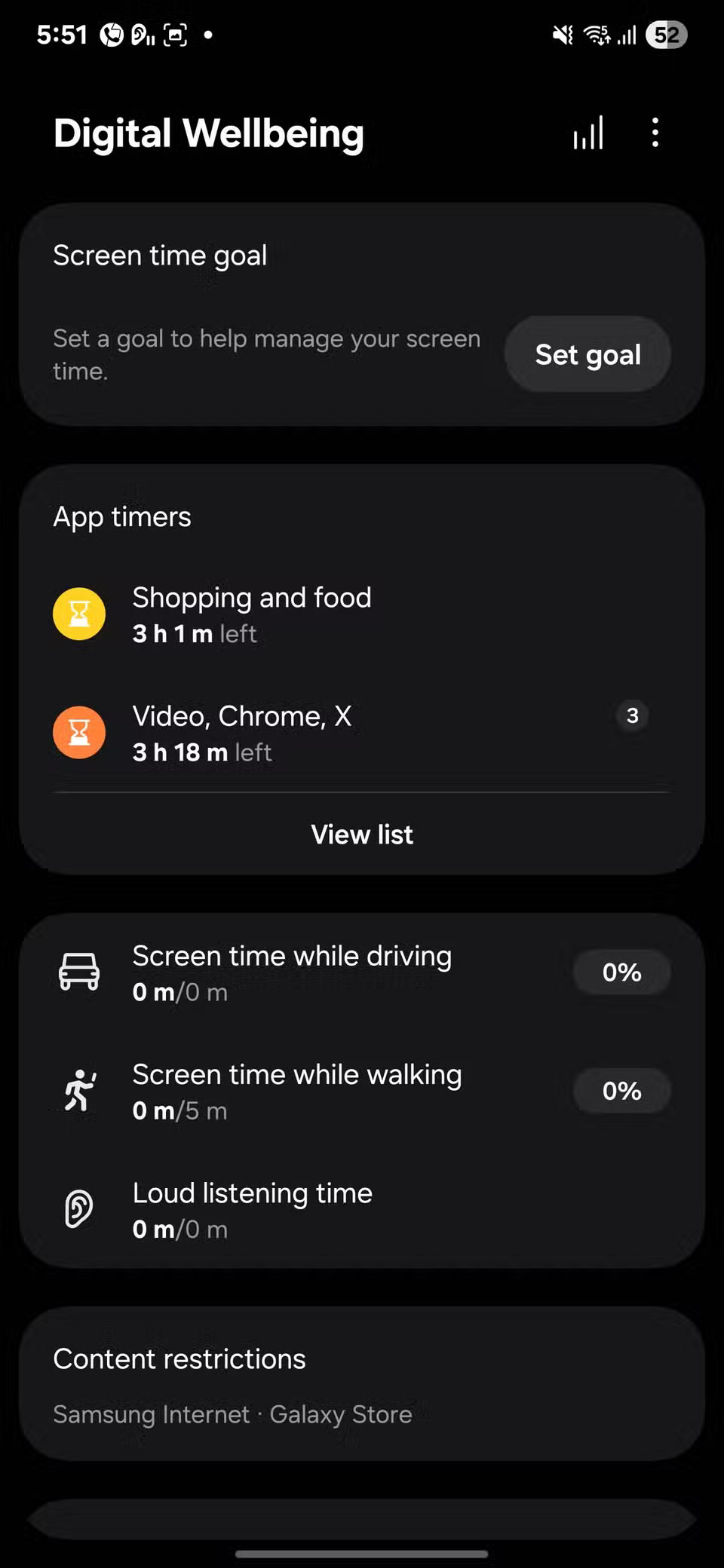
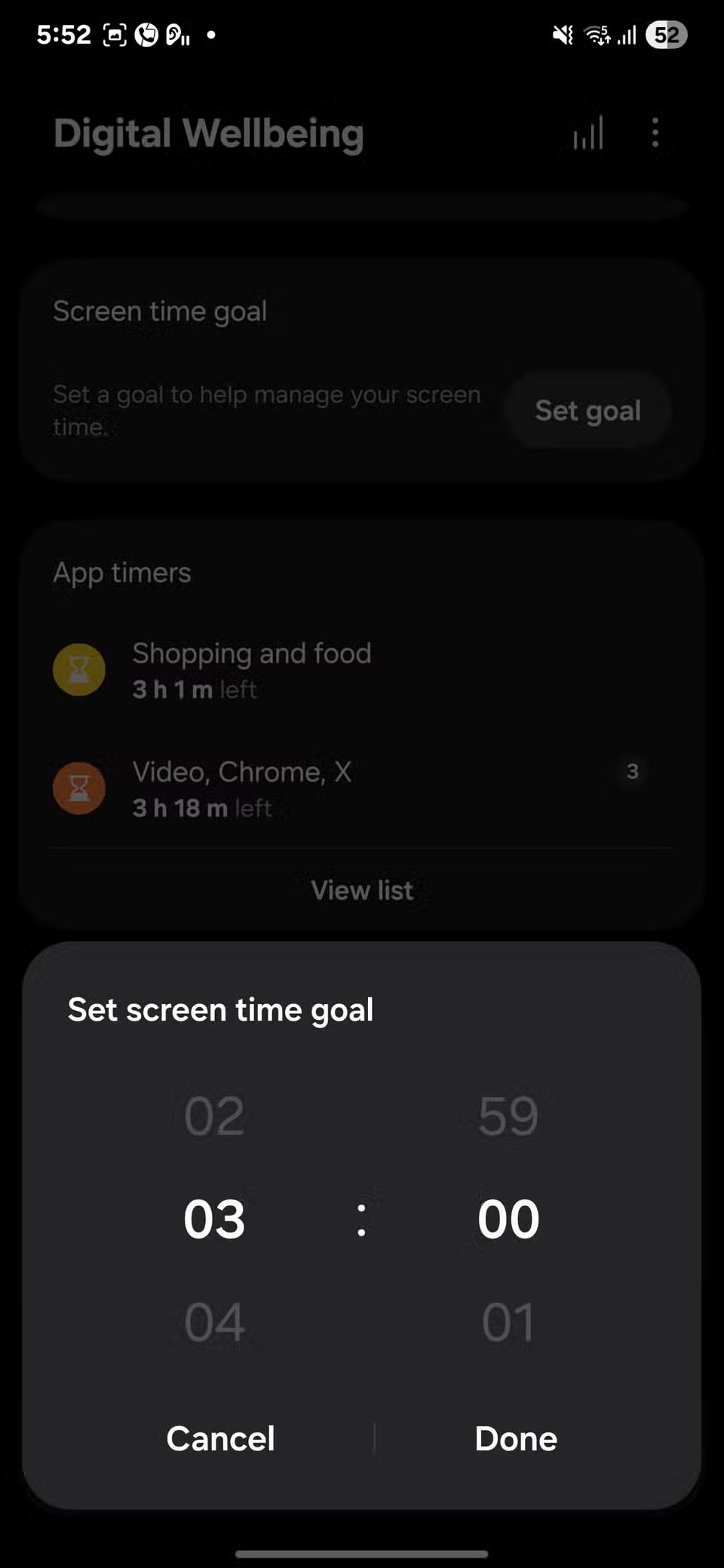
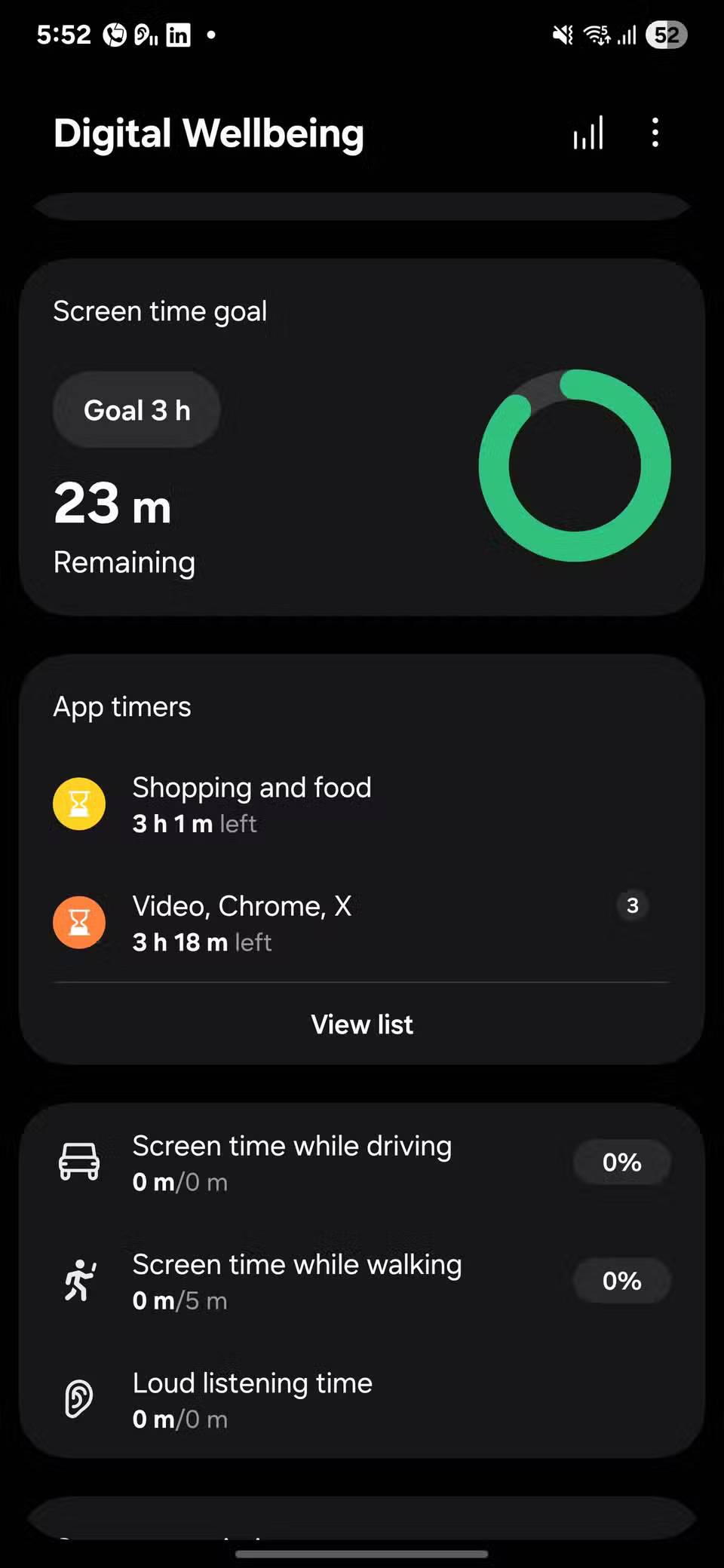
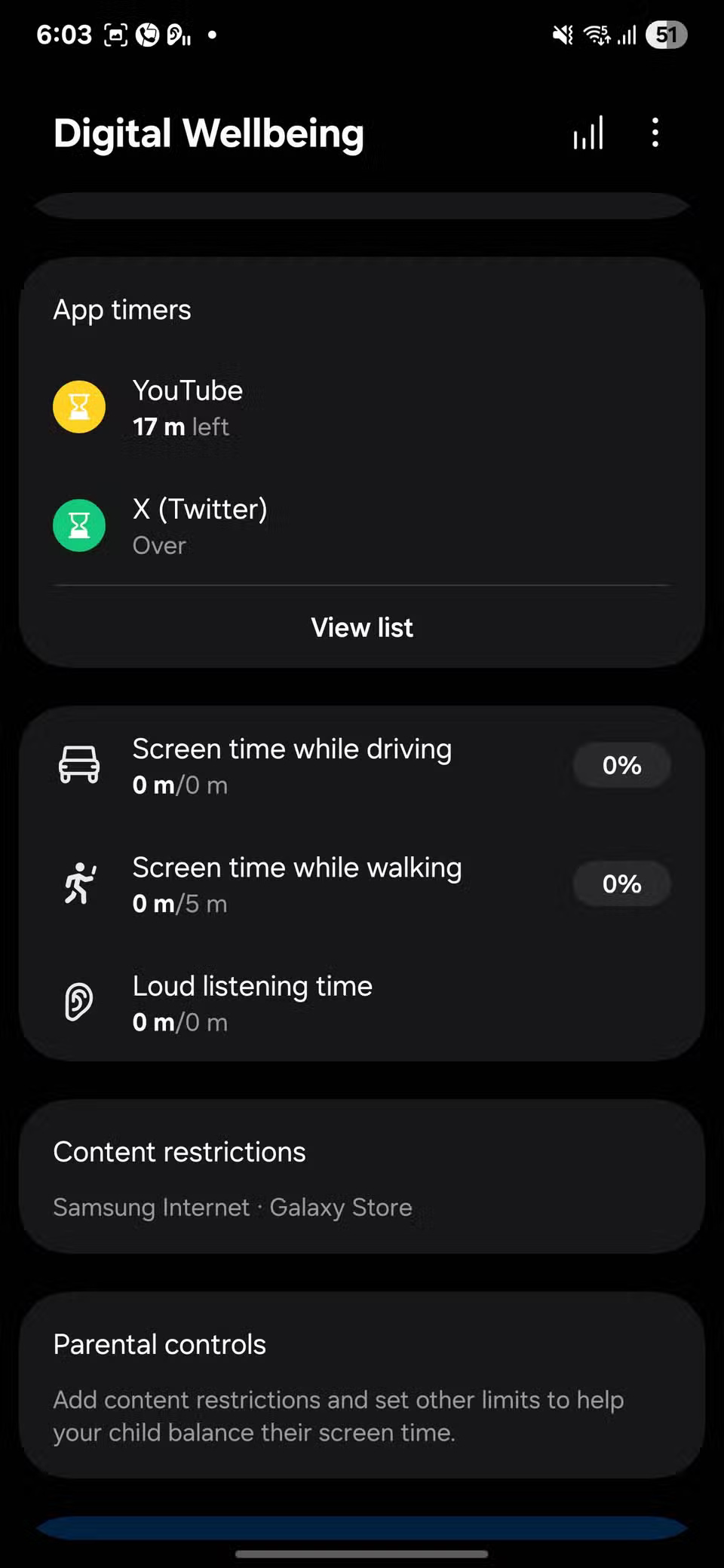
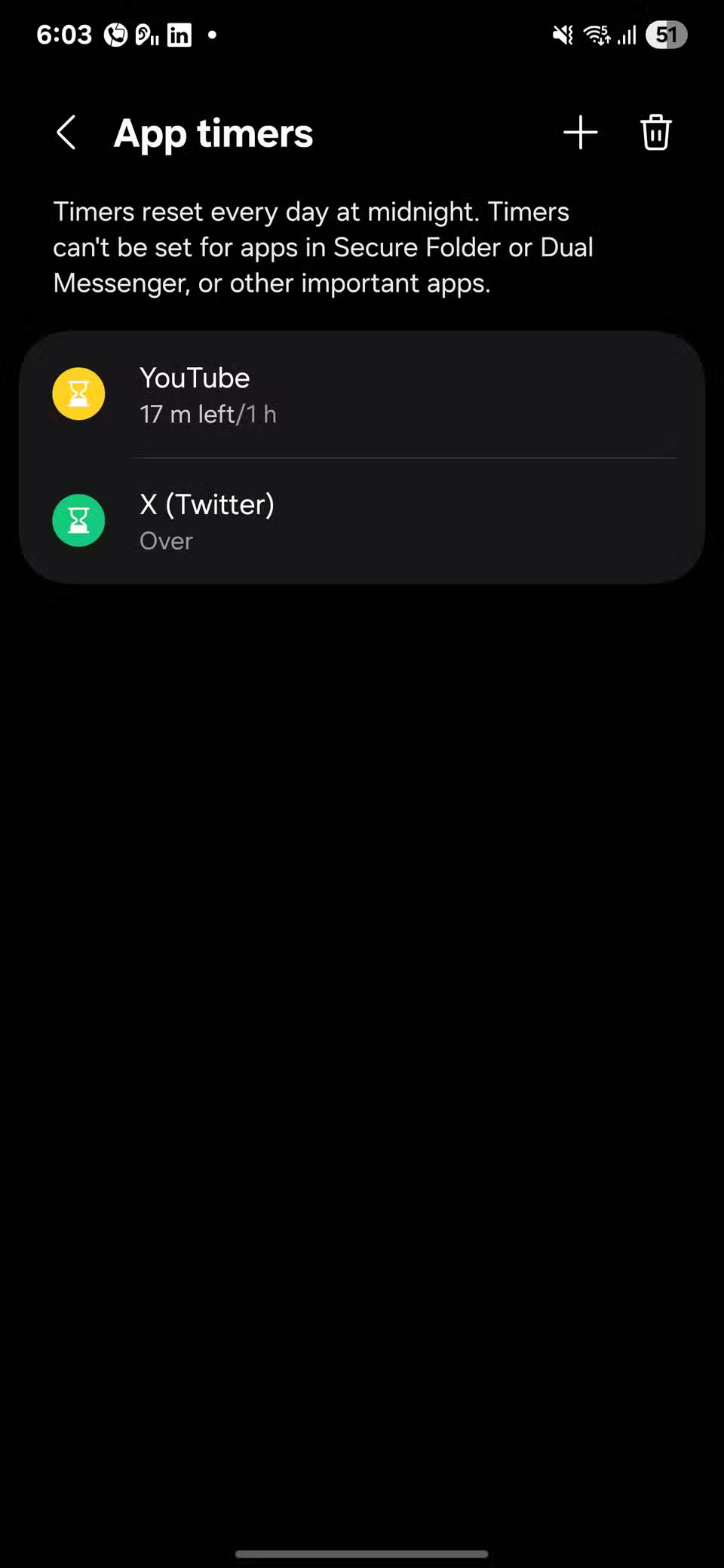
If you want to reduce overall use, look for Screen time goal and choose a target based on a typical week. The goal tracks progress. To limit a particular app, open App timers, choose the app, and set a daily allowance. When the timer runs out, Android generally pauses the app until the daily reset. Keep essential work, communication, and navigation apps available as needed.
Reduce interruptions while working or sleeping
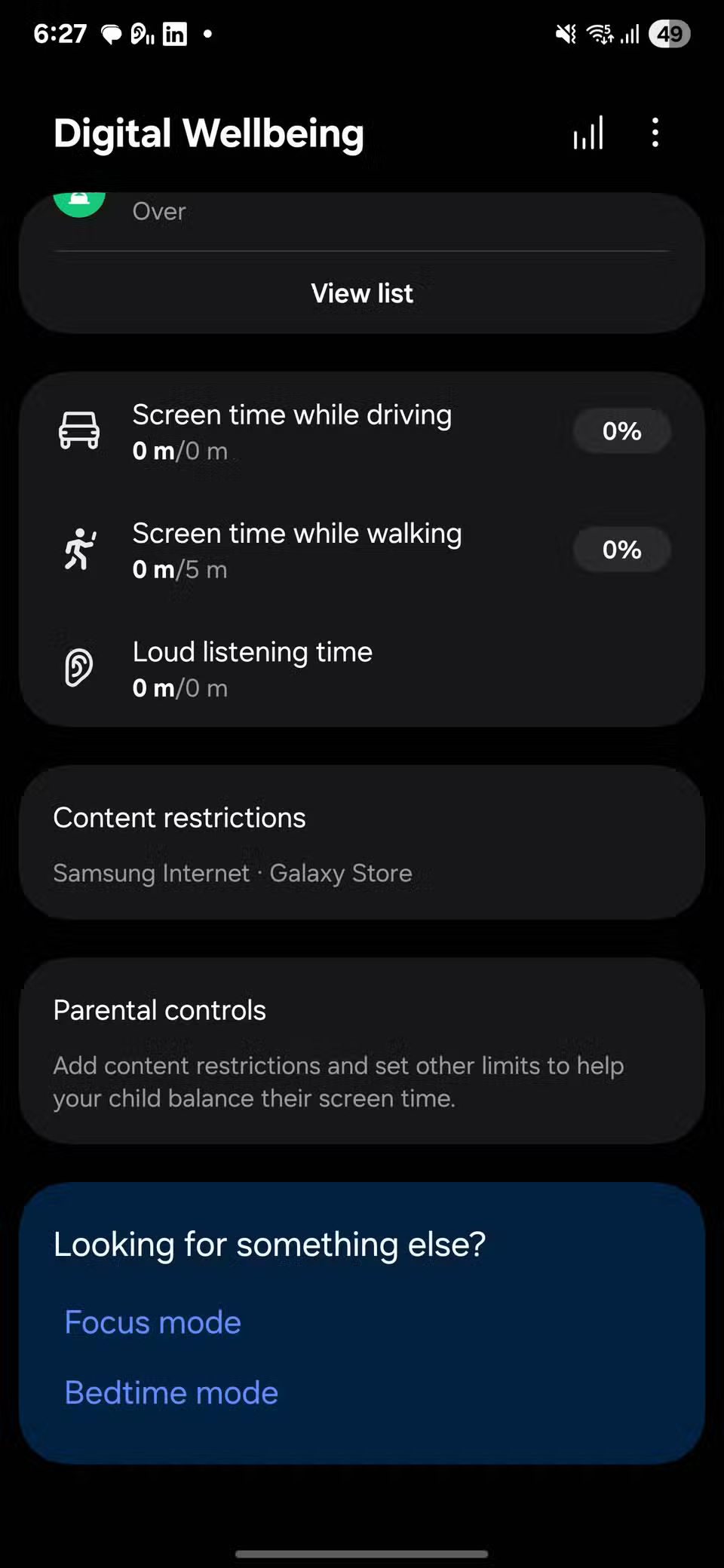
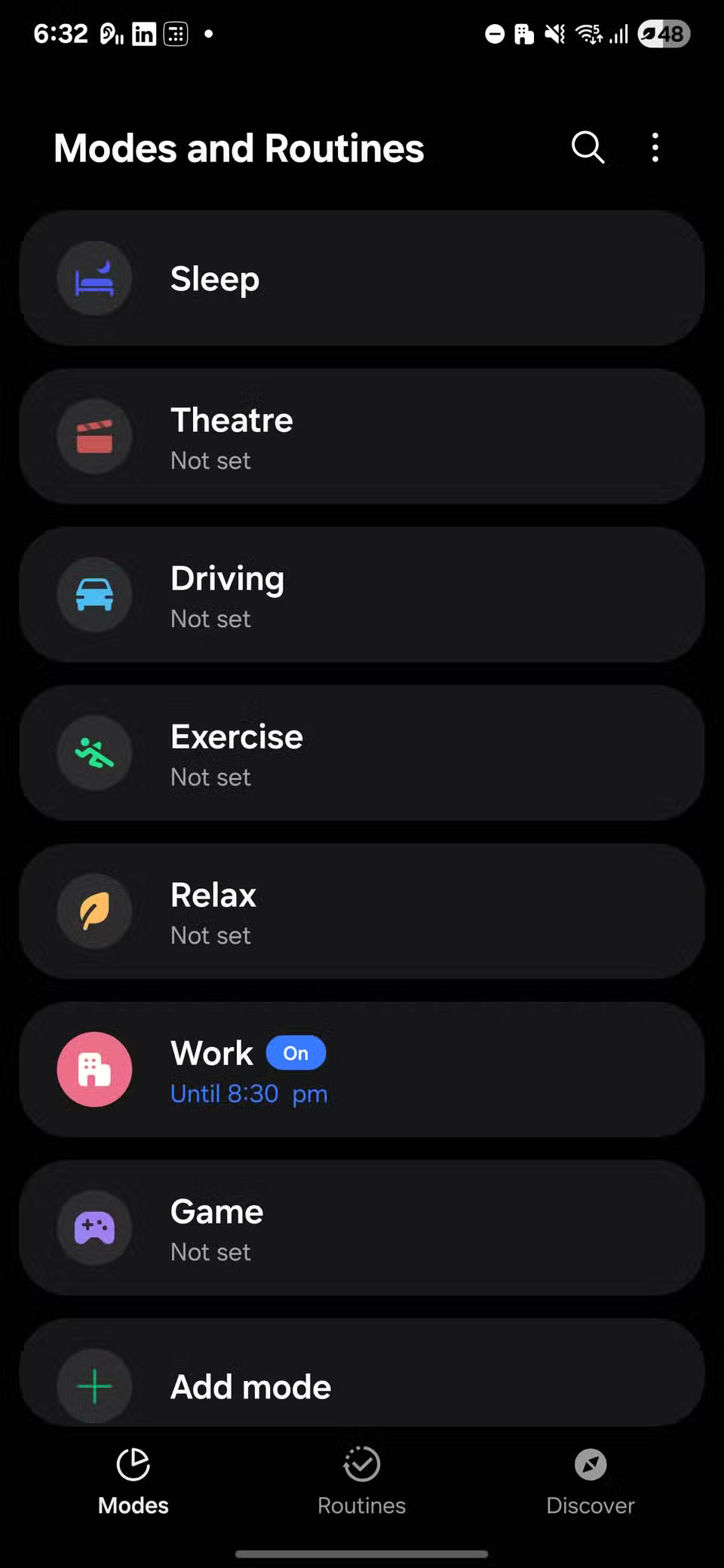
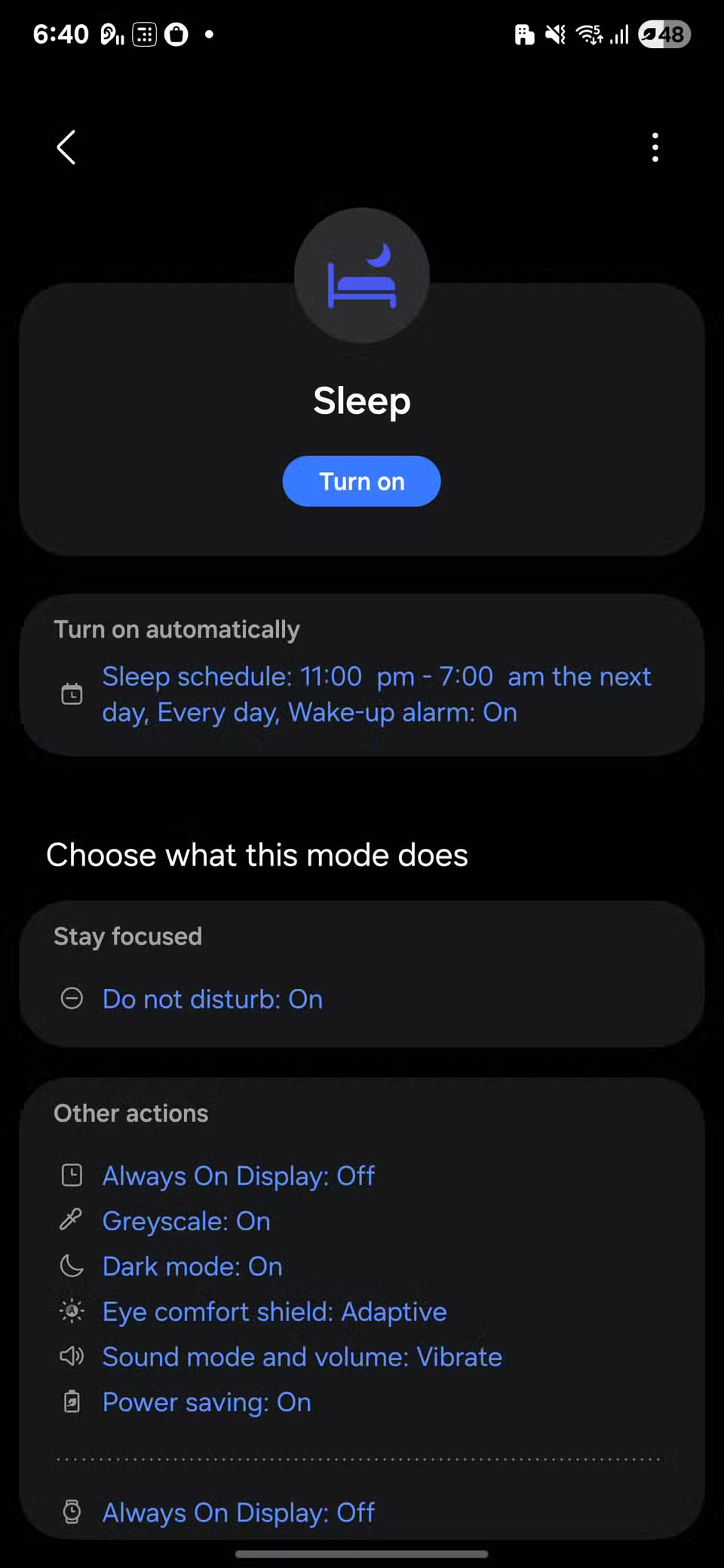
Depending on your One UI version, look for Focus controls or Settings > Modes and Routines. Choose which apps or alerts to limit during a regular activity. For evenings, try Sleep or Bedtime mode where available, and review alarm and call exceptions before scheduling it.
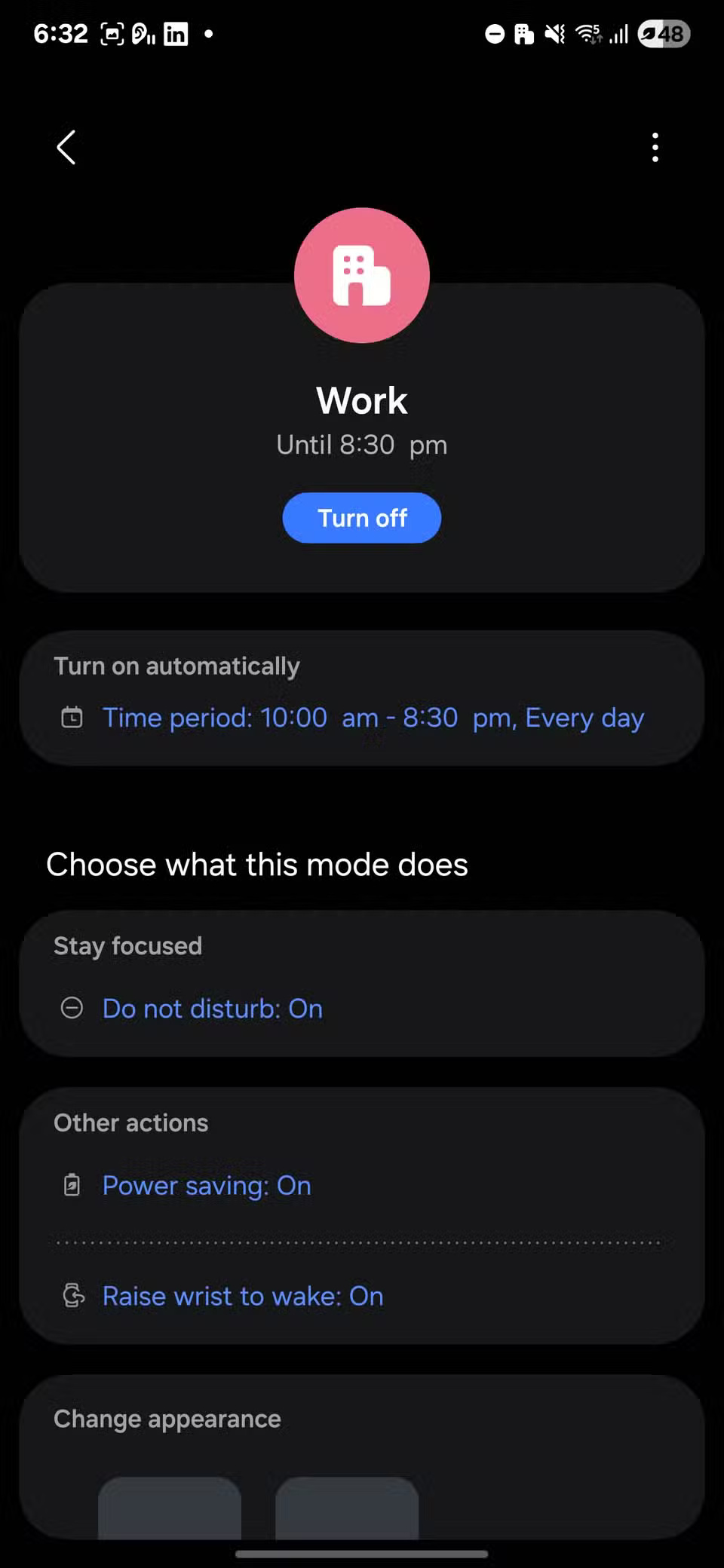
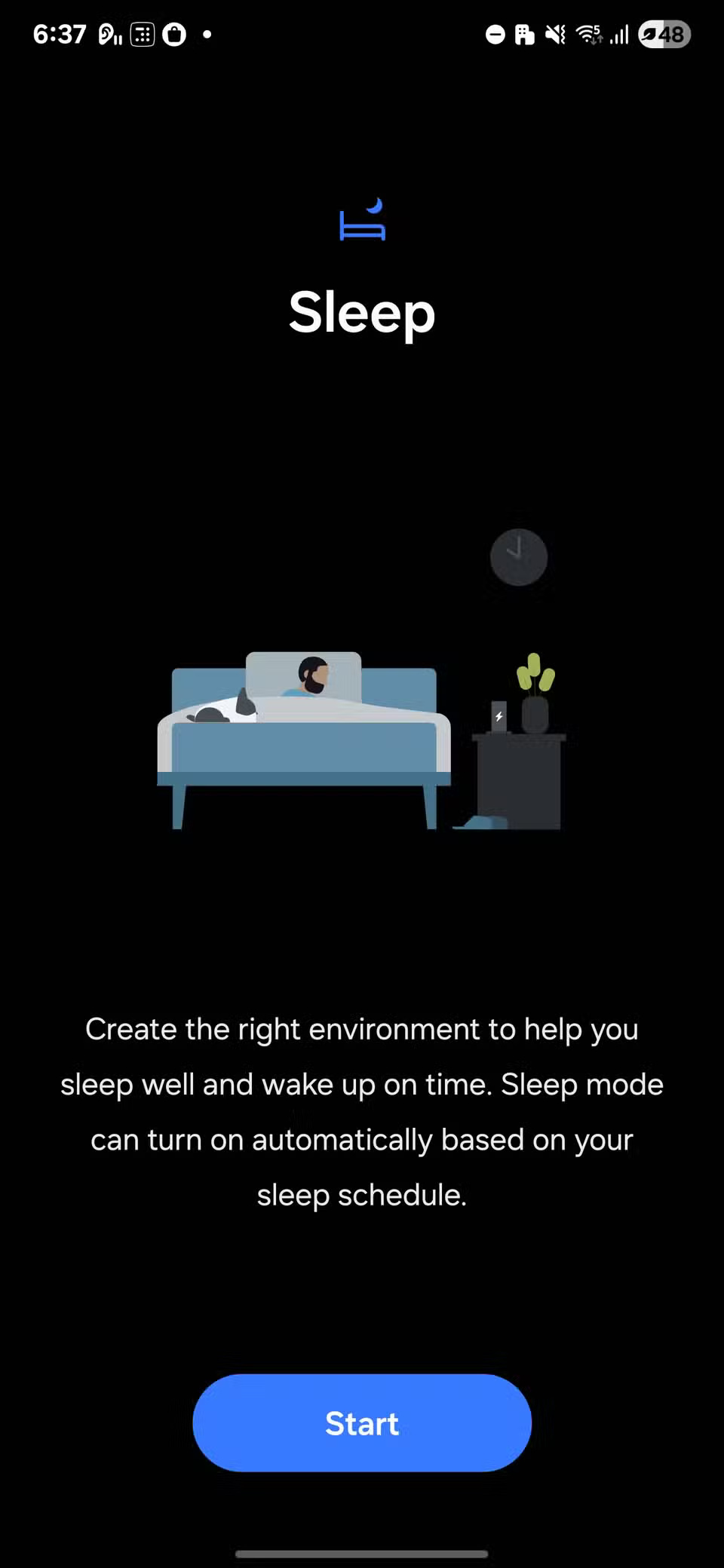
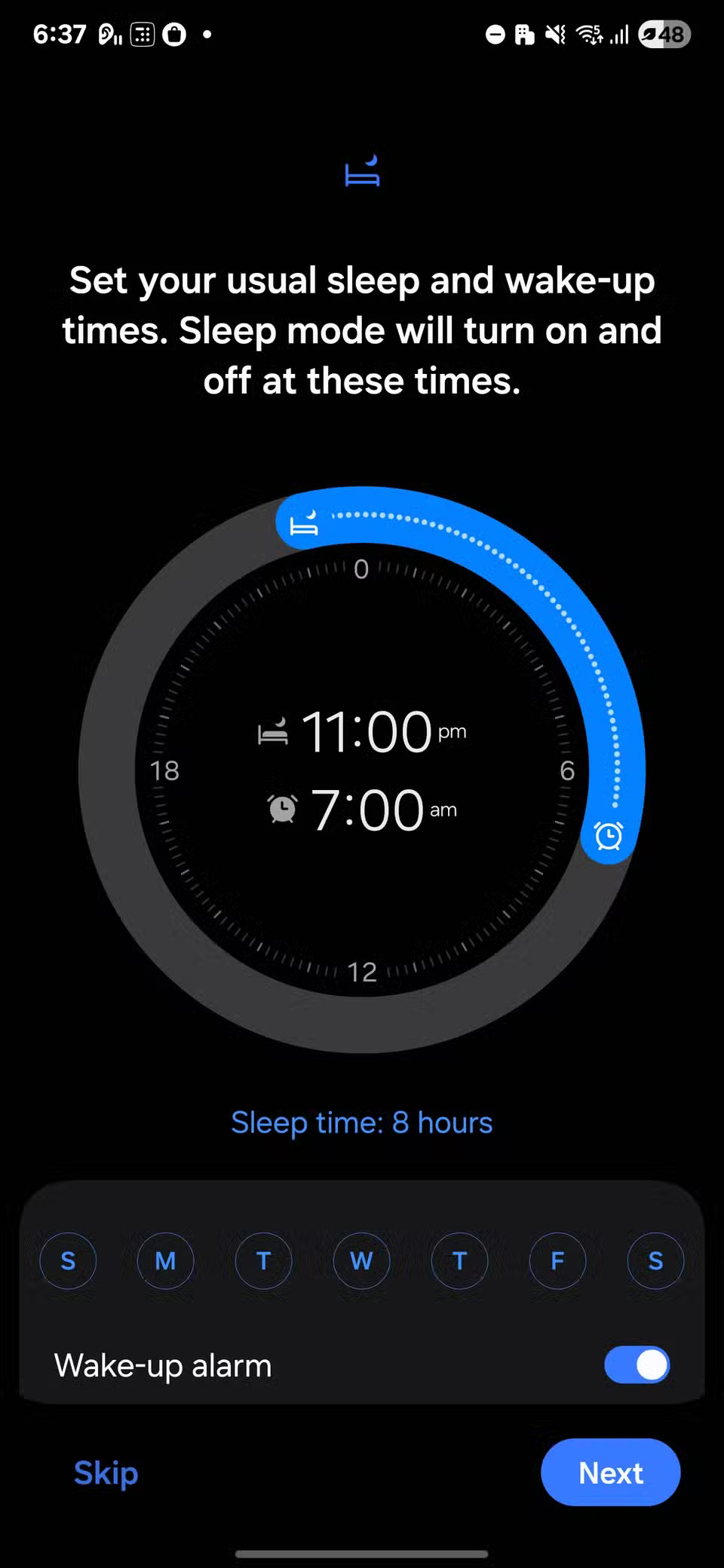
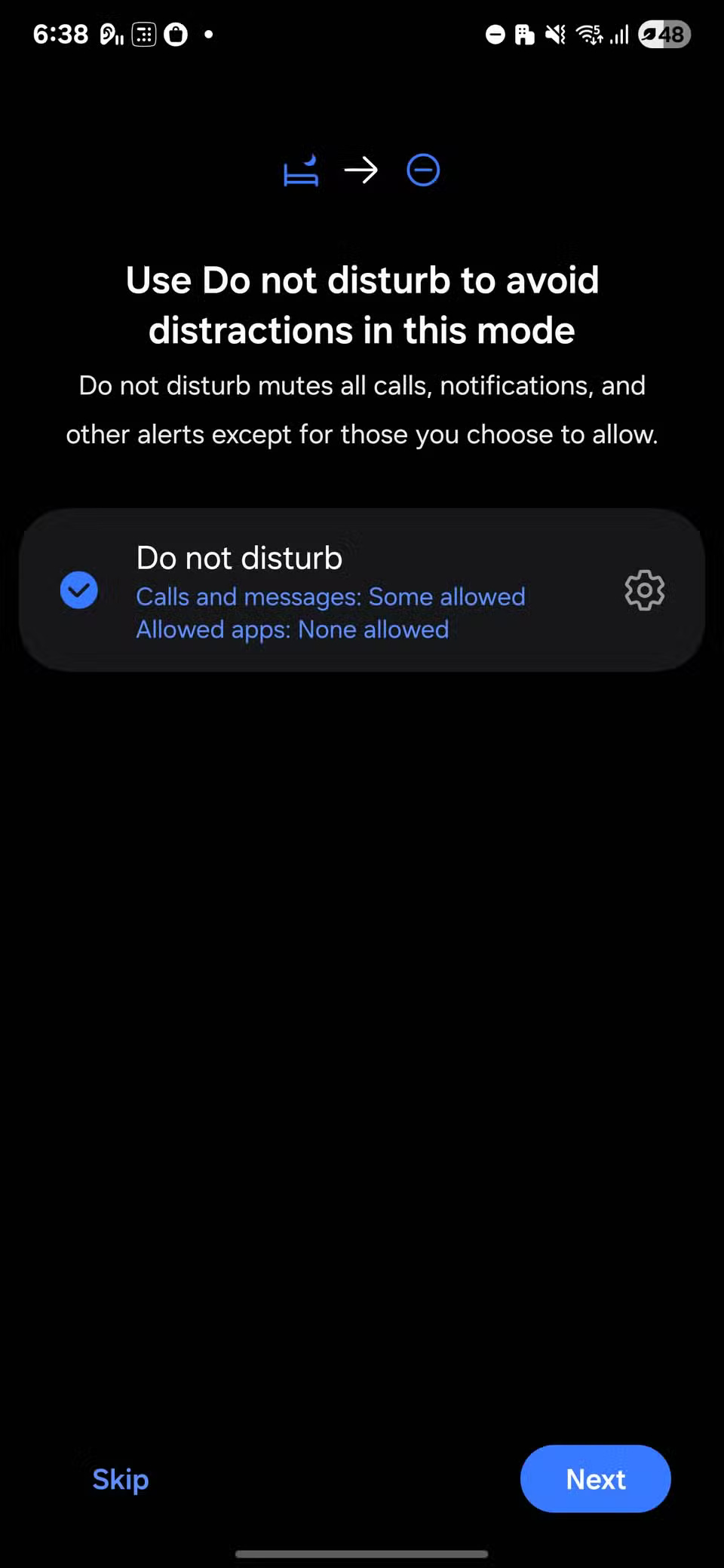
After a week, compare similar days and check whether the setting helped with the specific pattern you wanted to change. Use Samsung’s Galaxy Digital Wellbeing guide for model-specific menus. See also how screen-time reports work on other Android phones and how to set limits inside Facebook.
Related Articles
 Samsung may be building a 5G smartphone for next year
 Worry, depression makes you very addicted to smartphones
 Find Samsung phone, how to locate Samsung when lost
 How to use Samsung Pay, add payment card to Samsung Pay
 Tips to exploit the full potential of the USB port on Samsung phones
 7 Simple Ways to Make Your Samsung Phone Look Less Boring
Reader Comments 0
Sign in with email or Google to join the discussion.