Table of Contents
Brisk can generate a lesson-podcast draft from a topic or uploaded source. To make the audio instructionally useful, give it a specific objective, check the script against the source, listen to the entire recording, and provide students with a transcript or equivalent alternative.
1. Sign in and set the audience
Open Brisk Teaching with a school-approved account.
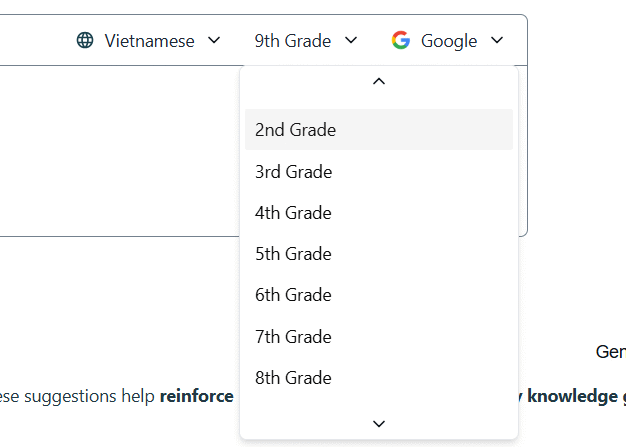
Select the language and grade level for the class. Verify these settings again in the finished script; generated vocabulary and examples can still miss the intended level.
2. Add a reliable lesson source
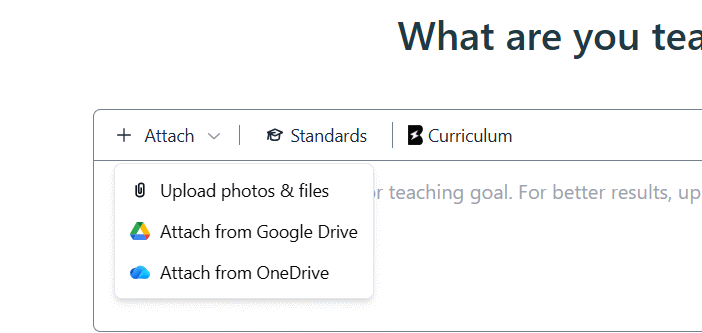
In the creation box, enter the topic or use the plus control to add an approved file, image, webpage, or other supported resource. A named source is preferable when the podcast must match a textbook, curriculum, or reading.
Explain what the source contains and what students should learn. For example:
Use the uploaded pages to create a six-minute review for Grade 9 students. Explain two causes and two effects of urbanization, define key terms in plain language, include one pause-and-think question, and do not add facts not present in the source.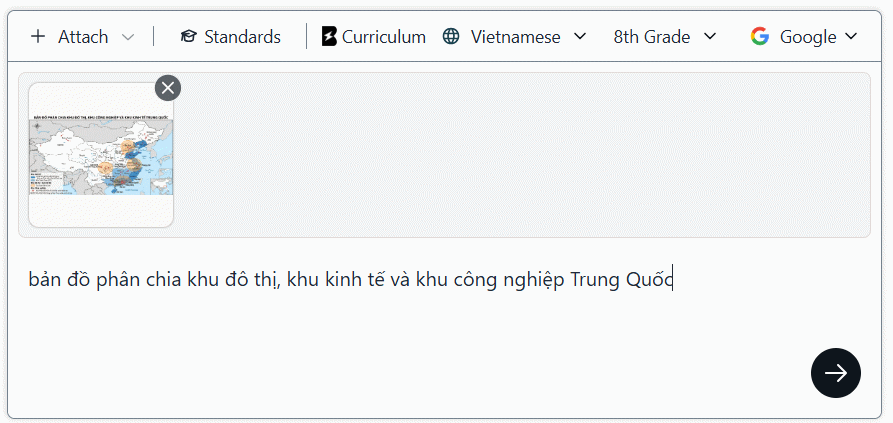
3. Select Podcast and configure the draft
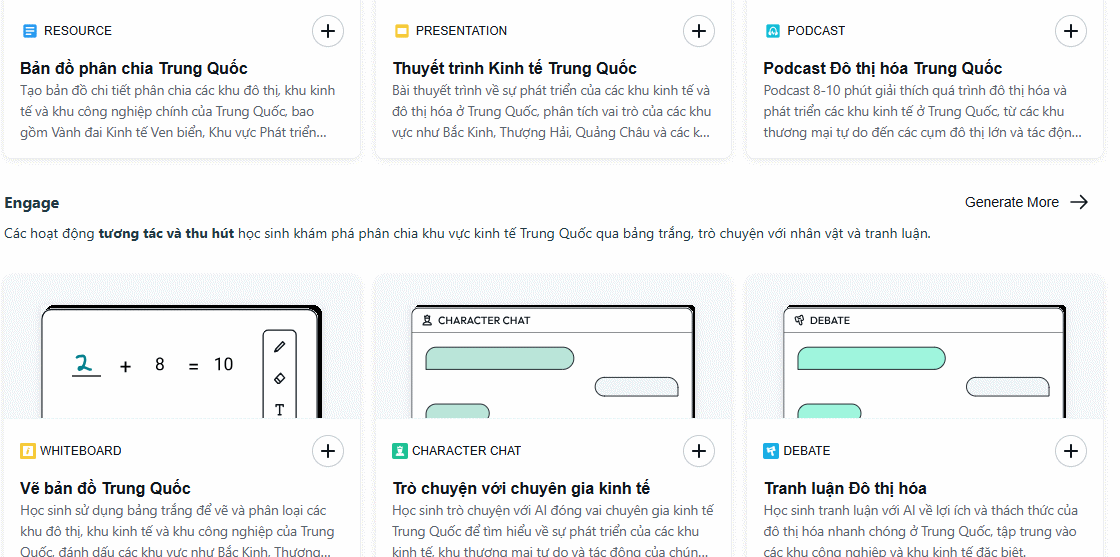
Brisk may suggest several resource types from the same material. Scroll through the options and choose Podcast when audio supports the lesson objective.
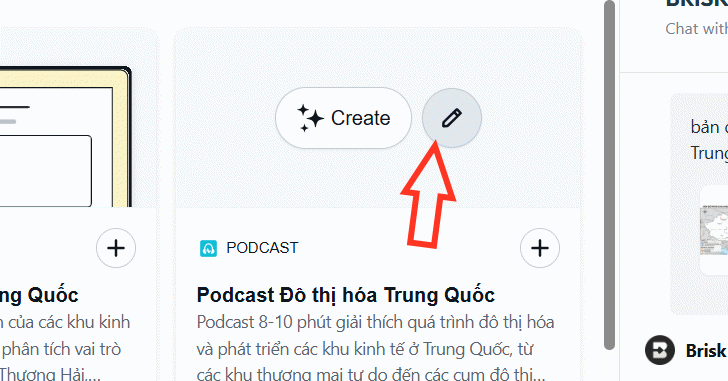
Select the pencil or edit control beside Podcast to change its settings.
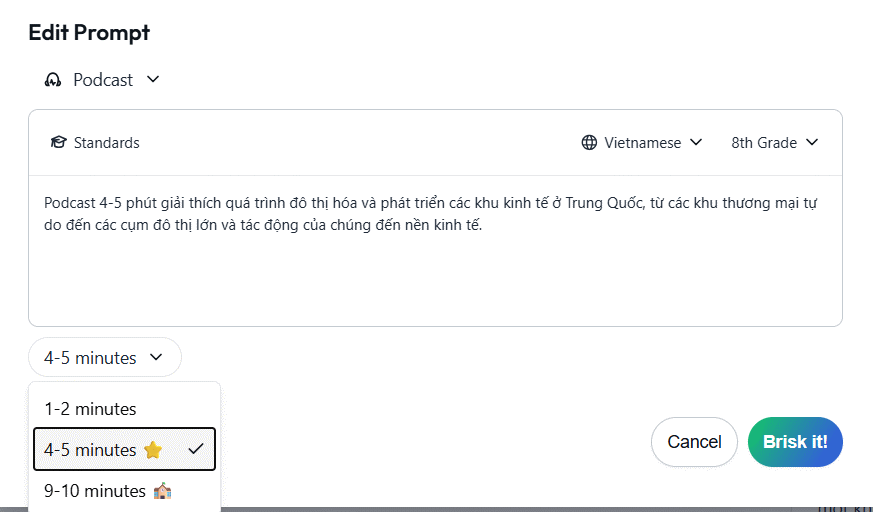
Adjust the prompt and choose a duration that fits the purpose. Shorter audio works well for retrieval or review; a complex explanation may need more time, but length should come from content rather than filler. Select Brisk It or the current create control.
For other teacher-focused options, compare TipsMake's guide to AI applications for teachers.
4. Review the script and listen to the audio
The result page may display the script, speaker segments, and approximate timing. Read the script before relying on the recording. Verify names, dates, definitions, pronunciations, calculations, quotations, and any claimed relationship between events.
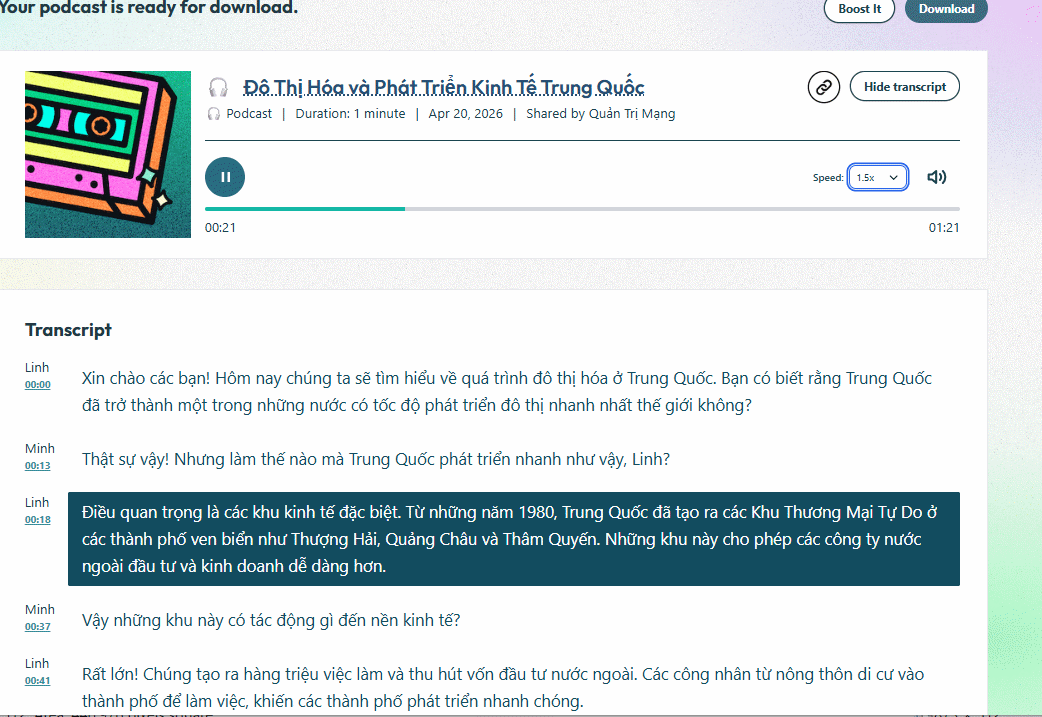
Then listen from beginning to end at normal speed. Check for clipped words, long pauses, mispronunciations, mismatched speakers, awkward emphasis, and audio that moves too quickly for students to take notes. Regenerate or edit the source prompt when a problem affects meaning.
5. Download and provide an accessible alternative
Select Download when the recording has passed review.
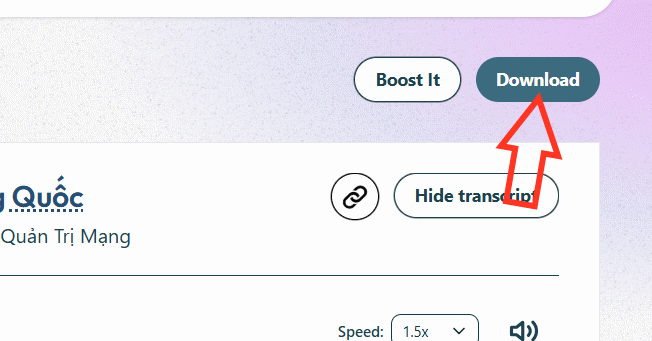
Keep the reviewed transcript with the audio and provide captions or a text alternative where required. Tell students what to listen for and add a task, such as a retrieval question or short note-taking organizer, so the podcast supports active learning.
The following sample from the original guide covers urbanization and economic development in China:
When a podcast is the wrong format
Do not use audio alone for material that depends on detailed diagrams, spelling, equations, or visual comparison. Combine it with the source pages or choose another format. If you need to compare dedicated narration services, see TipsMake's list of AI voice-generator tools.
Before sharing, confirm that the file contains no student information, copyrighted material is used lawfully, and the school's learning platform can play it on student devices.
Related Articles
 How to Quickly Creating Multiple-Choice Questions Using Brisk3 minutes read
 Guide to Creating the Brisk AI Learning Assistant for Students5 minutes read
 How to Turn Gemini Answers into Questions Using Brisk3 minutes read
 Guide to Creating Lecture Slides Using Brisk AI5 minutes read
 How to Create a Personalized Podcast with Copilot Podcasts7 minutes read
 How to Improving Prompt Quality Using Brisk2 minutes read
Reader Comments 0
Sign in with email or Google to join the discussion.