Table of Contents
Brisk can turn a teacher-selected resource or topic into a guided student activity. A useful result depends on the setup: define the learning objective, review the generated guardrails and scaffolding, test the activity as a student, and follow your school’s privacy rules before sharing it.
Before creating the activity
Confirm that Brisk is approved by your school or district and that the plan you use includes the required student-facing features. Review the current privacy notice and school agreement, especially if student names, responses, or progress will be collected.
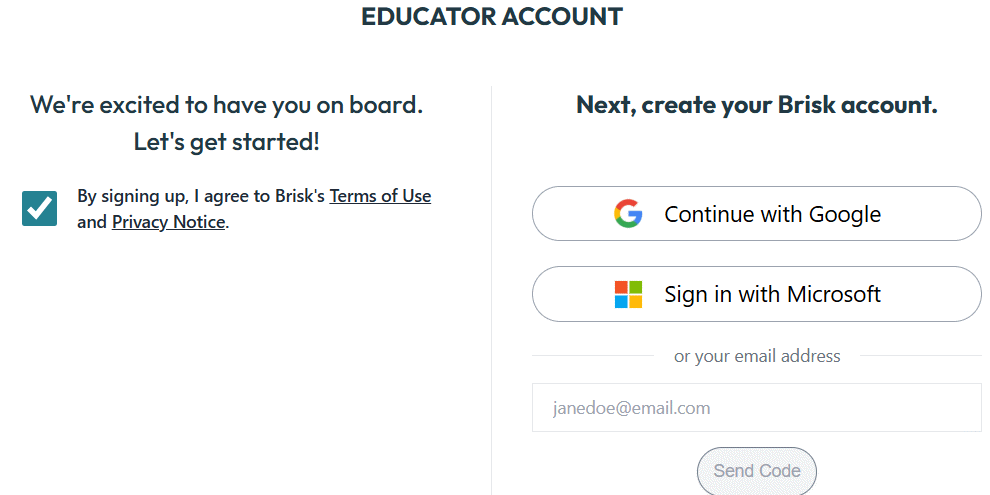
Open Brisk Teaching and sign in with the account authorized for your class.
1. Set the language, grade, and topic
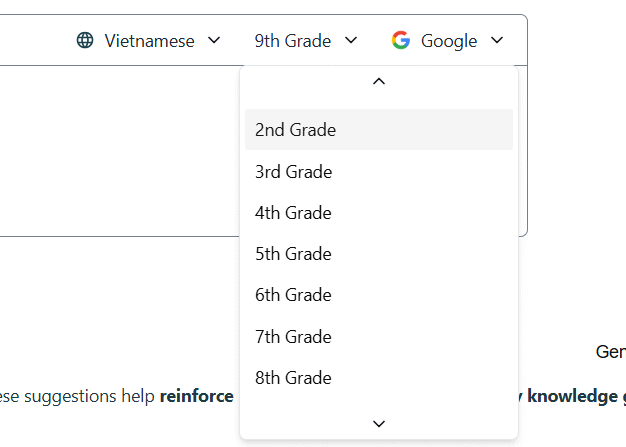
Choose the appropriate language and grade level when those options are shown. These settings guide the initial draft, but they do not guarantee that every explanation will match your students.
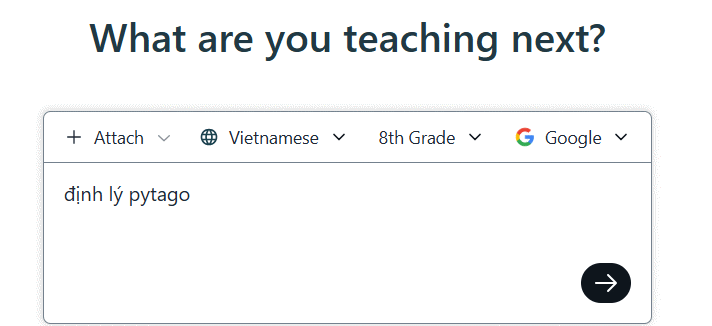
Enter a focused topic in the creation box. Include the specific concept and intended outcome—for example, “Grade 7 students distinguish weather from climate using three supplied examples”—instead of entering only “climate.”
2. Choose a source and activity format
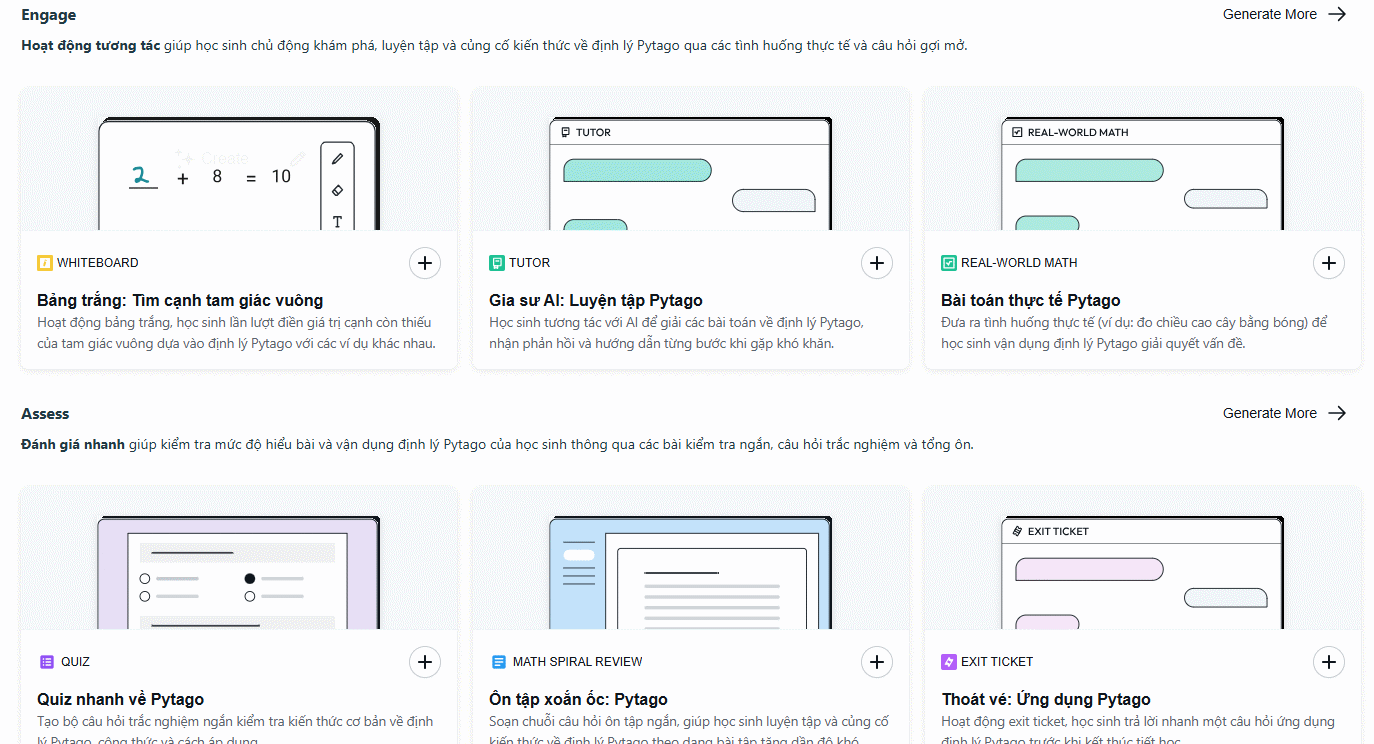
Brisk may offer formats such as presentations, audio, assessments, writing practice, or an AI Tutor. Select a format that supports the learning objective. If students must use a particular text, video, slide deck, or webpage, use that approved resource as the activity's source rather than relying on a broad topic alone.
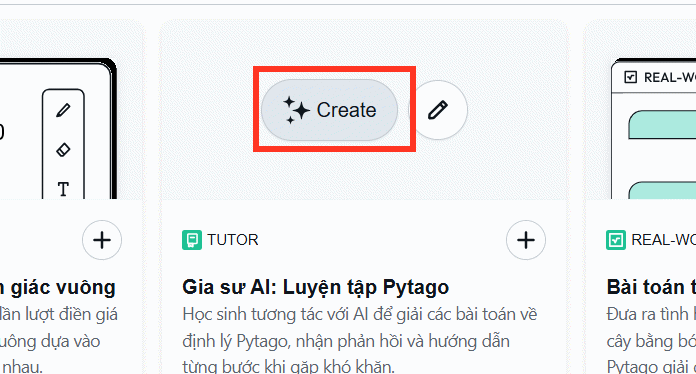
Choose Create in AI Tutor, Boost Student Activity, or the equivalent tutor option displayed in the current interface.
If you are still deciding which classroom product fits the task, compare other AI applications for teachers.
3. Generate the tutor draft
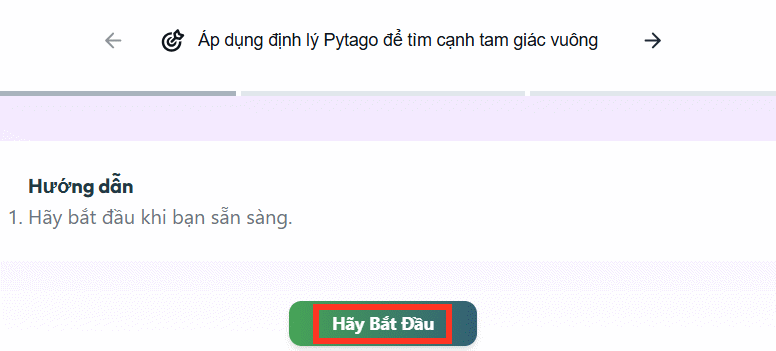
Select Get Started or Continue and supply the requested details. Depending on the activity type, these can include objectives, grade, language, academic standard, time limit, number of objectives, rubric, and additional instructions.
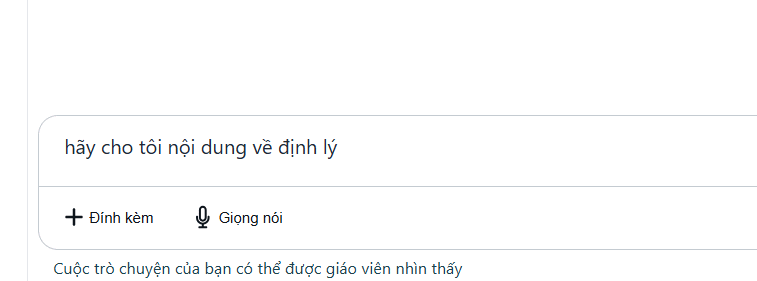
Wait for Brisk to generate the draft, then inspect the student view. Test an on-topic question, an ambiguous question, an incorrect answer, and an off-topic request. The tutor should guide the learner without simply completing assessed work for them.
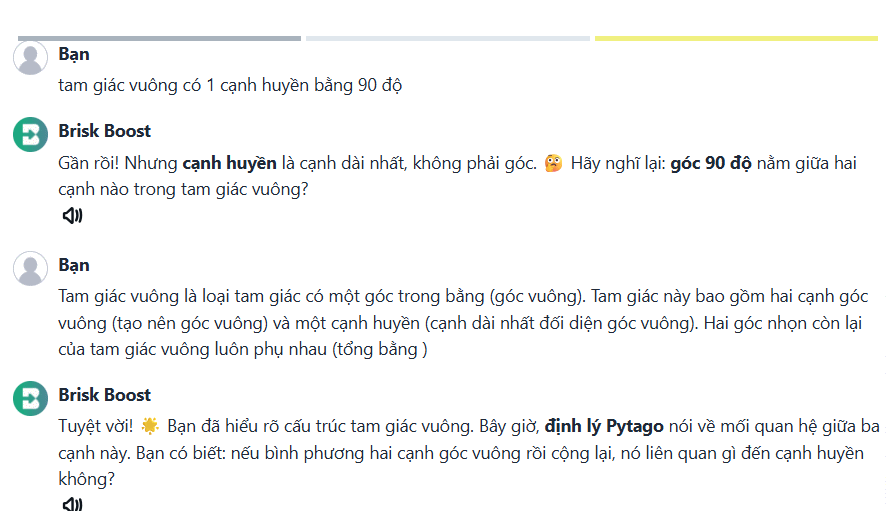
Check whether the tutor asks useful follow-up questions, connects to prior knowledge, and explains errors at the selected grade level. Generated explanations and answer keys still require teacher verification.
4. Edit objectives, guardrails, and scaffolding
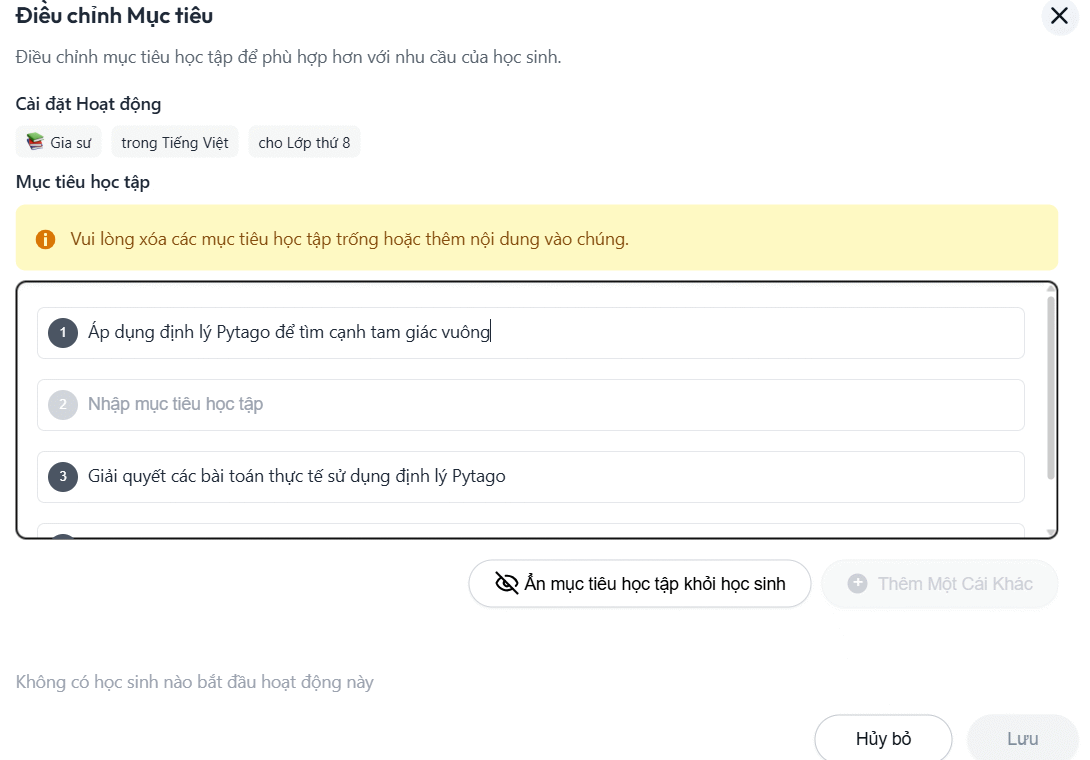
Select Edit and open Activity Goals or the equivalent settings. Replace vague goals such as “understand the topic” with observable outcomes, such as “compare two causes and support the comparison with evidence from the source.”
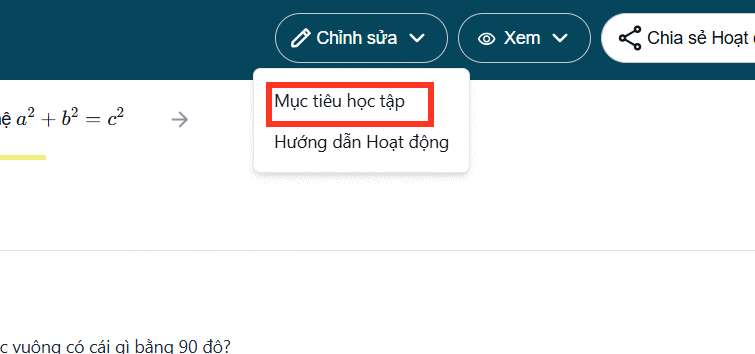
Review any generated objectives instead of accepting them automatically. Also check the tutor's role, prohibited behavior, hints, and support sequence. Add a clear instruction to acknowledge uncertainty and keep responses grounded in the chosen material.
5. Preview and share with students
Complete the activity yourself in preview mode. Confirm that instructions, links, media, accessibility, feedback, and completion criteria work on the devices students will use.
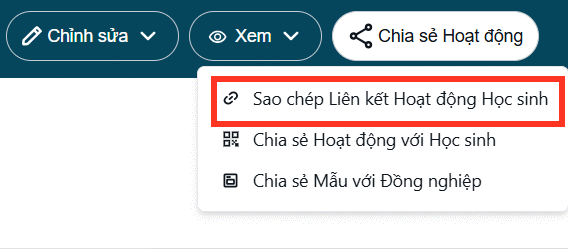
When ready, select Share Activity. Brisk may provide a student link, an activity code, or other classroom-sharing options. Use the method approved by your school and explain what students should enter. Do not tell students to supply extra personal information in the chat.
After the activity, review participation and responses as learning evidence—not as an unquestionable automated score. Follow up in class on common misconceptions and give students a way to report an inaccurate or inappropriate tutor response.
Teacher checklist
- The source and objective are clear and aligned.
- Facts, questions, and answer guidance have been checked.
- The tutor does not complete the assessed task for the learner.
- Privacy, age, and account requirements match school policy.
- The student view has been tested on the intended device.
- There is a non-AI alternative for students who cannot use the activity.
For broader student use beyond a teacher-controlled activity, review TipsMake's comparison of AI tools for high-school and university students and verify each service's current terms before assigning it.
Related Articles
 Guide to Creating Lecture Slides Using Brisk AI5 minutes read
 How to Create Lesson Podcasts Using Brisk AI4 minutes read
 How to Quickly Creating Multiple-Choice Questions Using Brisk3 minutes read
 How to Improving Prompt Quality Using Brisk2 minutes read
 How to Turn Gemini Answers into Questions Using Brisk3 minutes read
 Guide to Creating a Personal AI Assistant on ChatGPT5 minutes read
Reader Comments 0
Sign in with email or Google to join the discussion.